---
title: "Add team members"
space: "Buzz"
url: "https://docs.bwh.tech/buzz/add-team-members"
updated: "2026-10-02"
---
Bring your colleagues into Buzz so they can help run your events. Each person gets a role on your team that decides what they can do.

:::note[Who can add members]
Only a team's **Owner** or **Admin** sees the **Add member** button.
:::
## Steps
1. In the dashboard, click your **name** at the bottom of the left sidebar and choose **Settings**.
You can also press G then S.
2. Under **Team Management**, open **Teams** and click the team you want to add people to.
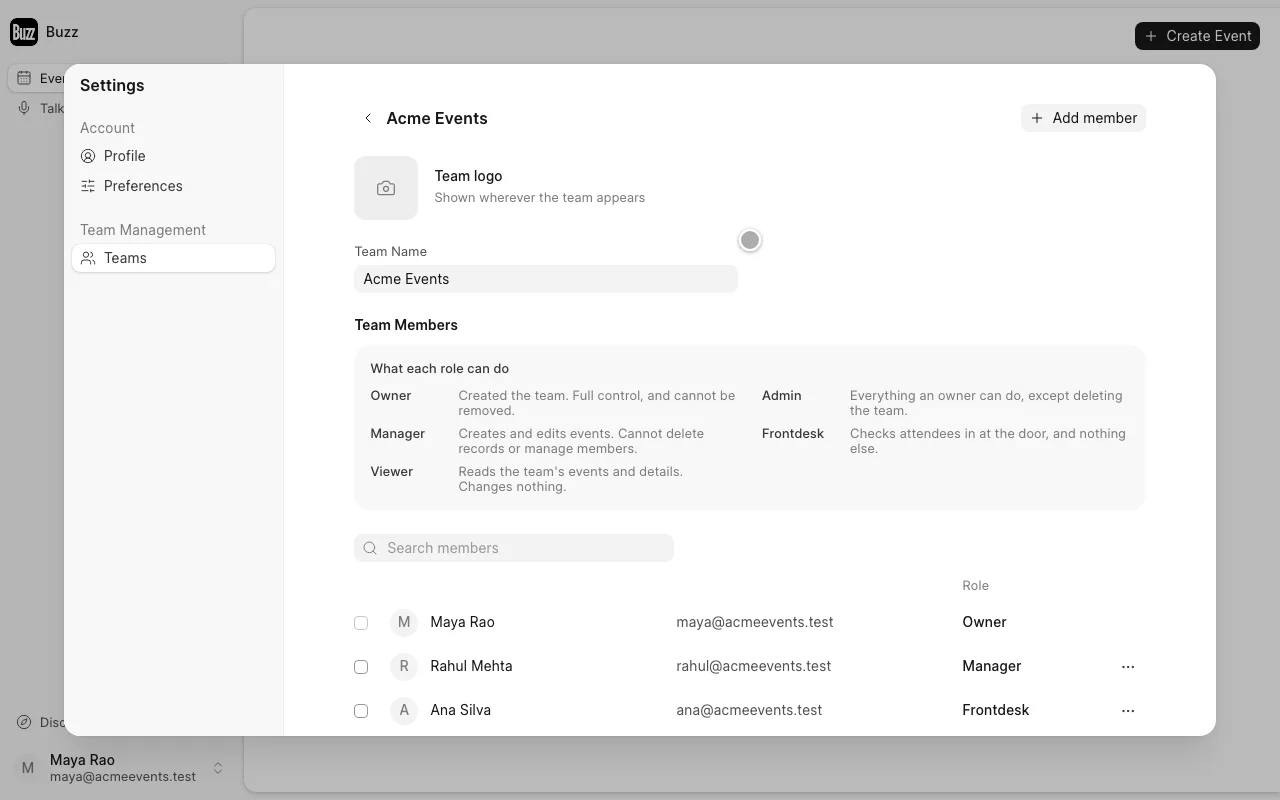
3. Click **Add member** in the top-right corner.
4. Type a colleague's **email** and pick their **role**. A new row opens as you type, so you can add several people at once.
**Tip:** paste a comma-separated list of emails into one row and Buzz splits it into separate rows.
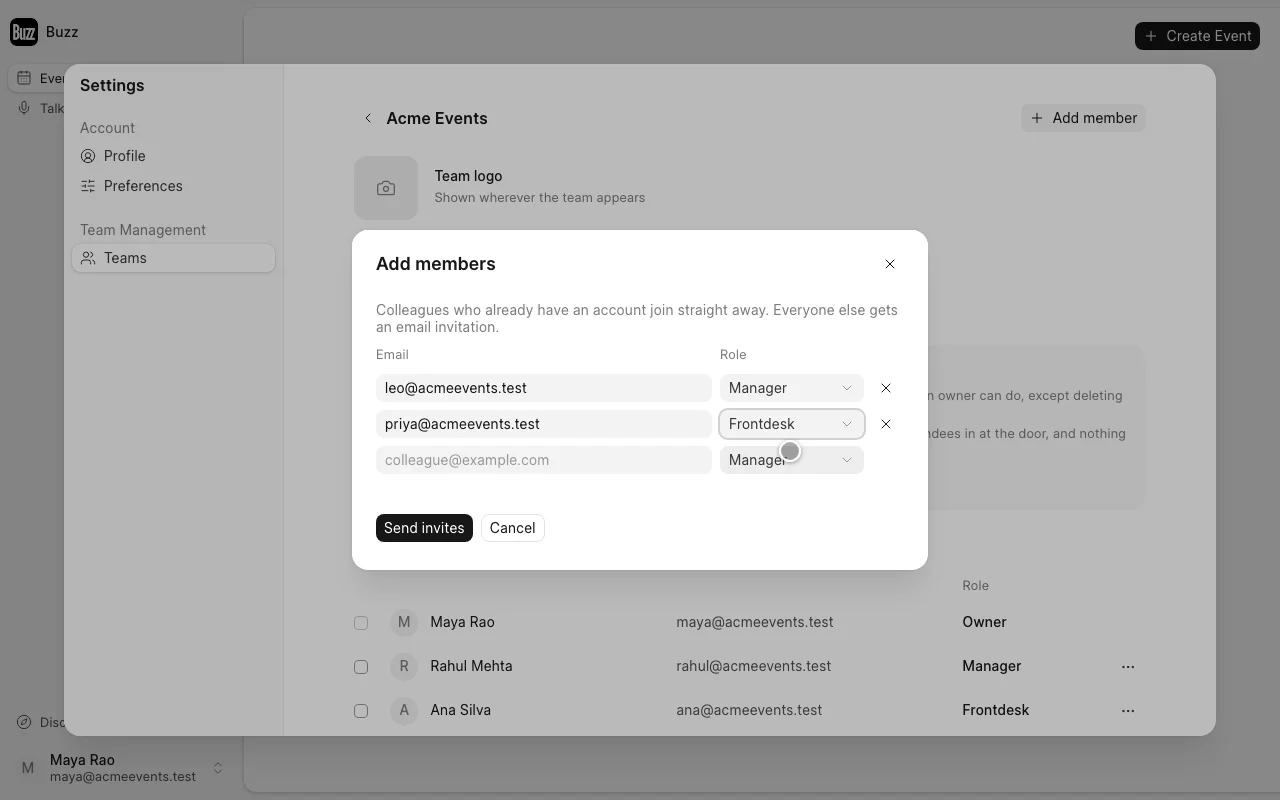
5. Click **Send invites**.
## What happens next
- **People who already have a Buzz account** join the team straight away and show up in the member list.
- **Everyone else** gets an email invitation. They appear in the list as **Invited** until they accept.
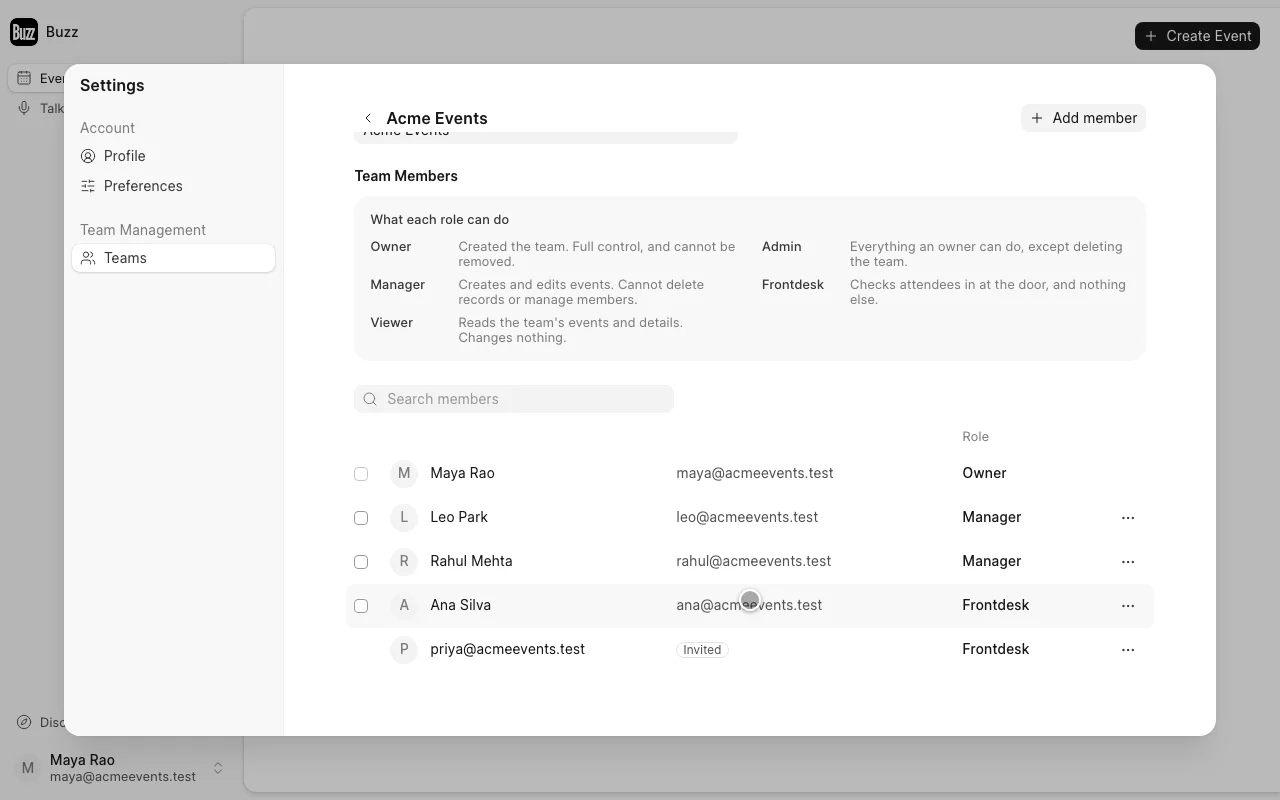
Use the **⋯** menu on a member's row to **Change role** or **Remove** them. On an invited row, use it to **Resend** the invitation or **Retract** it.
## Roles
Pick the role that matches what the person needs to do. See [Teams in Buzz](/buzz/teams#roles) for what each role can do.