---
title: "Hand it to your client"
space: "Commera"
url: "https://docs.bwh.tech/commera/build-a-section-theme/hand-it-to-your-client"
updated: "2026-11-07"
---
Every setting in your `.json` files is a field in the theme editor. This page shows what your client sees, so you know what to tell them.
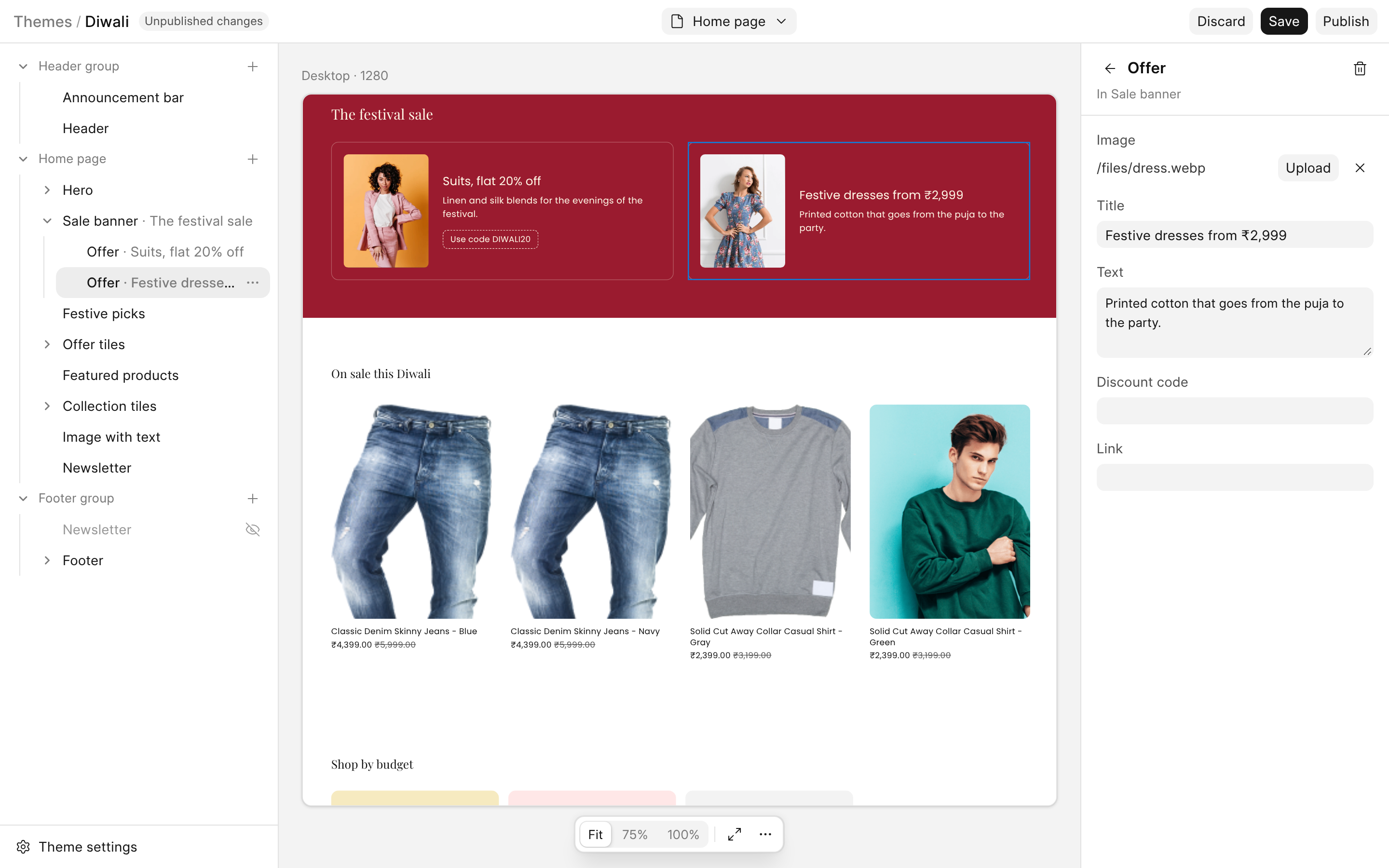
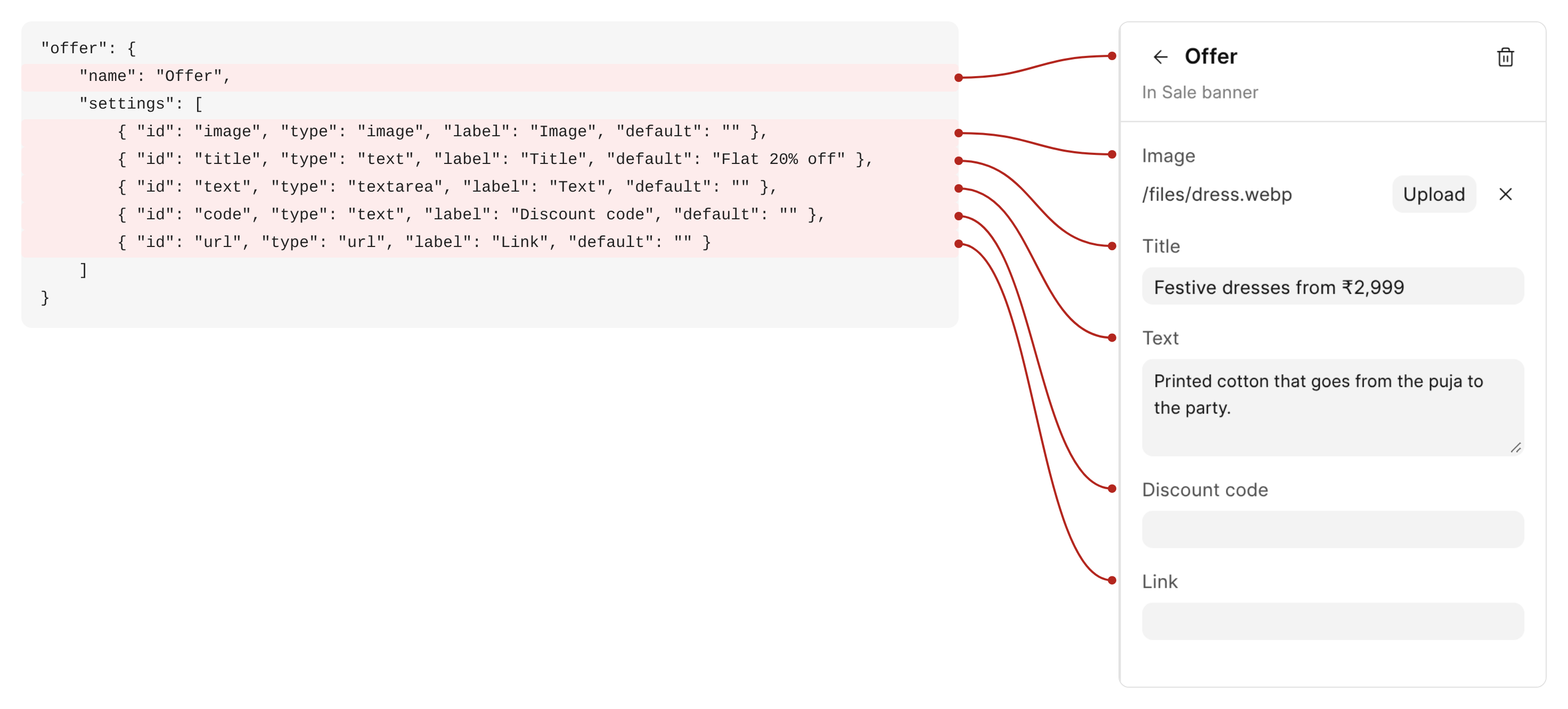 On the left is the `offer` block from `sale_banner.json`. On the right is the form the editor makes from it.
- `name` is the heading of the form.
- Each setting is one field. `label` is the name above it, and `type` says what kind of field it is: `image` makes an **Upload** button, `textarea` makes a box for a few lines, and `text` and `url` make one line.
- The `default` is what the field holds until the merchant types something else.
You wrote no form code. Add a setting to the file and the field is there when you reload the editor.
## What your client does
Your client needs a login to `/commera`. Then:
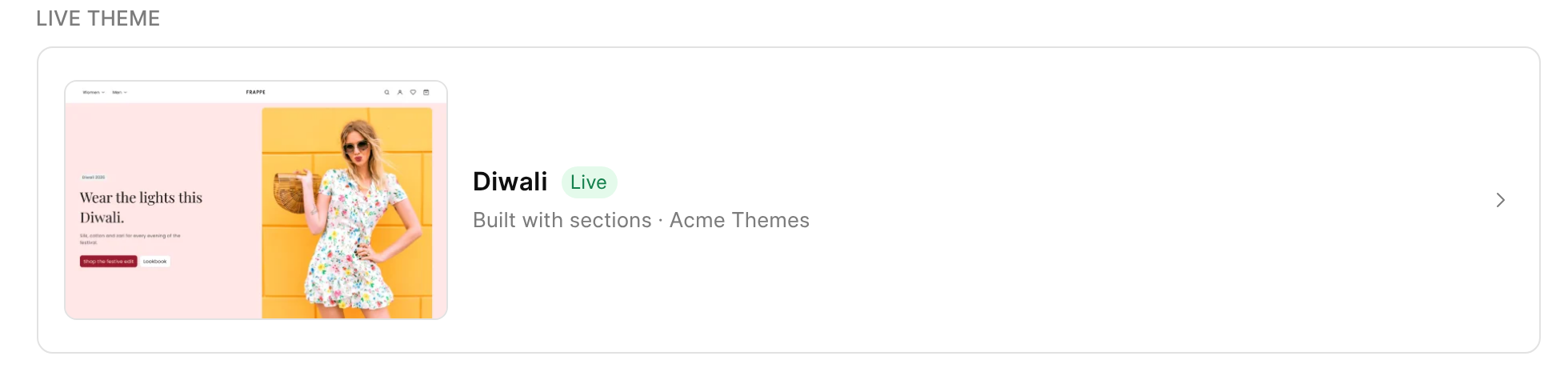
1. Open **Storefront**, then **Themes**, and click **Diwali**.
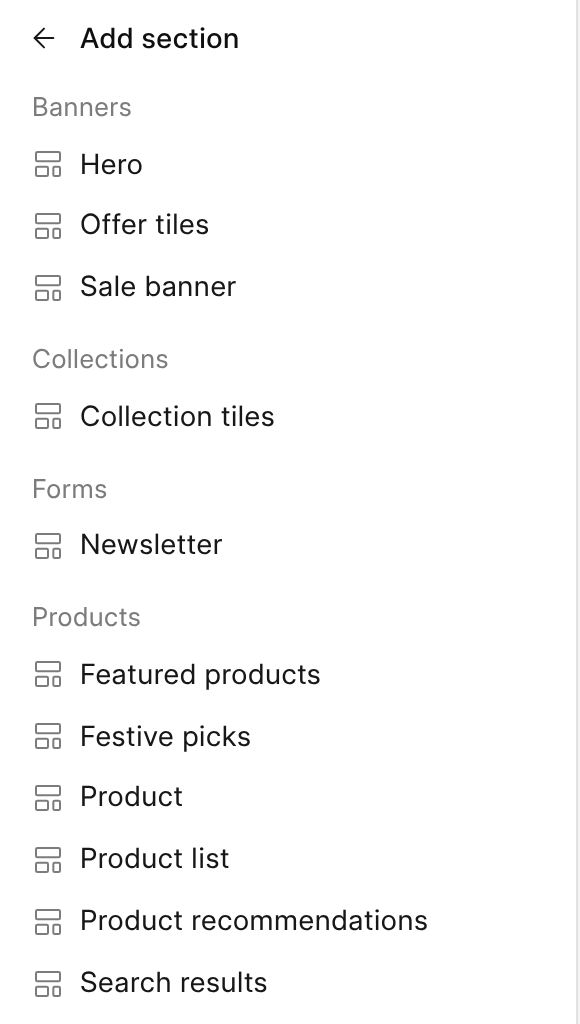
 2. Add a section. Click **+** next to **Home page**. Your sections are in the list, in the groups you gave them with `category`.
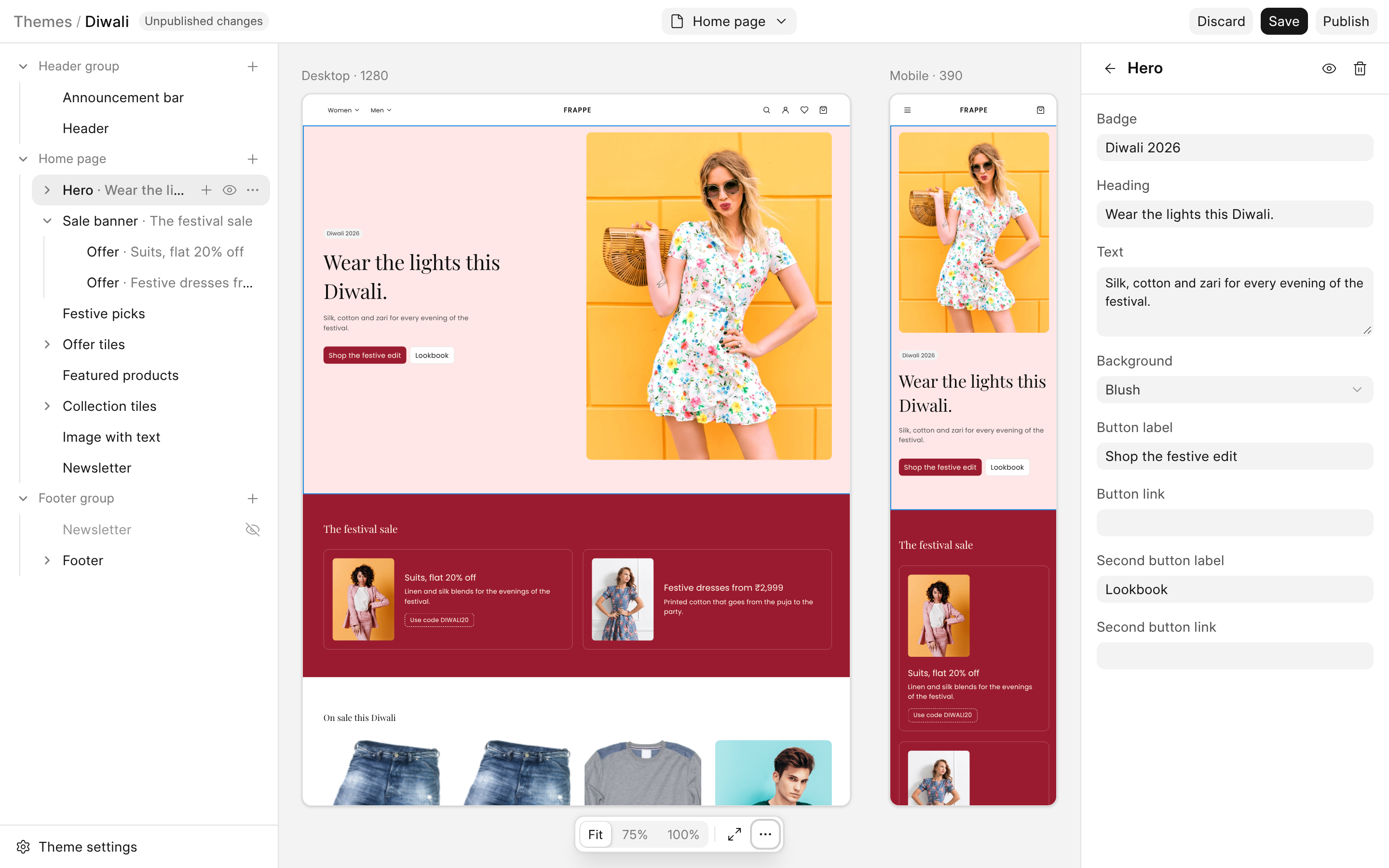
 3. Change the words. Click **Hero** in the list on the left. The form on the right has the fields from `hero.json`. The preview changes as they type. The **Background** drop-down is the `select` you made.
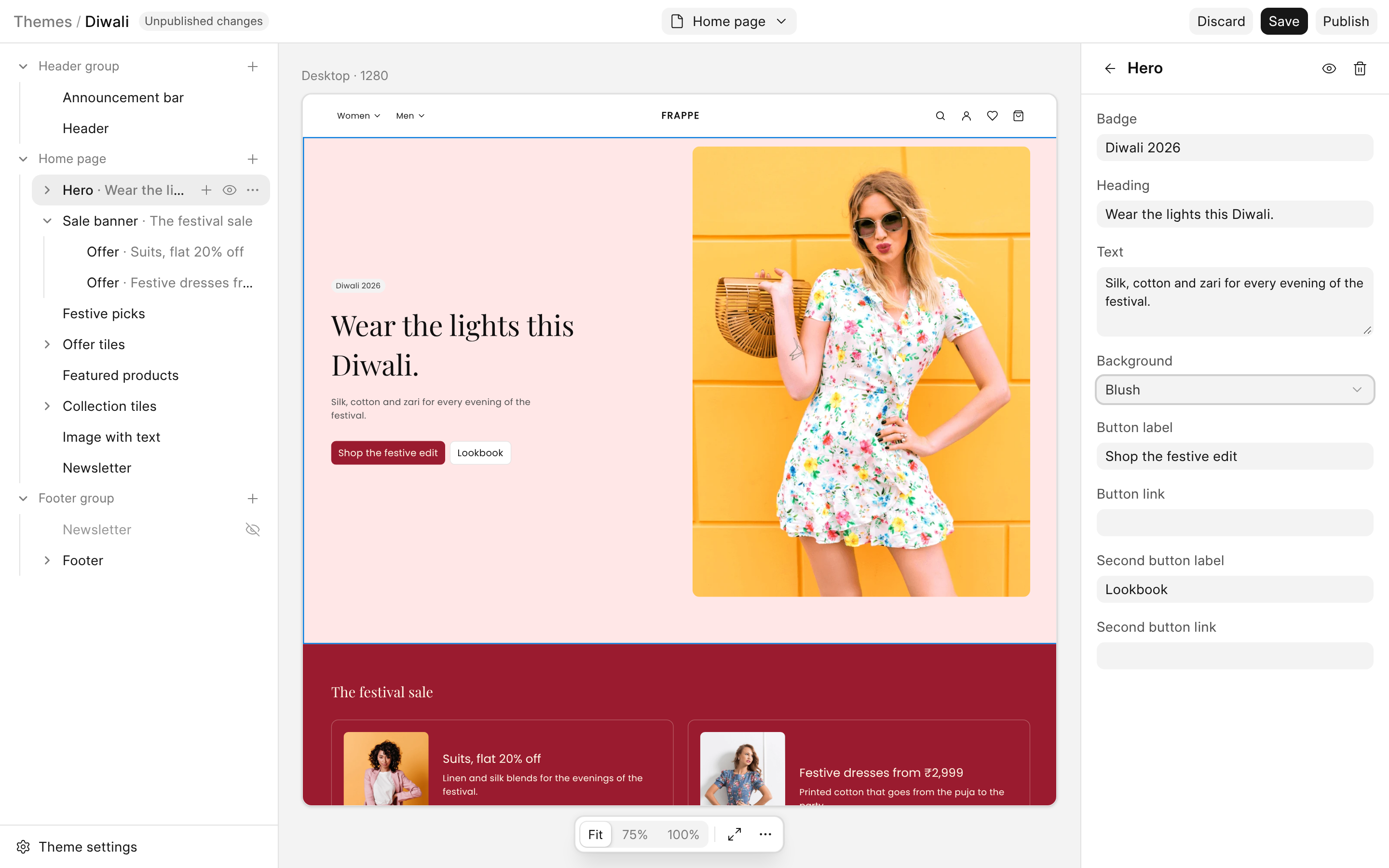 4. Swap a photo. Click the arrow next to **Sale banner**, then click the second **Offer**. Click **Upload** next to **Image** and choose a photo from the computer.
 5. Compare desktop and mobile. Click the **...** button under the preview, and choose **Desktop and mobile**, the third icon.
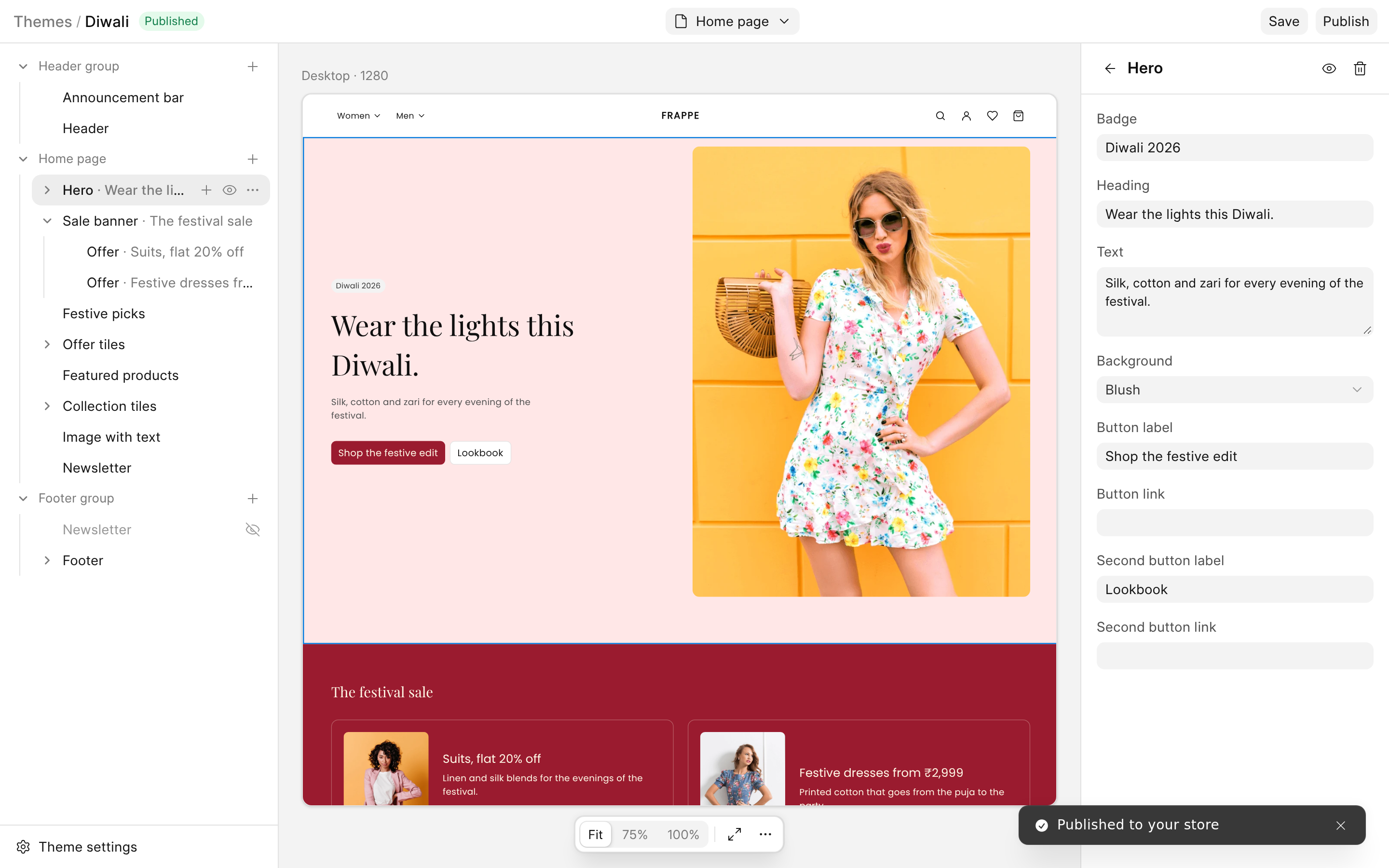
 6. Click **Save**, then **Publish**. **Save** keeps the changes as a draft, and the badge at the top says **Unpublished changes**. **Publish** puts them on the store.
 ## Colours and fonts are separate
Colours and fonts are not in a section. The client opens **Theme settings**, at the bottom left, and changes **Brand Colour** or a font. This panel has its own **Save** button at the bottom, apart from the **Save** and **Publish** at the top.
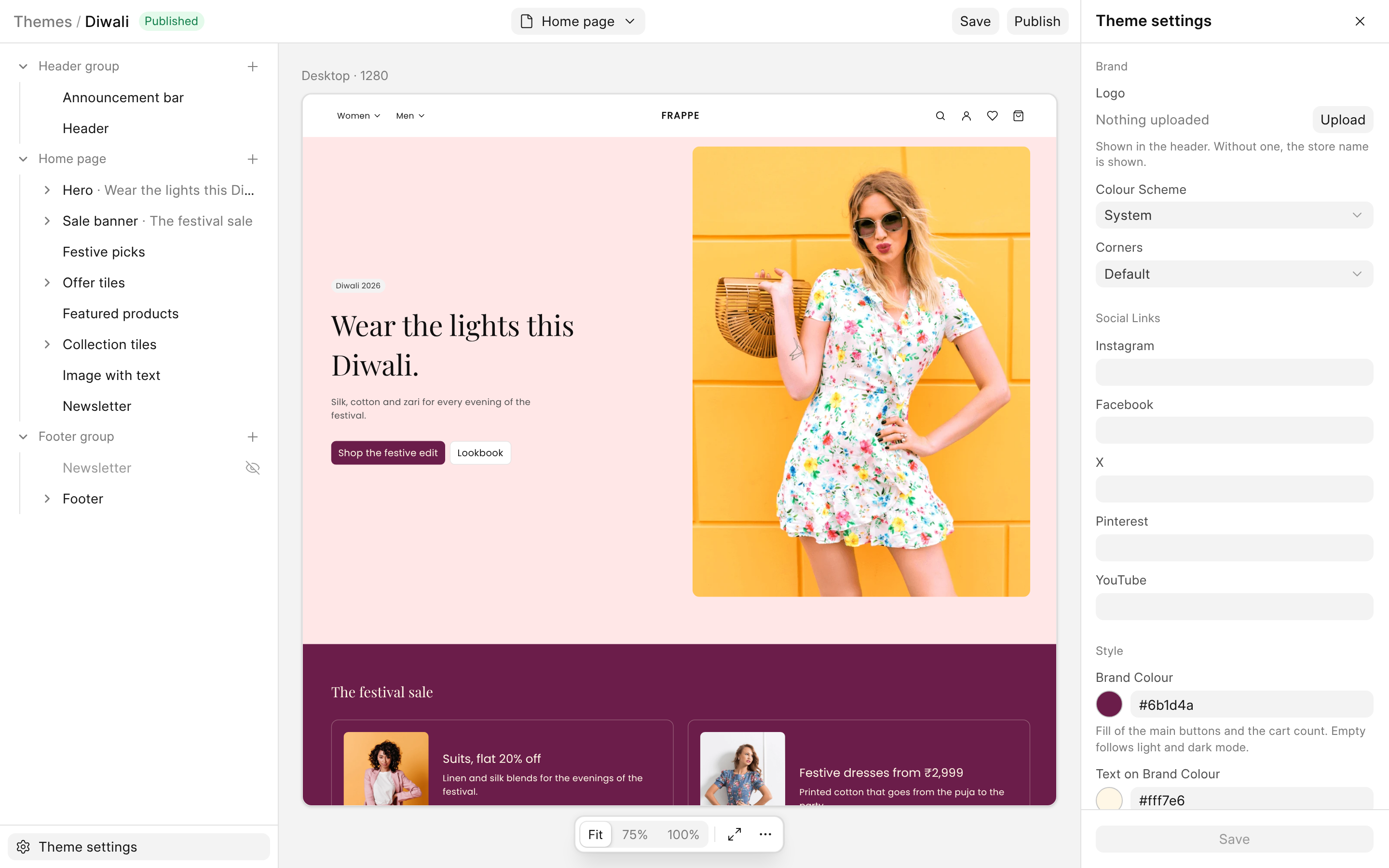 The change reaches the store as soon as the panel's **Save** is clicked. **Publish** is not needed.
:::note[Theme settings need the live theme]
The panel is for the live theme. If the theme is not live, the panel says "Activate Diwali to change its settings."
:::
## What to tell your client
- **Save** keeps a draft. **Publish** makes it live.
- Colours and fonts have their own **Save**, and need no **Publish**.
- Photos they upload are kept on the site. They are not in your app.
- Their changes stay on their site. If you change a section file later, a page they have published does not pick it up. [Ship it](/commera/build-a-section-theme/ship-it) explains why.
## Next steps
- [Ship it](/commera/build-a-section-theme/ship-it)
- [Section reference](/commera/build-a-section-theme/section-reference)