---
title: "What you will build"
space: "Commera"
url: "https://docs.bwh.tech/commera/build-a-section-theme/what-you-will-build"
updated: "2026-11-07"
---
A festive Diwali theme for a client's clothing store. You write it in code. Your client then makes it their own in the theme editor.
You start from Commera Starter, the theme that comes with Commera. It is plain on purpose. Here it is, and here is the Diwali theme you make from it.
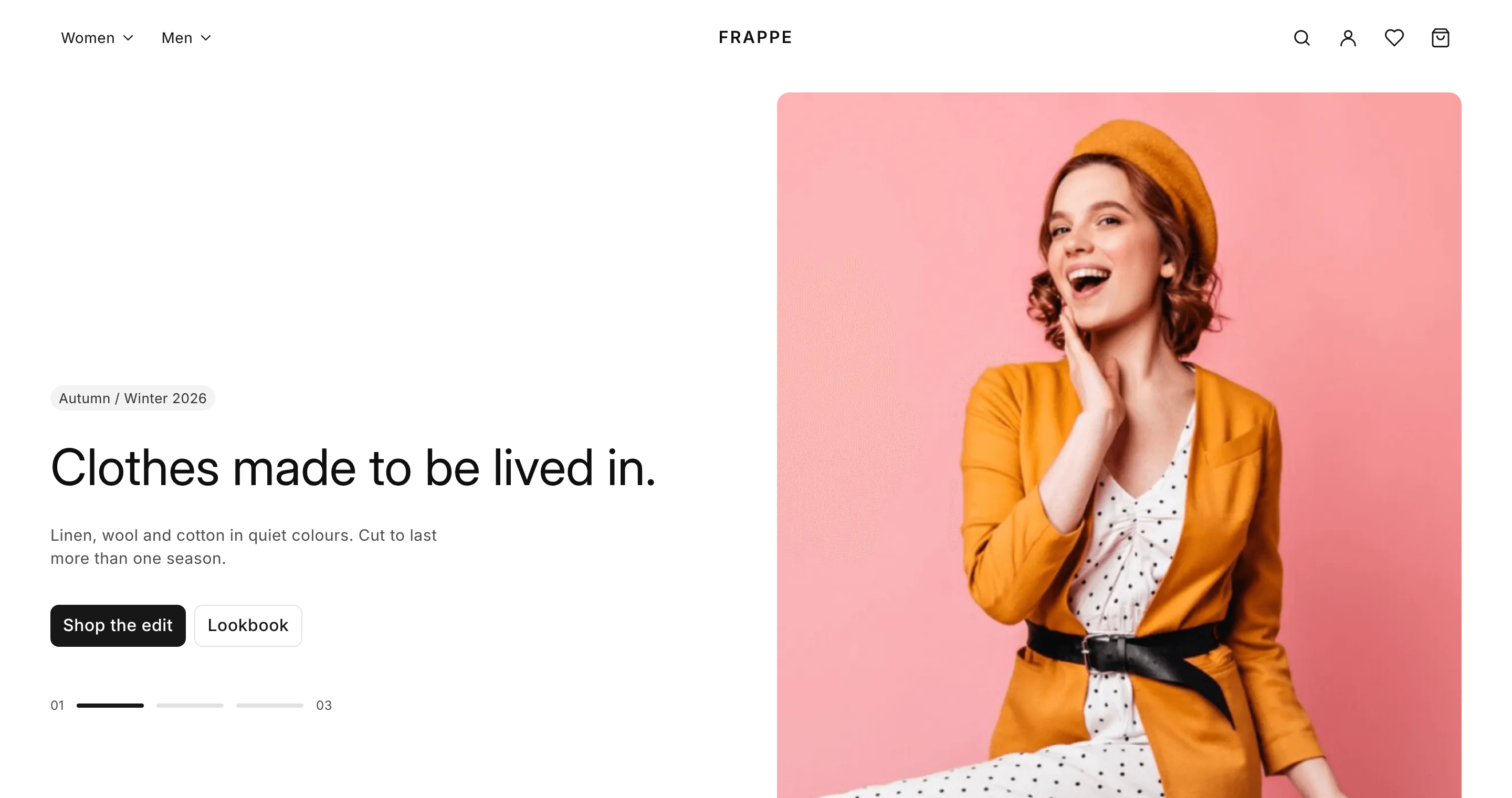
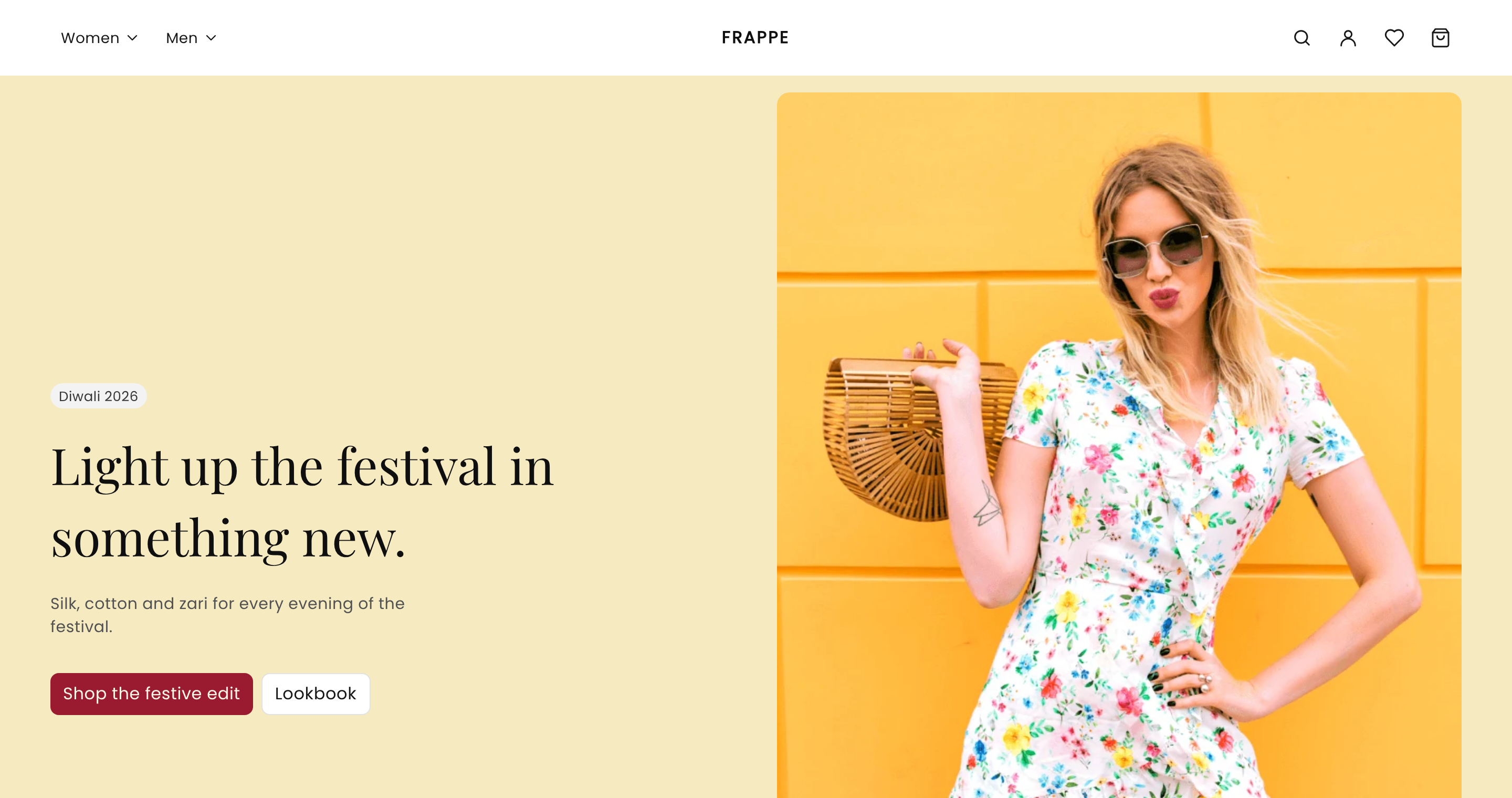 The first picture is Commera Starter. The second is the Diwali theme, before the client touches it. You change the hero, the colours and the fonts, and you add three sections.
## Sections and layouts
A **section** is one block of a page. A hero, a sale banner and a row of products are each a section.
Each section is two files:
- An `.html` file that says how it looks.
- A `.json` file that lists the settings a merchant can change. Each setting becomes a field in the theme editor.
A **layout** is a list of sections for one page, in order. The home page layout is `layouts/index.json`. The merchant can add, remove and move sections in the theme editor, and change their settings. You decide what they can change.
So the work is split in two:
| You, in code | The merchant, in the editor |
| --- | --- |
| How a section looks | What it says |
| Which settings it has | Which photo it shows |
| Which sections the theme has | Which sections are on the page, and in what order |
| The default values | Their own colours and fonts |
## Theme editor
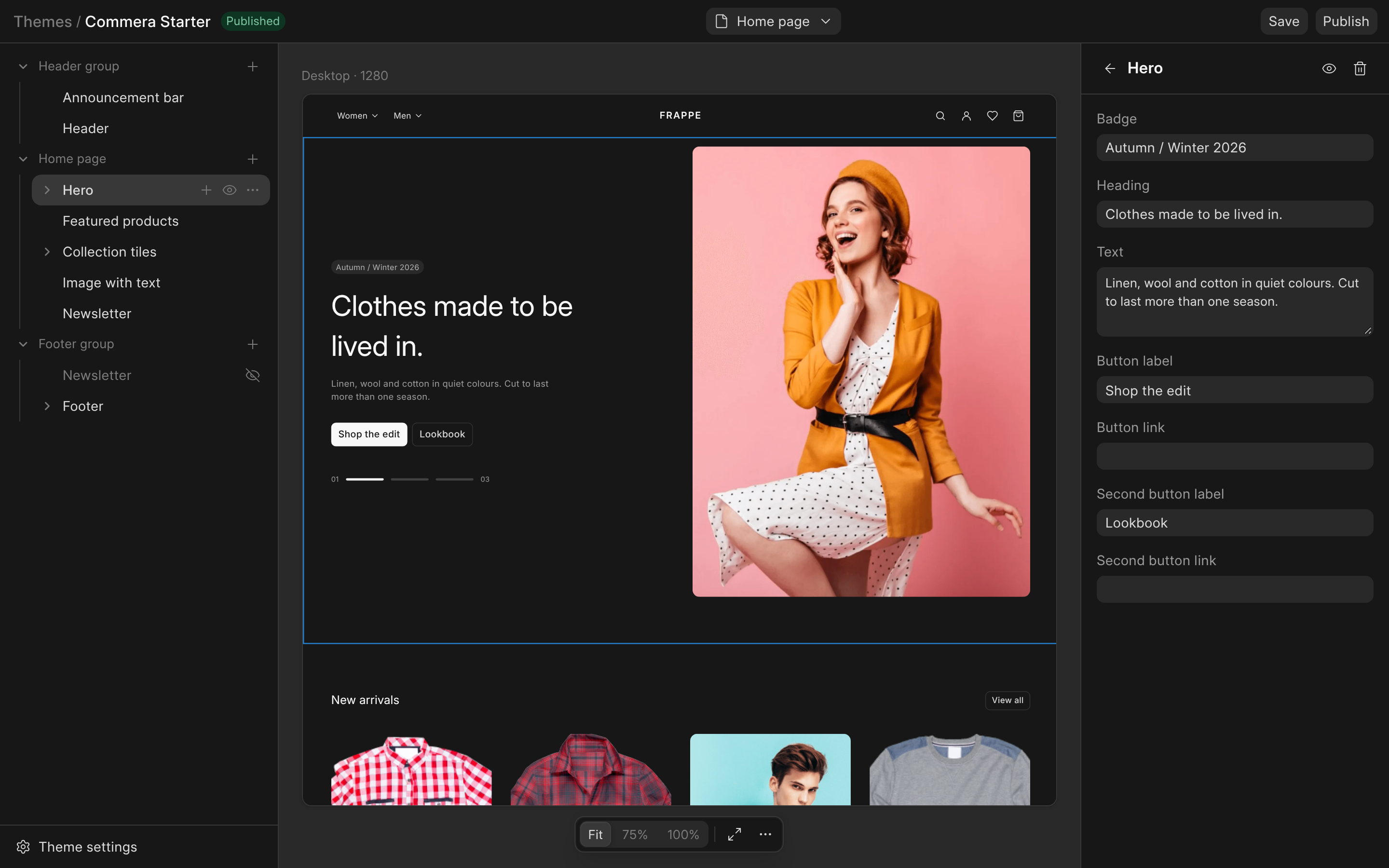
This is how the theme editor looks, here with Commera Starter open. The page's sections are on the left, the preview is in the middle, and the settings of the chosen section are on the right. Your client makes all their changes here.
 ## What you need
- A Commera site with developer mode on, and its setup finished at `/commera`.
- Bench, to make the app.
- Node.js and npm, to build the theme's CSS.
## What you will do
1. [Get the starter theme](/commera/build-a-section-theme/get-the-starter-theme): make an app and a copy of Commera Starter called Diwali.
2. [Change a section](/commera/build-a-section-theme/change-a-section): change the hero, and set the Diwali colours and font.
3. [Add sections](/commera/build-a-section-theme/add-sections): add a sale banner, some offer tiles and a row of sale products.
4. [Hand it to your client](/commera/build-a-section-theme/hand-it-to-your-client): the client opens the editor and makes it theirs.
5. [Ship it](/commera/build-a-section-theme/ship-it): move the theme to another site.
:::note[A copy does not get updates]
Your Diwali theme is a copy. Later fixes to Commera Starter do not reach it.
:::
## Next steps
- [Get the starter theme](/commera/build-a-section-theme/get-the-starter-theme)
- [Section reference](/commera/build-a-section-theme/section-reference)