---
title: "Create a discount code"
space: "Commera"
url: "https://docs.bwh.tech/commera/discounts/create-a-discount-code"
updated: "2026-11-03"
---
Make a code that shoppers type in the cart or at checkout to get money off.
Meera wants to post one code on her shop's Instagram: "DIWALI10" for 10% off any order over ₹999. To protect her margin, the discount stops at ₹200.
## Before you start
Read [Discounts overview](/commera/discounts/discounts-overview).
## Steps
1. Go to **Discounts** and click **Create discount**. Pick **Amount off order**.
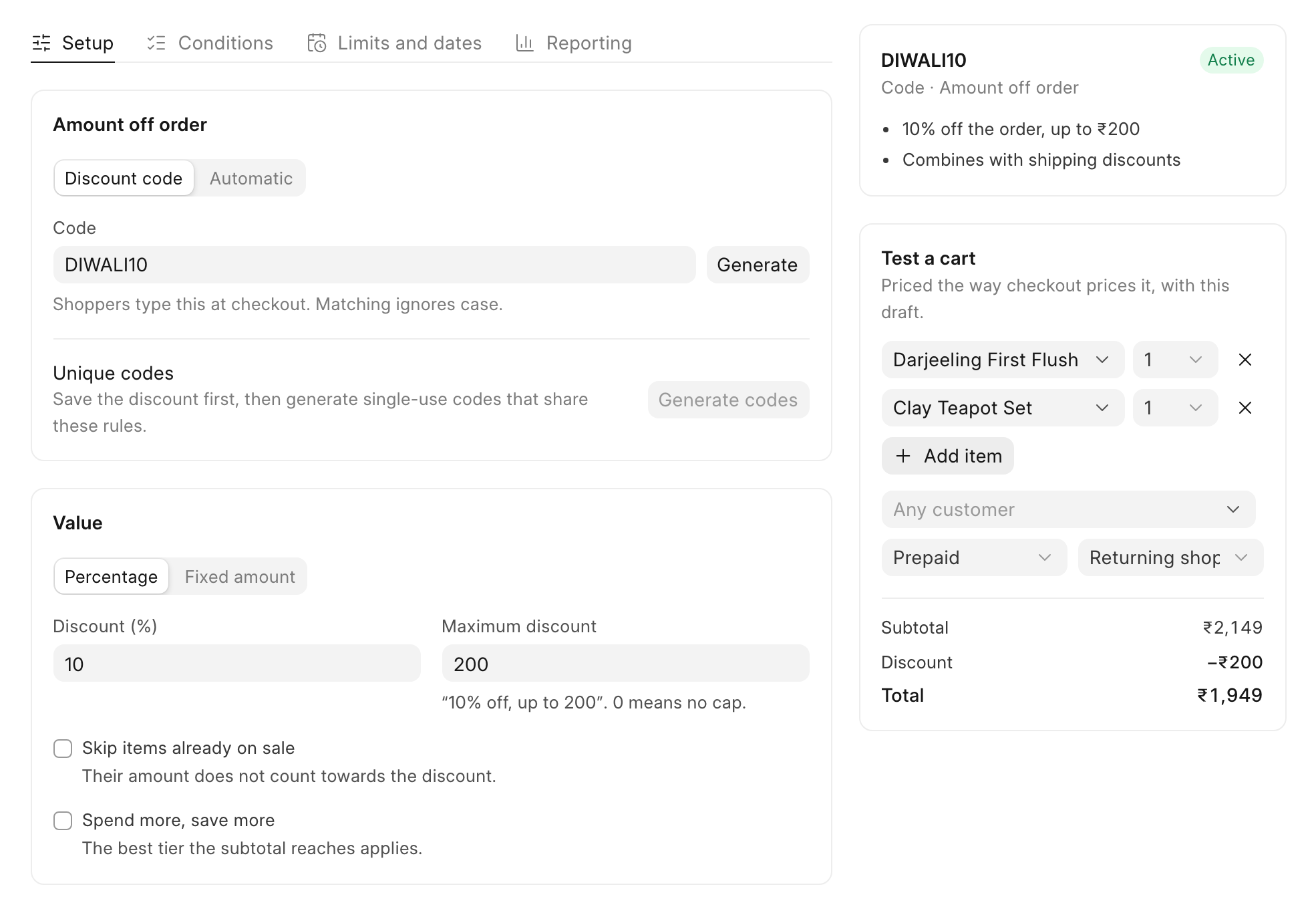
2. On the **Setup** tab, keep **Discount code** selected. In **Code**, type "DIWALI10". Or click **Generate** to make a random code.
Shoppers can type the code in any case. "diwali10" works too.
3. Under **Value**, keep **Percentage**. Set **Discount (%)** to 10 and **Maximum discount** to 200.
The hint reads "“10% off, up to 200”. 0 means no cap."
4. Check your discount in **Test a cart** on the right. Pick a product in **Search items**. Click **Add item** to add more. Meera adds a Darjeeling tea (₹650) and a teapot set (₹1,499). 10% of ₹2,149 is ₹214.90, so the cap holds the discount at ₹200.
 5. Open the **Conditions** tab. Click **Minimum purchase**, select **Minimum subtotal**, and type 999 in **Subtotal**.
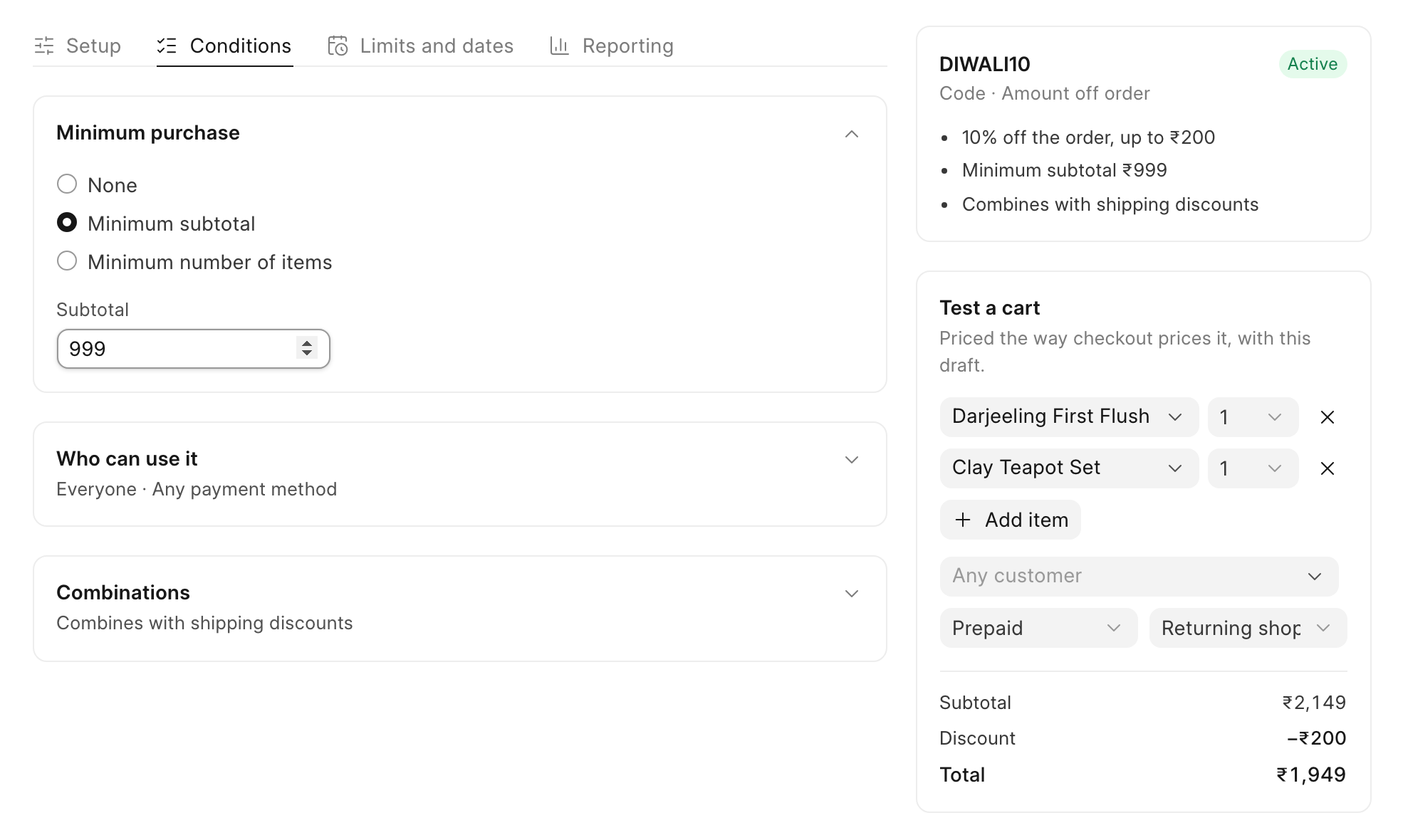 6. Click **Save** at the top right.
## Check it worked
The discount now shows **Active** at the top, and it appears in the **Discounts** list.
Try it as a shopper. Put products worth more than ₹999 in your cart. Type "DIWALI10" in the **Discount code** box and click **Apply**. A "Discount (DIWALI10)" line appears and the **Order total** goes down.
:::note[Where shoppers type the code]
This depends on your theme. Some themes show the **Discount code** box in the cart, under **Order summary**. Others show it only on the checkout page, under **Your Order**. There, the discount line appears after the shopper fills in their details and clicks **Continue**.
:::
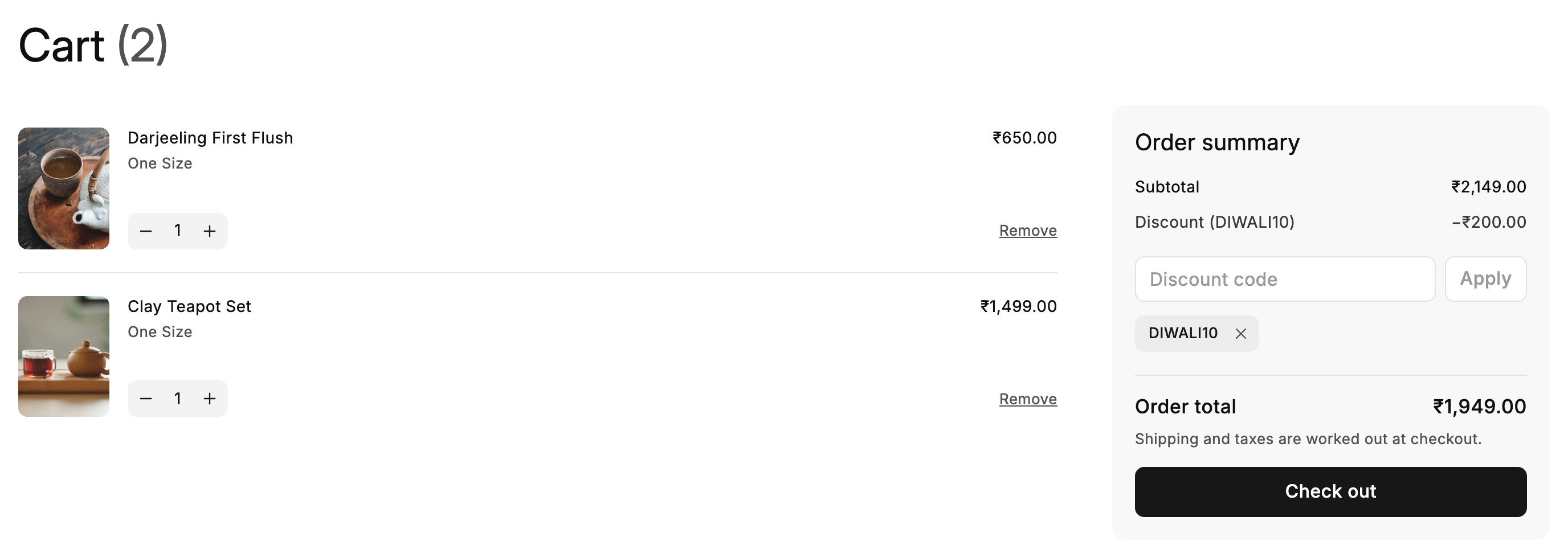 A code applied in the cart stays on through checkout. For a full run, see [Place a test order](/commera/set-up-your-store/test-order).
## Good to know
:::note[More than one code]
A cart can hold up to 5 codes. Each code shows as a small tag under the box. Click the **×** on a tag to remove it.
:::
:::note[Codes that do not apply]
If the cart does not meet a rule, such as the minimum subtotal, the code does not take money off. In **Test a cart** you see the reason, for example "Add ₹ 999.00 more to use This discount."
:::
:::caution[Codes and other discounts]
By default a discount combines only with shipping discounts. To let DIWALI10 stack with an automatic sale, see [Limits and rules](/commera/discounts/limits-and-rules).
:::
## Next
[Automatic discounts](/commera/discounts/automatic-discounts)