---
title: "Overview"
space: "Commera"
url: "https://docs.bwh.tech/commera/discounts/discounts-overview"
updated: "2026-11-03"
---
Give shoppers money off with a code they type, or with a discount that applies by itself.
Meera runs a small tea shop on Commera. Diwali is coming and she wants to run a sale. First she looks at what kinds of discounts she can offer.
## Before you start
Finish [Add your first product](/commera/set-up-your-store/first-product) and [Connect a payment gateway](/commera/set-up-your-store/payments), so shoppers can buy something.
## The four kinds of discount
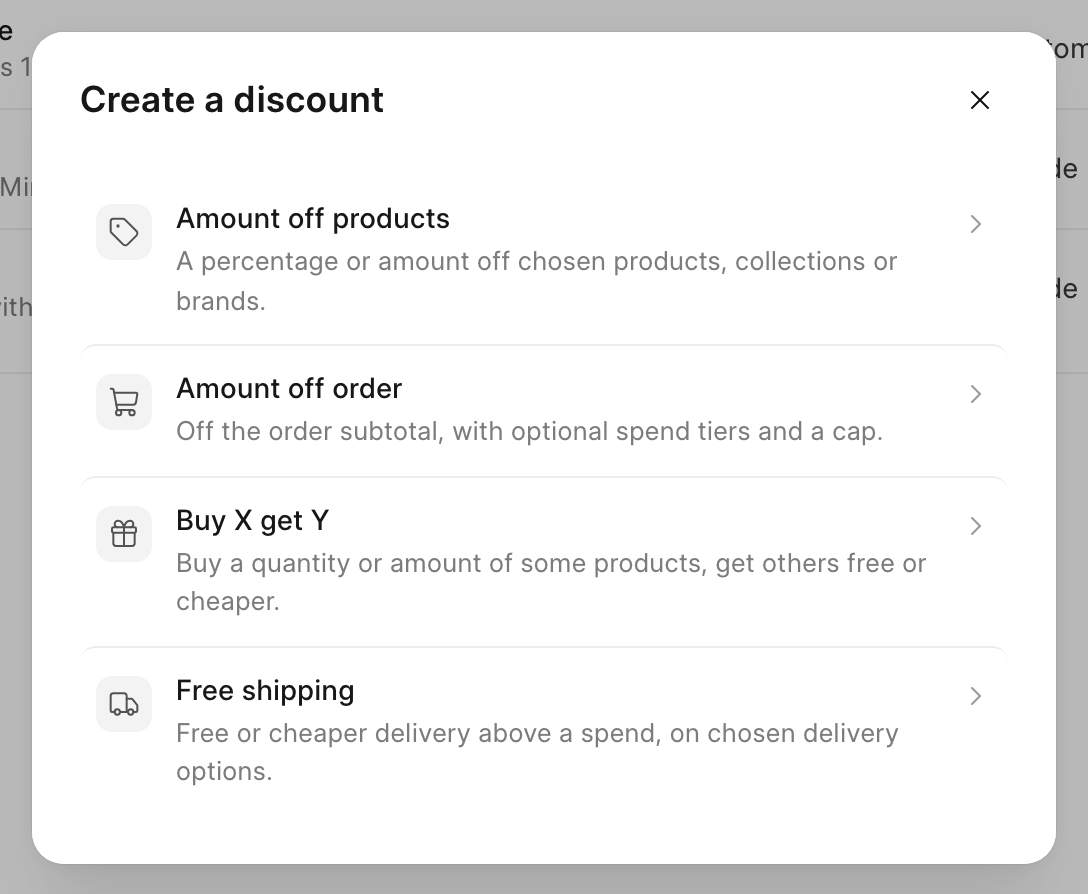
| Kind | What it does | Example |
| --- | --- | --- |
| **Amount off products** | A percentage or amount off chosen products, collections or brands. | 15% off all green teas |
| **Amount off order** | Money off the order subtotal, with optional spend tiers and a cap. | 10% off the order, up to ₹200 |
| **Buy X get Y** | Buy some products, get others free or cheaper. | Buy 2 teas, get tea bags free |
| **Free shipping** | Free or cheaper delivery above a spend. | Free delivery over ₹499 |
## Code or automatic
Each discount works in one of two ways:
- **Discount code**: the shopper types a code, such as "DIWALI10", in the cart or at checkout.
- **Automatic**: the discount applies by itself when the cart meets its rules. The shopper sees its **Title** in the cart and at checkout.
## Steps
1. In the sidebar, click **Discounts**. It is just below **Customers**.
The list shows every discount with its **Type**, **Method** (Code or Automatic), how many times it was **Used**, the **Discount given** so far, and its **Status**.
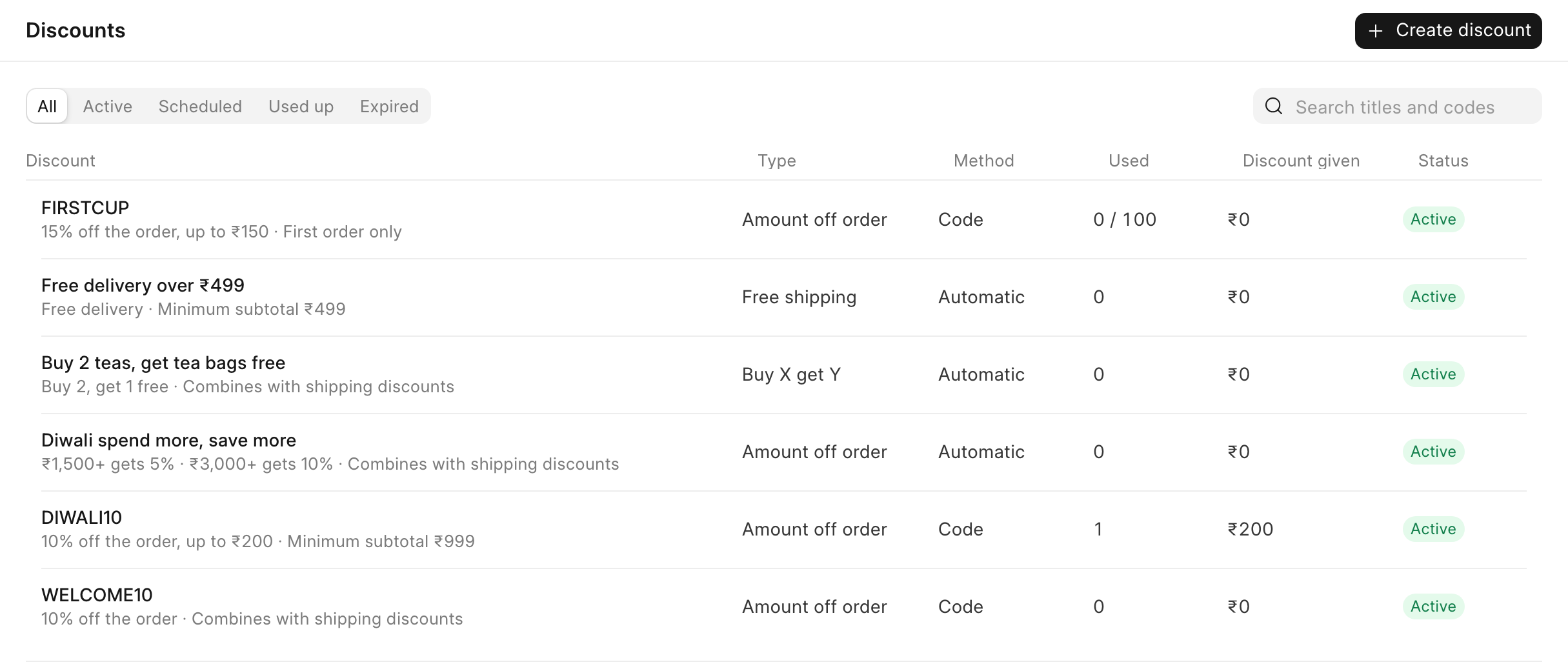 2. Use the tabs above the list to filter it: **All**, **Active**, **Scheduled**, **Used up** and **Expired**. To find a discount, type in "Search titles and codes".
3. To make a new discount, click **Create discount**. Pick one of the four kinds.
 ## Check it worked
After you click a type, the editor opens on the **Setup** tab. The other tabs are **Conditions**, **Limits and dates** and **Reporting**. The panel on the right shows the discount's rules in plain words.
## Good to know
:::note[Test before you save]
Most editors have a **Test a cart** panel. Add products to it and it shows the subtotal, the discount and the total, priced the way checkout prices them. Nothing is saved and no order is made.
:::
:::note[Sale prices and price breaks]
Products already on sale keep their sale price. Discounts come off on top, unless you tick **Skip items already on sale**. Quantity price breaks ("₹450 each from 10") are not a discount kind. Ask your administrator to set them up as price rules in the ERP.
:::
## Next
[Create a discount code](/commera/discounts/create-a-discount-code)