---
title: "Limits and rules"
space: "Commera"
url: "https://docs.bwh.tech/commera/discounts/limits-and-rules"
updated: "2026-11-03"
---
Control who can use a discount, when, how often, and how much it can cost you.
Meera wants to win new tea drinkers. She makes "FIRSTCUP", an **Amount off order** code: 15% off a first order, up to ₹150, paid online only. It runs from 1 to 12 November, for the first 100 orders, and stops once it has given ₹10,000 away.
## Before you start
Create the discount first. See [Create a discount code](/commera/discounts/create-a-discount-code).
## Steps
### Who can use it
1. Open the discount and go to the **Conditions** tab. Click **Who can use it**.
2. Under **Customers**, pick one:
- **Everyone, guests included**
- **First order only**: "Checked by customer and email, so guests count too."
- **Customer groups**: pick the groups.
- **Specific customers**: "Signed-in customers only, up to 100."
3. In **Payment**, pick **Any payment method**, **Prepaid only (not cash on delivery)** or **Cash on delivery only**. Meera picks **Prepaid only (not cash on delivery)**.
### Which discounts stack
4. Still on **Conditions**, click **Combinations**. Tick the kinds this discount can stack with: **Product discounts**, **Order discounts**, **Shipping discounts**.
"Two discounts stack only when each allows the other." To stack DIWALI10 with the spend tiers, tick **Order discounts** on both.
### Dates and limits
5. Open the **Limits and dates** tab. Under **Active dates**, set **Starts on**. Tick **Set an end date** and set **Ends on**.
6. Click **Limits** and fill in what you need:
- **Total uses**: the number of orders that can use it. "0 means no limit."
- **Budget**: "Stops once this much discount is given."
- **Once per customer**: "Matched by customer, email or phone."
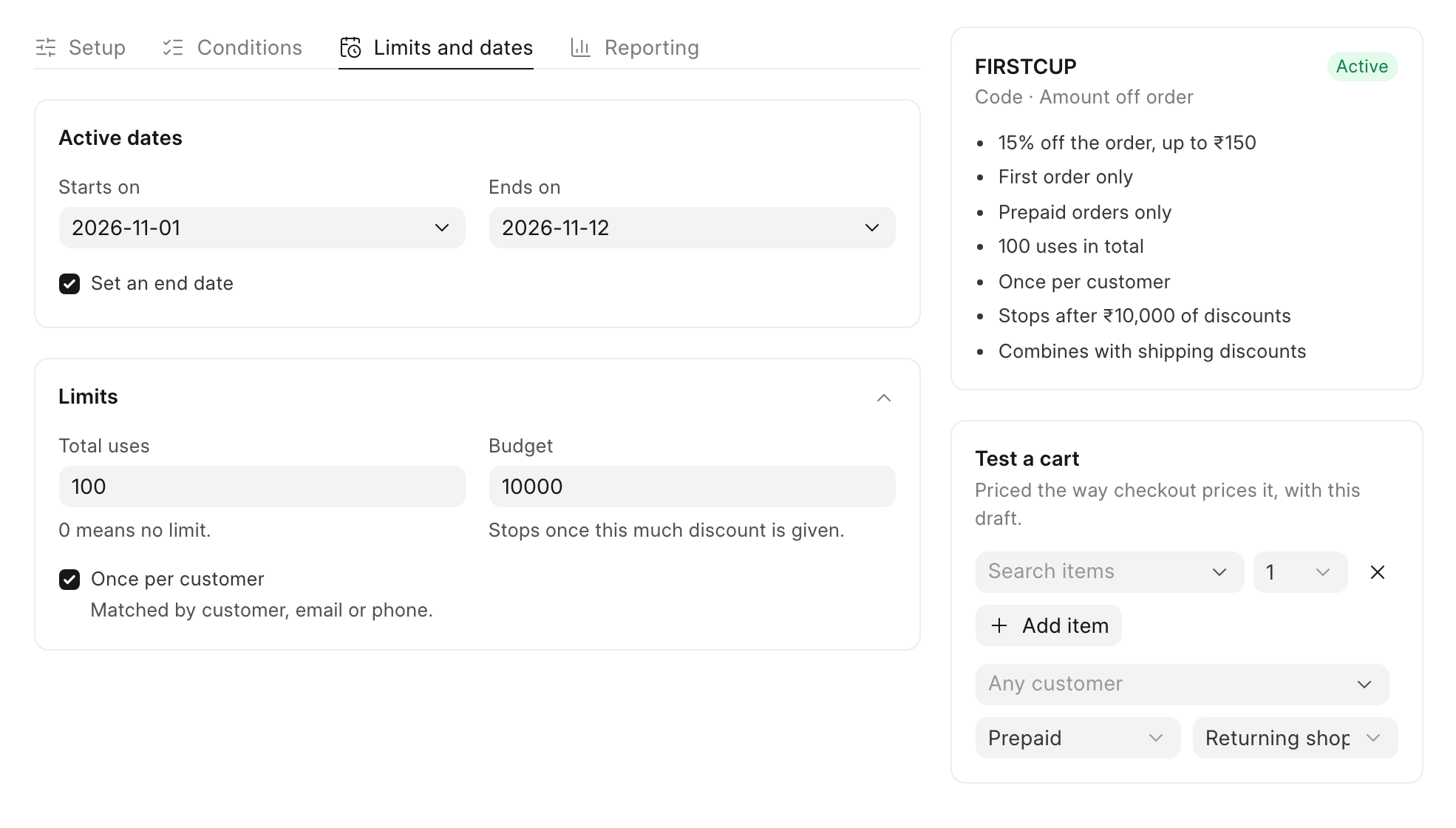 7. Click **Save**. The panel on the right lists every rule in words, such as "First order only" and "Stops after ₹10,000 of discounts".
### Unique single-use codes
Meera also wants to email each new newsletter subscriber their own code, so a code shared online cannot be reused.
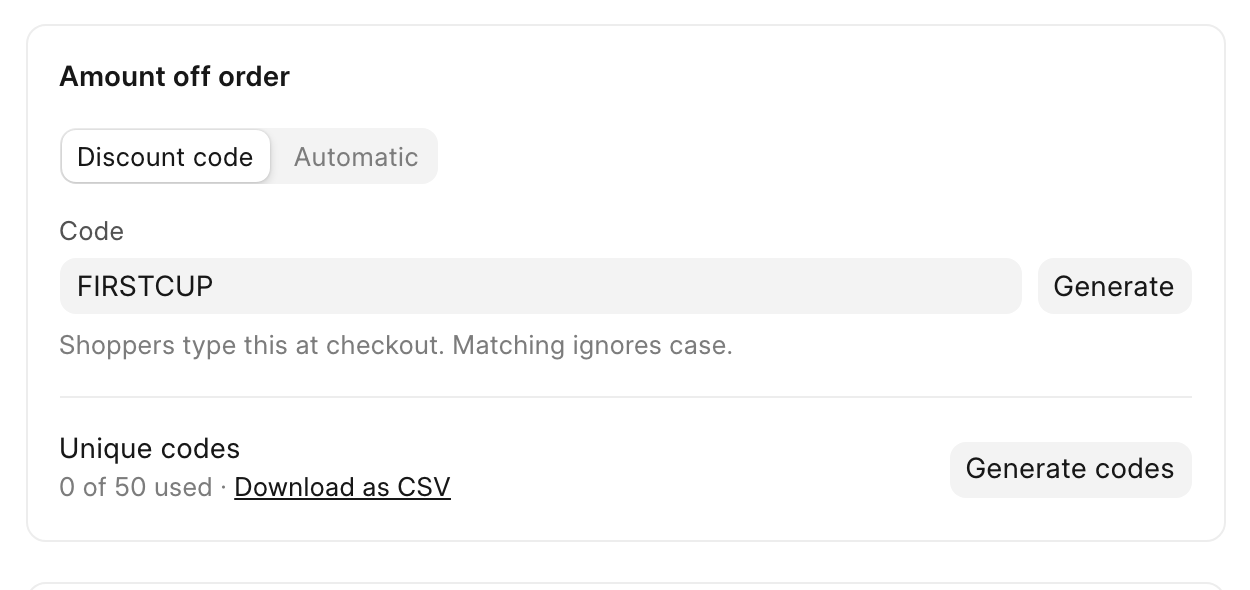
8. Save the discount first. Then, on the **Setup** tab, click **Generate codes** next to **Unique codes**.
9. In **How many**, type the number of codes. You can make "Up to 5,000 at a time." In **Prefix**, type a start for each code, such as "CHAI-". Each code is the prefix followed by 8 random letters and digits, such as "CHAI-NAU8BMHM". Click **Generate**.
10. Click **Download as CSV** to get the list of codes for your email tool. Each code works once and follows the same rules as the discount.
 ## Check it worked
In the **Discounts** list, the **Used** column shows uses against the limit, such as "0 / 100". A discount moves to the **Scheduled** tab before its start date, to **Used up** when it reaches a limit, and to **Expired** after its end date.
## Good to know
:::note[Cash on delivery and prepaid-only codes]
A prepaid-only discount does not apply when the shopper chooses cash on delivery. The checkout prices the cash on delivery option without it.
:::
:::note[Pause a discount]
To stop a discount without deleting it, turn off the **Active** switch at the top of the discount, or click **⋯** and then **Switch off**. **Delete discount** is in the same menu.
:::
## Next
[See how a discount is doing](/commera/discounts/see-how-a-discount-is-doing)