---
title: "Dashboard entries"
space: "Commera"
url: "https://docs.bwh.tech/commera/plugin-reference/dashboard-entries"
updated: "2026-10-09"
---
Your plugin adds pages, cards, actions, palette commands and a Settings tab to the Commera dashboard at `/commera`. You write each one as a Vue file. The build kit, `@commera/plugin-kit`, checks it and builds it. Commera draws the frame: the page header, the card title, the dialog and its buttons.
## Where your plugin shows up
Each folder under `commera/` fills one place in the dashboard. The images show the Qikink plugin. An orange box marks what the plugin adds when the image shows more than that.
### Sidebar
Each page adds a row under **Plugins**, with the logo from your plugin. Folders: `commera/pages//index.vue` and `commera/plugin-icon.svg`.
### Plugin page
Commera draws the header. Your page sets the title, breadcrumbs and buttons with `usePage()`, and fills the rest. Folder: `commera/pages//index.vue`.
### Order cards
Your card goes in the right column of the order page, below Commera's cards. Folder: `commera/order/cards//index.vue`.
### Order actions
Your action is a row in the **Plugins** group of the **More actions** menu. Folder: `commera/order/actions//index.vue`.
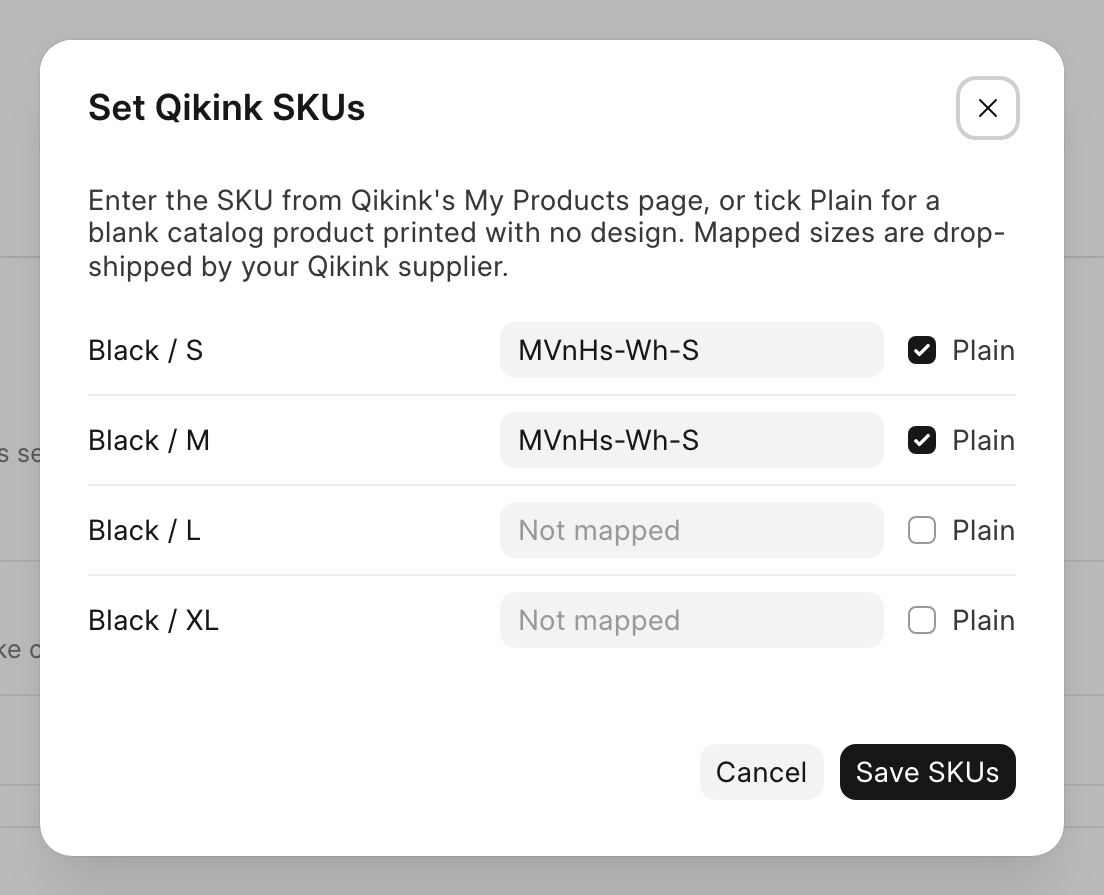
### Action dialog
An action with a template opens in a dialog. Commera draws the title, Cancel and the primary button, and your `index.vue` is the body. The Qikink order actions all use `method`, so this image shows its product action. Folder: `commera/product/actions//index.vue`.
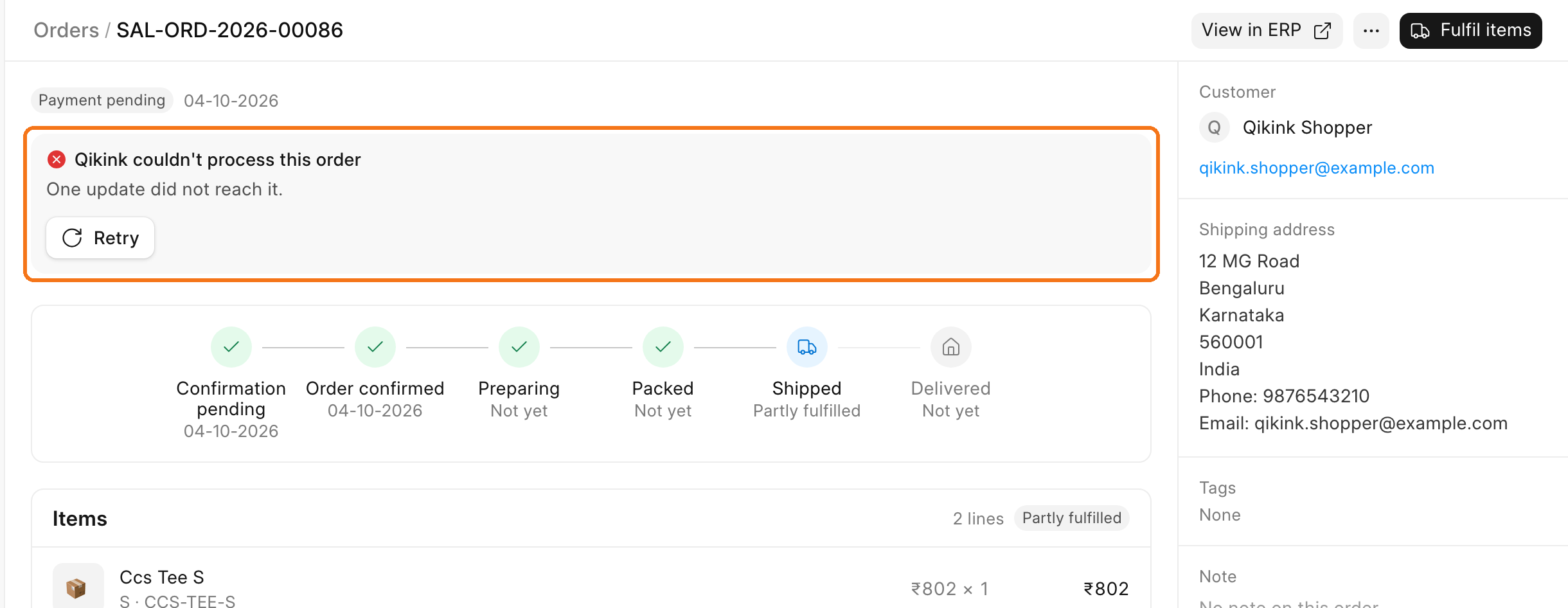
### Failed delivery notice
You do not write this one. When an event handler from `hooks.py` fails on every attempt, Commera shows this notice on the order with **Retry**.
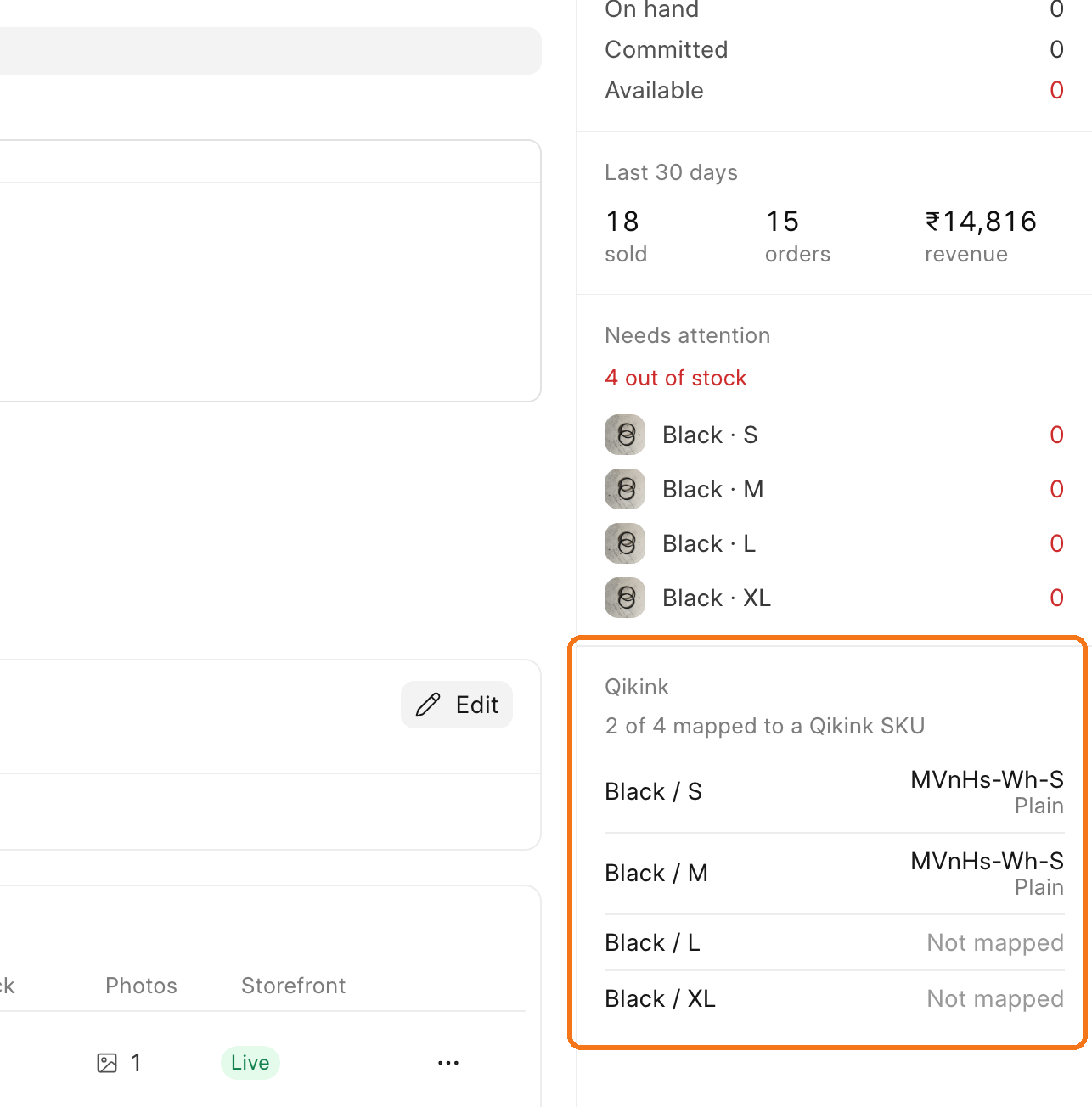
### Product cards
Your card goes in the right column of the product page. Folder: `commera/product/cards//index.vue`.
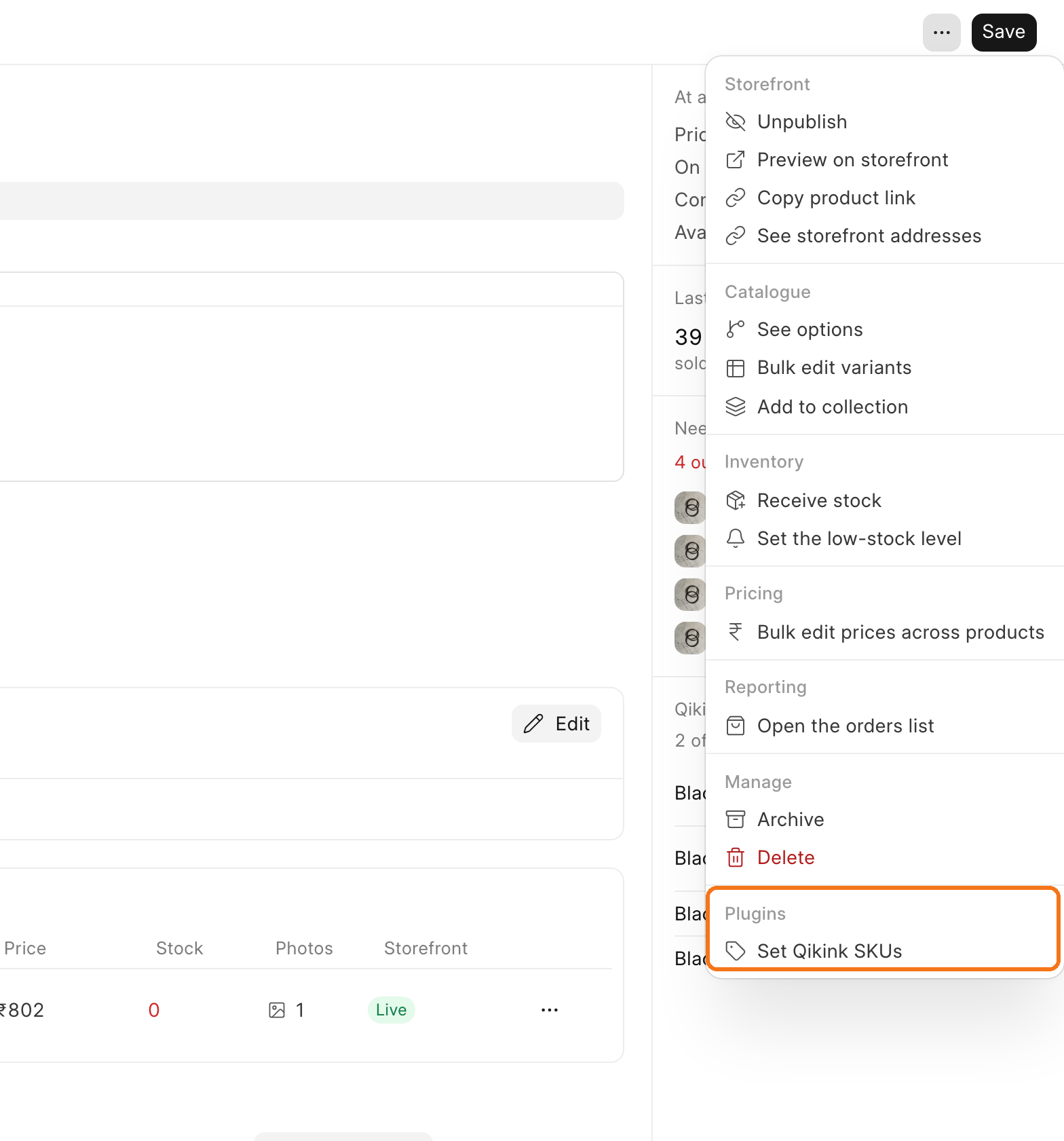
### Product actions
Your action is a row in the **Plugins** group at the bottom of the **More actions** menu. Folder: `commera/product/actions//index.vue`.
### Customer cards
Your card goes in the right column of the customer page, below the address and note. Qikink has no customer card, so this image shows the Gift Wrap example plugin. Folder: `commera/customer/cards//index.vue`.
### Customer actions
Your action is a row in the **Plugins** group of the **More actions** menu. This image also shows the Gift Wrap example plugin. Folder: `commera/customer/actions//index.vue`.
### Settings tab
Your tab is listed under **Installed plugins** in Settings. Folder: `commera/settings/index.vue`.
### Settings > Plugins
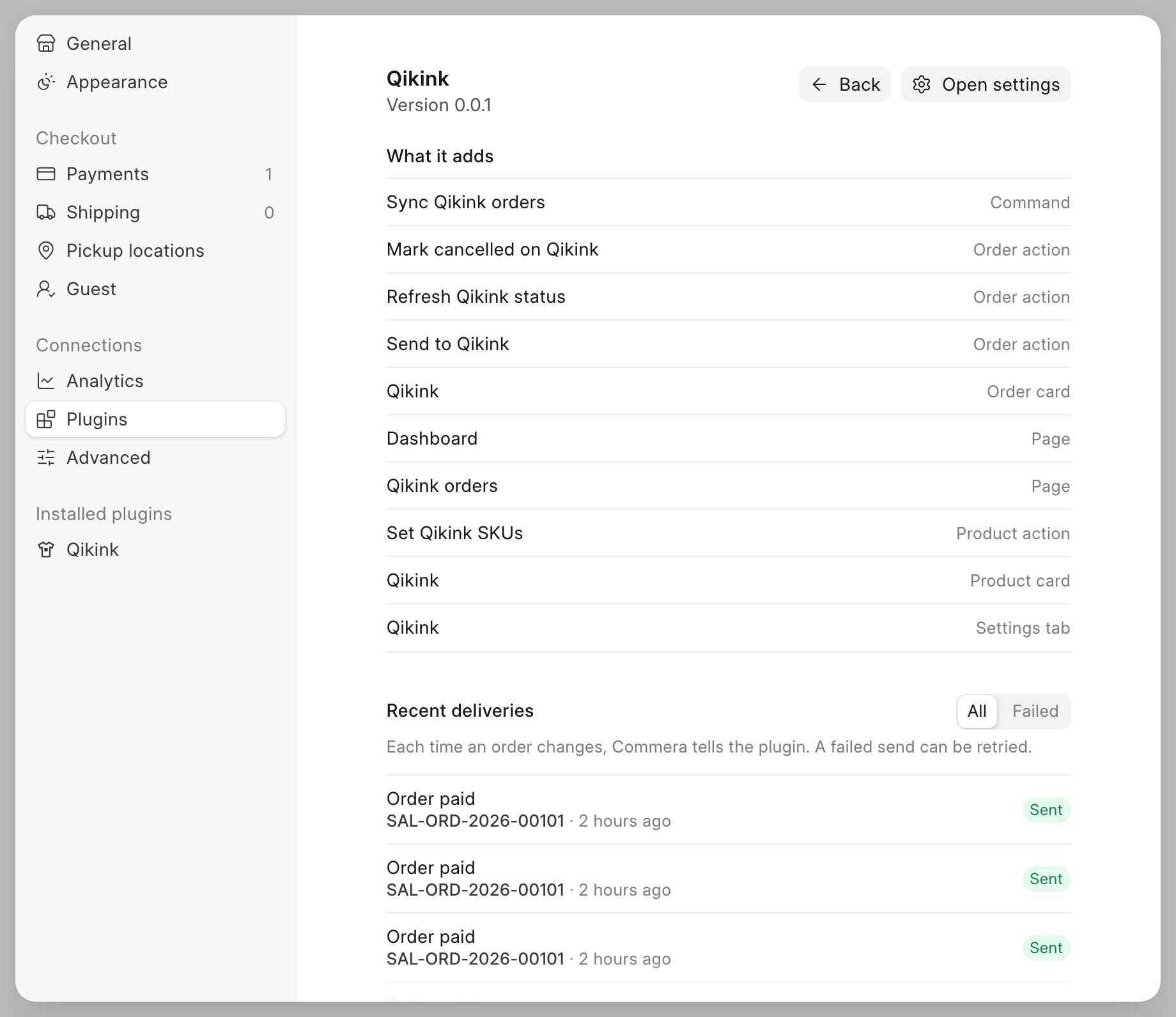
**Settings > Plugins** lists each installed plugin, the number of things it adds and the number of failed deliveries. You do not write this page.
Click **Open** to see each thing the plugin adds and its recent deliveries. A failed delivery has **Retry**. Commera builds this from your folders.
### Search palette
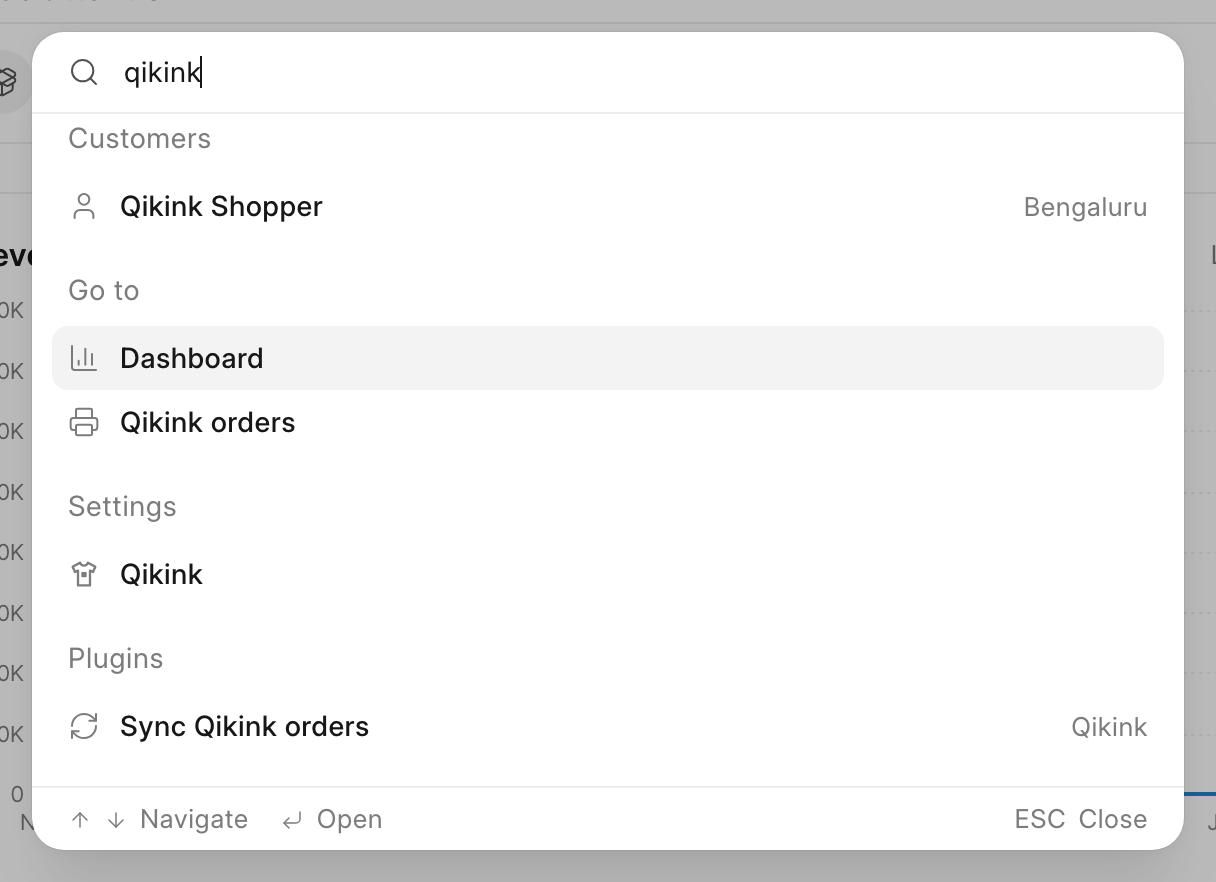
Your pages show under **Go to**, your settings tab under **Settings**, and your commands under **Plugins**. Folder for a command: `commera/commands//index.vue`.
## Set up the plugin
Create a Frappe app, go into its folder and run `bench commera init`. It makes the app whose folder you are in a Commera plugin.
```bash
bench new-app my_app
cd apps/my_app
bench commera init
bench --site install-app my_app
```
:::caution[Run it inside the app's folder]
From the bench folder itself, bench reads `init` as its own `bench init` and stops with `No such command 'commera'`.
:::
The command adds `required_apps = ["commera"]`, `commera_api_version = [1]` and `commera_plugin_title` to `hooks.py`. `commera_plugin_title` is the name Commera shows for your plugin: the sidebar row of a plugin with several pages, **Settings → Plugins** and the search palette. A plugin with one page shows that page's `label` in the sidebar instead. It starts as your `app_title`. Without it, Commera uses `app_title`. It writes `package.json`, `commera/vite.config.js`, a starter page, `my_app/api.py` and `commera/README.md`, and then runs `yarn install`.
```
my_app/
├── package.json
├── yarn.lock # commit it
├── commera/
│ ├── vite.config.js
│ ├── pages/jobs/index.vue
│ ├── order/cards/status/index.vue
│ ├── order/actions/resend/index.vue
│ ├── settings/index.vue
│ ├── plugin-icon.svg
│ └── shared/ # your own code
└── my_app/public/commera/ # build output, gitignored
```
The starter page calls `my_app.api.get_summary`. Delete both when you write your own page.
## Add a placement
Run `bench commera add ` inside your plugin's folder to add one placement with a starter that builds. A running dev server builds it and reloads the page.
| Kind | Writes |
| --- | --- |
| `page` | `commera/pages//index.vue`; with `--detail`, also `[...id].vue`, one record's view, which the list opens with `navigate('/')` |
| `order-card`, `product-card`, `customer-card` | `commera//cards//index.vue` |
| `order-action`, `product-action`, `customer-action` | `commera//actions//index.vue` and a whitelisted `_(name)` in your `api.py` |
| `settings` | `commera/settings/index.vue` (no name: one per plugin) |
| `command` | `commera/commands//index.vue` and a whitelisted `()` in your `api.py` |
The command never overwrites: it stops when the placement or the method already exists.
## Placements
`` is 1 to 40 lowercase letters, digits and hyphens, and starts with a letter or a digit. It is also the URL slug.
| Folder under `commera/` | Where it shows | Required fields | Optional fields |
| --- | --- | --- | --- |
| `pages//index.vue` | `/commera/plugins//`, plus a sidebar row | `label` | `icon`, `requires`, `condition`, `sidebar`, `order` |
| `{order,product,customer}/cards//index.vue` | A card on that record's page | `label` | `requires`, `condition`, `order` |
| `{order,product,customer}/actions//index.vue` | A row in that page's **More actions** menu | `label` | `icon`, `requires`, `condition`, `method`, `confirm`, `order` |
| `commands//index.vue` | A row in the search palette's **Plugins** group | `label`, `method` | `icon`, `keywords`, `requires`, `condition`, `confirm`, `order` |
| `settings/index.vue` | Your plugin's tab in **Settings** | `label` | `icon`, `requires`, `condition`, `doctype` |
Order cards and actions get a Sales Order, product ones an Item, and customer ones a Customer.
## The plugin block
Each placement's `index.vue` starts with a plain `
```
| Field | Value |
| --- | --- |
| `label` | The text on the sidebar row, card title, menu row or tab |
| `icon` | Optional; without it the entry uses the plugin's icon (`commera/plugin-icon.svg`). A name from Commera's icon list, `commera/sdk/plugin_icons.json` in the Commera repo, for example `gift` or `printer`. Any other name fails the build |
| `requires` | A DocType name. Only users who can read it see the entry |
| `condition` | A dotted path to a function in your plugin that returns a bool. A page, command or settings condition takes no arguments. A card or action condition gets `(doctype, name)` |
| `sidebar` | Pages only. `false` hides the sidebar row |
| `order` | A number that sorts entries of the same kind |
| `method` | Actions and commands. A dotted path to a whitelisted method that Commera runs |
| `confirm` | Actions and commands. A question that Commera asks before it runs `method` |
| `keywords` | Commands only. Extra words that match the command in the palette |
| `doctype` | Settings only. A Single DocType that Commera draws as a form |
A condition that raises counts as `false`, and Commera writes an Error Log.
## Actions
An action has a template, which Commera opens in a dialog, or a `method`. Never both.
```vue
```
```python
import frappe
from frappe import _
@frappe.whitelist()
def send_order(name):
frappe.has_permission("Sales Order", "write", doc=name, throw=True)
...
return _("Order {0} sent").format(name)
```
:::caution[The parameter is always called name]
Commera calls the method as `method(name=)`, whatever the record is. Write `def send_order(name)`, not `def send_order(sales_order)`. A returned string shows in the success toast. Any other return value shows "
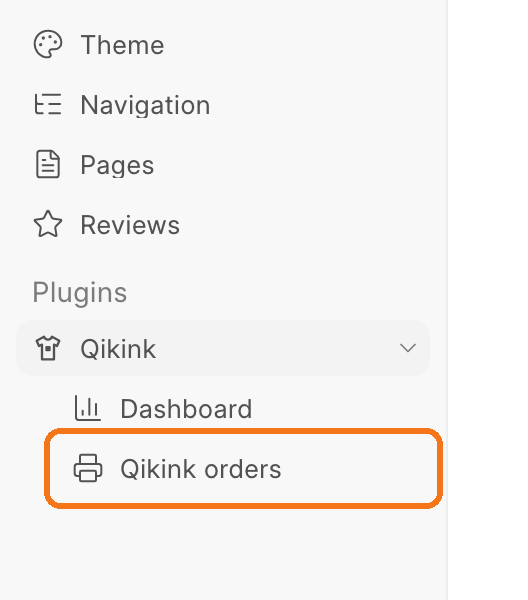 Each page adds a row under **Plugins**, with the logo from your plugin. Folders: `commera/pages/
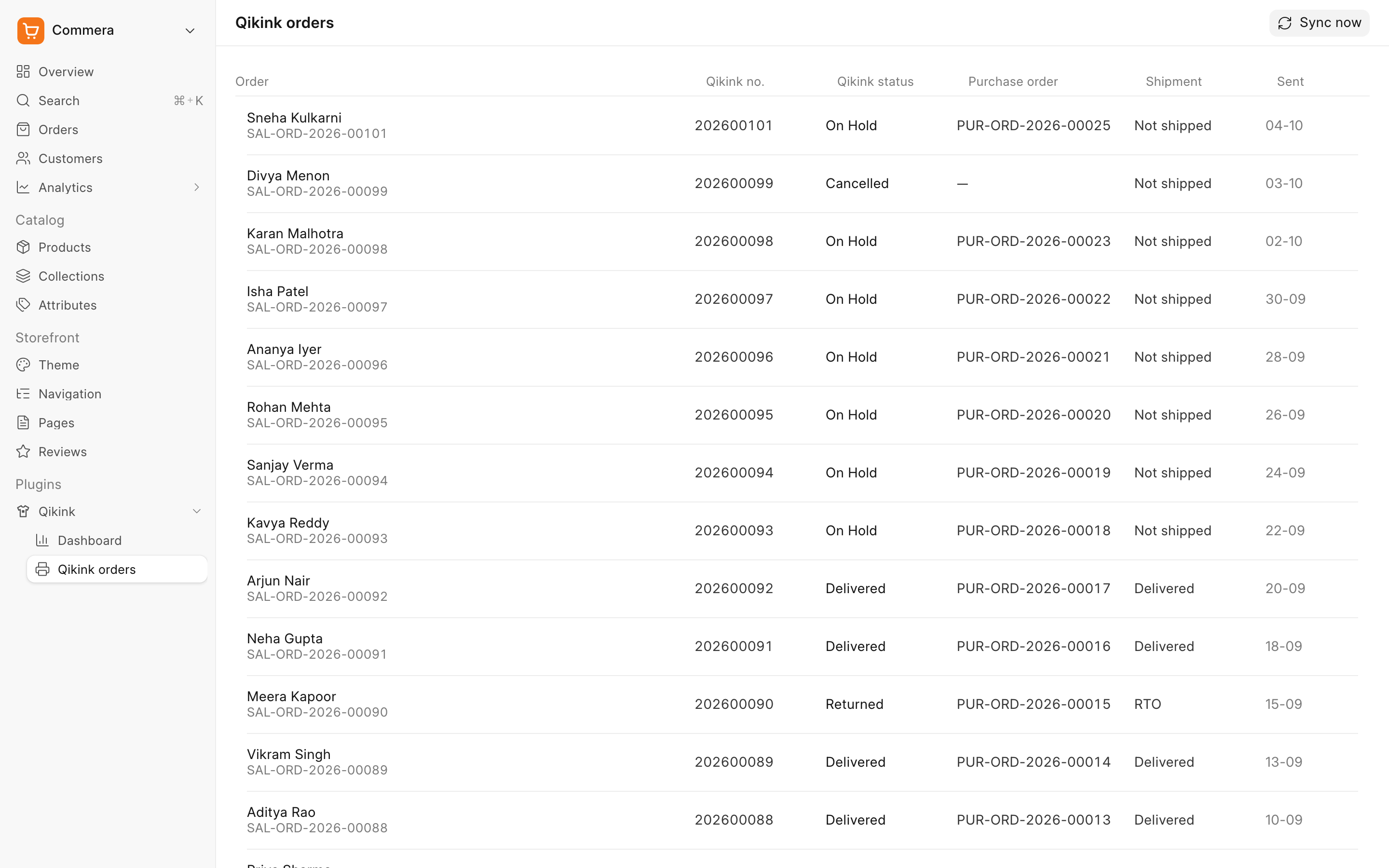 Commera draws the header. Your page sets the title, breadcrumbs and buttons with `usePage()`, and fills the rest. Folder: `commera/pages/
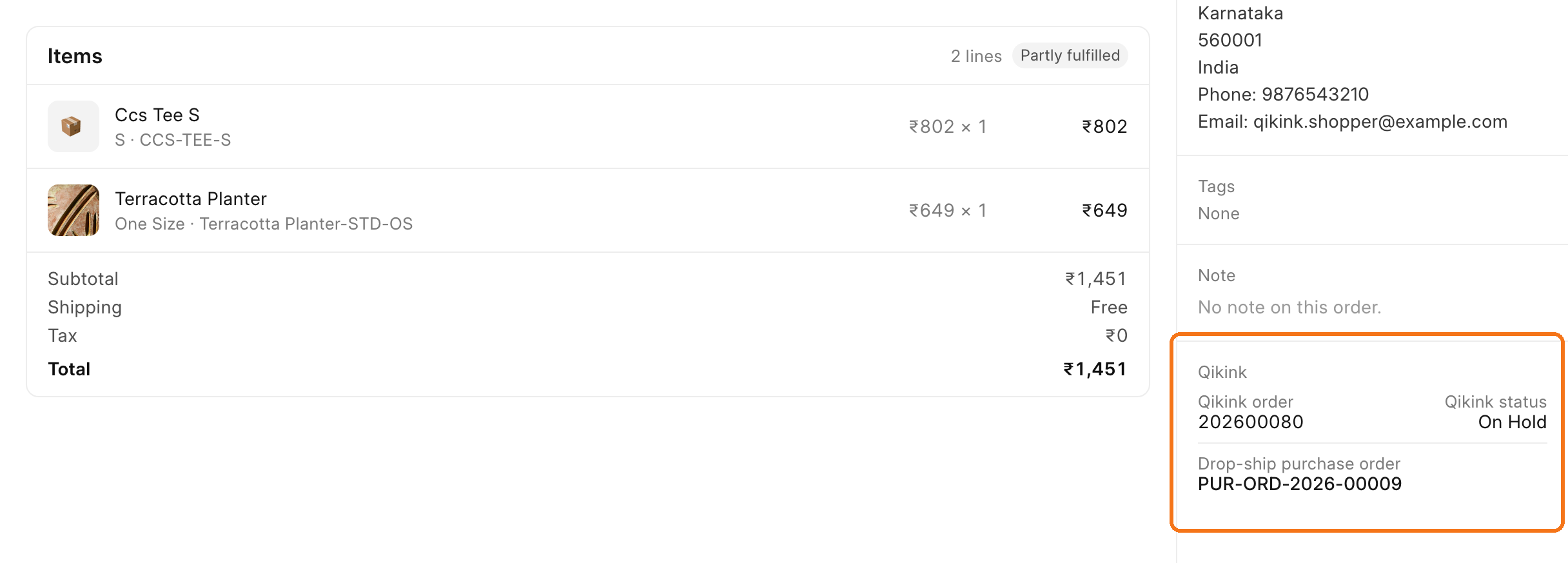 Your card goes in the right column of the order page, below Commera's cards. Folder: `commera/order/cards/
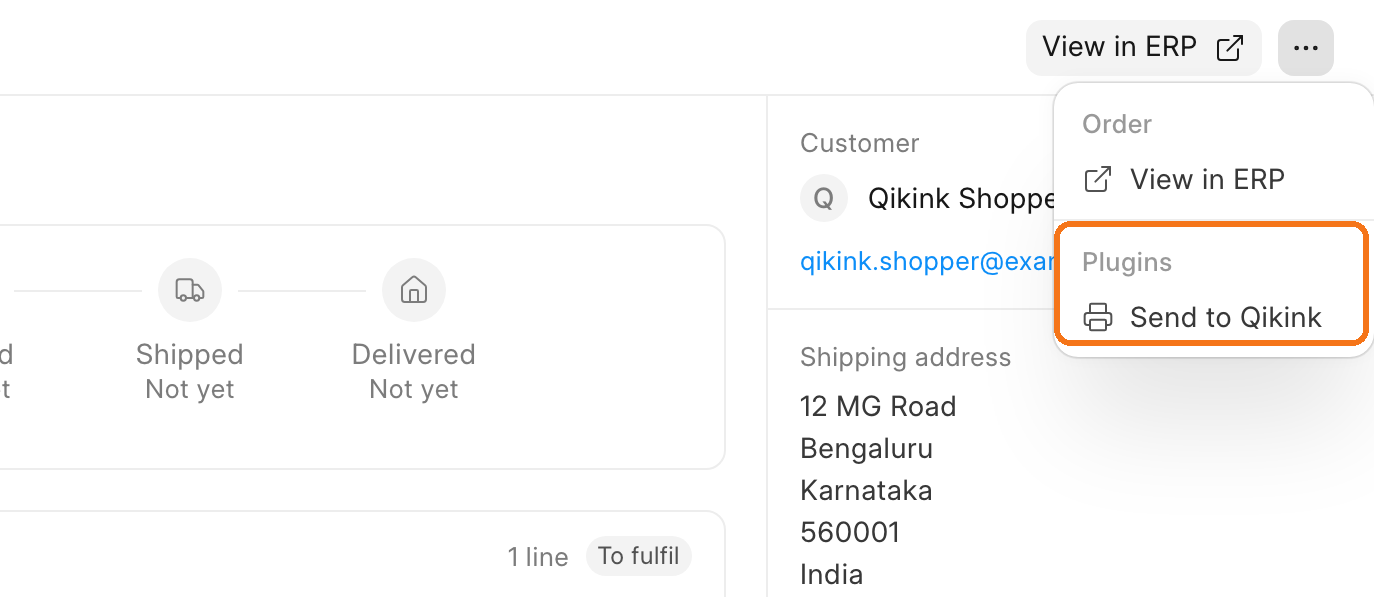 Your action is a row in the **Plugins** group of the **More actions** menu. Folder: `commera/order/actions/
 An action with a template opens in a dialog. Commera draws the title, Cancel and the primary button, and your `index.vue` is the body. The Qikink order actions all use `method`, so this image shows its product action. Folder: `commera/product/actions/
 You do not write this one. When an event handler from `hooks.py` fails on every attempt, Commera shows this notice on the order with **Retry**.
### Product cards
You do not write this one. When an event handler from `hooks.py` fails on every attempt, Commera shows this notice on the order with **Retry**.
### Product cards
 Your card goes in the right column of the product page. Folder: `commera/product/cards/
 Your action is a row in the **Plugins** group at the bottom of the **More actions** menu. Folder: `commera/product/actions/
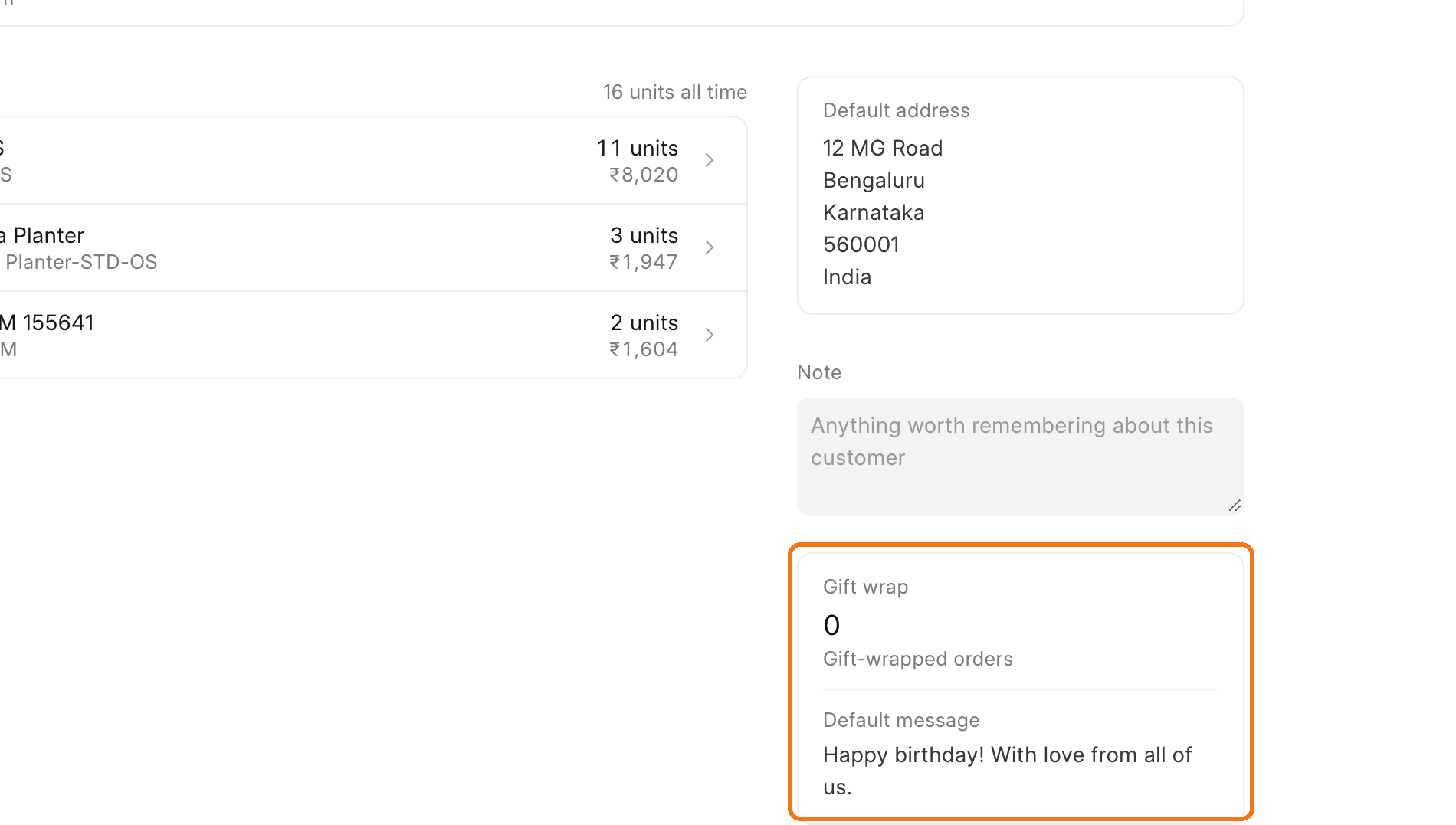 Your card goes in the right column of the customer page, below the address and note. Qikink has no customer card, so this image shows the Gift Wrap example plugin. Folder: `commera/customer/cards/
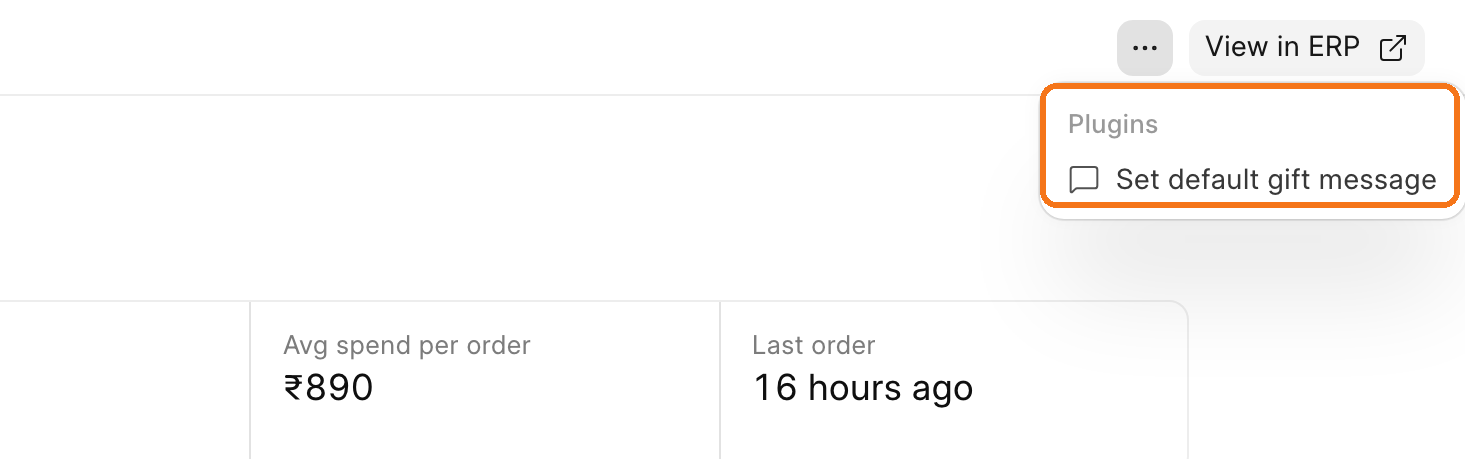 Your action is a row in the **Plugins** group of the **More actions** menu. This image also shows the Gift Wrap example plugin. Folder: `commera/customer/actions/
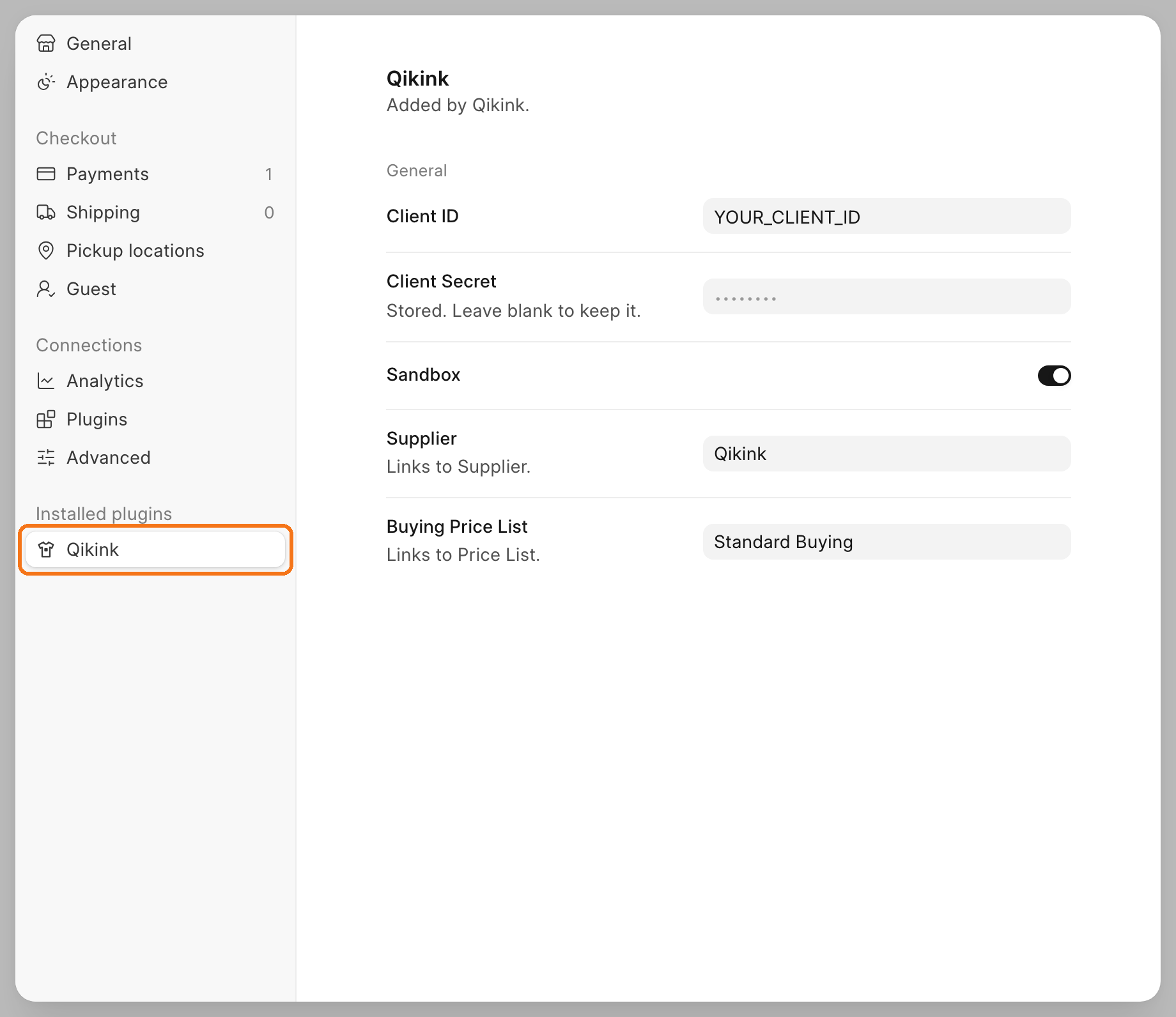 Your tab is listed under **Installed plugins** in Settings. Folder: `commera/settings/index.vue`.
### Settings > Plugins
Your tab is listed under **Installed plugins** in Settings. Folder: `commera/settings/index.vue`.
### Settings > Plugins
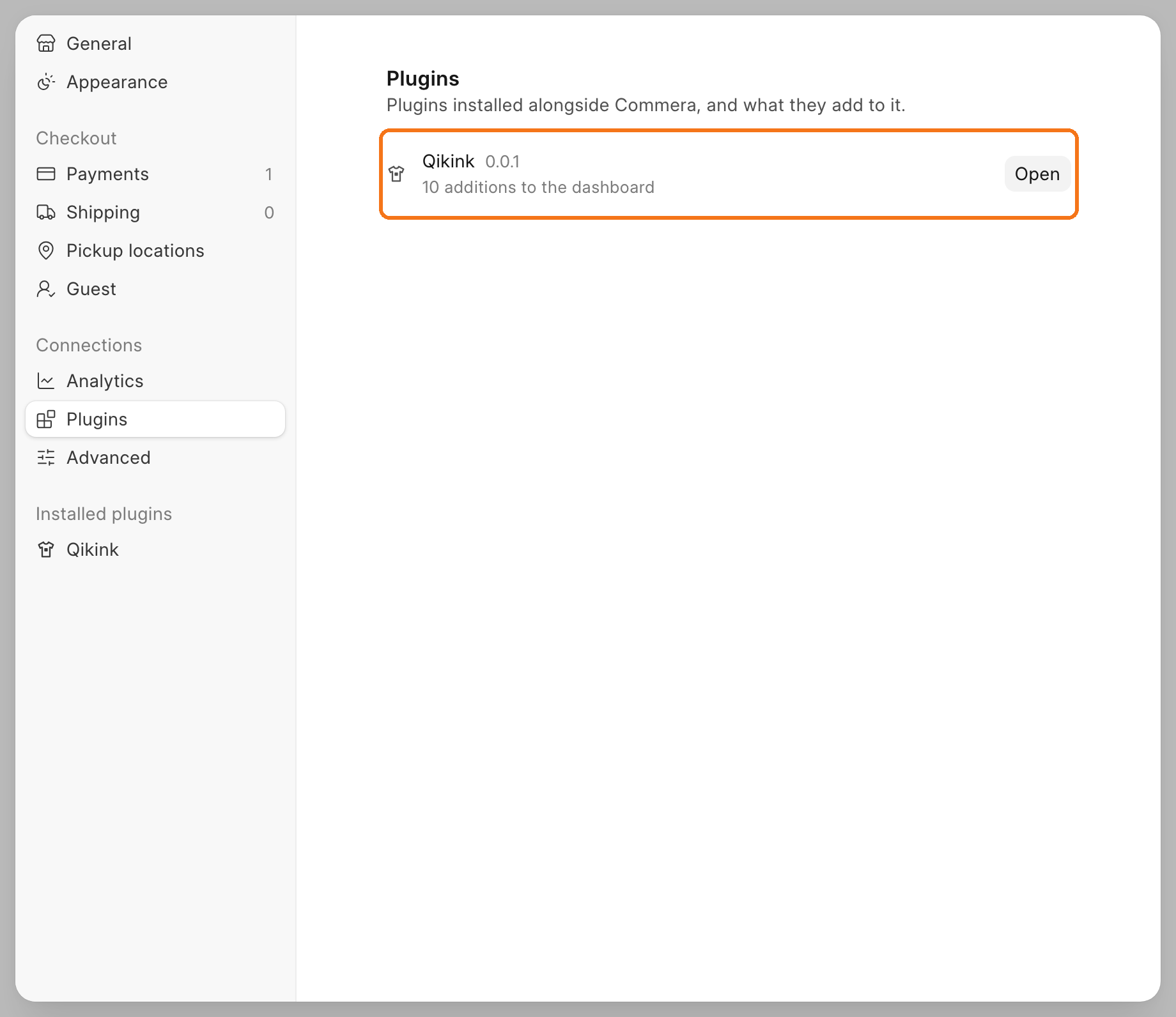 **Settings > Plugins** lists each installed plugin, the number of things it adds and the number of failed deliveries. You do not write this page.
 Click **Open** to see each thing the plugin adds and its recent deliveries. A failed delivery has **Retry**. Commera builds this from your folders.
### Search palette
Click **Open** to see each thing the plugin adds and its recent deliveries. A failed delivery has **Retry**. Commera builds this from your folders.
### Search palette
 Your pages show under **Go to**, your settings tab under **Settings**, and your commands under **Plugins**. Folder for a command: `commera/commands/