---
title: "Connect a payment gateway"
space: "Commera"
url: "https://docs.bwh.tech/commera/set-up-your-store/payments"
updated: "2026-09-21"
---
Turn on at least one way to get paid: an online provider like Razorpay or Stripe, cash on delivery, or both.
## Before you start
Finish [Welcome to Commera](/commera/set-up-your-store/welcome) so you know your way around the dashboard.
## Steps
1. Open **Settings**, then go to **Selling > Payments**. You will land on the **Payments** panel: "Turn on as many providers as you like. Each keeps its own keys."
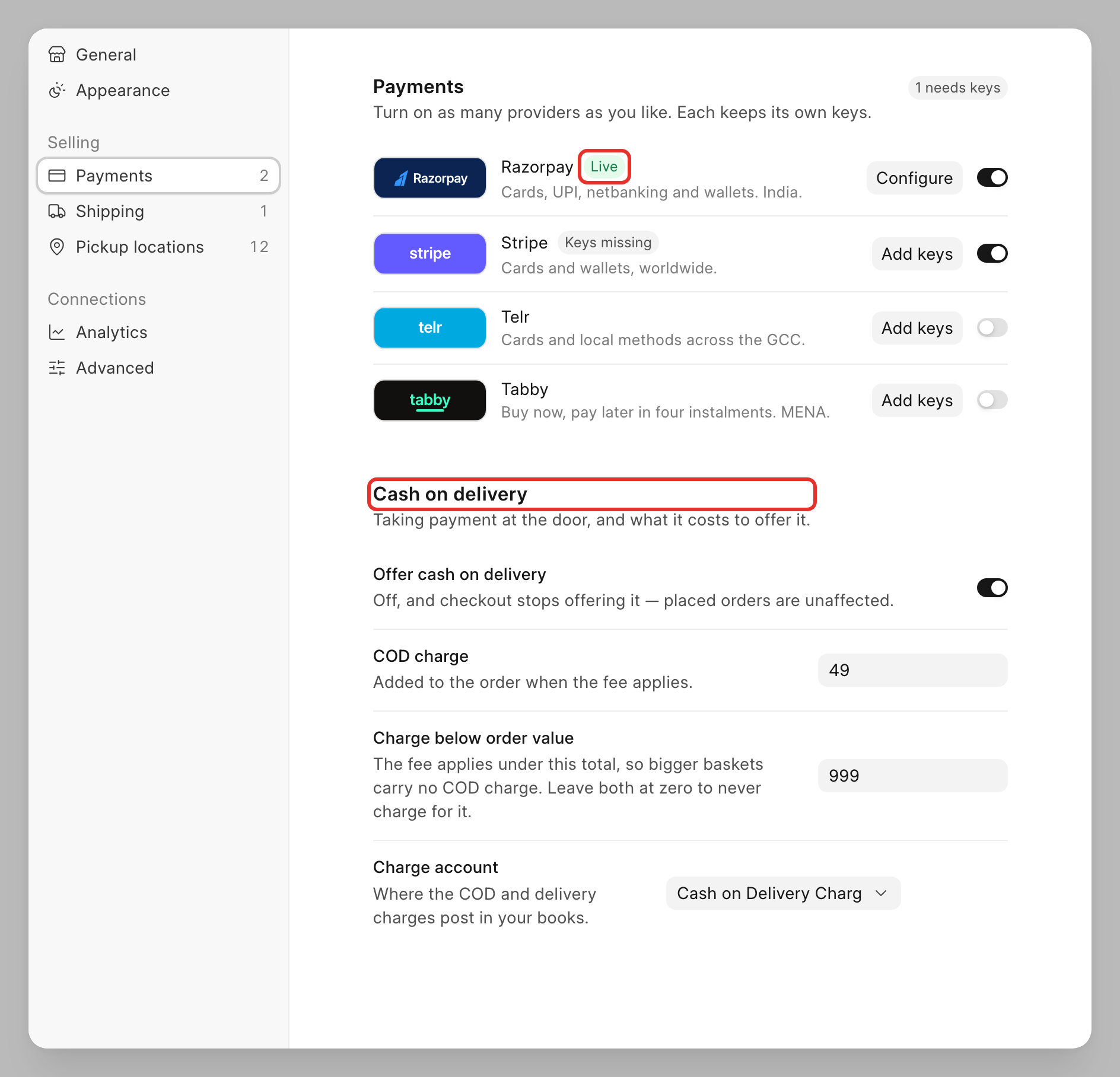 2. Each row (**Razorpay**, **Stripe**, **Telr**, **Tabby**) has a logo, a short blurb, an on/off switch, and a button that reads **Configure** or **Add keys**. Turn on the switch for the provider you want to offer, then click its **Configure** (or **Add keys**) button.
3. This opens the provider's own screen. Turn on **Enabled** so it is offered to customers at checkout. Under **API Keys**, fill in the fields the provider asks for, such as **Key ID** and **Key Secret**, then click **Save**.
2. Each row (**Razorpay**, **Stripe**, **Telr**, **Tabby**) has a logo, a short blurb, an on/off switch, and a button that reads **Configure** or **Add keys**. Turn on the switch for the provider you want to offer, then click its **Configure** (or **Add keys**) button.
3. This opens the provider's own screen. Turn on **Enabled** so it is offered to customers at checkout. Under **API Keys**, fill in the fields the provider asks for, such as **Key ID** and **Key Secret**, then click **Save**.
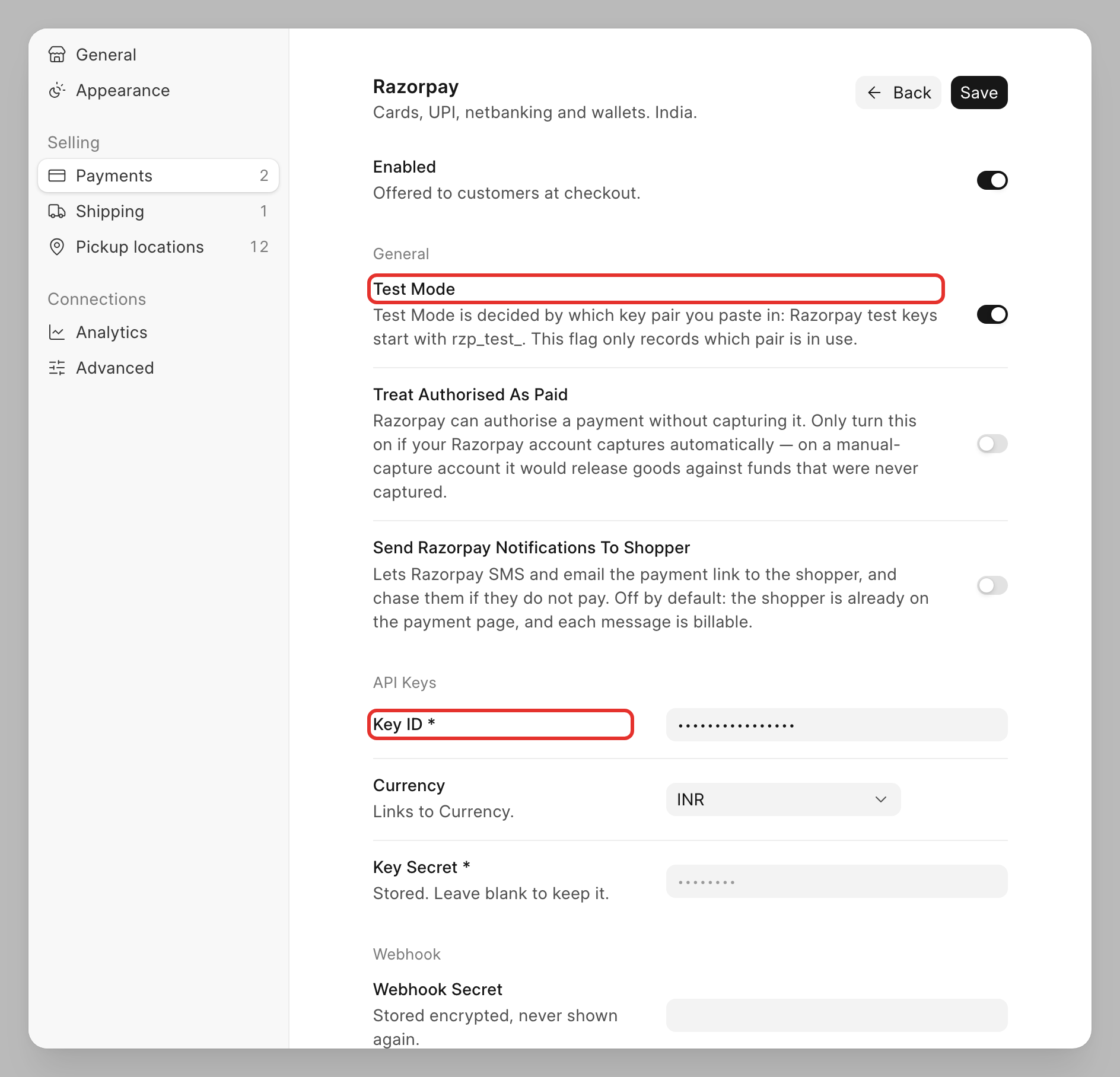 Under **General**, the **Test Mode** switch lets you try payments without moving real money before you go live.
:::caution[Your keys are secret]
Never share these keys with anyone, and never paste them anywhere except this form. Anyone who has them can move money through your account.
:::
:::note[Where do I find my keys?]
See the provider guides in the [BWH Payments docs](https://docs.bwh.tech/bwh-payments) for where to find your keys.
:::
4. Click **Back** to return to the **Payments** panel. Repeat steps 2 and 3 for any other provider you want to offer.
5. To offer cash on delivery, scroll to the **Cash on delivery** panel and turn on **Offer cash on delivery**.
Under **General**, the **Test Mode** switch lets you try payments without moving real money before you go live.
:::caution[Your keys are secret]
Never share these keys with anyone, and never paste them anywhere except this form. Anyone who has them can move money through your account.
:::
:::note[Where do I find my keys?]
See the provider guides in the [BWH Payments docs](https://docs.bwh.tech/bwh-payments) for where to find your keys.
:::
4. Click **Back** to return to the **Payments** panel. Repeat steps 2 and 3 for any other provider you want to offer.
5. To offer cash on delivery, scroll to the **Cash on delivery** panel and turn on **Offer cash on delivery**.
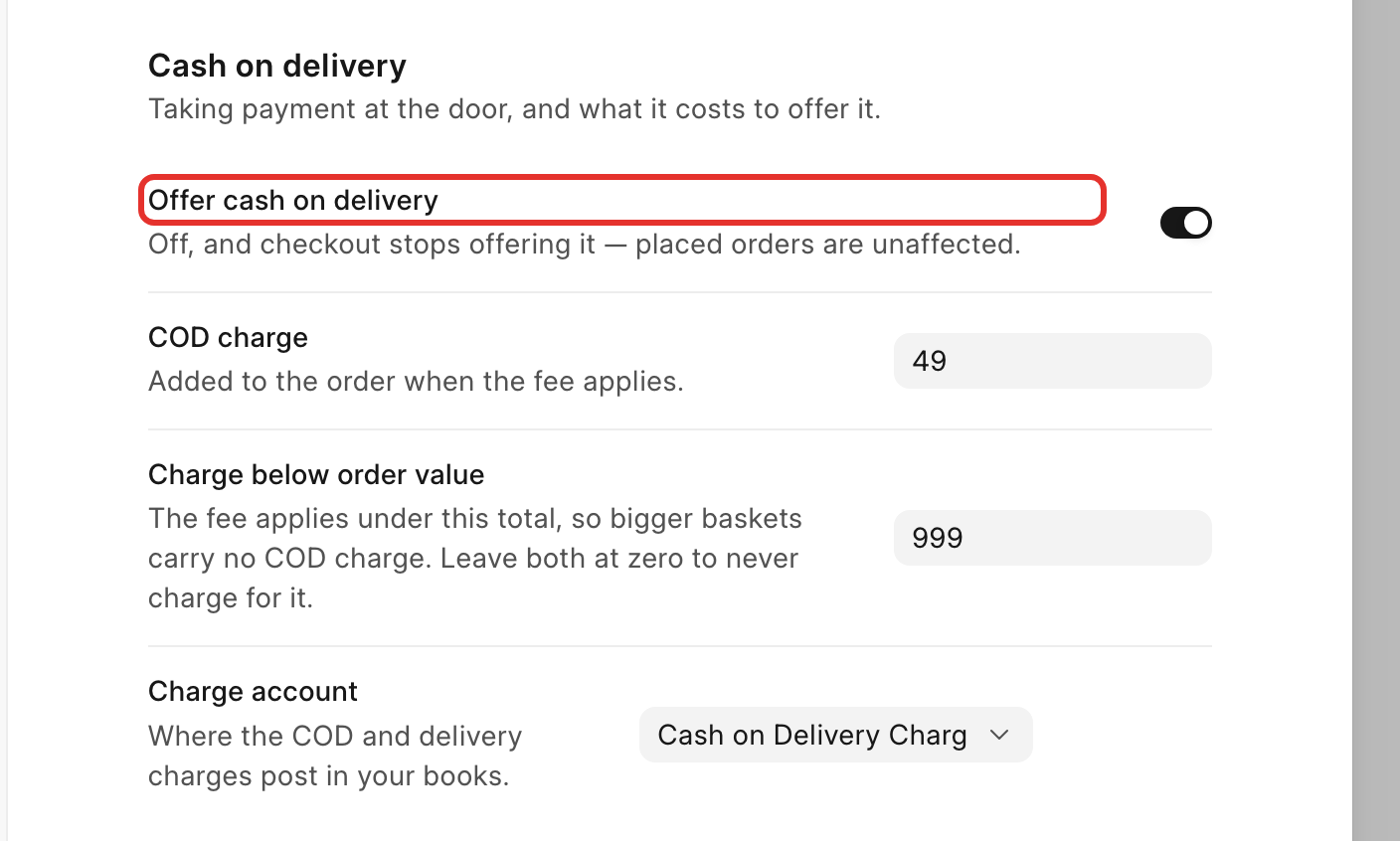 6. Set **COD charge**: an amount added to the order when a customer pays cash on delivery, to cover the extra handling. Set **Charge below order value**: the order total under which that charge applies. For example, with a COD charge of 49 and a threshold of 999, an order of 799 gets a 49 cash-on-delivery charge, but an order of 1200 does not, since it is already above the threshold.
7. In **Charge account**, leave the account your administrator set up for tracking this charge.
Each cash on delivery field saves on its own as soon as you edit it; a "saved" message appears.
## Check it worked
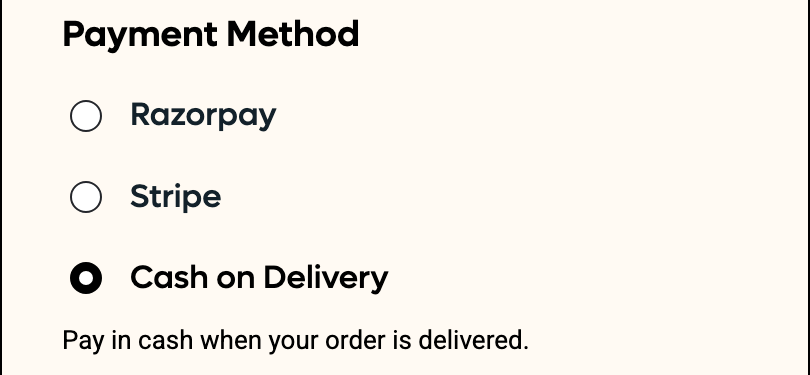
Back on the **Payments** panel, a connected provider shows a green **Live** badge and its **Configure** button. If it is turned on but still missing a required key, it shows an orange **Keys missing** badge instead. Every provider that is switched on appears at checkout under **Payment Method**, even one still showing **Keys missing**:
6. Set **COD charge**: an amount added to the order when a customer pays cash on delivery, to cover the extra handling. Set **Charge below order value**: the order total under which that charge applies. For example, with a COD charge of 49 and a threshold of 999, an order of 799 gets a 49 cash-on-delivery charge, but an order of 1200 does not, since it is already above the threshold.
7. In **Charge account**, leave the account your administrator set up for tracking this charge.
Each cash on delivery field saves on its own as soon as you edit it; a "saved" message appears.
## Check it worked
Back on the **Payments** panel, a connected provider shows a green **Live** badge and its **Configure** button. If it is turned on but still missing a required key, it shows an orange **Keys missing** badge instead. Every provider that is switched on appears at checkout under **Payment Method**, even one still showing **Keys missing**:
 :::caution[Switch off what isn't ready]
Switch off any provider still showing **Keys missing** before you launch.
:::
Try it yourself on [Place a test order](/commera/set-up-your-store/test-order).
## Good to know
:::note[Keeping more than one option on]
You can turn on several providers and cash on delivery at the same time. Shoppers pick one at checkout.
:::
## Next
[Set up shipping](/commera/set-up-your-store/shipping)
:::caution[Switch off what isn't ready]
Switch off any provider still showing **Keys missing** before you launch.
:::
Try it yourself on [Place a test order](/commera/set-up-your-store/test-order).
## Good to know
:::note[Keeping more than one option on]
You can turn on several providers and cash on delivery at the same time. Shoppers pick one at checkout.
:::
## Next
[Set up shipping](/commera/set-up-your-store/shipping)