---
title: "Set up shipping"
space: "Commera"
url: "https://docs.bwh.tech/commera/set-up-your-store/shipping"
updated: "2026-09-21"
---
Connect a carrier and choose the delivery options shoppers see at checkout.
## Before you start
Finish [Welcome to Commera](/commera/set-up-your-store/welcome) so you know your way around the dashboard. You do not need a payment gateway connected first.
## Steps
1. Open **Settings**, then go to **Selling > Shipping**. You will land on the **Shipping** panel: "Carriers this store books with. Each quotes its own rates at checkout."
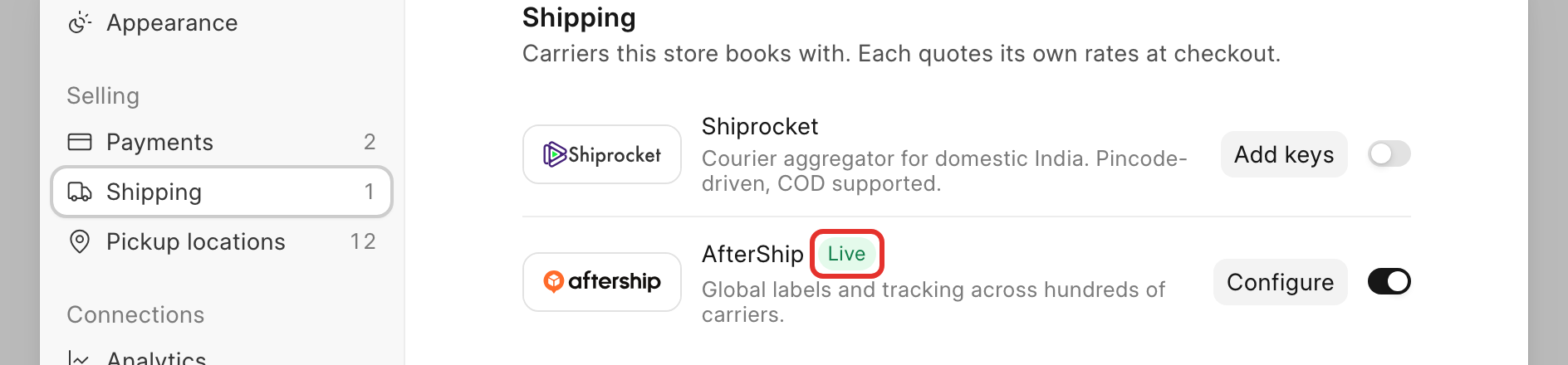 2. Each carrier card has a logo, a short blurb, an on/off switch, and a button that reads **Add keys** or **Configure**. Turn on the switch for the carrier you want to book with, then click its **Add keys** (or **Configure**) button and fill in the keys the carrier asks for. See the [BWH Shipping docs](https://docs.bwh.tech/bwh-shipping) for where to find each carrier's keys.
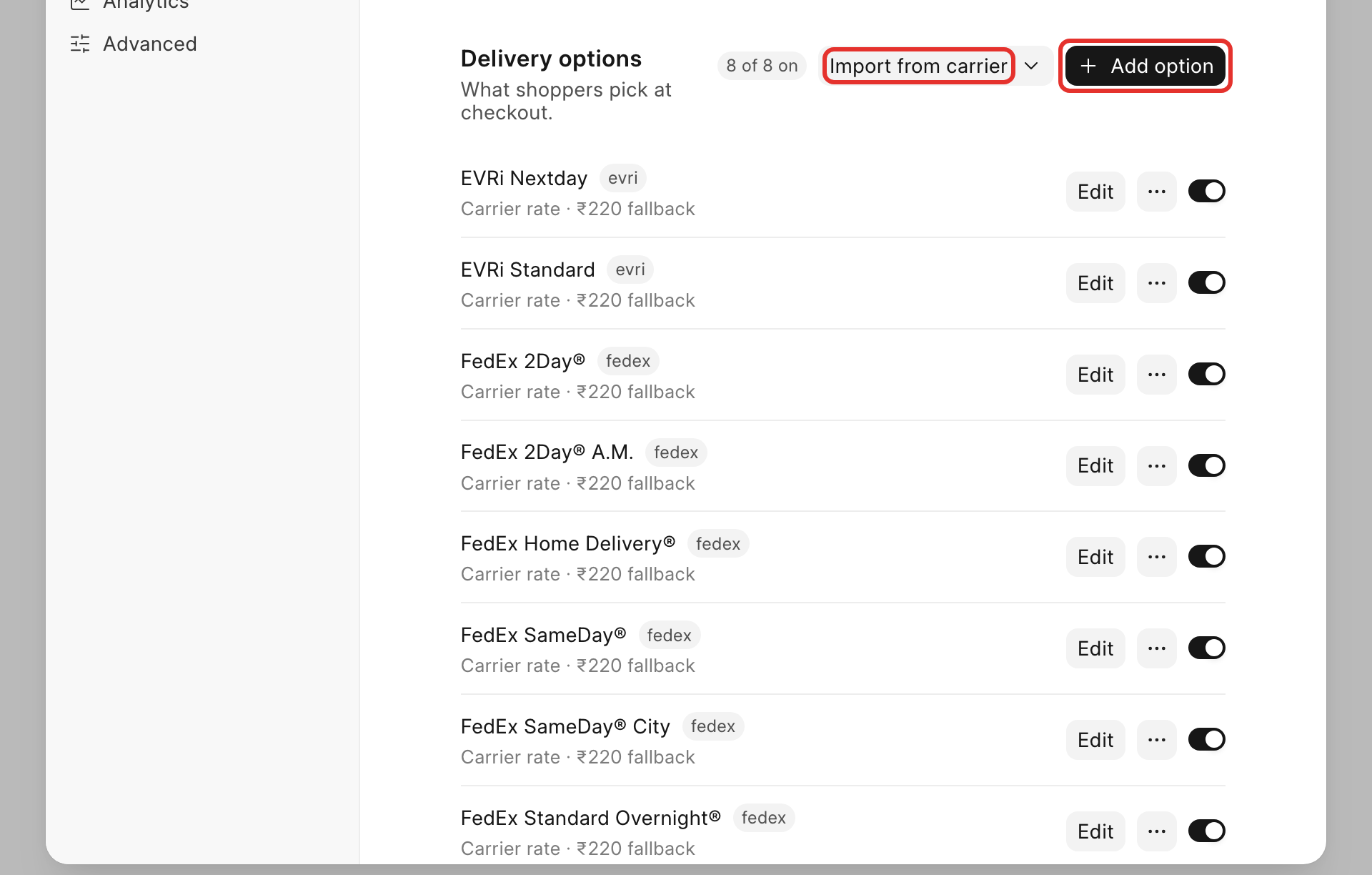
3. Scroll down to **Delivery options**: "What shoppers pick at checkout." This list is where you decide what shoppers actually see, and it works two ways: use the **Import from carrier** dropdown to pull in the delivery services a connected carrier already offers, or click **+ Add option** to build your own.
2. Each carrier card has a logo, a short blurb, an on/off switch, and a button that reads **Add keys** or **Configure**. Turn on the switch for the carrier you want to book with, then click its **Add keys** (or **Configure**) button and fill in the keys the carrier asks for. See the [BWH Shipping docs](https://docs.bwh.tech/bwh-shipping) for where to find each carrier's keys.
3. Scroll down to **Delivery options**: "What shoppers pick at checkout." This list is where you decide what shoppers actually see, and it works two ways: use the **Import from carrier** dropdown to pull in the delivery services a connected carrier already offers, or click **+ Add option** to build your own.
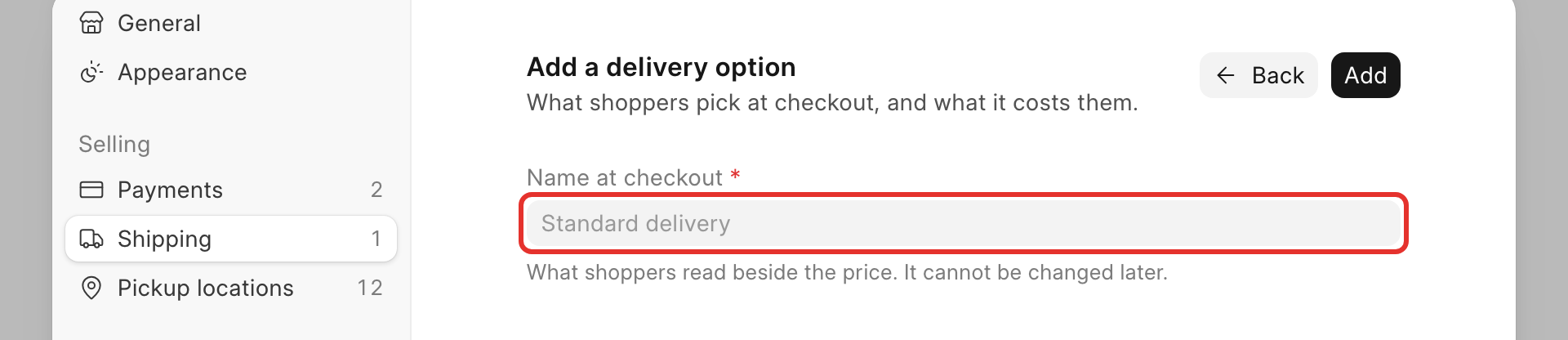
 4. If you add your own, the **Add a delivery option** dialog opens: "What shoppers pick at checkout, and what it costs them." Fill in **Name at checkout**, an optional **Description**, the **Provider** (pick the carrier this option ships with, the one you connected above), and its pricing. Click **Add**.
 :::caution[The name at checkout cannot be changed]
Once you save a delivery option, its **Name at checkout** is locked in. Get the wording right the first time, since shoppers will see it exactly as typed.
:::
5. Turn each option's toggle on or off to control whether shoppers see it at checkout. The header shows a running count, such as "8 of 8 on".
6. Optional: to offer store pickup, click the **Pickup locations** tab. Turn on **Store pickup**: "Let shoppers collect their order from a warehouse instead of having it delivered." Below it is a list of your warehouses, each with its own toggle.
:::caution[The name at checkout cannot be changed]
Once you save a delivery option, its **Name at checkout** is locked in. Get the wording right the first time, since shoppers will see it exactly as typed.
:::
5. Turn each option's toggle on or off to control whether shoppers see it at checkout. The header shows a running count, such as "8 of 8 on".
6. Optional: to offer store pickup, click the **Pickup locations** tab. Turn on **Store pickup**: "Let shoppers collect their order from a warehouse instead of having it delivered." Below it is a list of your warehouses, each with its own toggle.
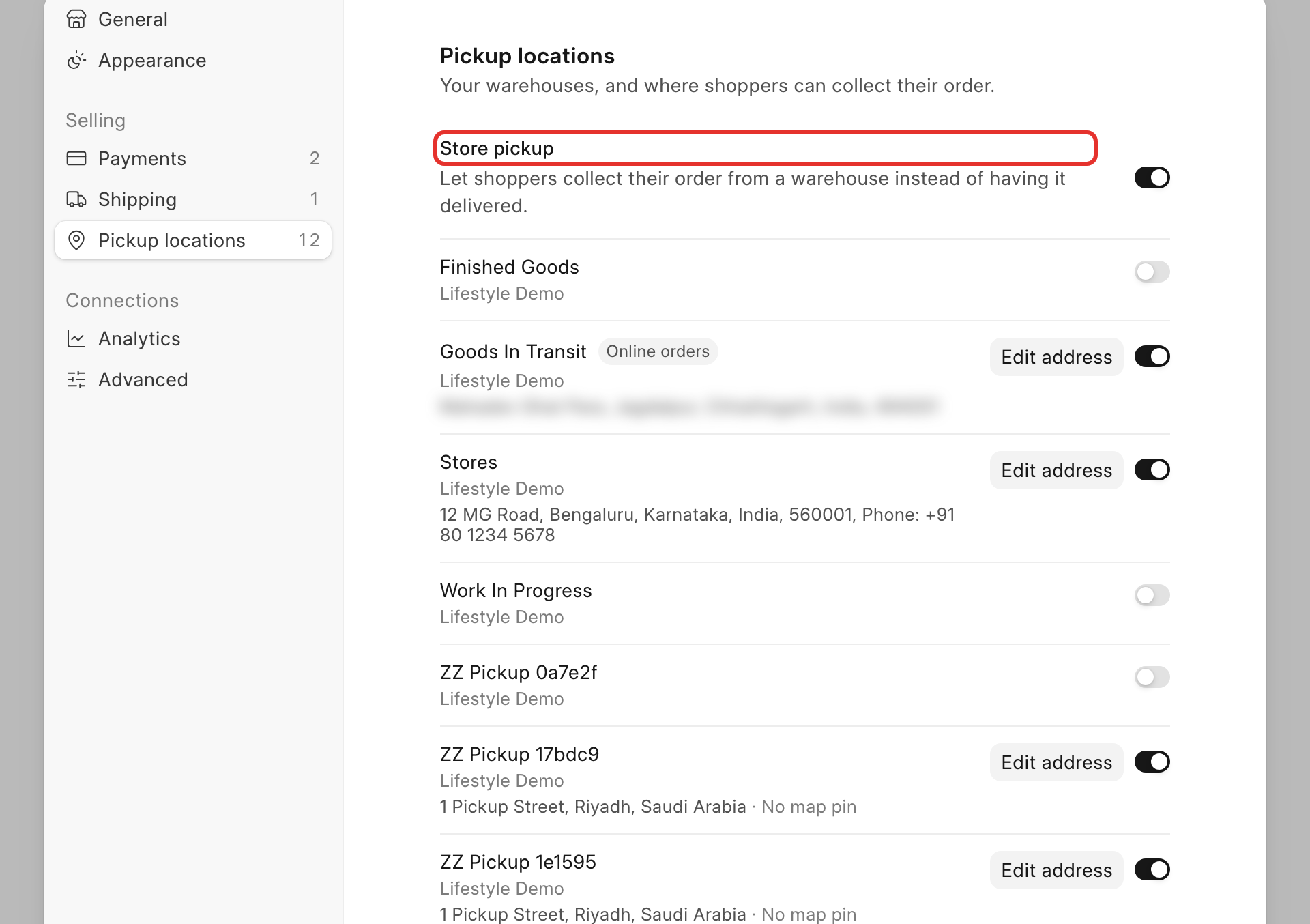 7. A warehouse without an address shows **Add address** and the caption "Needs an address — hidden at checkout". Click **Add address** (or **Edit address** on a warehouse that already has one) to fill in the pickup address shoppers will see.
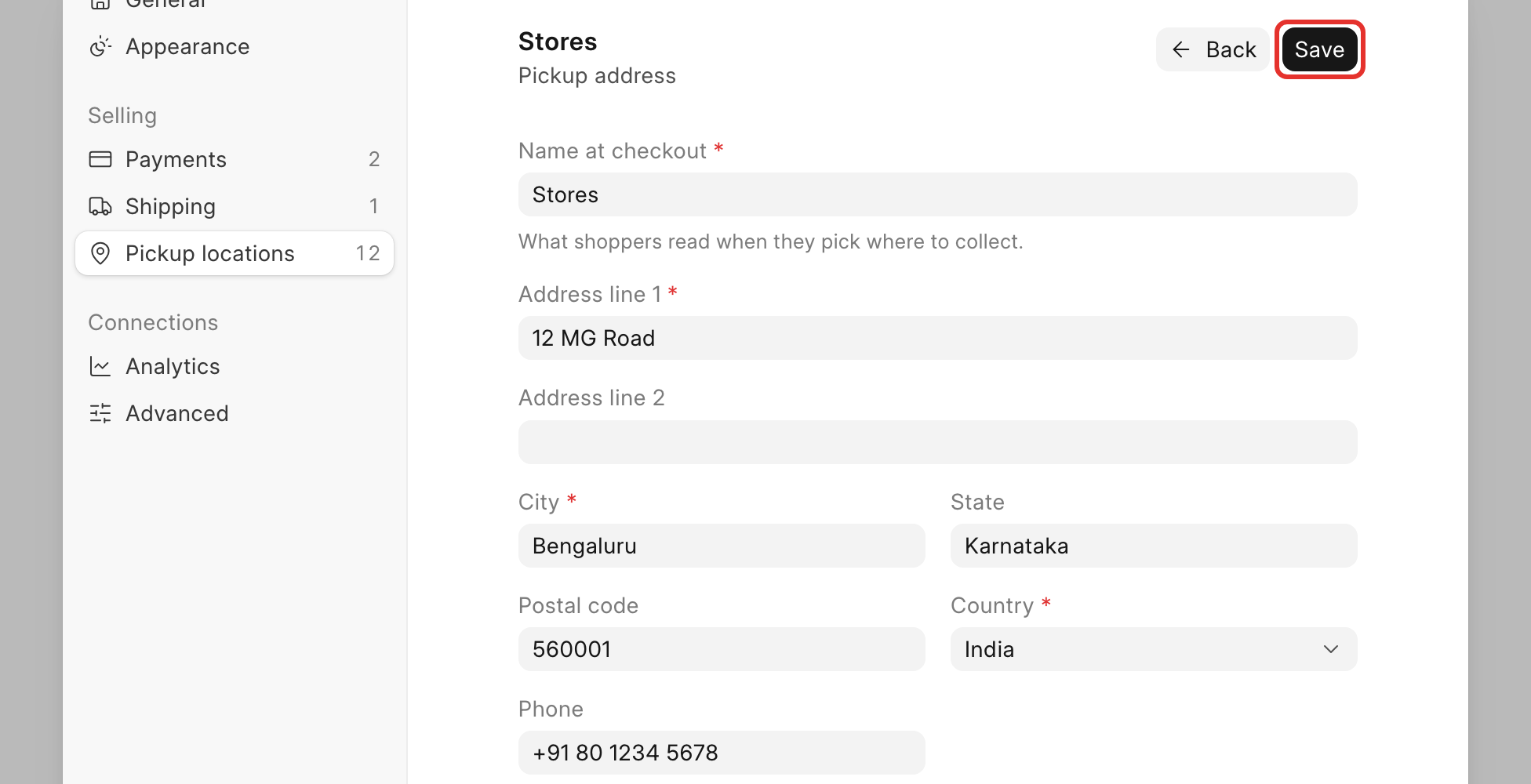 Click **Save** at the top of the panel.
:::note[Ask your administrator]
Pickup locations come from your warehouses, and new warehouses are set up in your books, not in this panel. Ask your administrator to add one before it can appear here.
:::
## Check it worked
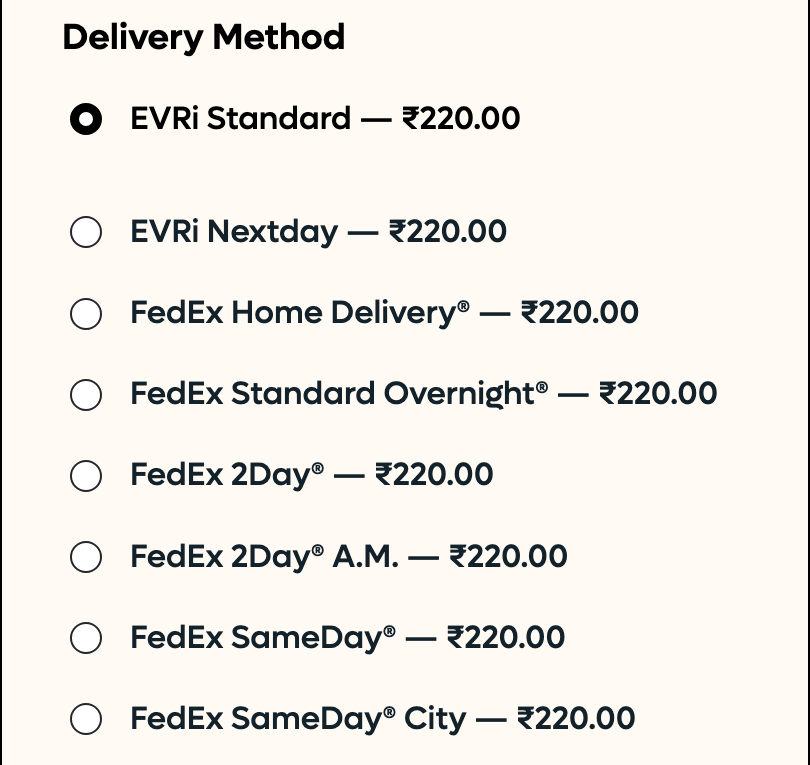
Back on the **Delivery options** list, the options you turned on show as switched on. At checkout, once a shopper saves their address, each option appears under **Delivery Method** with its price:
Click **Save** at the top of the panel.
:::note[Ask your administrator]
Pickup locations come from your warehouses, and new warehouses are set up in your books, not in this panel. Ask your administrator to add one before it can appear here.
:::
## Check it worked
Back on the **Delivery options** list, the options you turned on show as switched on. At checkout, once a shopper saves their address, each option appears under **Delivery Method** with its price:
 Try it yourself on [Place a test order](/commera/set-up-your-store/test-order).
## Good to know
:::tip[Mix imported and custom options]
You can import delivery options from a connected carrier and add your own alongside them. Shoppers see whatever is turned on, regardless of where it came from.
:::
:::note[Turning an option off]
Turning an option's toggle off hides it from checkout immediately, but keeps it saved so you can turn it back on later.
:::
## Next
[Pick a theme](/commera/set-up-your-store/theme)
Try it yourself on [Place a test order](/commera/set-up-your-store/test-order).
## Good to know
:::tip[Mix imported and custom options]
You can import delivery options from a connected carrier and add your own alongside them. Shoppers see whatever is turned on, regardless of where it came from.
:::
:::note[Turning an option off]
Turning an option's toggle off hides it from checkout immediately, but keeps it saved so you can turn it back on later.
:::
## Next
[Pick a theme](/commera/set-up-your-store/theme)