---
title: "Place a test order"
space: "Commera"
url: "https://docs.bwh.tech/commera/set-up-your-store/test-order"
updated: "2026-09-21"
---
Buy your own product the way a shopper would, then find the order in your dashboard, to prove your products, payments and shipping all work together.
## Before you start
Finish [Add your first product](/commera/set-up-your-store/first-product), [Connect a payment gateway](/commera/set-up-your-store/payments) and [Set up shipping](/commera/set-up-your-store/shipping). You will need a customer account on the storefront to check out, the same way a shopper would sign up.
A new product starts with no stock, so the size you plan to buy needs stock first. On the product page, open the row's **⋯** menu in **Variants** and choose **Receive stock**, then enter a **Quantity received**.
:::caution[Use test mode for card payments]
Never pay with a live card for a test order. Use **Cash on Delivery**, or put your gateway into its test mode before you pay by card.
:::
## Steps
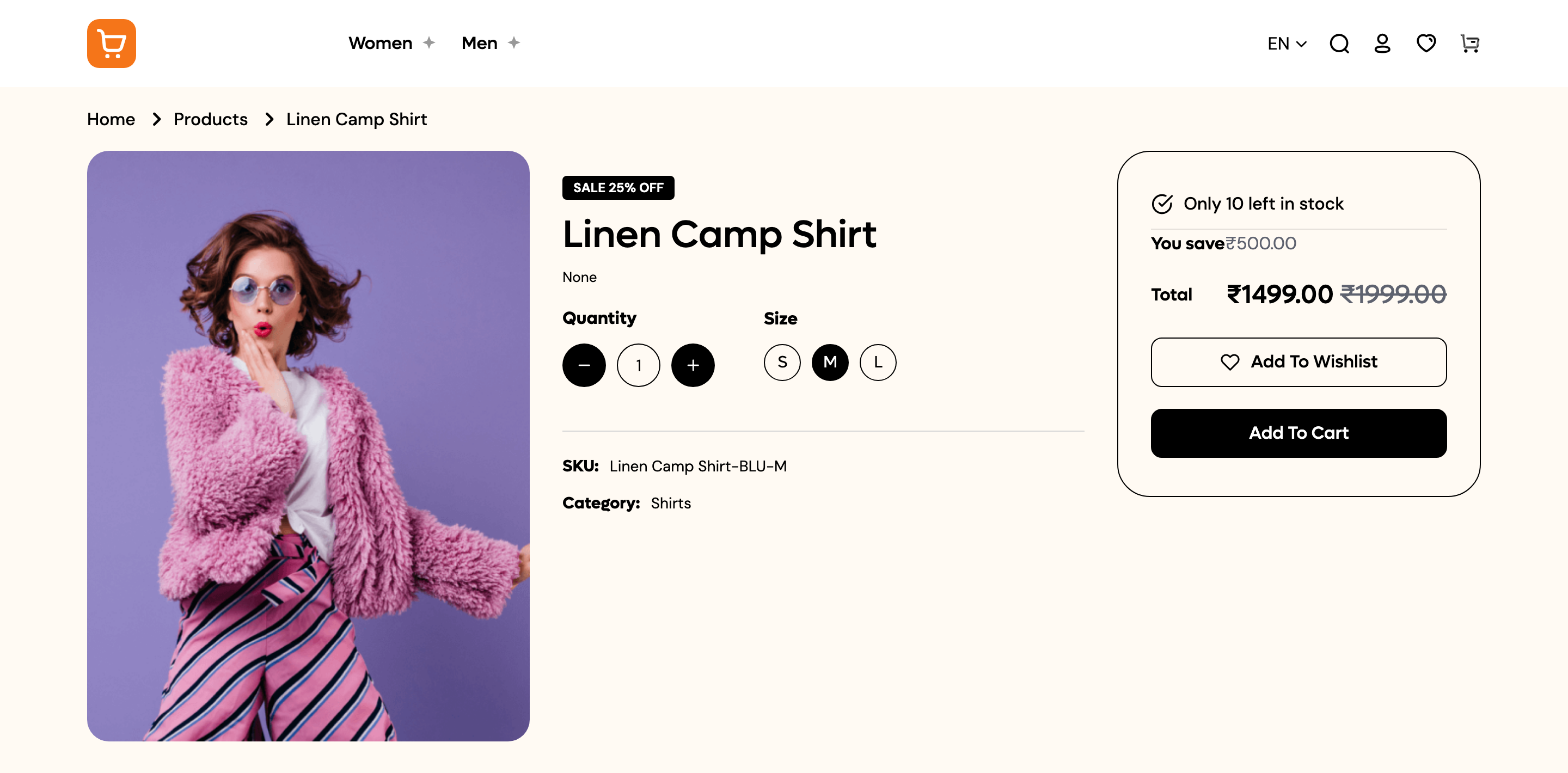
1. Open your product on the storefront. Pick a size, then click **Add To Cart**. You will see the message "Item added to your bag", and the cart icon shows a count.
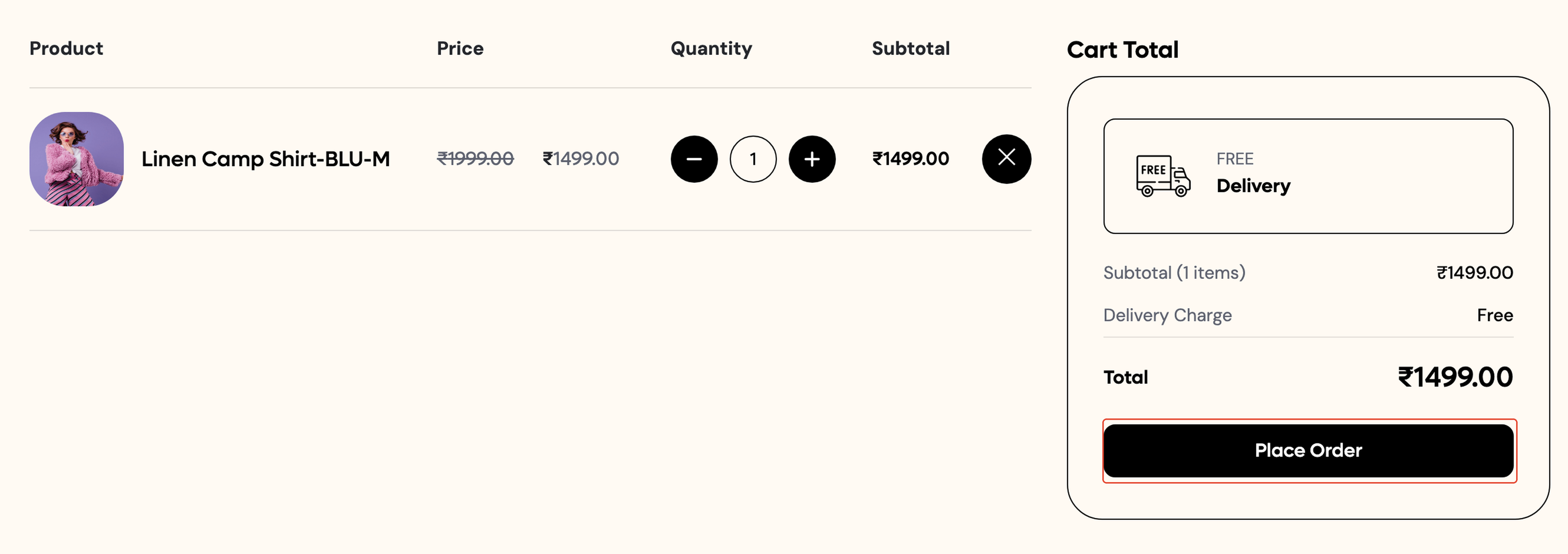
 2. Open the cart. On the **Shop Cart** page, check the **Cart Total** box, then click **Place Order**.
 :::note[Signed out?]
If you are not signed in, you will see **Sign In to Checkout** instead. Sign in or create an account first.
:::
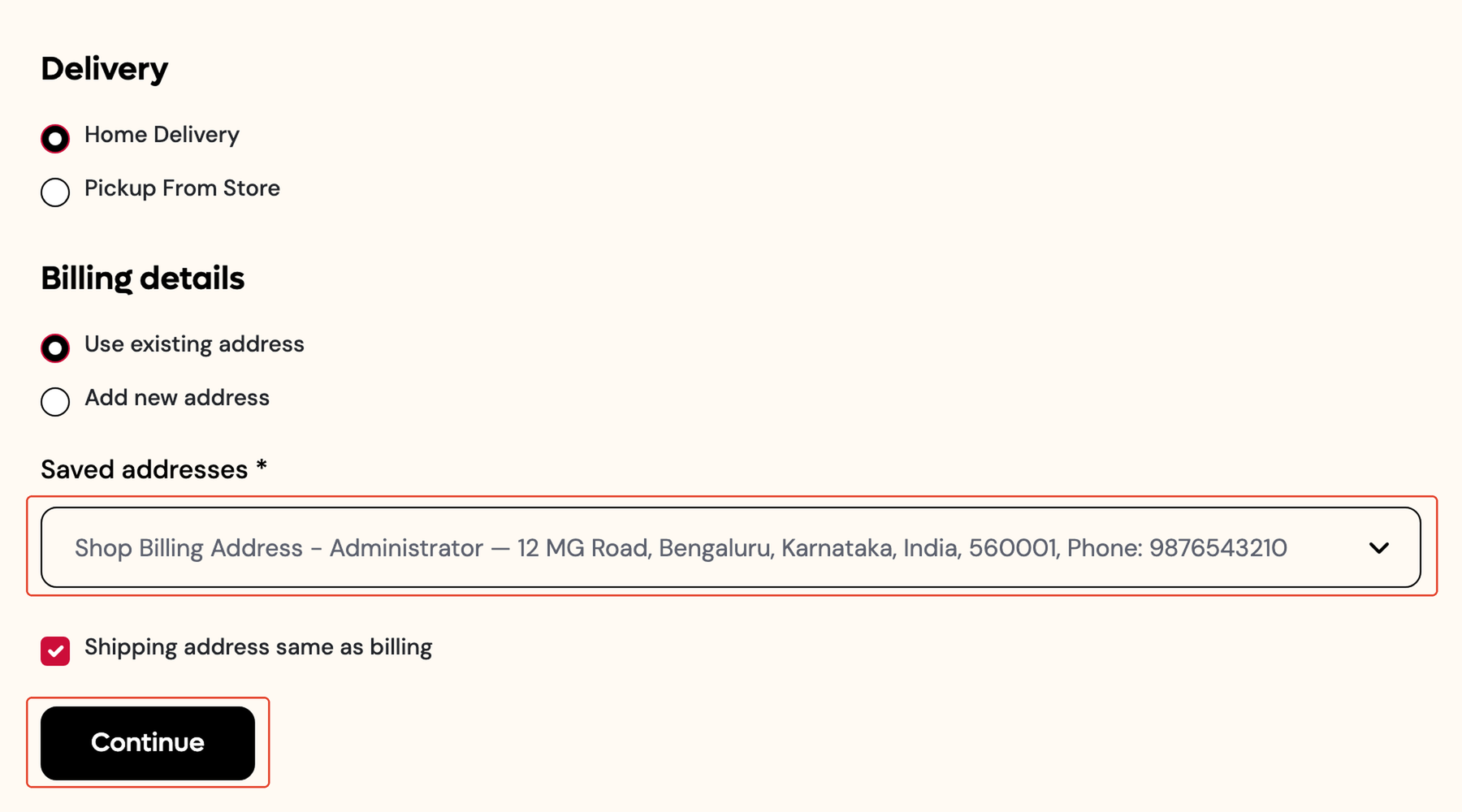
3. On the **Shop Checkout** page, choose **Home Delivery** or **Pickup From Store** under **Delivery**, then pick or add an address under **Billing details**. Click **Continue**. You will see the message "Delivery details saved. Choose a payment method to place your order."
:::note[Signed out?]
If you are not signed in, you will see **Sign In to Checkout** instead. Sign in or create an account first.
:::
3. On the **Shop Checkout** page, choose **Home Delivery** or **Pickup From Store** under **Delivery**, then pick or add an address under **Billing details**. Click **Continue**. You will see the message "Delivery details saved. Choose a payment method to place your order."
 4. Under **Your Order**, pick a **Delivery Method** from the delivery options you set up, then pick a **Payment Method**: one of your connected gateways, or **Cash on Delivery**. For this test, choose **Cash on Delivery**.
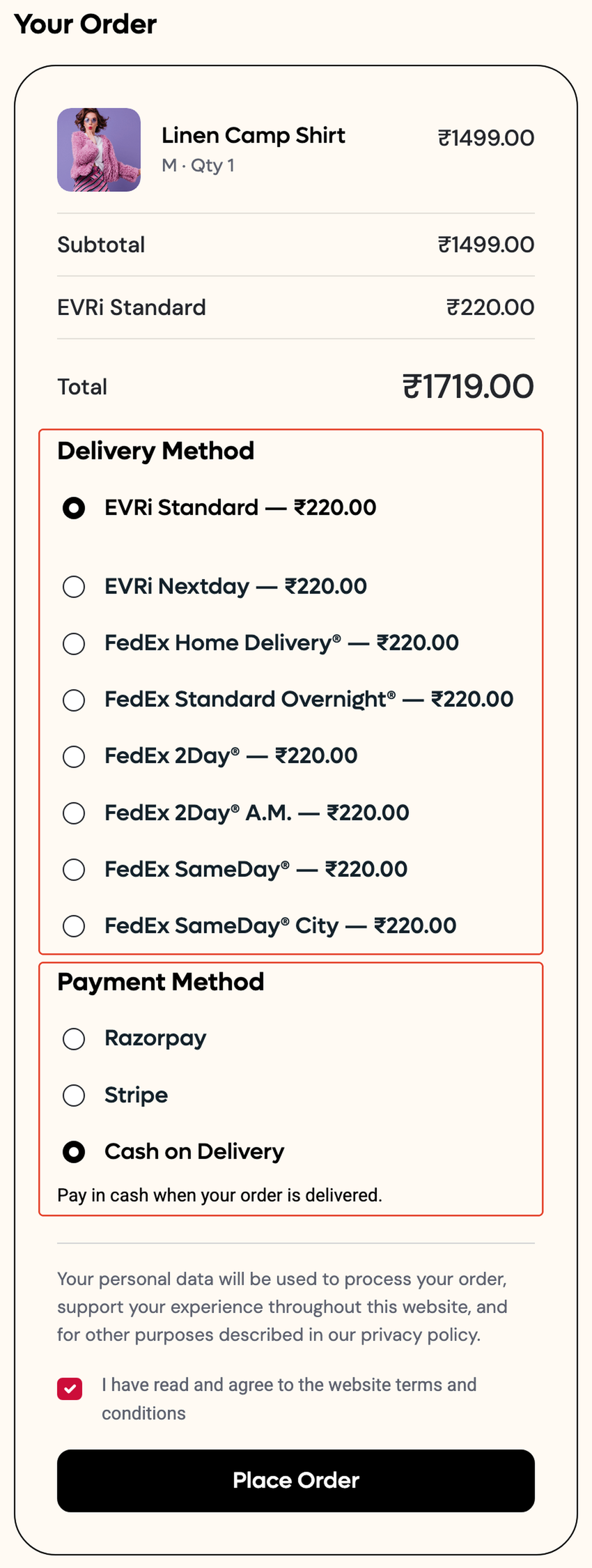 If your order total is below the **Charge below order value** amount you set for cash on delivery, a small charge is added here. See [Connect a payment gateway](/commera/set-up-your-store/payments) for that setting.
5. Tick **I have read and agree to the website terms and conditions**, then click **Place Order**. This button stays disabled until you have ticked the box and picked a payment method.
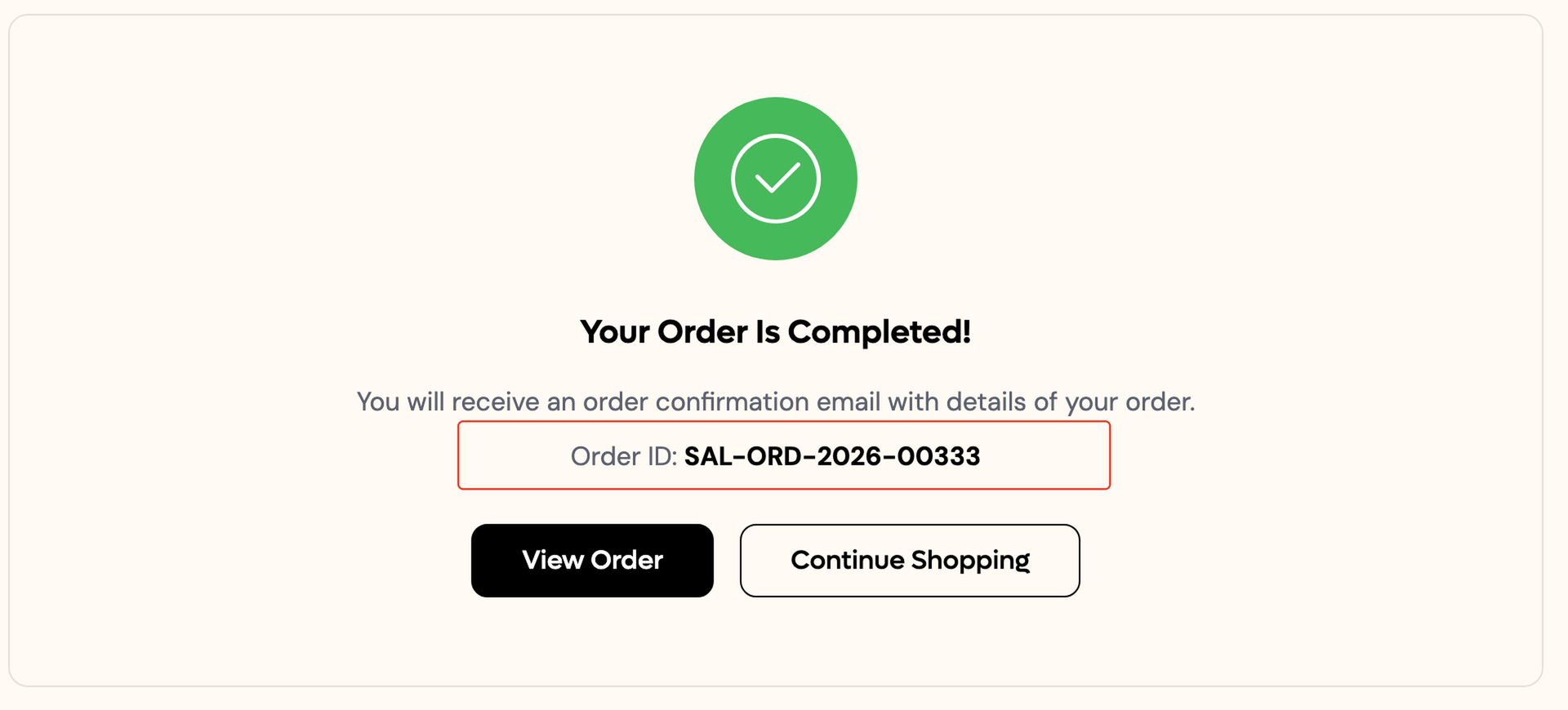
6. You will land on the **Order Confirmed** page: "Your Order Is Completed!", with your **Order ID** and buttons to **View Order** or **Continue Shopping**.
If your order total is below the **Charge below order value** amount you set for cash on delivery, a small charge is added here. See [Connect a payment gateway](/commera/set-up-your-store/payments) for that setting.
5. Tick **I have read and agree to the website terms and conditions**, then click **Place Order**. This button stays disabled until you have ticked the box and picked a payment method.
6. You will land on the **Order Confirmed** page: "Your Order Is Completed!", with your **Order ID** and buttons to **View Order** or **Continue Shopping**.
 7. In the dashboard, go to **Orders**. Your test order is at the top of the list.
 ## Check it worked
Your test order shows in **Orders** with Payment **Cash on delivery** and Fulfilment **Confirmation pending**.
## Good to know
:::note[A test order is a real order]
Placing it holds stock and the order counts in your reports, the same as any order a shopper places. Cancel it once you are done testing. Cancelling an order is covered in the Orders section.
:::
## Next
[Before you launch](/commera/set-up-your-store/before-launch)
## Check it worked
Your test order shows in **Orders** with Payment **Cash on delivery** and Fulfilment **Confirmation pending**.
## Good to know
:::note[A test order is a real order]
Placing it holds stock and the order counts in your reports, the same as any order a shopper places. Cancel it once you are done testing. Cancelling an order is covered in the Orders section.
:::
## Next
[Before you launch](/commera/set-up-your-store/before-launch)