---
title: "Pick a theme"
space: "Commera"
url: "https://docs.bwh.tech/commera/set-up-your-store/theme"
updated: "2026-09-21"
---
Choose a theme for your storefront and see it update with your own products.
## Before you start
Finish [Add your first product](/commera/set-up-your-store/first-product) so the preview shows real products instead of placeholders.
## Steps
1. In the sidebar, under **Storefront**, click **Theme**. You will land on the **Theme** page.
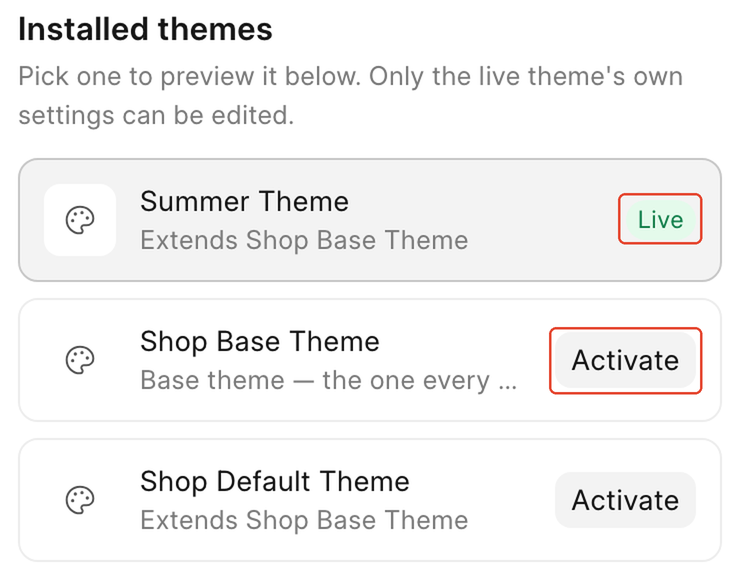
2. **Installed themes** lists every theme you have: the demo store ships with **Summer Theme** (badge **Live**), **Shop Base Theme** ("Base theme: the one every other theme builds on"), and **Shop Default Theme**. Click a theme's name to preview it. Nothing on your live storefront changes.
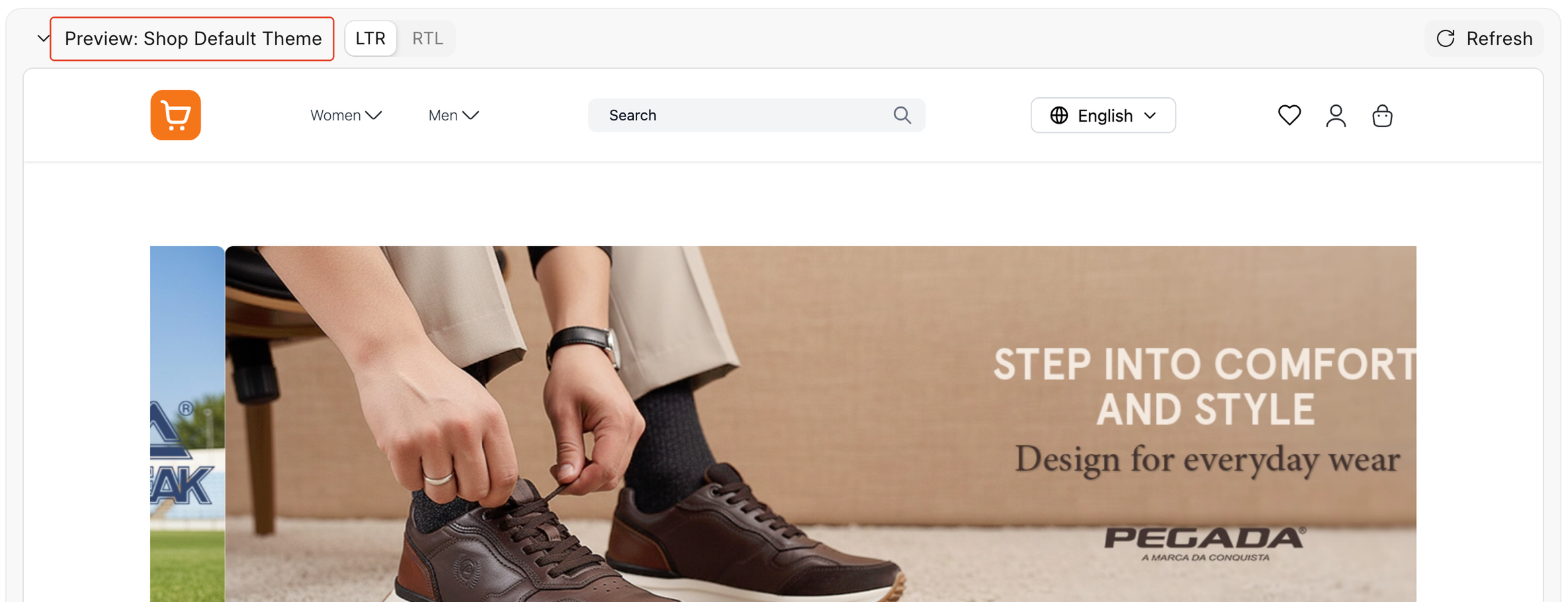 3. The preview pane at the bottom shows **Preview: [theme name]**, with **LTR** / **RTL** toggles and a **Refresh** button, so you can check the theme before committing to it.
4. When you are ready, click **Activate** on the theme you want live.
3. The preview pane at the bottom shows **Preview: [theme name]**, with **LTR** / **RTL** toggles and a **Refresh** button, so you can check the theme before committing to it.
4. When you are ready, click **Activate** on the theme you want live.
 :::caution[Activate switches your live store immediately]
There is no confirmation step. As soon as you click **Activate**, shoppers see the new theme, and there is no undo besides activating a different theme.
:::
5. Once a theme is live, its own settings appear on the right under **[Theme name] settings**. The demo's Summer Theme groups its settings as **Hero Slider**, **Category Strip**, **Products Grid**, **Deals and Offers**, and **Featured Block**.
:::caution[Activate switches your live store immediately]
There is no confirmation step. As soon as you click **Activate**, shoppers see the new theme, and there is no undo besides activating a different theme.
:::
5. Once a theme is live, its own settings appear on the right under **[Theme name] settings**. The demo's Summer Theme groups its settings as **Hero Slider**, **Category Strip**, **Products Grid**, **Deals and Offers**, and **Featured Block**.
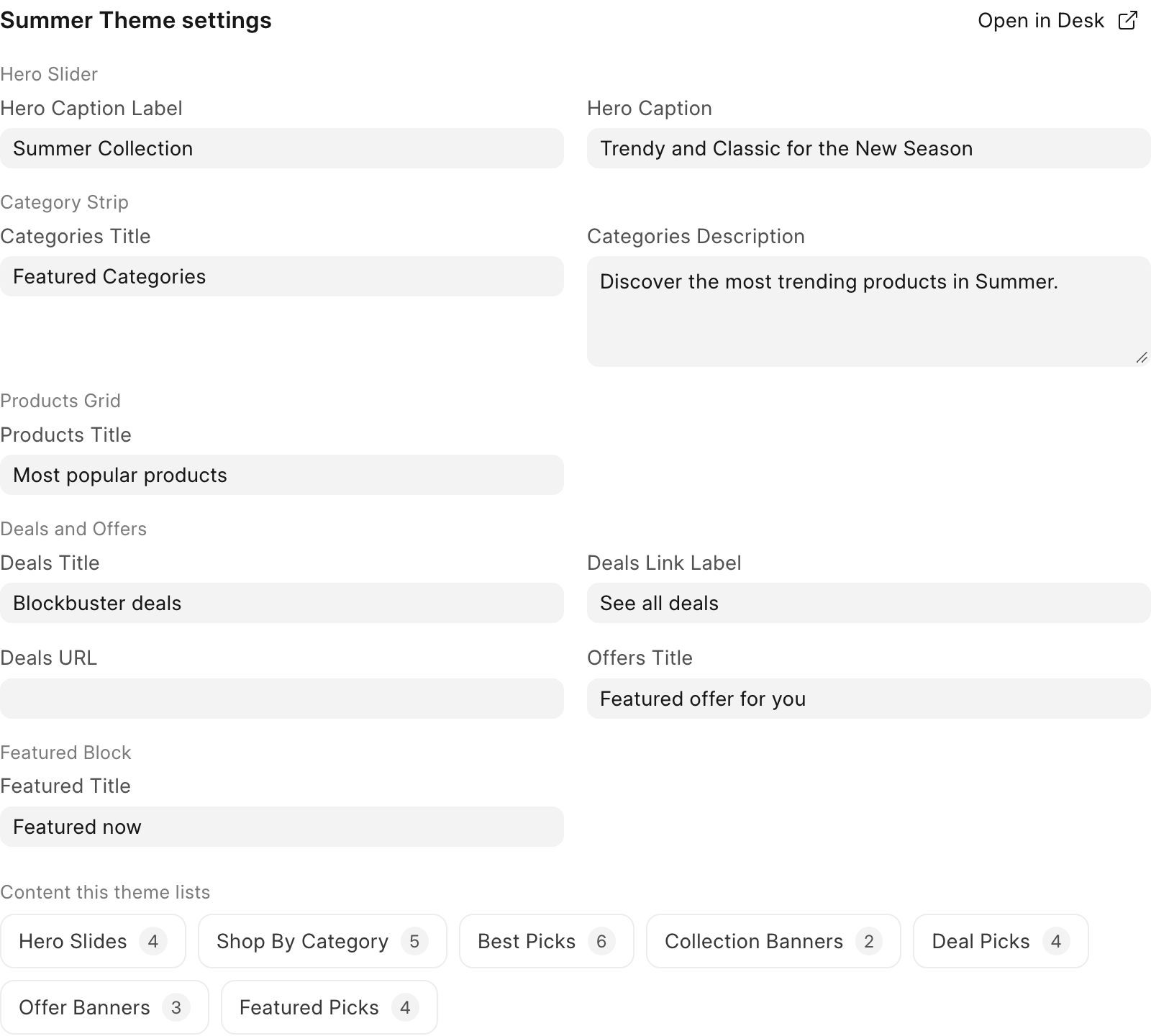 6. Change any field to update it. Each field saves on its own as soon as you edit it. There is no **Save** button.
7. Below the settings, **Content this theme lists** shows chips such as Hero Slides, Shop By Category, Best Picks, Collection Banners, Deal Picks, Offer Banners, and Featured Picks, so you can see at a glance how much content the theme is using.
8. The **Layout** section notes that header, footer and page content are covered in Storefront, with **Edit navigation** and **Edit pages** buttons to jump there. This Theme page only owns the live theme and the settings it ships with.
## Check it worked
Open your storefront homepage. It shows the theme you activated, built from your own products and photos.
6. Change any field to update it. Each field saves on its own as soon as you edit it. There is no **Save** button.
7. Below the settings, **Content this theme lists** shows chips such as Hero Slides, Shop By Category, Best Picks, Collection Banners, Deal Picks, Offer Banners, and Featured Picks, so you can see at a glance how much content the theme is using.
8. The **Layout** section notes that header, footer and page content are covered in Storefront, with **Edit navigation** and **Edit pages** buttons to jump there. This Theme page only owns the live theme and the settings it ships with.
## Check it worked
Open your storefront homepage. It shows the theme you activated, built from your own products and photos.
 ## Good to know
:::note[Ask your administrator]
Your logo and brand colours are not set on this page. Ask your administrator to set them for you.
:::
:::tip[Preview before you activate]
Click through each installed theme's preview first. Only the live theme's own settings can be edited, so it is worth comparing themes before you commit.
:::
## Next
[Place a test order](/commera/set-up-your-store/test-order)
## Good to know
:::note[Ask your administrator]
Your logo and brand colours are not set on this page. Ask your administrator to set them for you.
:::
:::tip[Preview before you activate]
Click through each installed theme's preview first. Only the live theme's own settings can be edited, so it is worth comparing themes before you commit.
:::
## Next
[Place a test order](/commera/set-up-your-store/test-order)