---
title: "Connect your Qikink account"
space: "Qikink"
url: "https://docs.bwh.tech/qikink/set-up/connect-your-qikink-account"
updated: "2026-10-04"
---
On this page you give Commera the keys to your Qikink account, and tell it who you buy from. You need these before any order can go to Qikink.
You will:
- copy your **Client ID** and **Client Secret** from Qikink
- add Qikink as a supplier in ERPNext
- choose a buying price list
- fill in the **Qikink** tab in Commera's settings
## Get your keys from Qikink
1. Log in to your Qikink dashboard at [dashboard.qikink.com](https://dashboard.qikink.com).
2. Go to **Integration > Custom API**.
3. Copy your **Client ID** and **Client Secret**. Keep this page open, or paste the two values somewhere safe for a few minutes.
:::caution[Keep the secret private]
Anyone with your Client ID and Client Secret can place orders on your Qikink account. Don't share them in email or chat, and don't put them in screenshots.
:::
:::note
Qikink gives you a sandbox (a practice account) and a live account. The sandbox and the live account don't share products. Qikink asks you to request live access on the same **Custom API** page. Start with the sandbox while you set up and test.
:::
## Add Qikink as a supplier
Commera buys each Qikink product from Qikink on your behalf, so ERPNext needs a supplier for Qikink. You do this once, in the Desk (the ERPNext screens behind your store).
1. Open the Desk: go to your site's address and add `/desk` at the end.
2. Click **Search** (or press Ctrl+K, or Cmd+K on a Mac), type **New Supplier** and press Enter.
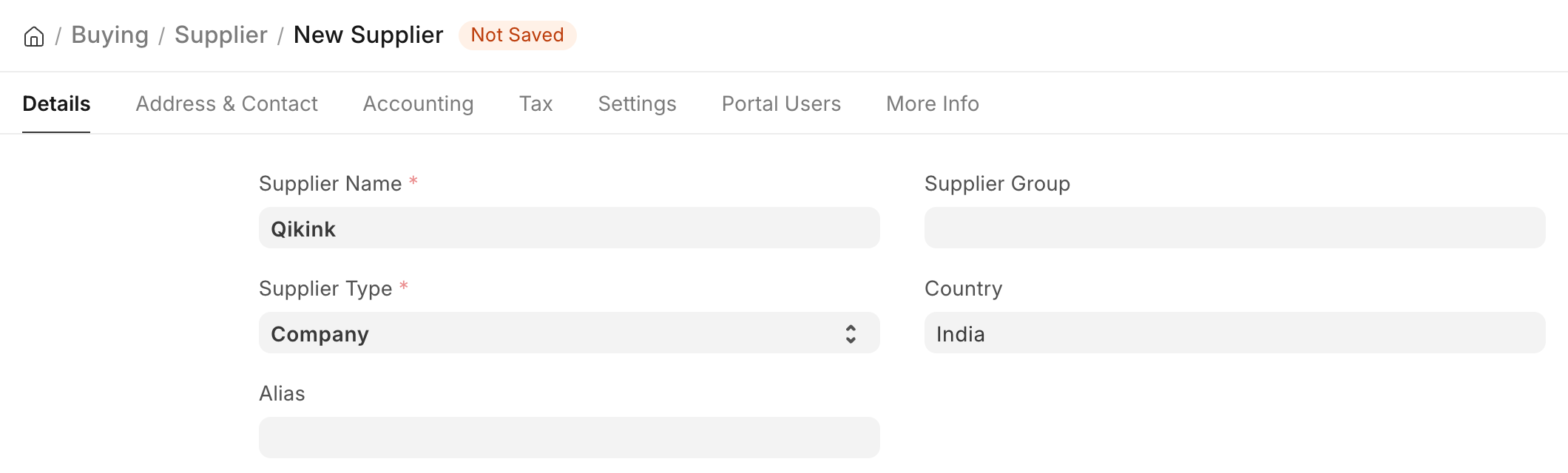
3. In **Supplier Name**, type `Qikink`.
4. Leave **Supplier Type** as **Company**.
5. Click **Save**.
 ## Choose a buying price list
A buying price list holds what Qikink charges you for each product. Commera uses these prices on the purchase it makes from Qikink for each order.
ERPNext already comes with a buying price list called **Standard Buying**. You can use it. If you want a separate list just for Qikink, search for **New Price List** in the Desk, give it a name, tick **Buying** and click **Save**.
You add the prices themselves when you [set up your products](/qikink/set-up/set-up-your-products).
## Fill in the Qikink settings
1. Go back to the Commera dashboard.
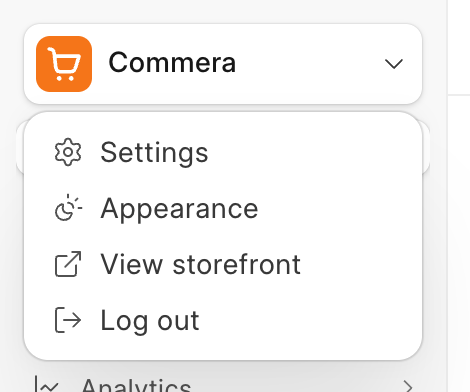
2. Click the **Commera** menu at the top of the sidebar, then click **Settings**.
## Choose a buying price list
A buying price list holds what Qikink charges you for each product. Commera uses these prices on the purchase it makes from Qikink for each order.
ERPNext already comes with a buying price list called **Standard Buying**. You can use it. If you want a separate list just for Qikink, search for **New Price List** in the Desk, give it a name, tick **Buying** and click **Save**.
You add the prices themselves when you [set up your products](/qikink/set-up/set-up-your-products).
## Fill in the Qikink settings
1. Go back to the Commera dashboard.
2. Click the **Commera** menu at the top of the sidebar, then click **Settings**.
 3. In the settings list, under **Installed plugins**, click **Qikink**.
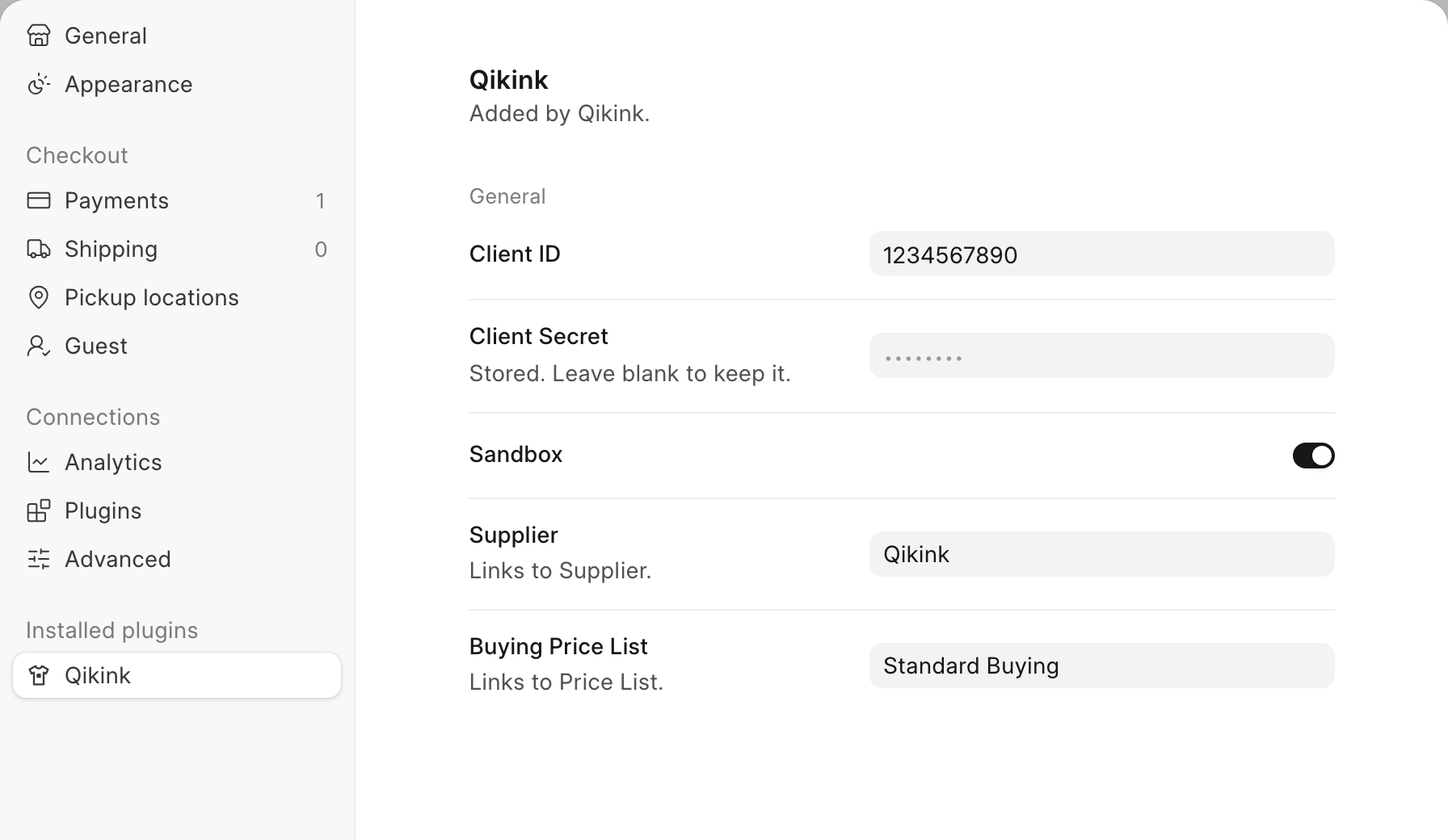
4. Fill in each row. Each row saves by itself as soon as you change it. There is no Save button.
- **Client ID**: paste the Client ID from Qikink.
- **Client Secret**: paste the Client Secret from Qikink.
- **Sandbox**: leave it on while you test. With it on, Commera sends orders to Qikink's sandbox, not to your live account.
- **Supplier**: type `Qikink`, the supplier you just made.
- **Buying Price List**: type the name of your buying price list, for example `Standard Buying`.
3. In the settings list, under **Installed plugins**, click **Qikink**.
4. Fill in each row. Each row saves by itself as soon as you change it. There is no Save button.
- **Client ID**: paste the Client ID from Qikink.
- **Client Secret**: paste the Client Secret from Qikink.
- **Sandbox**: leave it on while you test. With it on, Commera sends orders to Qikink's sandbox, not to your live account.
- **Supplier**: type `Qikink`, the supplier you just made.
- **Buying Price List**: type the name of your buying price list, for example `Standard Buying`.
 :::tip
**Supplier** and **Buying Price List** are plain text boxes, not pickers. Type each name exactly as it is spelled in the Desk, with the same capital letters and spaces.
:::
**How you know it worked:** reopen the **Qikink** tab. **Client ID**, **Supplier** and **Buying Price List** show what you typed, **Sandbox** is on, and **Client Secret** shows dots with the line "Stored. Leave blank to keep it."
:::note
Commera never shows your Client Secret again after you save it. To change it, paste a new one into the box. To keep the old one, leave the box empty.
:::
## Next steps
- [Set up your products](/qikink/set-up/set-up-your-products)
- [How orders reach Qikink](/qikink/orders/how-orders-reach-qikink)
- [Install the Qikink plugin](/qikink/set-up/install-the-app)
:::tip
**Supplier** and **Buying Price List** are plain text boxes, not pickers. Type each name exactly as it is spelled in the Desk, with the same capital letters and spaces.
:::
**How you know it worked:** reopen the **Qikink** tab. **Client ID**, **Supplier** and **Buying Price List** show what you typed, **Sandbox** is on, and **Client Secret** shows dots with the line "Stored. Leave blank to keep it."
:::note
Commera never shows your Client Secret again after you save it. To change it, paste a new one into the box. To keep the old one, leave the box empty.
:::
## Next steps
- [Set up your products](/qikink/set-up/set-up-your-products)
- [How orders reach Qikink](/qikink/orders/how-orders-reach-qikink)
- [Install the Qikink plugin](/qikink/set-up/install-the-app)