


.webp)
Until now your store has talked to Qikink's sandbox, a test copy of Qikink where nothing is printed or shipped. This page is the checklist for switching to your real Qikink account and sending a first real order.
Before you switch
Work through this list first. Each item links to the page that covers it.
- Every product you sell through Qikink has its Qikink SKUs. Open each product and check its Qikink card shows all variants mapped. Checkout refuses a cart with a Qikink product that has no SKU, so a missed product cannot be bought. See Set up your products.
- Every Qikink variant has a buying price in the buying price list you chose in Qikink settings. Without it, no Purchase Order is made for the order.
- The SKUs are your live SKUs. A design SKU must come from My Products on your real Qikink account, not from the sandbox.
- You have your live Client ID and Client Secret from your real Qikink dashboard (Integration > Custom API). See Connect your Qikink account.
Switch to your live Qikink account
-
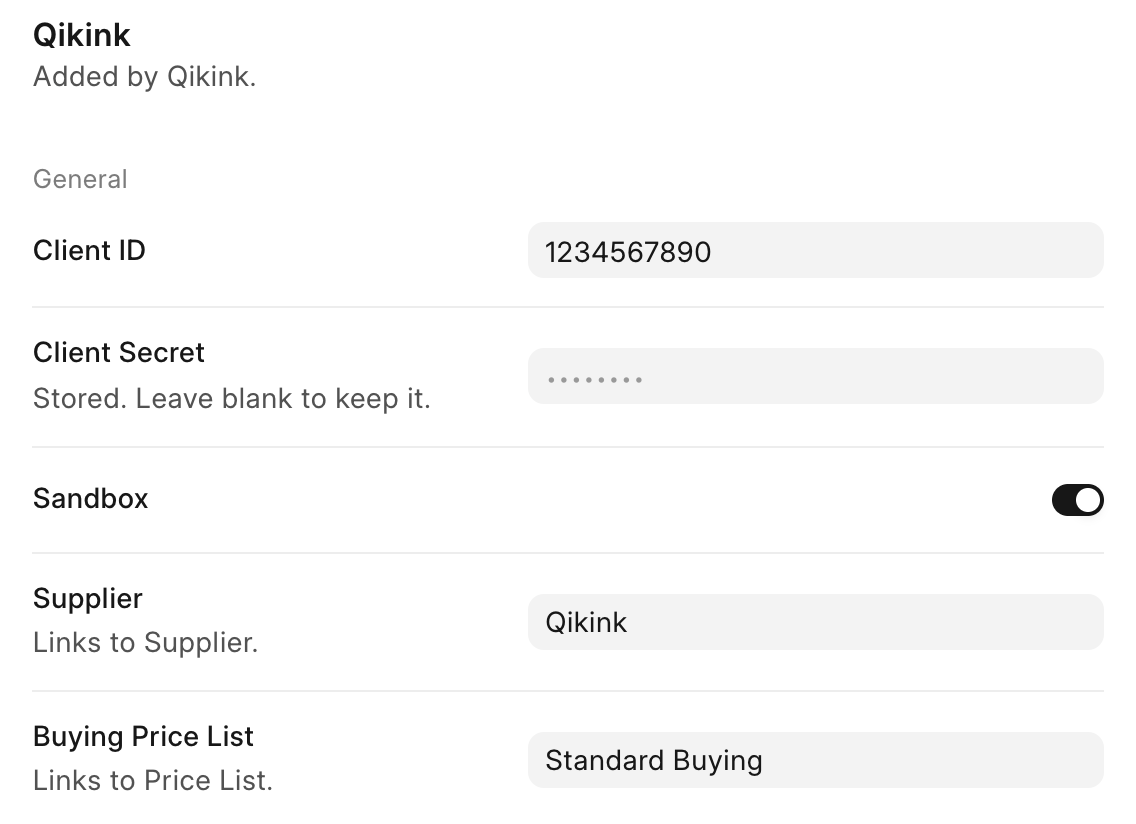
In the Commera dashboard, click Commera at the top left of the sidebar and choose Settings. Under Installed plugins, click Qikink.
-
In Client ID, replace the sandbox ID with your live Client ID.
-
In Client Secret, type your live Client Secret. The field shows dots for the secret it already holds; leave it blank only if you want to keep that one.
-
Switch Sandbox off.
-
Check that Supplier and Buying Price List are still the ones you use for Qikink.
Each row saves itself as soon as you change it. There is no Save button.
Send a real test order
- On your storefront, buy one of your Qikink products and pay online, as a shopper would.
- In the Commera dashboard, open the order. Its Qikink card should show a Qikink order number, a Qikink status and a Drop-ship purchase order.
- Log in to your real Qikink dashboard and find the order by that Qikink order number. Check the product, the print and the shipping address.
- Under Plugins > Qikink, open Qikink orders. The order is on the list. Click Sync now to read its latest status from Qikink.
If the order is not on Qikink, check that Sandbox is off and the live Client ID and Client Secret are right. If the order is on Qikink but the card shows no Drop-ship purchase order, a buying price is missing: see How orders reach Qikink.
Pay Qikink
The plugin sends orders to Qikink, but it does not pay for them. Pay Qikink for your orders from your Qikink wallet on Qikink's dashboard, and keep enough money in it for the orders you expect. Recording the Purchase Invoice for that payment in your books is also done by hand.
Day to day
- Paid orders go to Qikink by themselves. Send each cash on delivery order with More actions > Send to Qikink.
- Check Needs attention on the Qikink dashboard every day. See Track orders on the dashboard.
- To cancel an order, cancel it on Qikink first, then use Mark cancelled on Qikink.
How you know it worked
Your test order is on your real Qikink dashboard under the same Qikink order number shown on its Qikink card, and its status in Commera matches Qikink after Sync now.