


.webp)
Track orders on the dashboard
The Qikink dashboard shows what Qikink is printing and shipping for your store, and which orders need you. This page walks through each part of it and the Qikink orders list.
Open the dashboard
-
In the Commera dashboard sidebar, under Plugins, click Qikink, then Dashboard.
Pick a period
-
Click the period button at the top right (it starts at Last 30 days) and choose Last 7 days, Last 30 days, Last 12 months or All time.
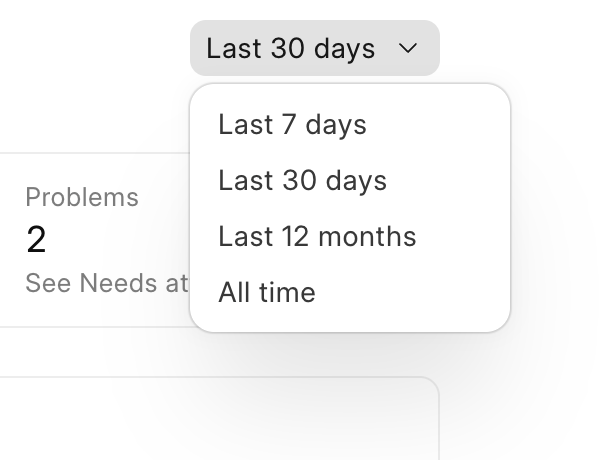
The numbers, the charts and the problem orders count only orders sent to Qikink in that period.
Read the four numbers

- Orders sent: how many orders went to Qikink in the period, and their total value.
- Delivered: orders Qikink has delivered, and their share of all orders sent.
- In progress: orders Qikink is still printing or shipping.
- Problems: orders that were cancelled, returned, lost or stuck with the courier. You find them under Needs attention.
See orders over time and by status
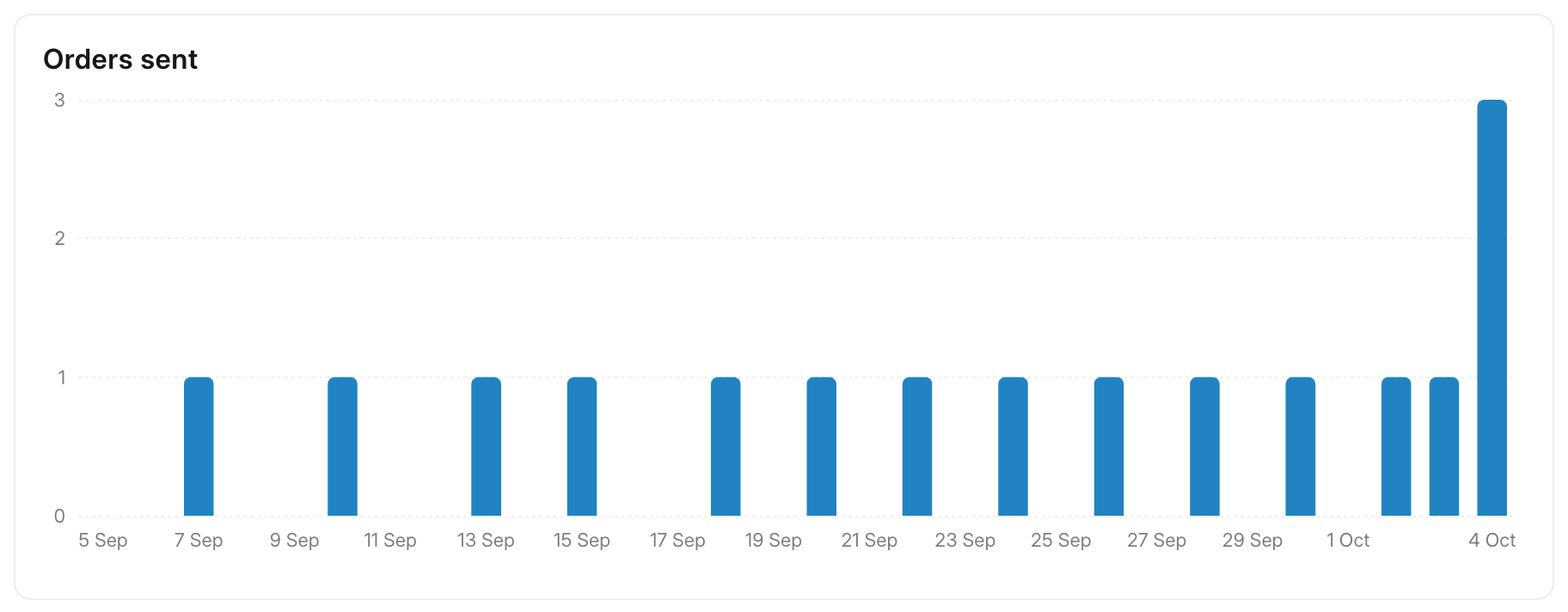
Orders sent shows how many orders went to Qikink each day (or each month, for the longer periods).
By status splits the orders sent in the period by their Qikink status, such as On Hold or Delivered. The statuses are Qikink's own words.
Act on Needs attention
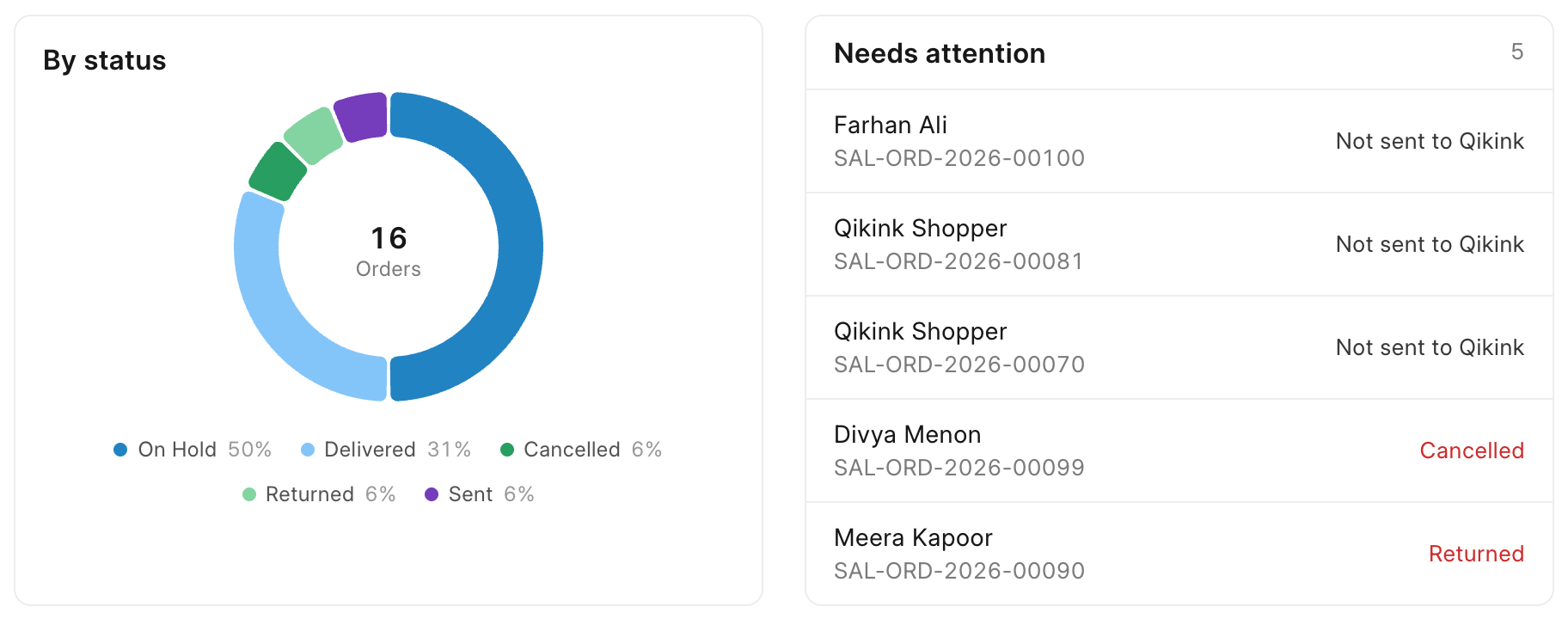
Needs attention lists orders you should look at. Click a row to open the order. The number at the top right is how many there are; the list shows up to 8 at a time. When it is empty, it says Nothing needs you.
Each row says why it is there:
| Row says | What it means | What to do |
|---|---|---|
| Not sent to Qikink | A confirmed order has Qikink products but is not with Qikink. Usually a cash on delivery order waiting for you, or a paid order that could not be sent. | Open it and click More actions > Send to Qikink. If something is missing, the message tells you what to fix. |
| Sending did not finish | Sending started but did not complete. | Open it and click Send to Qikink again. The plugin checks Qikink first, so the order is not sent twice. |
| A status in red, such as Cancelled or Returned | Qikink reports a problem: the order was cancelled, returned or lost, or the courier could not deliver it. | Open the order and check it on Qikink's dashboard. For a cancelled order, follow Cancel an order. Refund or contact the shopper as needed. |
Unsent orders stay in the list whatever period you pick, until you send them or close the order. Problem orders show for the period you picked.
Check recent orders
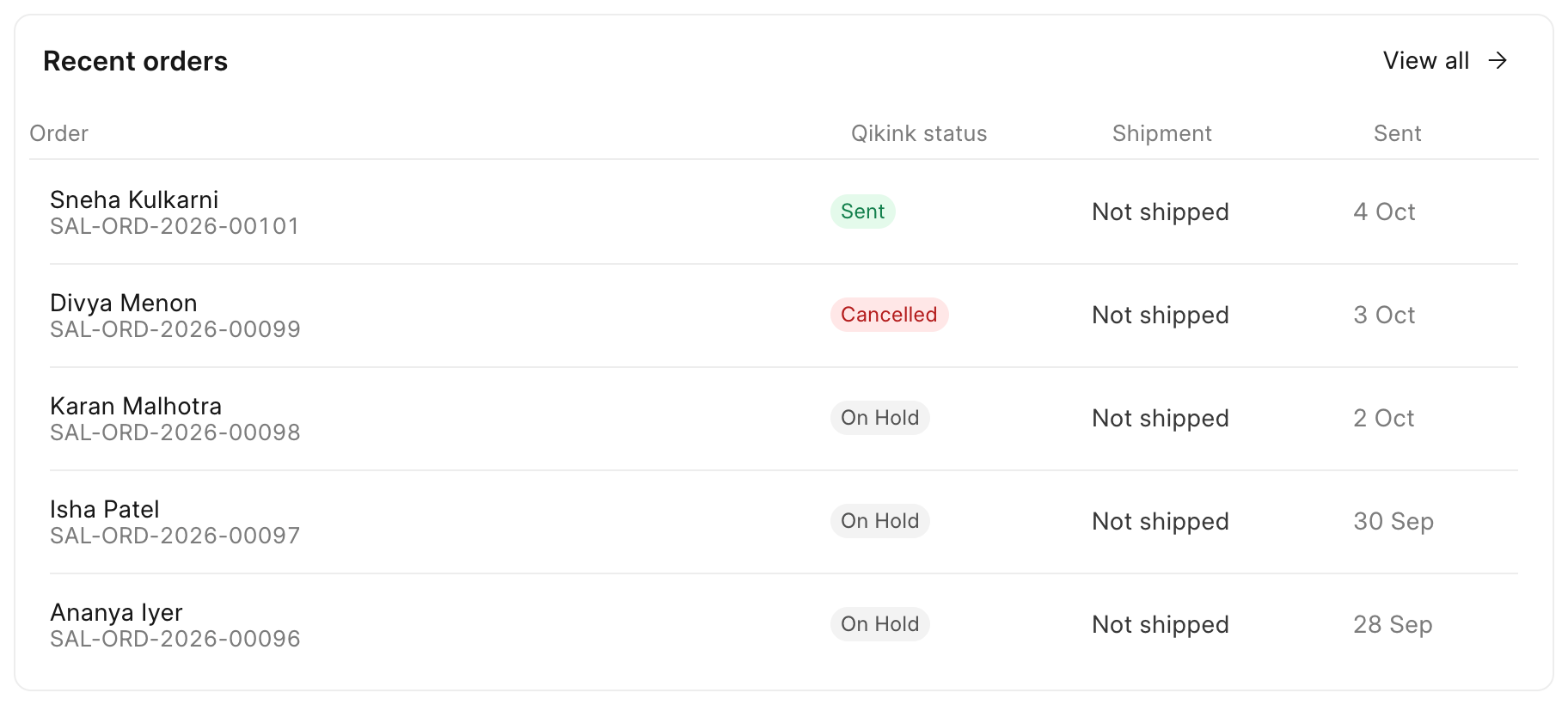
Recent orders shows the last 5 orders sent to Qikink, with their Qikink status, Shipment status and the date they were Sent. Click View all to open the full list.
Use the Qikink orders list
-
Click Qikink orders in the sidebar (or View all on the dashboard).
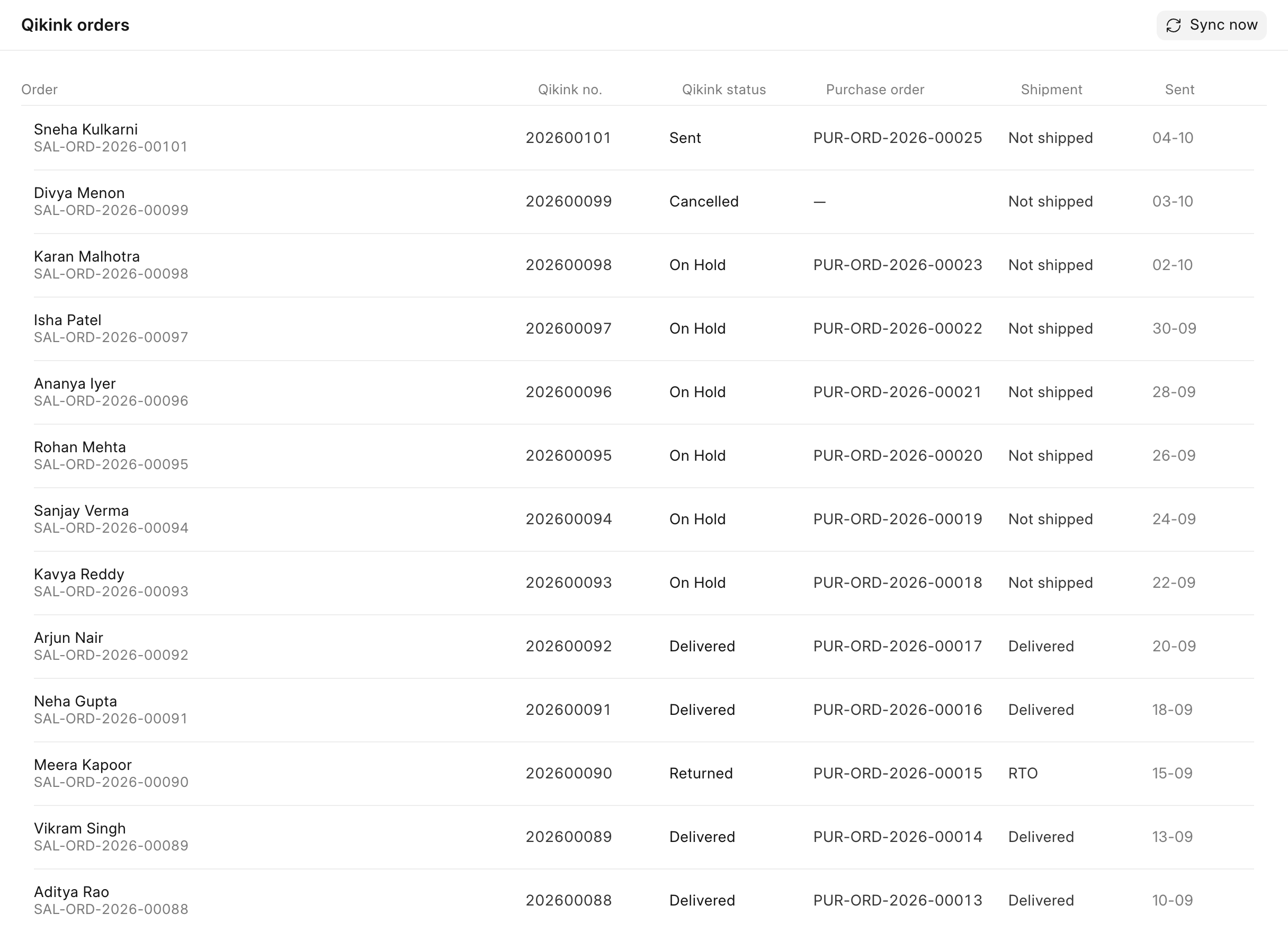
Every order sent to Qikink is listed, newest first, with:
- Order: the shopper's name and your order number.
- Qikink no.: the number Qikink knows the order by.
- Qikink status: the order's status on Qikink.
- Purchase order: the drop-ship Purchase Order to Qikink.
- Shipment: the courier status, or Not shipped until Qikink ships.
- Sent: the date the order went to Qikink.
-
Click a row to open that order.
Get the latest statuses
The plugin reads every open order's status from Qikink once an hour. To read them now, click Sync now at the top right of the dashboard or of the Qikink orders page. A message tells you how many orders were updated.
Sync now only reads from Qikink. It never sends or changes an order on Qikink. It checks your newest 200 orders on Qikink, so a much older open order is not found there.
How you know it worked
Orders sent matches the orders you expect, and after Sync now the statuses match what Qikink's own dashboard shows.