


.webp)
Set up your products
Qikink only knows what to print when each product in your store points to a Qikink SKU. On this page you link your products to Qikink SKUs and add what Qikink charges you for each one.
Before you start
- Finish Connect your Qikink account. Commera needs the Supplier set there before it can save any SKU.
- Have your Qikink SKUs ready. A Qikink SKU stands for one model in one colour and one size, so a T-shirt sold in four sizes needs four SKUs.
You can use two kinds of SKU:
- Your own design. Make the design on Qikink and copy its SKU from Qikink's My Products page. Qikink prints your design on it.
- A plain catalog product. Use a blank product's SKU from Qikink's catalog, such as
MVnHs-Wh-S. Qikink ships it without any print.
Link each variant to a Qikink SKU
-
In the Commera sidebar, click Products and open the product.
-
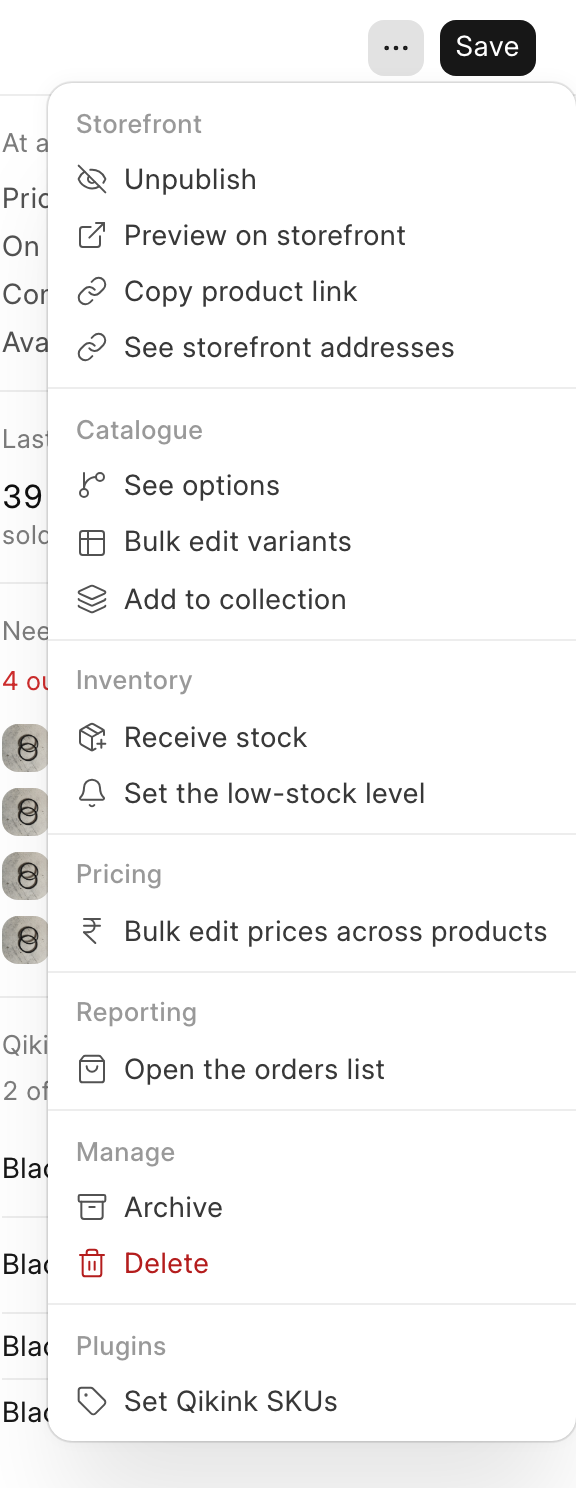
Click More actions (the ... button next to Save at the top right).
-
Under Plugins, click Set Qikink SKUs.
-
The dialog shows one row for each variant, by colour and size. A product without variants shows one row. In each row:
- Type the Qikink SKU in the box that says Not mapped.
- Tick Plain if it is a plain catalog SKU. Leave Plain off if it is your own design from My Products.
-
Click Save SKUs. Commera shows "Qikink SKUs saved".
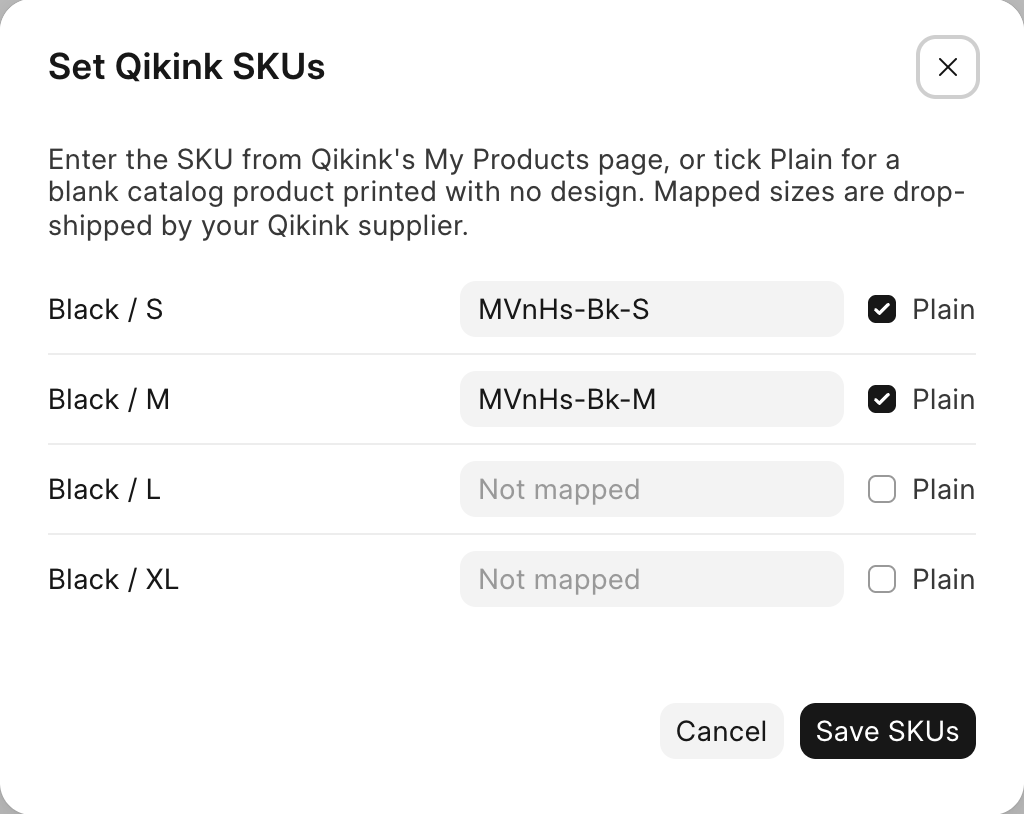
When you save, Commera marks each variant that has a SKU as one that Qikink ships for you, with Qikink as its supplier.
If Commera says "Choose the Qikink supplier first", go to Settings > Installed plugins > Qikink and fill in Supplier, then try again.
Check the Qikink card
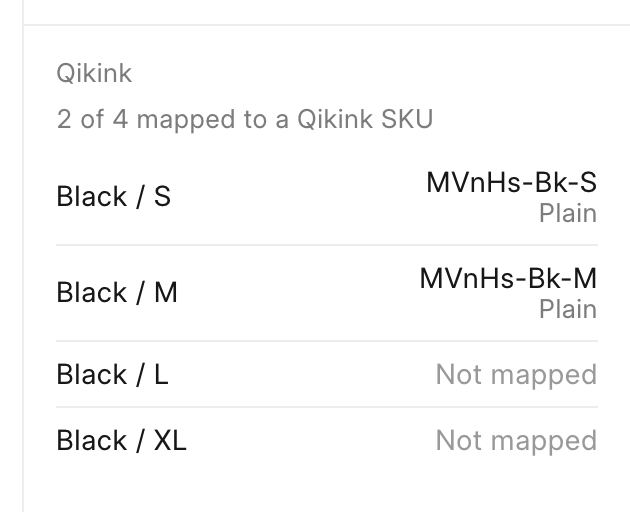
Back on the product page, look at the Qikink card on the right. It shows how many variants have a SKU, for example "2 of 4 mapped to a Qikink SKU". Under that, each variant shows its SKU and its kind (Plain or My Products), or Not mapped.
Add a buying price for each variant
For every order, Commera records a purchase from Qikink at the price in your buying price list. Add one price for each variant you mapped. You do this in the Desk.
- Find the variant's code. On the product page in Commera, scroll to the Stock table. The SKU column there shows each variant's code, for example
CCS-TEE-XL. This is your store's own code, not the Qikink SKU. - Open the Desk, click Search, type New Item Price and press Enter.
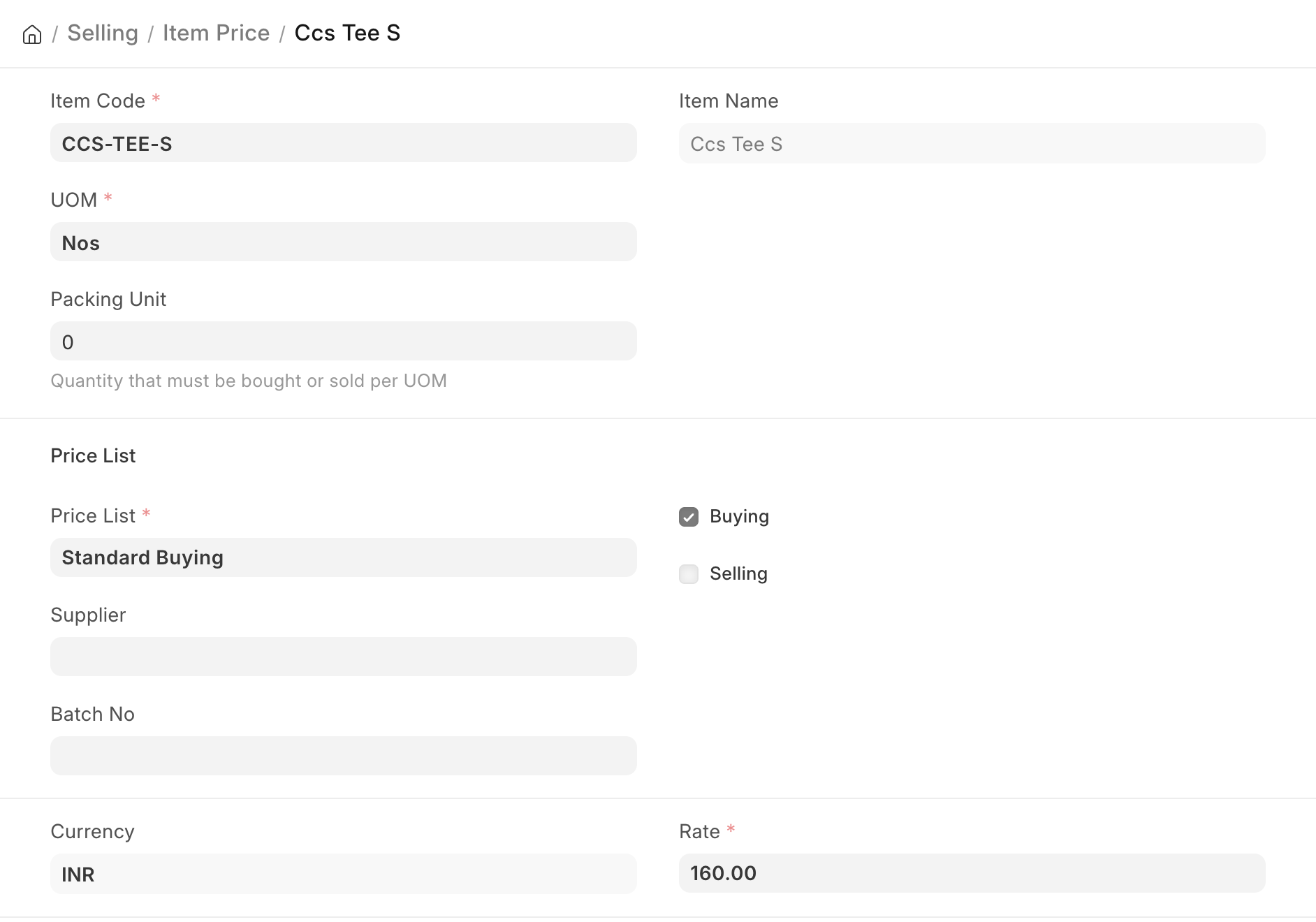
- In Item Code, choose the variant's code.
- In Price List, choose your buying price list, for example Standard Buying. Buying gets ticked for you.
- In Rate, enter what Qikink charges you for this variant.
- Click Save. Repeat for each mapped variant.
How you know it worked: the product's Qikink card shows every variant you sell through Qikink as mapped, and each of those variants has a price on your buying price list.