


.webp)
Connect your Qikink account
On this page you give Commera the keys to your Qikink account, and tell it who you buy from. You need these before any order can go to Qikink.
You will:
- copy your Client ID and Client Secret from Qikink
- add Qikink as a supplier in ERPNext
- choose a buying price list
- fill in the Qikink tab in Commera's settings
Get your keys from Qikink
- Log in to your Qikink dashboard at dashboard.qikink.com.
- Go to Integration > Custom API.
- Copy your Client ID and Client Secret. Keep this page open, or paste the two values somewhere safe for a few minutes.
Add Qikink as a supplier
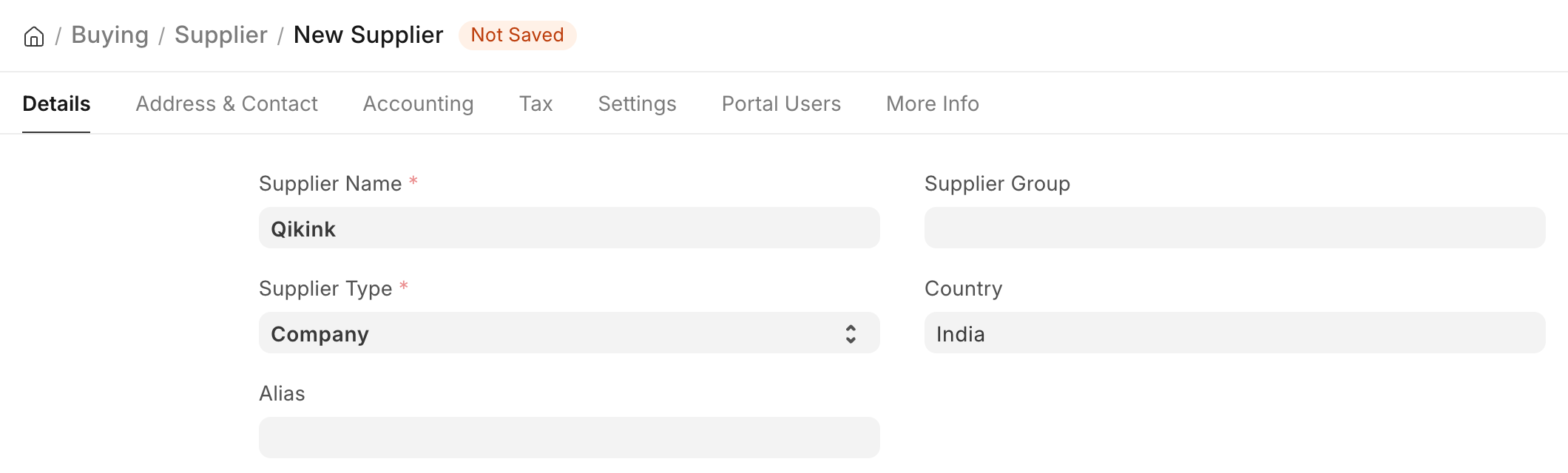
Commera buys each Qikink product from Qikink on your behalf, so ERPNext needs a supplier for Qikink. You do this once, in the Desk (the ERPNext screens behind your store).
- Open the Desk: go to your site's address and add
/deskat the end. - Click Search (or press Ctrl+K, or Cmd+K on a Mac), type New Supplier and press Enter.
- In Supplier Name, type
Qikink. - Leave Supplier Type as Company.
- Click Save.
Choose a buying price list
A buying price list holds what Qikink charges you for each product. Commera uses these prices on the purchase it makes from Qikink for each order.
ERPNext already comes with a buying price list called Standard Buying. You can use it. If you want a separate list just for Qikink, search for New Price List in the Desk, give it a name, tick Buying and click Save.
You add the prices themselves when you set up your products.
Fill in the Qikink settings
-
Go back to the Commera dashboard.
-
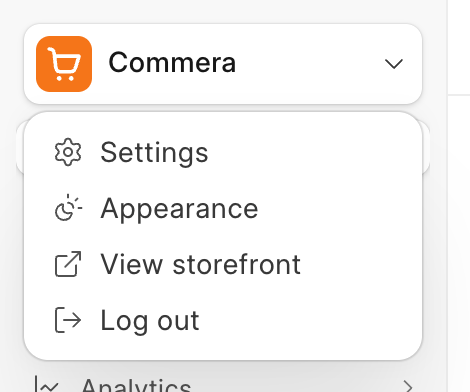
Click the Commera menu at the top of the sidebar, then click Settings.
-
In the settings list, under Installed plugins, click Qikink.
-
Fill in each row. Each row saves by itself as soon as you change it. There is no Save button.
- Client ID: paste the Client ID from Qikink.
- Client Secret: paste the Client Secret from Qikink.
- Sandbox: leave it on while you test. With it on, Commera sends orders to Qikink's sandbox, not to your live account.
- Supplier: type
Qikink, the supplier you just made. - Buying Price List: type the name of your buying price list, for example
Standard Buying.
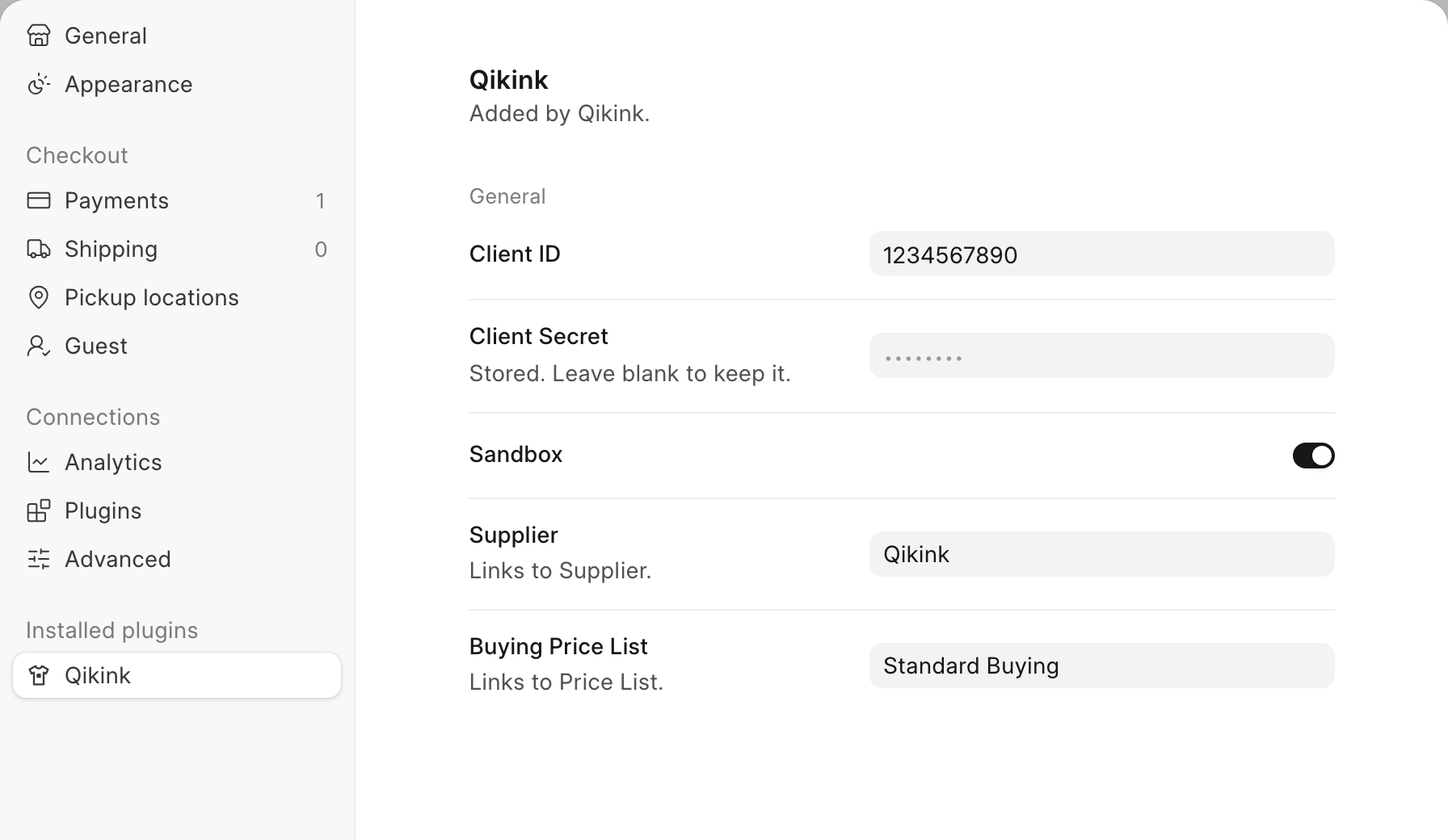
How you know it worked: reopen the Qikink tab. Client ID, Supplier and Buying Price List show what you typed, Sandbox is on, and Client Secret shows dots with the line "Stored. Leave blank to keep it."