


.webp)
Install the Qikink plugin
Qikink prints your designs and ships them to your shoppers. The Qikink plugin sends your Commera orders to Qikink for you. On this page you add the plugin to your site and check that it shows up in Commera.
Choose the steps for where your site runs: on Frappe Cloud, or on your own server.
On Frappe Cloud
On Frappe Cloud you add the plugin in two places: first to your bench group, then to your site. You need a site on a private bench group to add an app that is not in the Frappe Cloud marketplace.
-
Open your Bench Group dashboard on Frappe Cloud and go to the Apps tab.
-
Click Add App. Add the plugin from its GitHub address:
https://github.com/Rl0007/commera_qikink -
Click Update Available to start a new deploy. Select your site in the list, then click Deploy and update. Wait for the deploy to finish.
-
Open your Site dashboard and go to its Apps tab.
-
Click Install App and select the Qikink plugin (its code name is
commera_qikink). Wait for the install to finish.
On your own server
If your site runs on your own server, ask the person who looks after it to install the plugin.
Check that the plugin is installed
- Open the Commera dashboard: go to your site's address and add
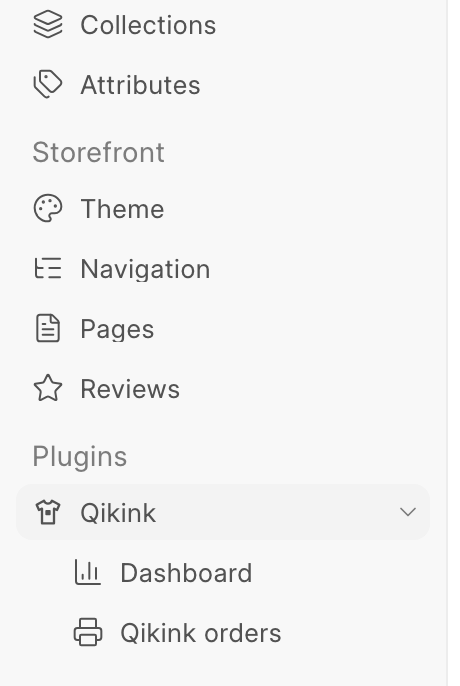
/commeraat the end. If it is already open, reload the page. - In the sidebar, look under Plugins. You see a new Qikink entry.
- Click Qikink. It opens to show two pages: Dashboard and Qikink orders.
The plugin also adds a Qikink tab to Commera's settings, under Installed plugins. You fill it in on the next page.
Both pages are empty for now. They fill up once you connect your Qikink account, set up your products and your first order goes to Qikink.
How you know it worked: Plugins > Qikink is in the Commera sidebar, with Dashboard and Qikink orders under it.