


.webp)
How orders reach Qikink
This page shows how an order with Qikink products gets to Qikink, what you see on the order, and what you still do by hand.
flowchart TD
    A[Shopper places an order] --> B{Paid online?}
    B -->|Yes| C[Order sent to Qikink]
    B -->|Cash on delivery| D[You click Send to Qikink]
    D --> C
    C --> E[Purchase Order to Qikink is made]
    E --> F[Status read from Qikink every hour]
    F --> G[Courier and tracking reach the shopper]
    G --> H[Delivered: Purchase Order marked delivered]
Paid orders go by themselves
When a shopper pays online, Commera marks the order paid and the plugin sends it to Qikink straight away. You do not need to do anything.
Only the Qikink products in the order go to Qikink. Other products in the same order stay with you to ship as usual.
Send a cash on delivery order
A cash on delivery (COD) order does not go by itself. You decide when to send it. Qikink's courier then collects the cash from the shopper.
-
In the Commera dashboard, click Orders and open the COD order.
-
Click the More actions button (the three dots at the top right), then click Send to Qikink.
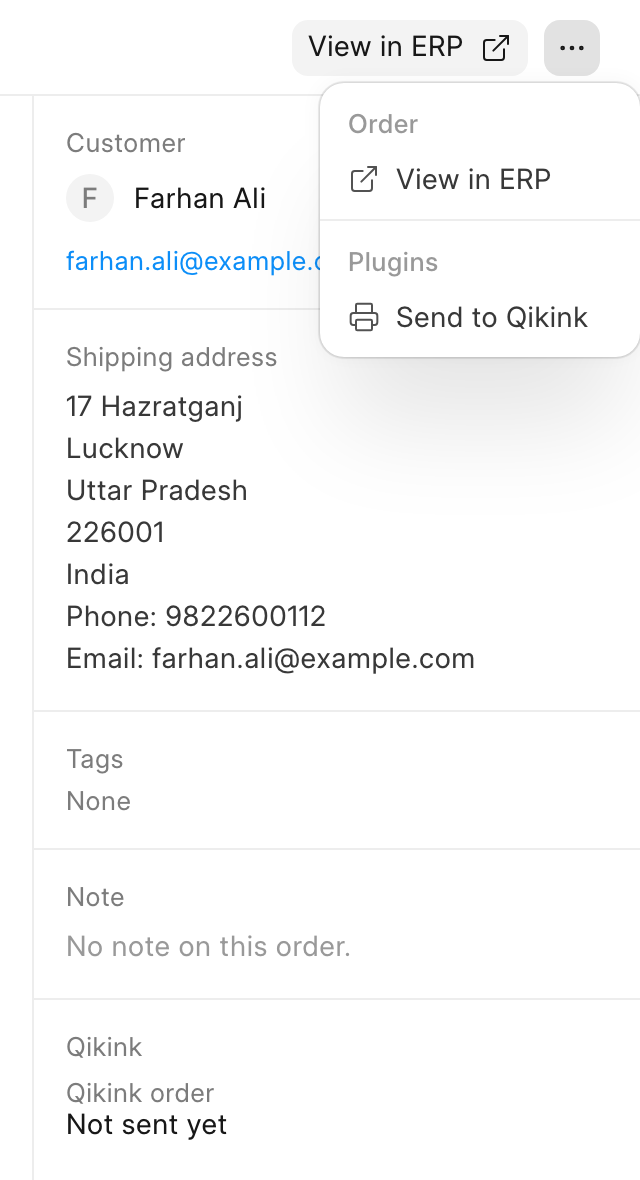
Send to Qikink shows only on a confirmed order that has Qikink products and has not been sent yet.
-
Read the message and click Send to Qikink.
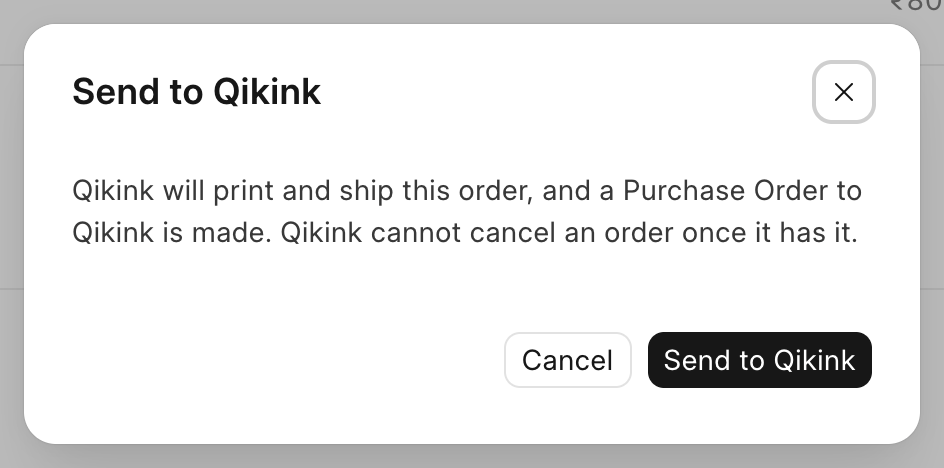
If something is missing, such as a product's Qikink SKU or the address's phone number, city, PIN code or state, the plugin tells you and sends nothing. Fix it, then click Send to Qikink again.
An order is never sent twice. If sending stops halfway, the next try first looks for the order on Qikink and uses it when it is there.
The Qikink order number
Qikink gets its own order number, made from the digits of your order name. Order SAL-ORD-2026-00078 becomes Qikink order 202600078. Use this number when you look for the order on Qikink's dashboard.
The Qikink card on the order
Every order with Qikink products has a Qikink card on the right of the order page.
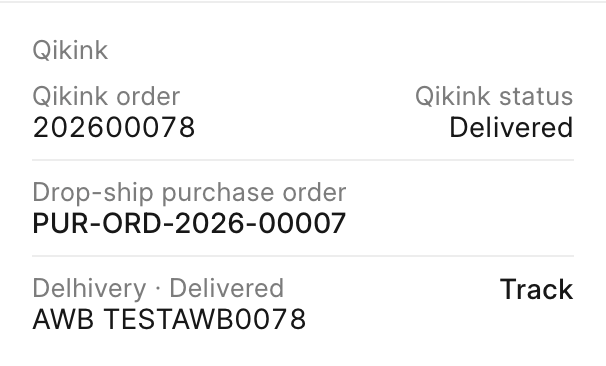
- Qikink order and Qikink status: the number Qikink knows the order by, and its status on Qikink. Before sending, it says Not sent yet.
- Drop-ship purchase order: the Purchase Order the plugin made to Qikink (see below).
- The courier, shipment status and AWB (the courier's tracking number), with a Track link, once Qikink ships.
The drop-ship Purchase Order
When Qikink accepts an order, the plugin makes a Purchase Order to your Qikink supplier. It records what you owe Qikink, at the buying prices you set in Set up your products. "Drop-ship" means Qikink delivers straight to your shopper.
Status, shipping and tracking
Qikink does not tell your store when an order moves on, so every hour the plugin reads the status of every open order from Qikink.
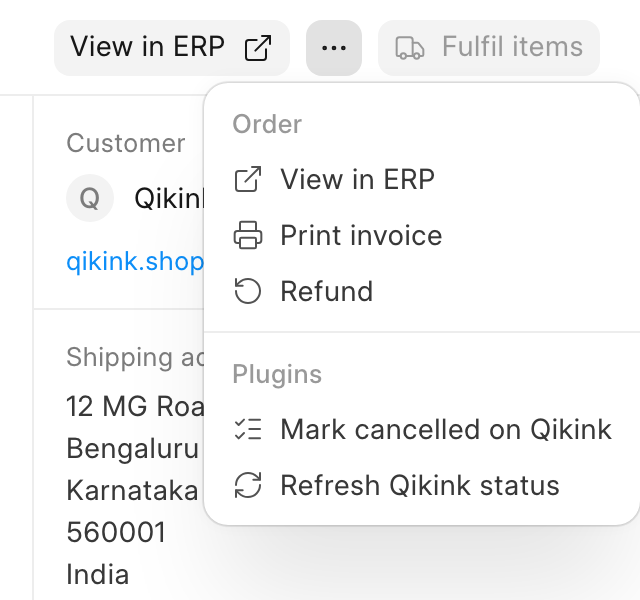
To check one order now, open it and click More actions > Refresh Qikink status. To check all open orders, click Sync now on the Qikink dashboard (see Track orders on the dashboard).
When Qikink ships, the order gets the courier name, AWB and tracking link, and your shopper sees them on their order. When Qikink marks the order delivered, the plugin marks the Purchase Order delivered too.
Cancel an order
The plugin cannot cancel an order on Qikink. Once Qikink has an order, Commera refuses to cancel it and shows Cancel it on Qikink first, until you use Mark cancelled on Qikink. To cancel:
-
Cancel the order on Qikink's own dashboard, using the Qikink order number.
-
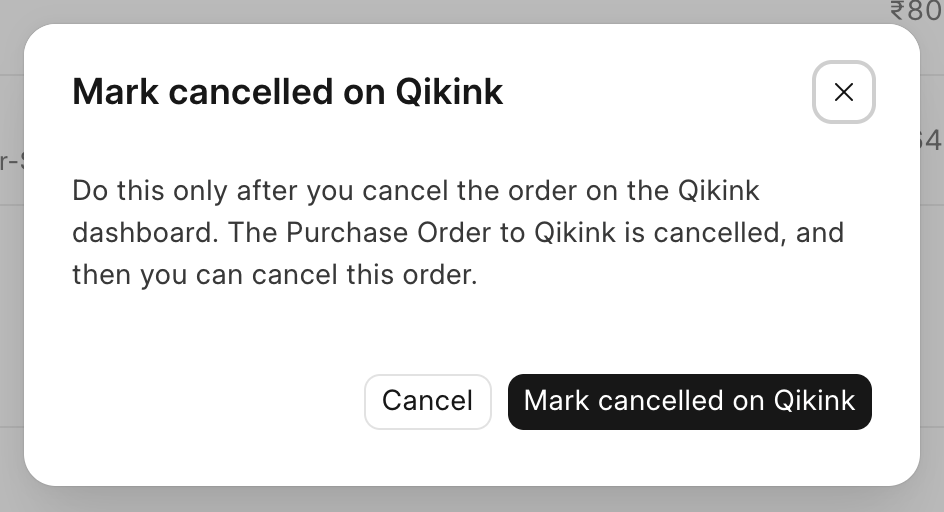
In Commera, open the order and click More actions > Mark cancelled on Qikink.
-
Read the message and click Mark cancelled on Qikink. The plugin cancels the Purchase Order to Qikink.
-
Click More actions > View in ERP. The order opens in the Desk in a new tab.
-
Click Cancel at the top right, then click Yes. If the shopper paid online, refund them as you normally do.
Returns are not synced either. Handle them with Qikink directly.
Paying Qikink
The plugin does not pay Qikink. You pay from your Qikink wallet by hand (see Go live).
How you know it worked
The order's Qikink card shows a Qikink order number, a status and a drop-ship purchase order, and the order appears on the Qikink orders page.