


.webp)
Bring your colleagues into Buzz so they can help run your events. Each person gets a role on your team that decides what they can do.
Steps
-
In the dashboard, click your name at the bottom of the left sidebar and choose Settings.
You can also press G then S. -
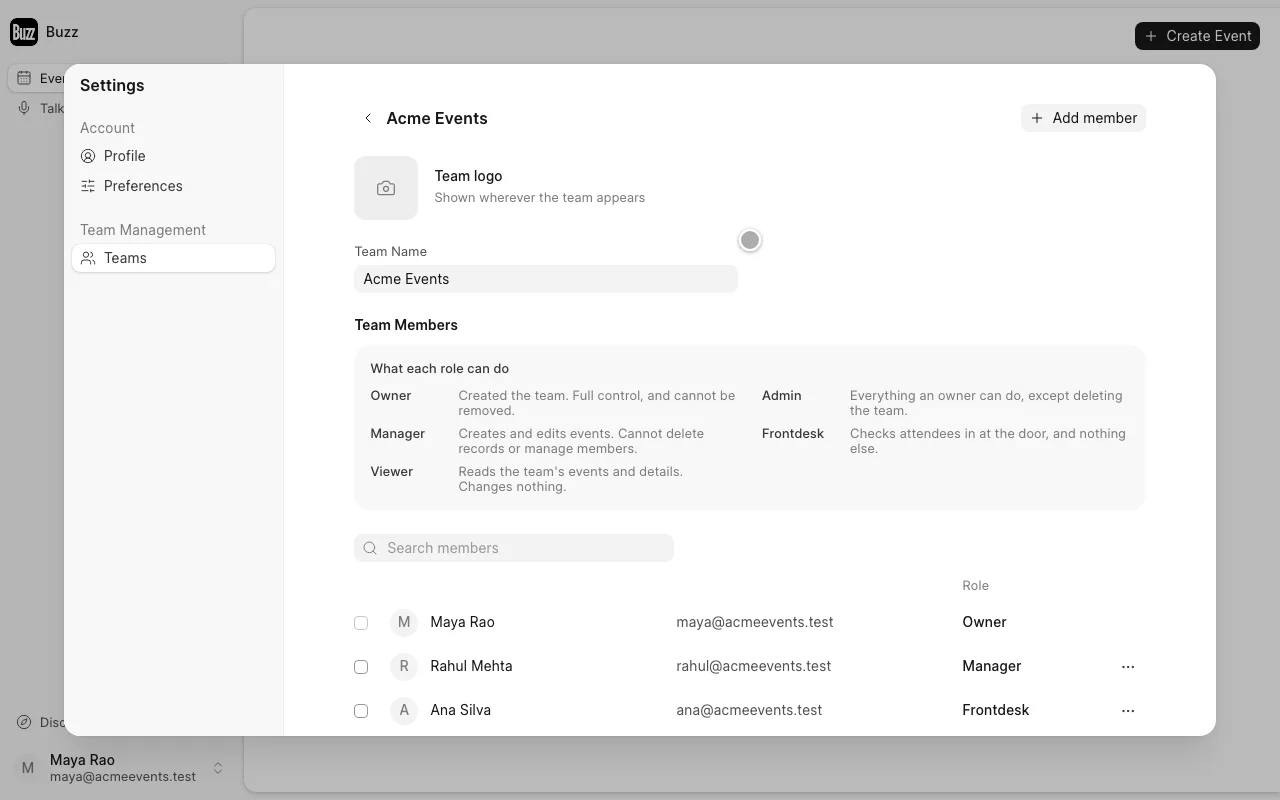
Under Team Management, open Teams and click the team you want to add people to.
-
Click Add member in the top-right corner.
-
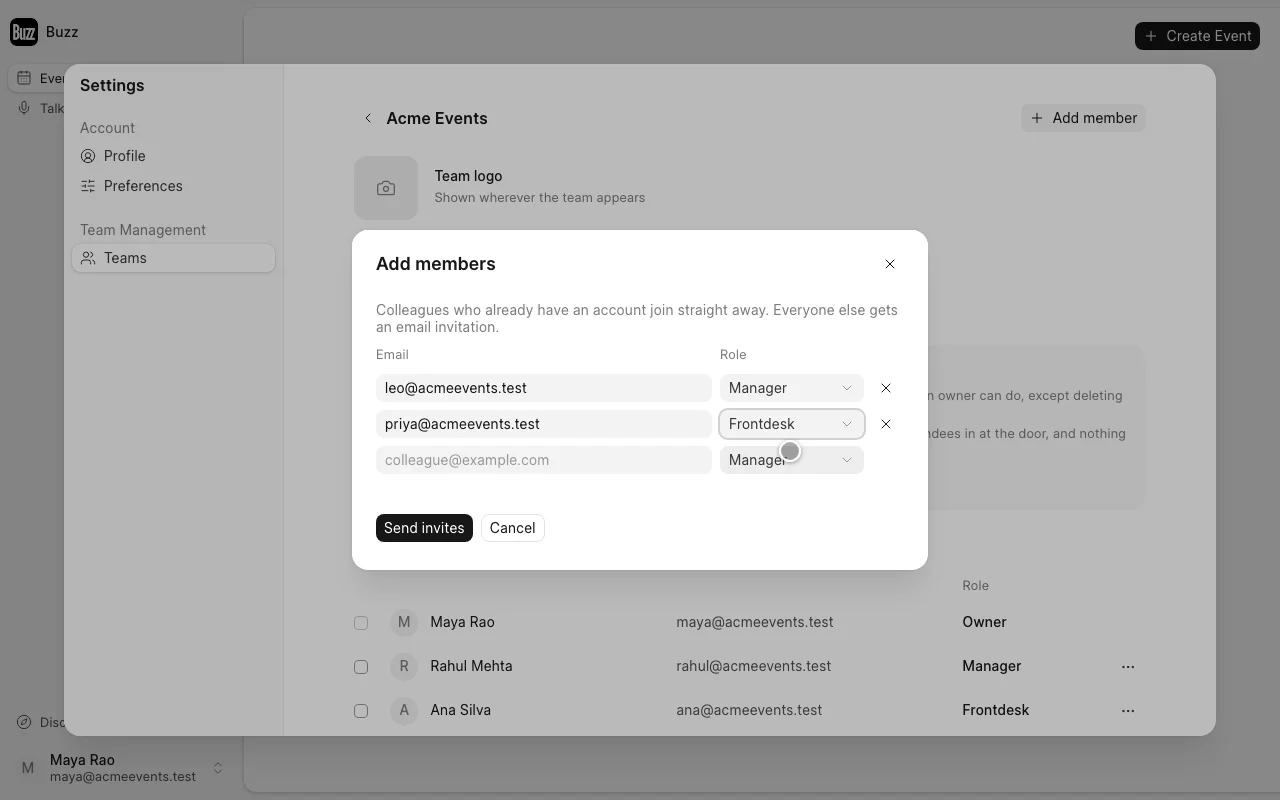
Type a colleague's email and pick their role. A new row opens as you type, so you can add several people at once.
Tip: paste a comma-separated list of emails into one row and Buzz splits it into separate rows.
-
Click Send invites.
What happens next
- People who already have a Buzz account join the team straight away and show up in the member list.
- Everyone else gets an email invitation. They appear in the list as Invited until they accept.
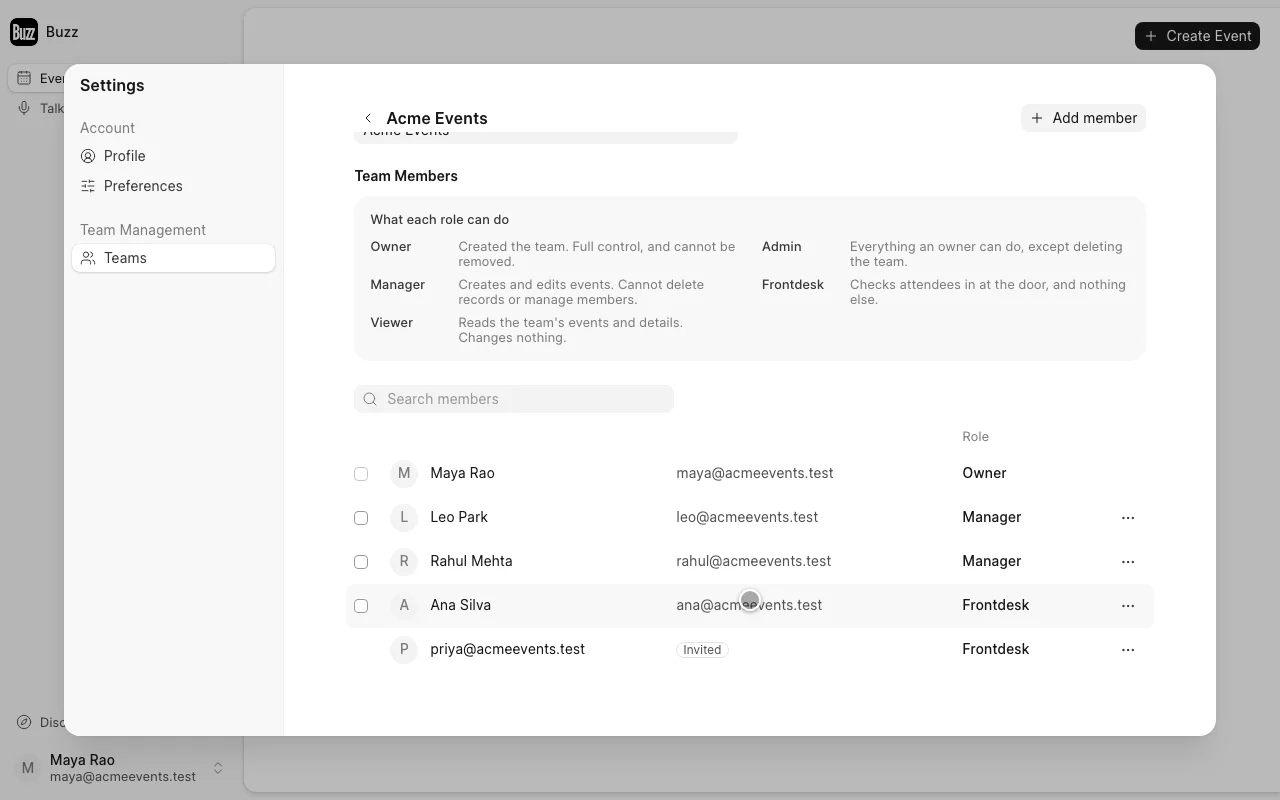
Use the ⋯ menu on a member's row to Change role or Remove them. On an invited row, use it to Resend the invitation or Retract it.
Roles
Pick the role that matches what the person needs to do. See Teams in Buzz for what each role can do.