


.webp)
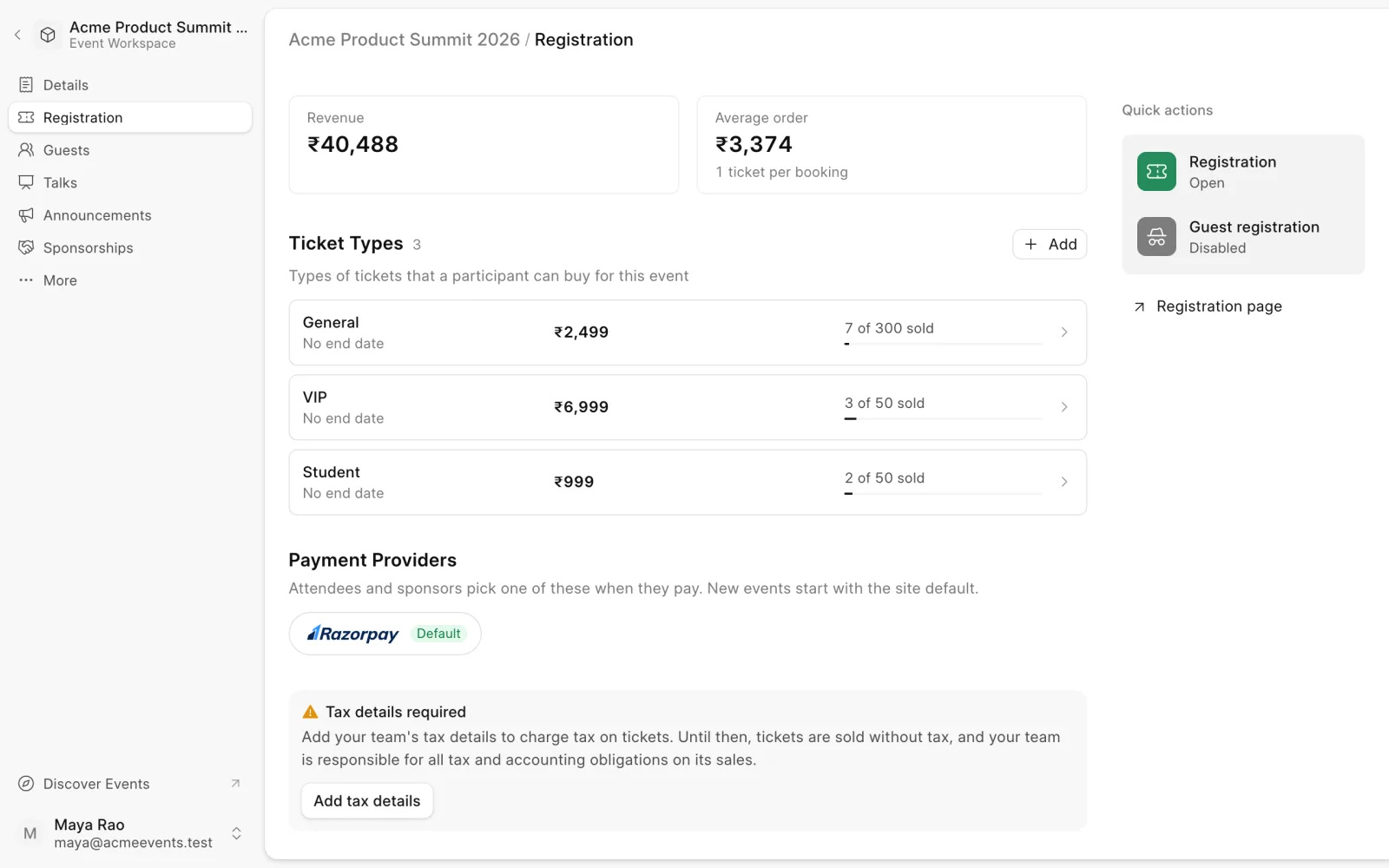
Two pages in an event's sidebar handle registrations. Registration shows revenue, sets up ticket types, payments and tax, and controls whether people can register. Guests shows who is coming.
Open or close registrations
New events start with registrations closed. To change this:
- Open the event and choose Registration in the sidebar.
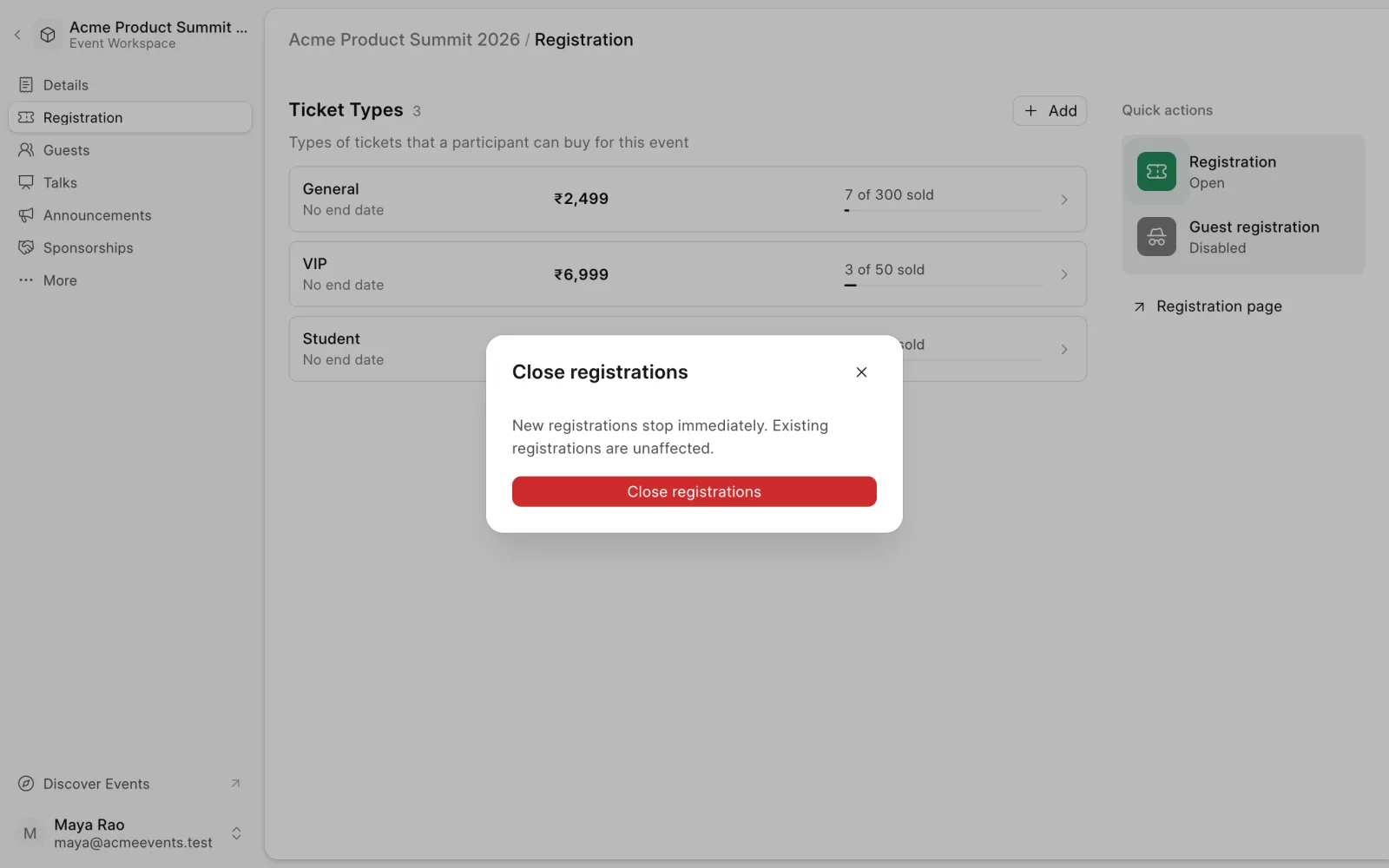
- Under Quick actions, click the Registration tile. It shows Open or Closed.
- Click Open registrations or Close registrations to confirm.
Closing stops new registrations immediately. Existing registrations are not affected. Registrations always close once the event has ended.
Registration page opens the page attendees use to register. To set up what people can buy, see Ticket types. The same page lists the event's payment providers and its tax settings.
Revenue
Once the event has paid bookings, the top of the Registration page shows two cards:
- Revenue. What paid bookings collected, minus refunds. The caption shows how much was refunded.
- Average order. The average amount collected per paid booking, with the average number of tickets per booking.
Free bookings and offline bookings still awaiting approval don't count. If you sell in more than one currency, the cards show the currency with the most bookings, and the caption lists revenue in the other currencies. Amounts in different currencies are never added together.
Guest registration
By default, people log in to Buzz before they register. Guest registration lets them register without an account.
- Under Quick actions on the Registration page, click Guest registration.
- Turn on Accept guest registrations.
- Choose a Verification method:
- None. Guests are registered as soon as they submit the form.
- Email. Buzz emails a 6-digit code before it holds the spot.
- Phone OTP. Buzz sends a 6-digit code over SMS before it holds the spot.
- Click Save.
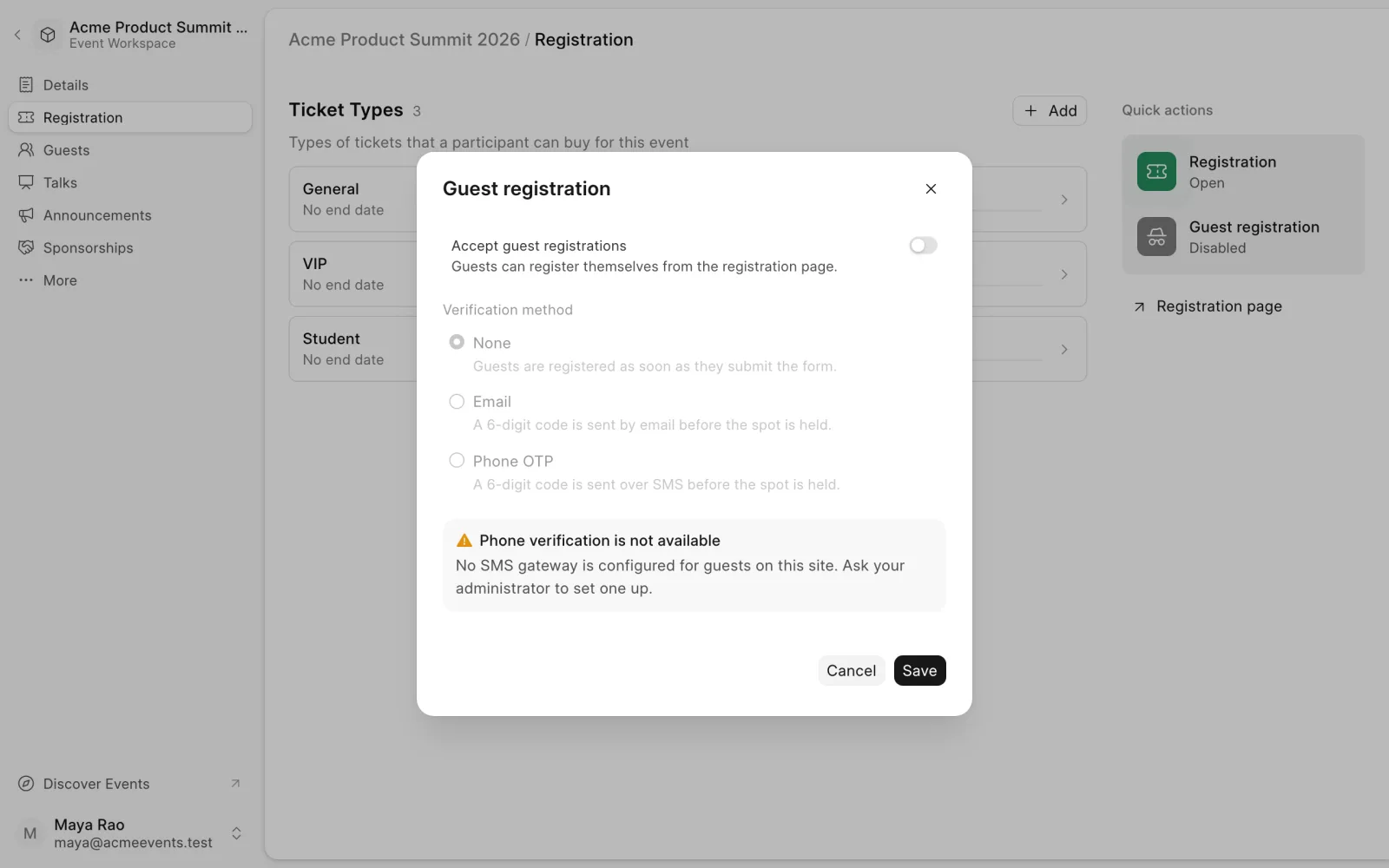
If your site can't send email or SMS codes, the dialog says so and that method can't be used.
See who registered
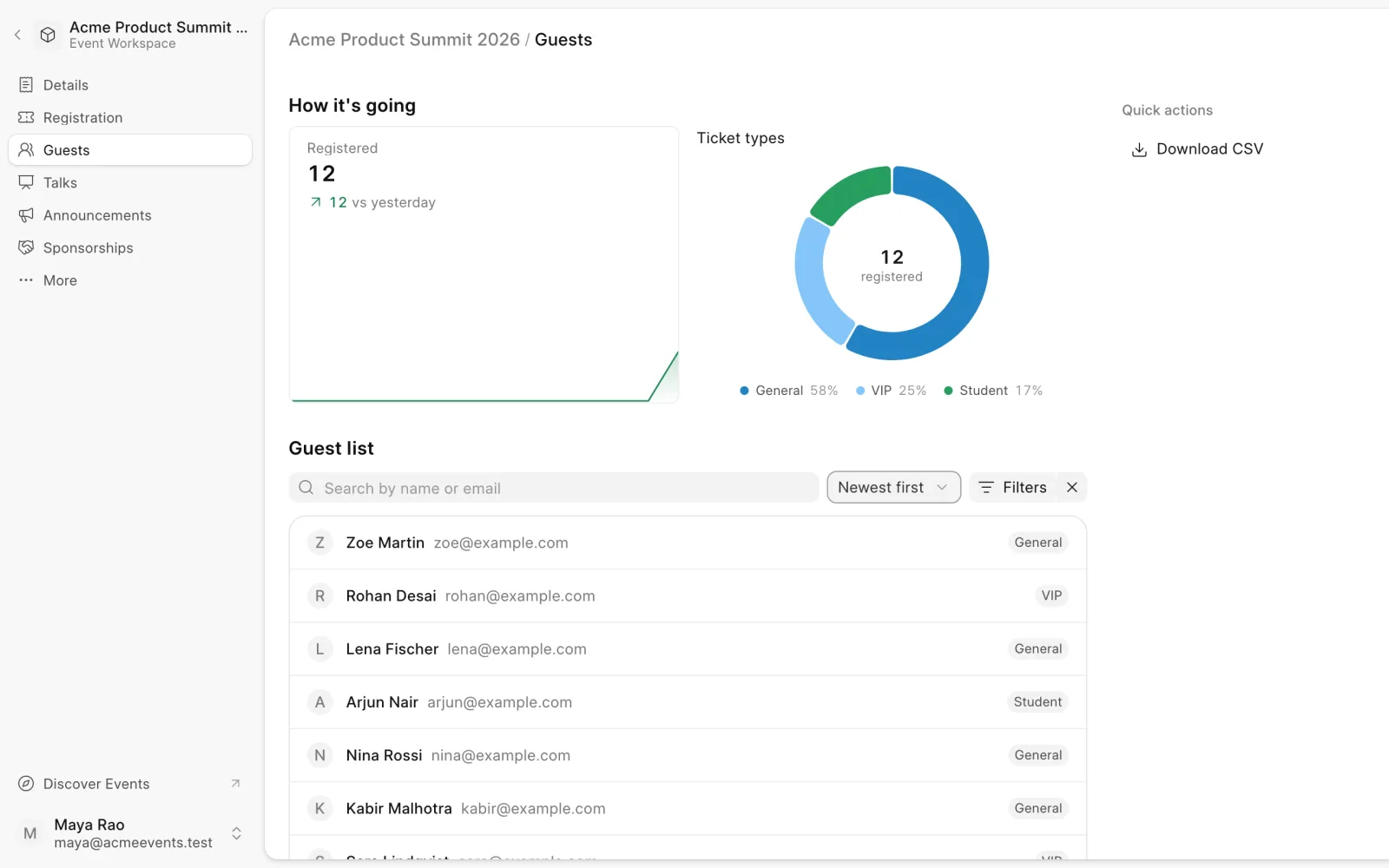
Open the event and choose Guests in the sidebar.
- Registered shows registrations over time.
- Ticket types shows how registrations split across your ticket types.
- The Guest list shows every attendee. Search by name or email, filter by Ticket type, and sort by newest or oldest.
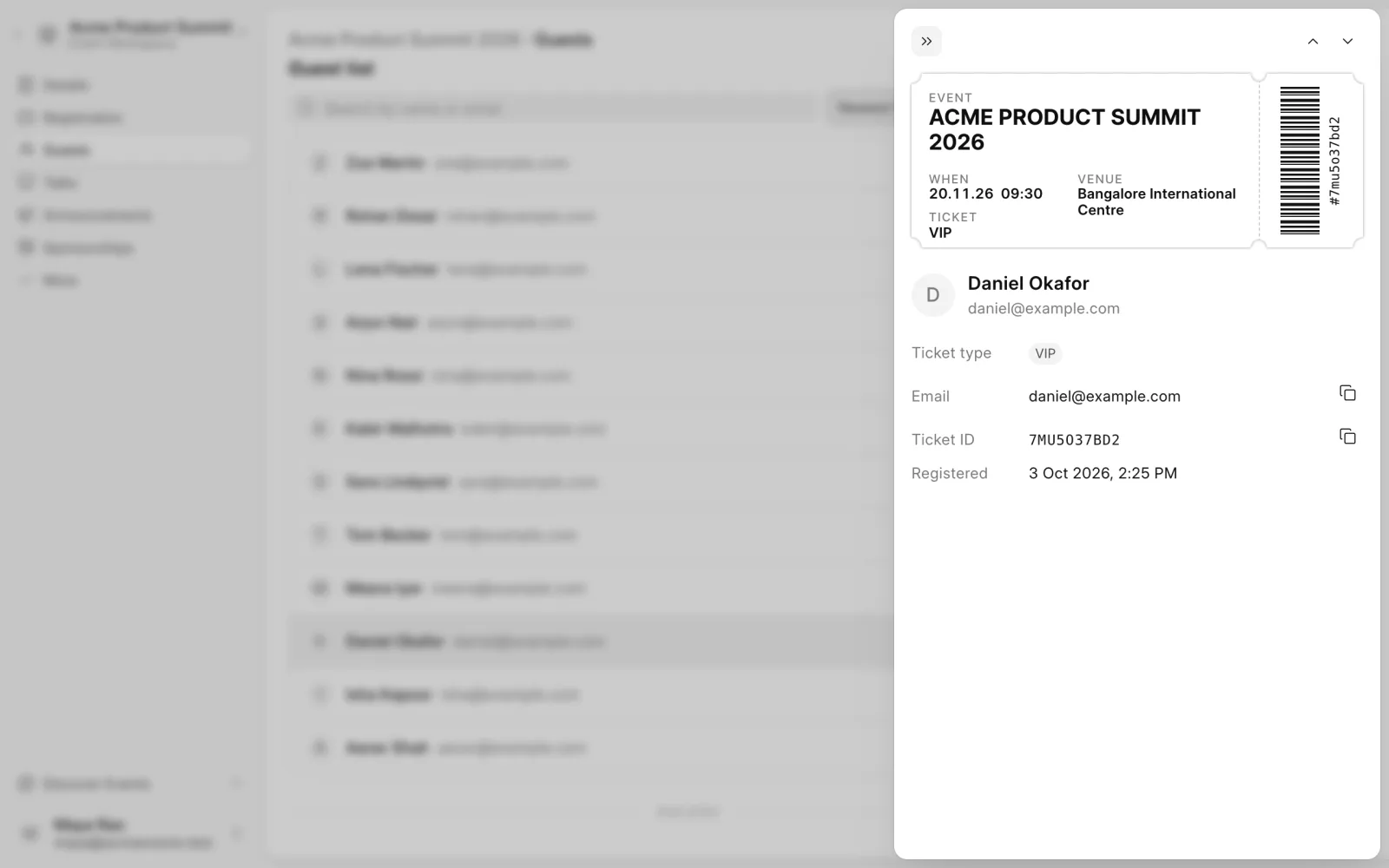
Click a guest to see their ticket, email, ticket type, ticket ID, add-ons and registration time. Use the arrows to step through guests.
Export the guest list
On the Guests page, under Quick actions, click Download CSV. The file includes each guest's name, email, ticket type and registration time. It respects the search and filters you have applied.