


.webp)
Announcements lets you email your event's guests or speakers from the dashboard. Open an event and choose Announcements in the sidebar.
Send an announcement
- Under Recipients, choose Guests or Speakers.
- Write your message.
- Click Send.
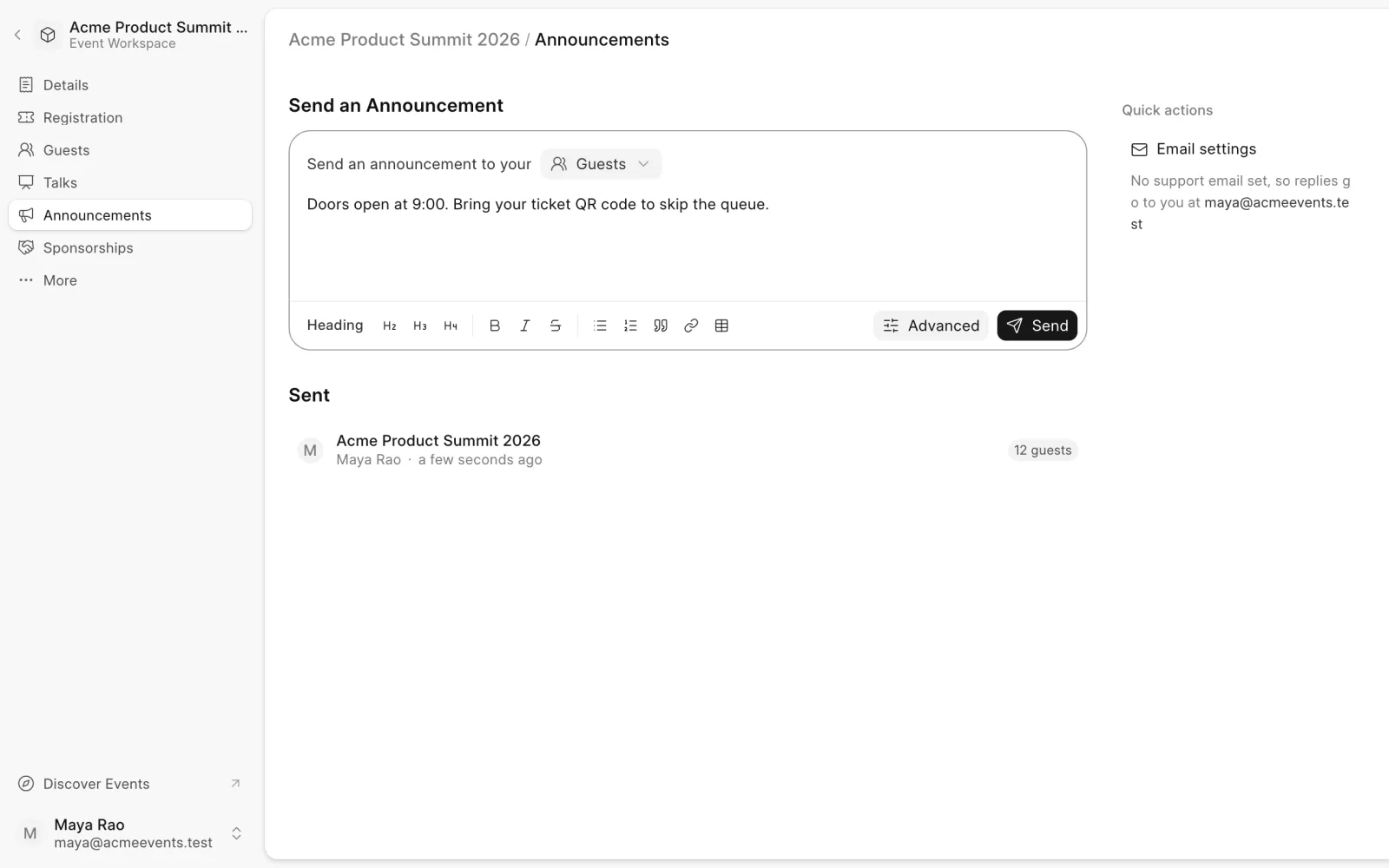
Emails go out over the next few minutes. Every announcement you send shows up in the history on this page.
Target a group or schedule it
Start typing a message, then click Advanced to open the full composer:
- Subject. Defaults to the event's name.
- Ticket tiers. For guests, send only to people holding certain ticket types. Leave it empty to send to all tiers.
- Proposal status. For speakers, send only to proposals with a certain status, for example accepted speakers. Leave it empty to send to all.
- Schedule. Click Schedule and pick a Send at time instead of sending now. Click Send now instead to go back.
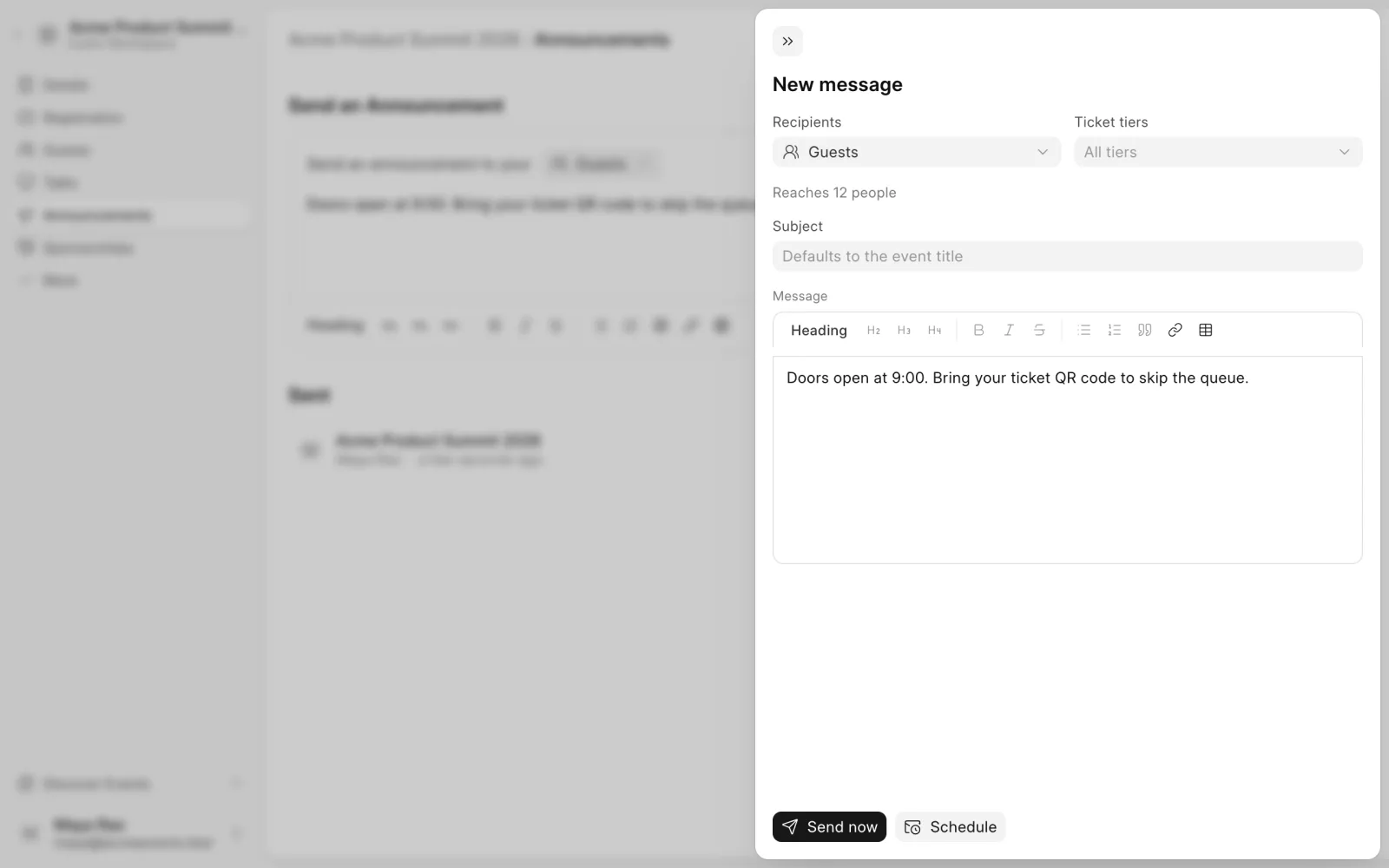
Scheduled announcements show as Scheduled in the history until they go out.
Where replies go
Click Email settings and set a Support email. Replies to every message your team sends go to this address. Leave it empty and replies go to whoever sent the message.
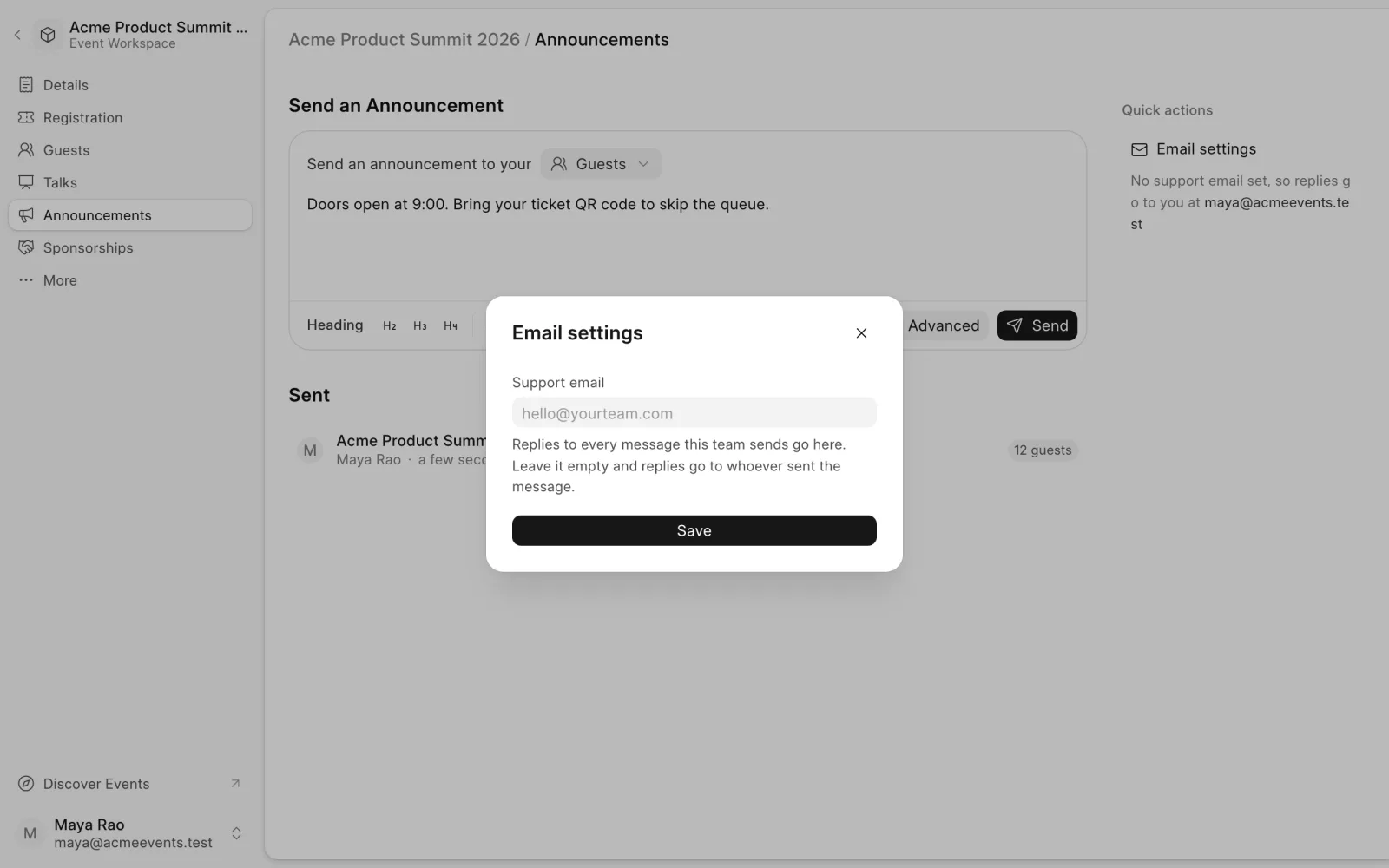
The support email is a team setting, so it applies to all of the team's events.
Last updated 1 week ago
Was this helpful?