

.webp)
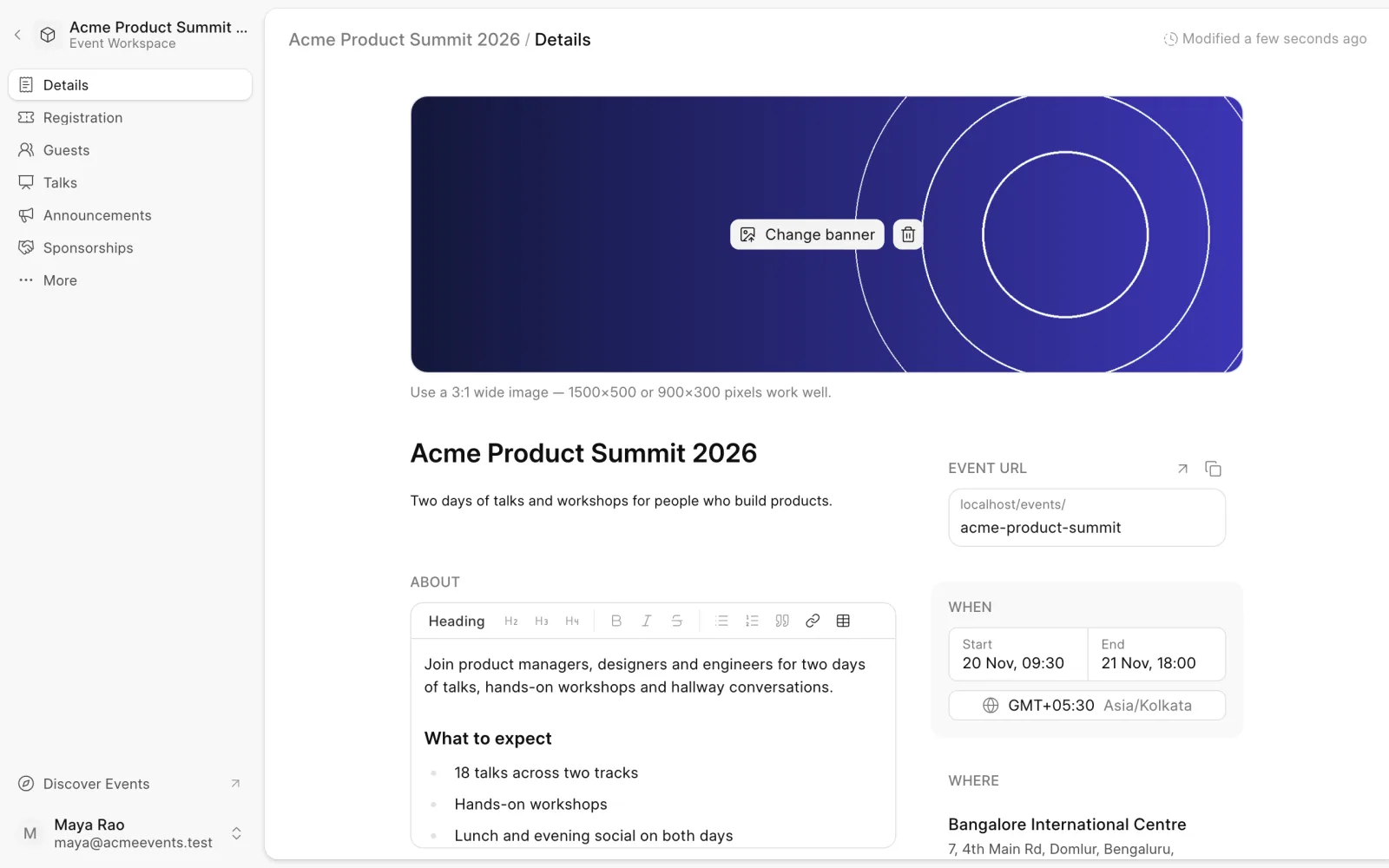
The Details page holds everything shown on your event's public page. Open an event and choose Details in the sidebar.
Edit any field. Save and Discard buttons appear at the top as soon as something changes.
What you can change
- Name and short description. The short description appears under the event name.
- Banner. Use a wide 3:1 image, such as 1500×500 pixels.
- About. The full description, with formatting.
- Event route. The web address of the event page,
/events/<route>. Use Copy to copy the link, or Open event page to view it. - Schedule. Start and end dates, times, and time zone. Visitors see times in the event's time zone.
- Where. The venue, or the online meeting.
- Hosts. The primary host and any co-hosts.
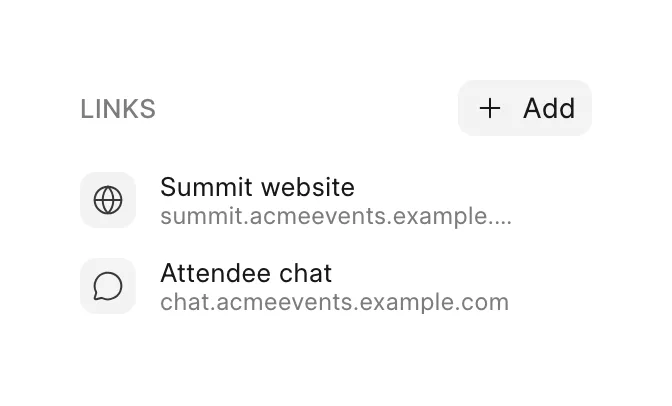
- Links. Useful links for attendees, such as the event website or a community chat.
Venues and online events
For an in-person event, click Change under Where to pick a venue. Search Google Maps, pick one of Your venues, or click Add manually to enter a name, address and map link. Attendees see a map on the event page.
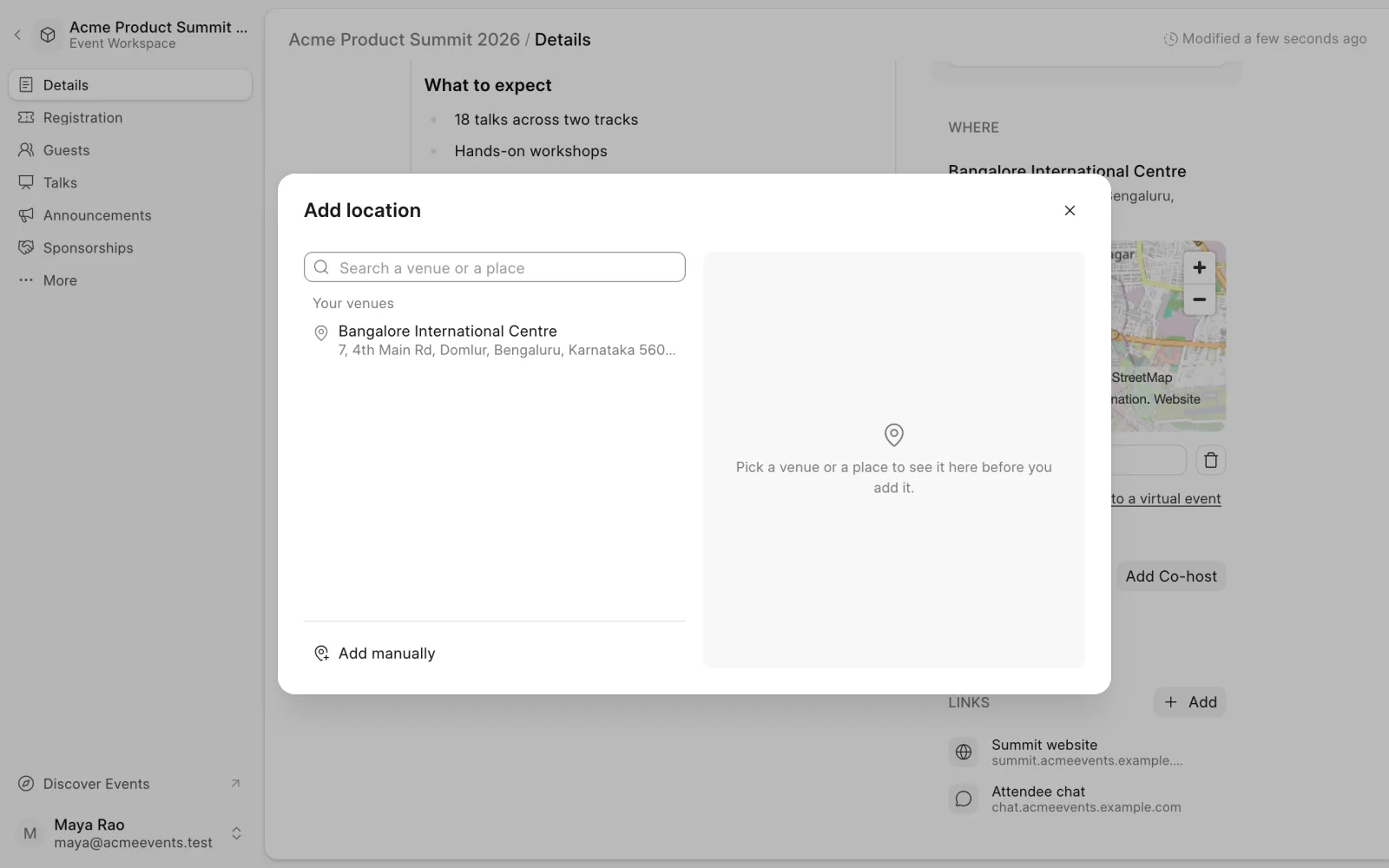
To move an in-person event online, click Convert to a virtual event under Where and choose one:
- Zoom meeting. Buzz books the meeting and adds the join link to the event.
- Meeting link. Paste a Google Meet, Microsoft Teams or any other link.
To move an online event back, click Convert to an in-person event and pick a venue.
Only registered guests see the join link. Buzz includes it in their tickets and booking emails.
Co-hosts
Co-hosts appear under Hosted by on the event page, next to your team.
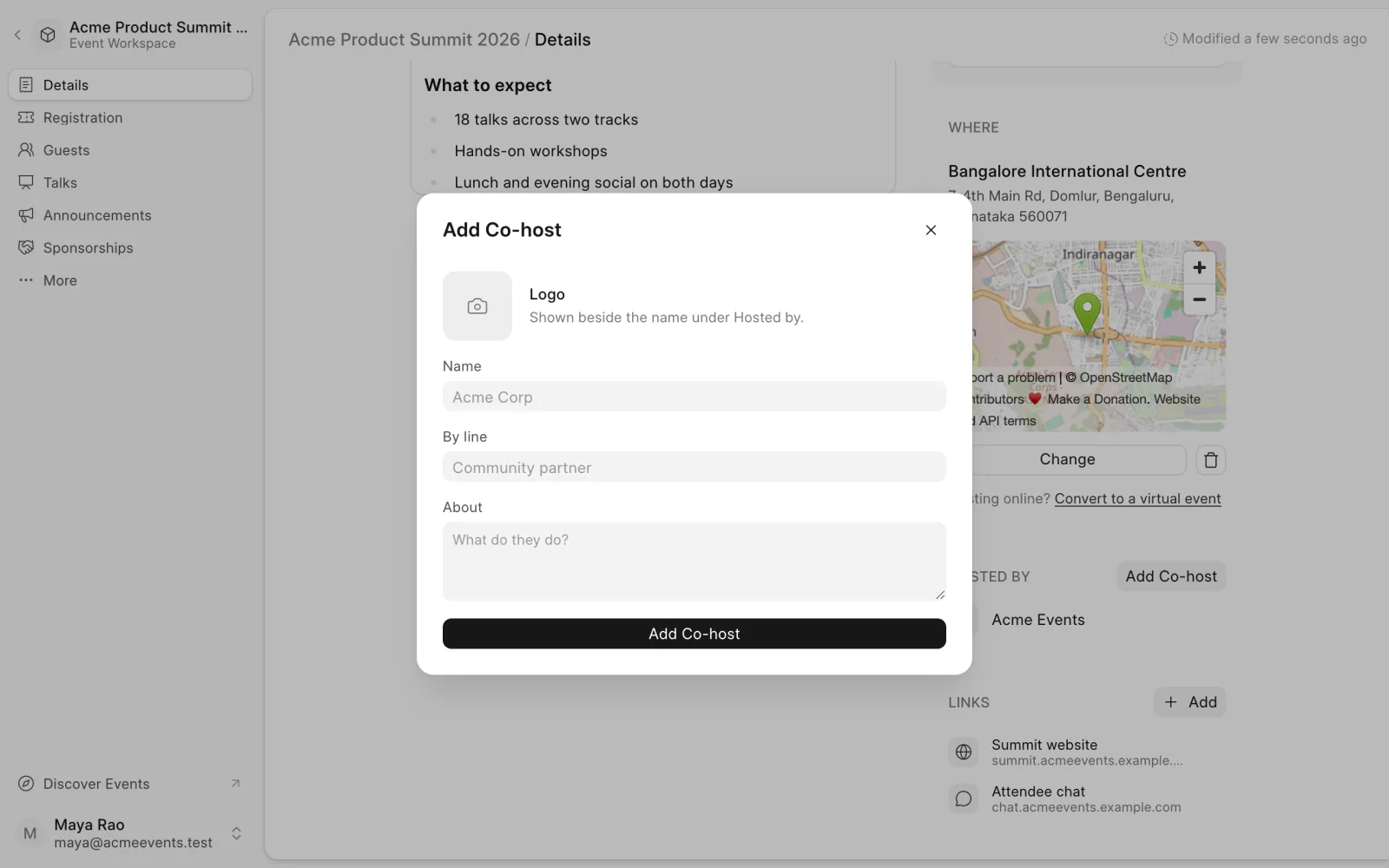
- In the hosts section, click Add Co-host.
- Enter the co-host's Name. Optionally add a By line (for example, "Community partner"), a short About, and a logo.
- Click Add Co-host.
To remove a co-host, use the remove button next to their name.
Links
Add links attendees need close at hand, such as a venue map, slides, a live stream or a community chat. They appear on the event page in the order you add them.
Add a link
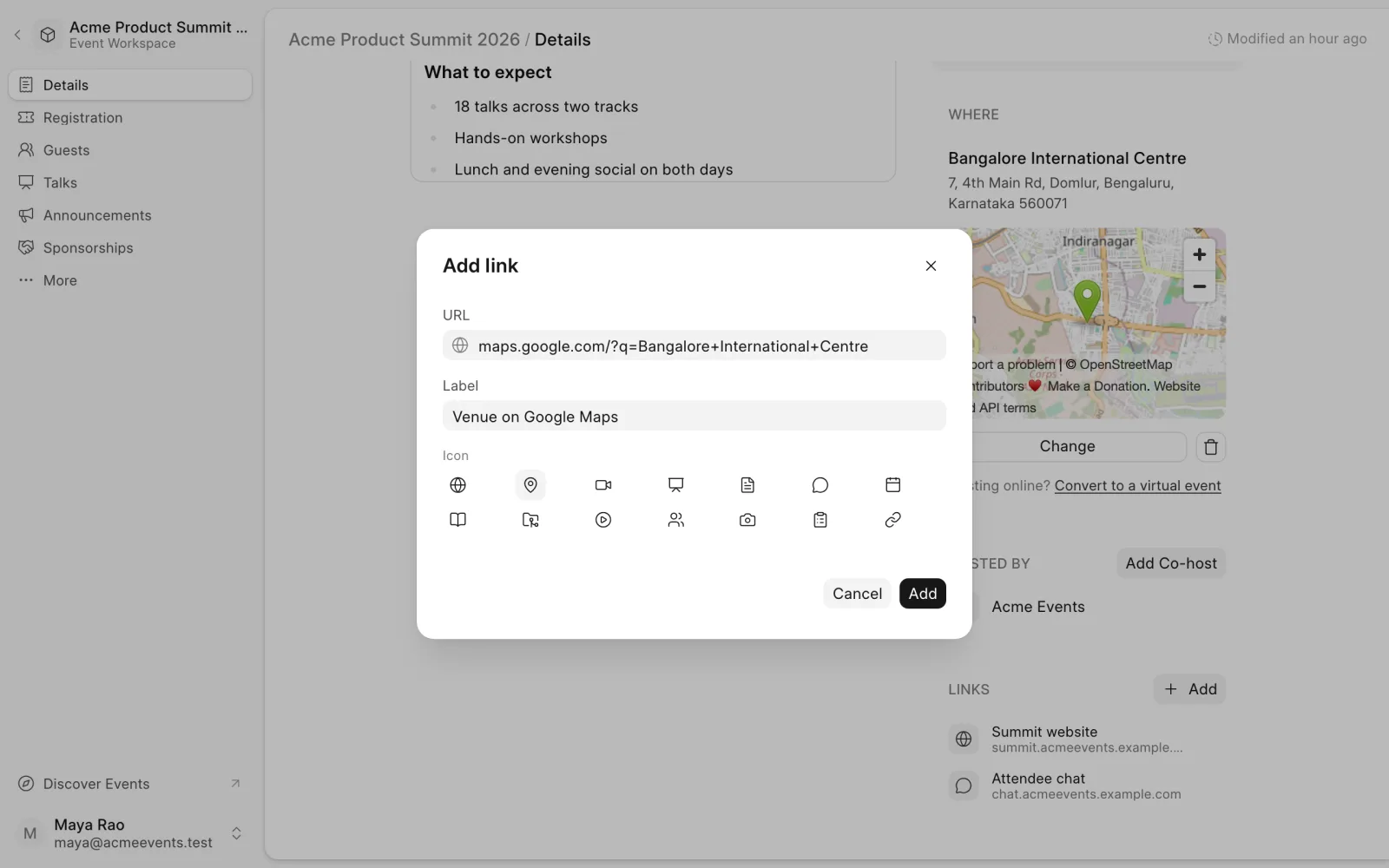
- On the Details page, find Links and click Add.
- Enter the URL. You can leave out
https://; Buzz adds it for you. - Enter a Label, the name attendees see, such as "Venue on Google Maps".
- Pick an Icon, such as Map, Slides, Live stream or Community. Hover over an icon to see its name.
- Click Add.
- Click Save at the top of the page. Your links are not published until you save.
Only http:// and https:// web addresses work. An address you type with http:// stays http://.
Edit or remove a link
Click a link in the list to open it. Change its URL, label or icon and click Update, or click Remove to delete it. Then click Save.
To check where a link goes, hover over it and click the open button on the right.
On the event page
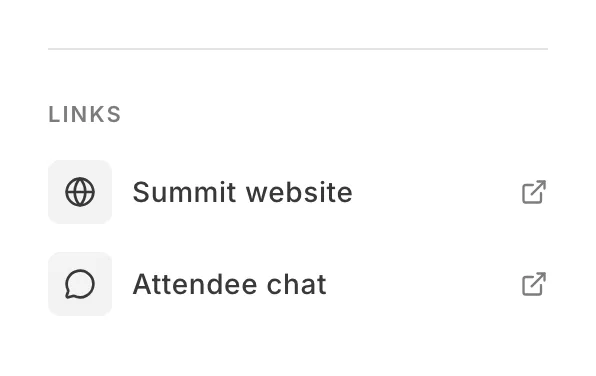
Links show in the sidebar under Hosted by. On a phone they show above About. Each link opens in a new tab.