


.webp)
Change, transfer or cancel a ticket
This page is for attendees. Plans change, so Buzz lets you update your tickets yourself, up to a few days before the event. The organiser decides how many days.
Once a window closes, Buzz says so on your ticket or booking. For example: "The change window has closed as the event is approaching."
Change your add-ons
- Open the ticket from My Tickets.
- Click Edit next to Add-ons. On the booking page, you can also use the ⋯ menu on a ticket and choose Change Add-on Preference.
- Pick your new options and save.
Transfer a ticket to someone else
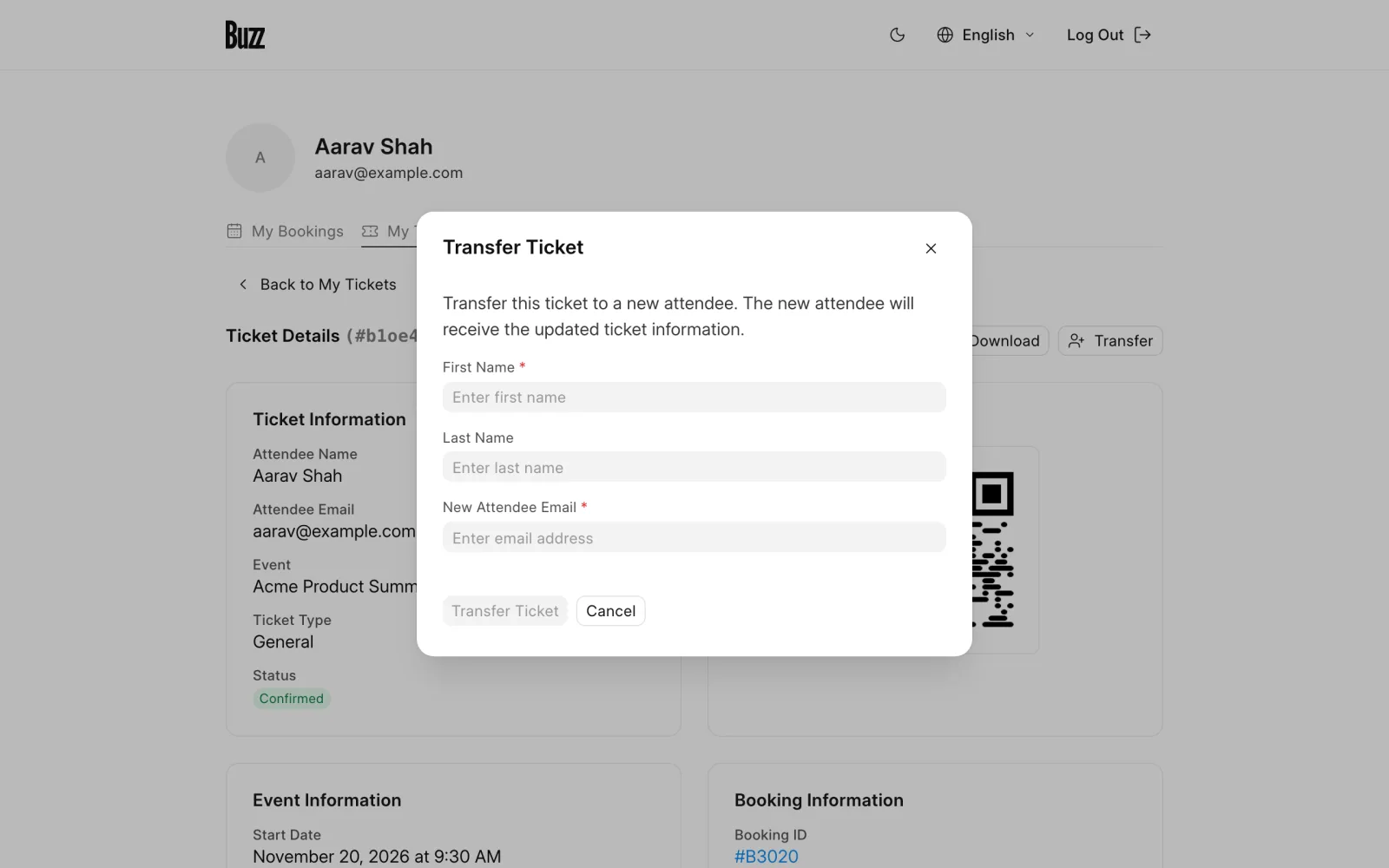
- Open the ticket from My Tickets and click Transfer. On the booking page, you can also use the ⋯ menu on a ticket and choose Transfer Ticket.
- Enter the new attendee's First Name, Last Name and New Attendee Email.
- Click Transfer Ticket.
The new attendee gets the updated ticket by email.
Request a cancellation
-
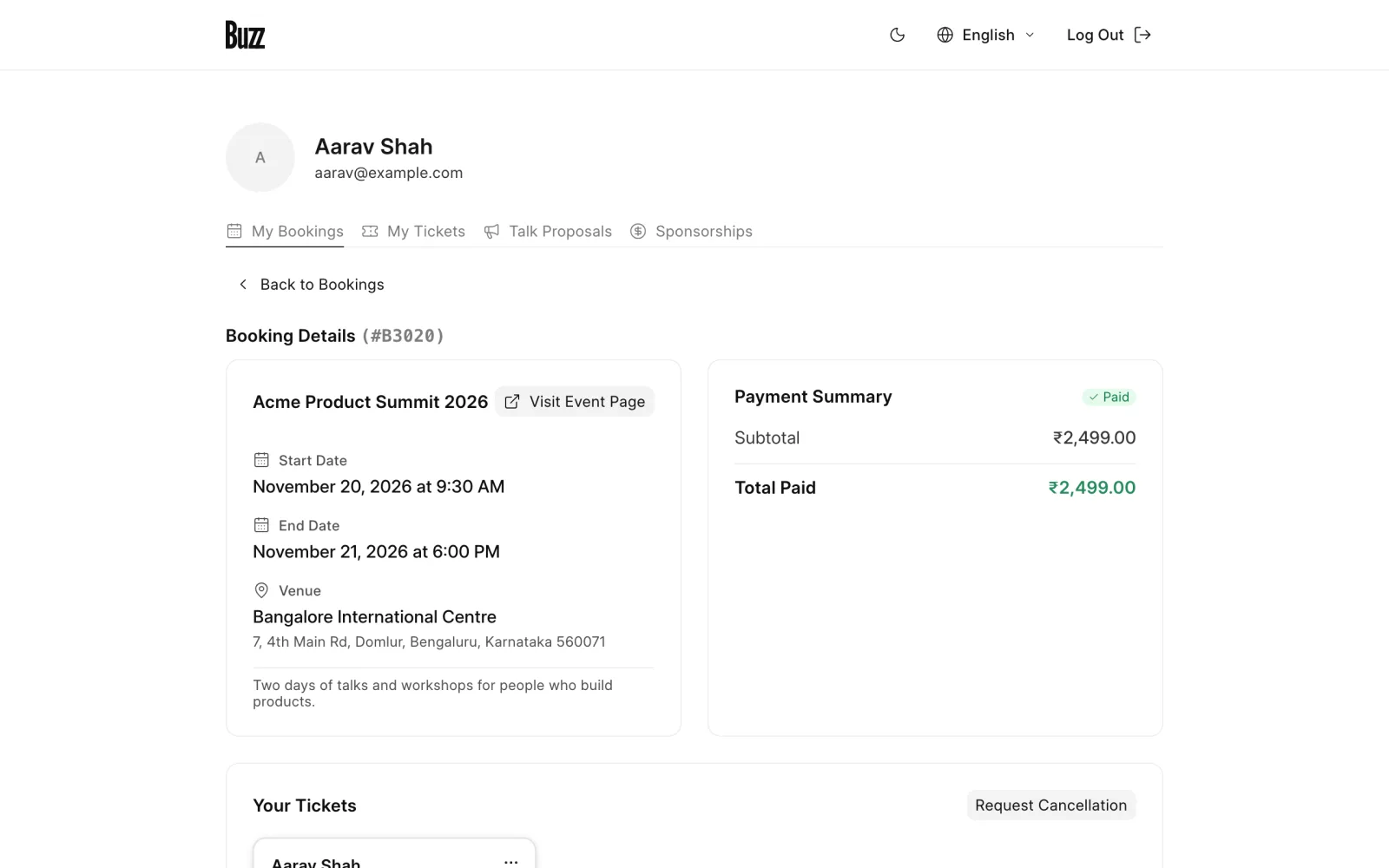
Open the booking from My Bookings.
-
Under Your Tickets, click Request Cancellation.
-
Click Select All Available Tickets to cancel the whole booking, or select only the tickets to cancel. The summary shows whether it's a Full Cancellation or a Partial Cancellation.
-
Click Submit Cancellation Request.
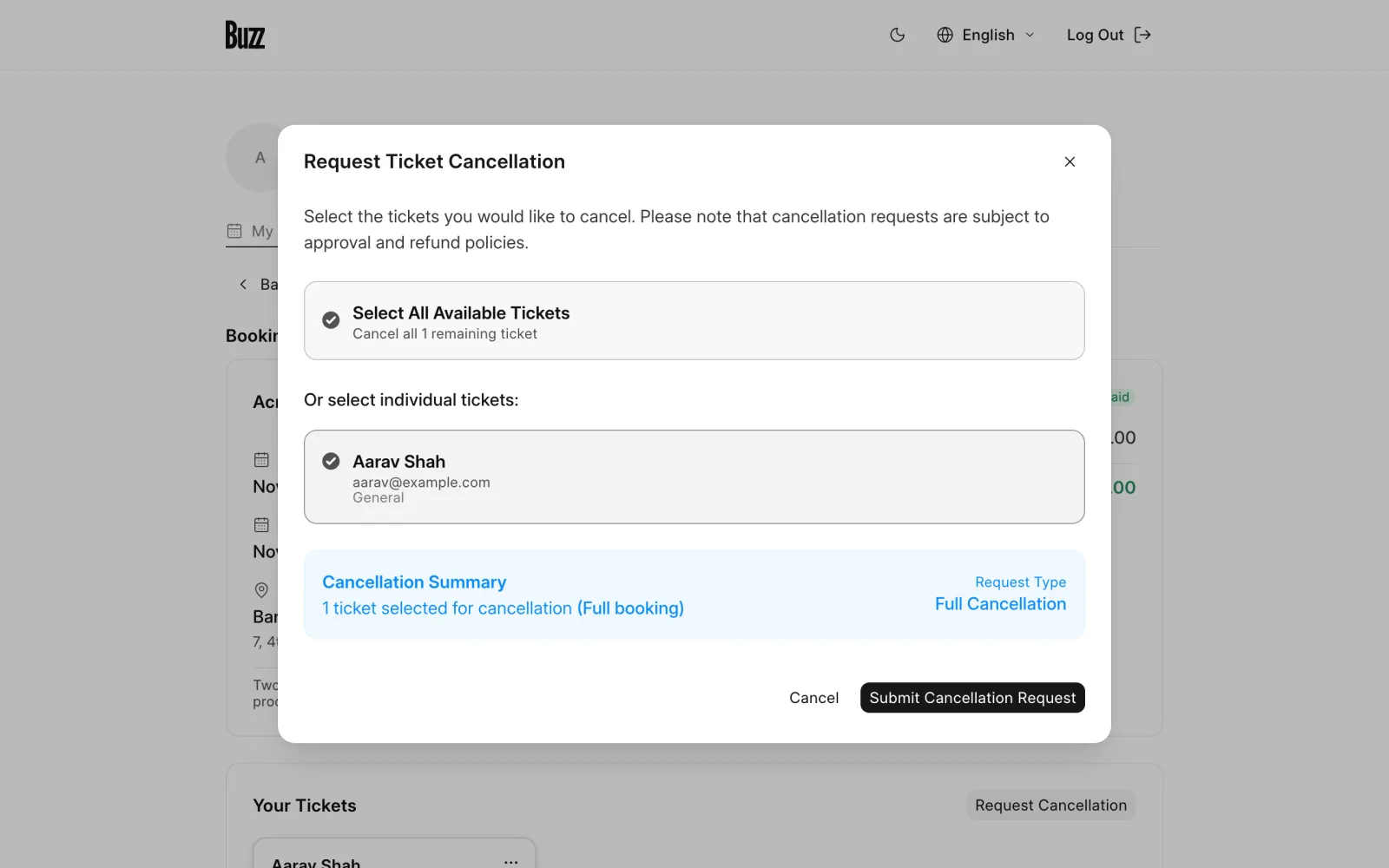
The organiser reviews your request. Your booking shows Cancellation Requested until they do.
Last updated 1 week ago
Was this helpful?