


.webp)
Tax adds GST or another tax to tickets. It is set per event, under Taxes on the event's Registration page. Buzz charges tax only once your team's tax details are on file.
Add your team's tax details
Without tax details, the Taxes section shows Tax details required and its settings are locked. Tickets sell without tax, and your team is responsible for all tax and accounting obligations on those sales.
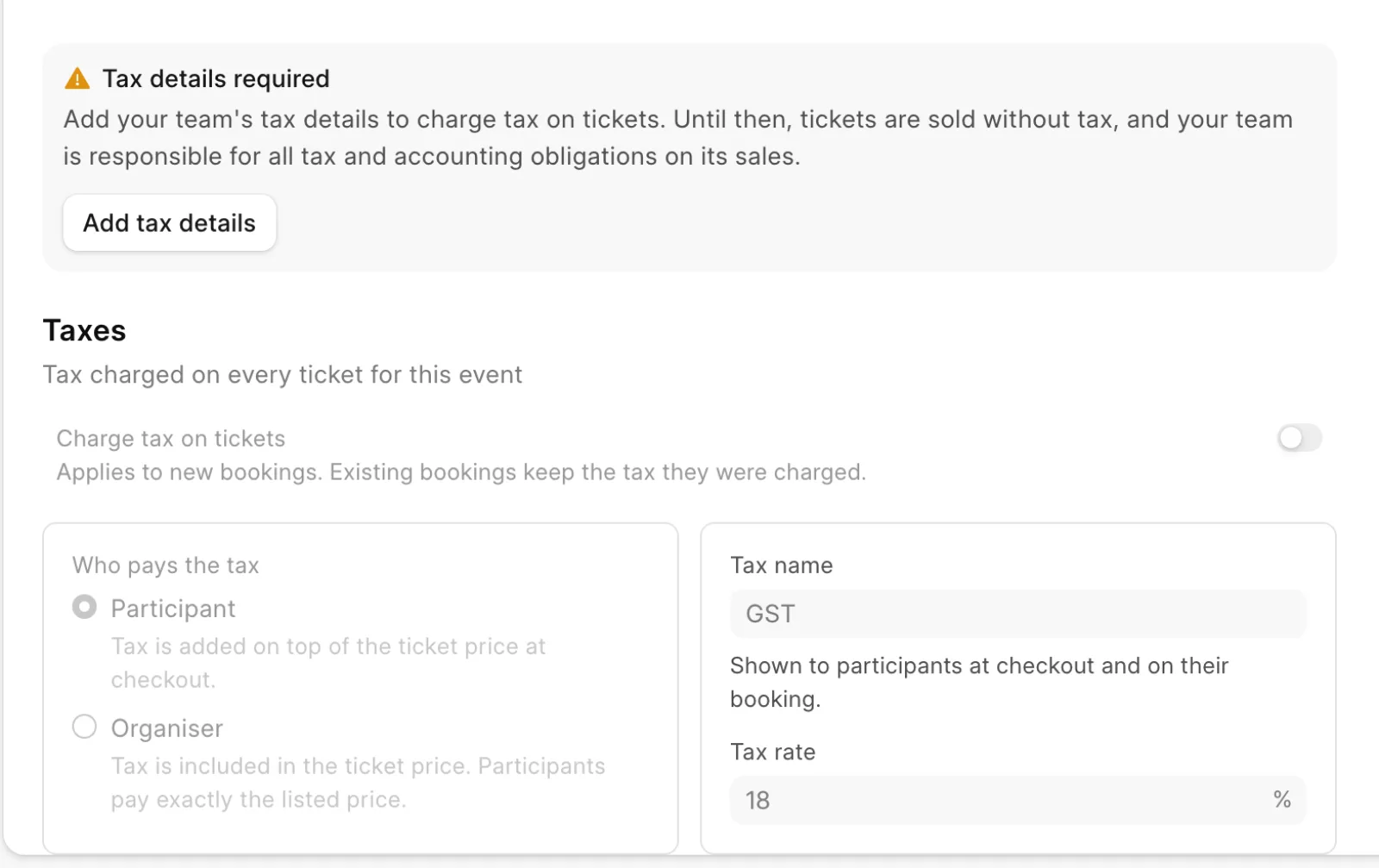
- Open the event and choose Registration in the sidebar.
- Under Tax details required, click Add tax details.
- Enter the Legal name, the Tax ID (GSTIN, VAT number or equivalent) and the Billing address. All three are required.
- Click Save tax details.
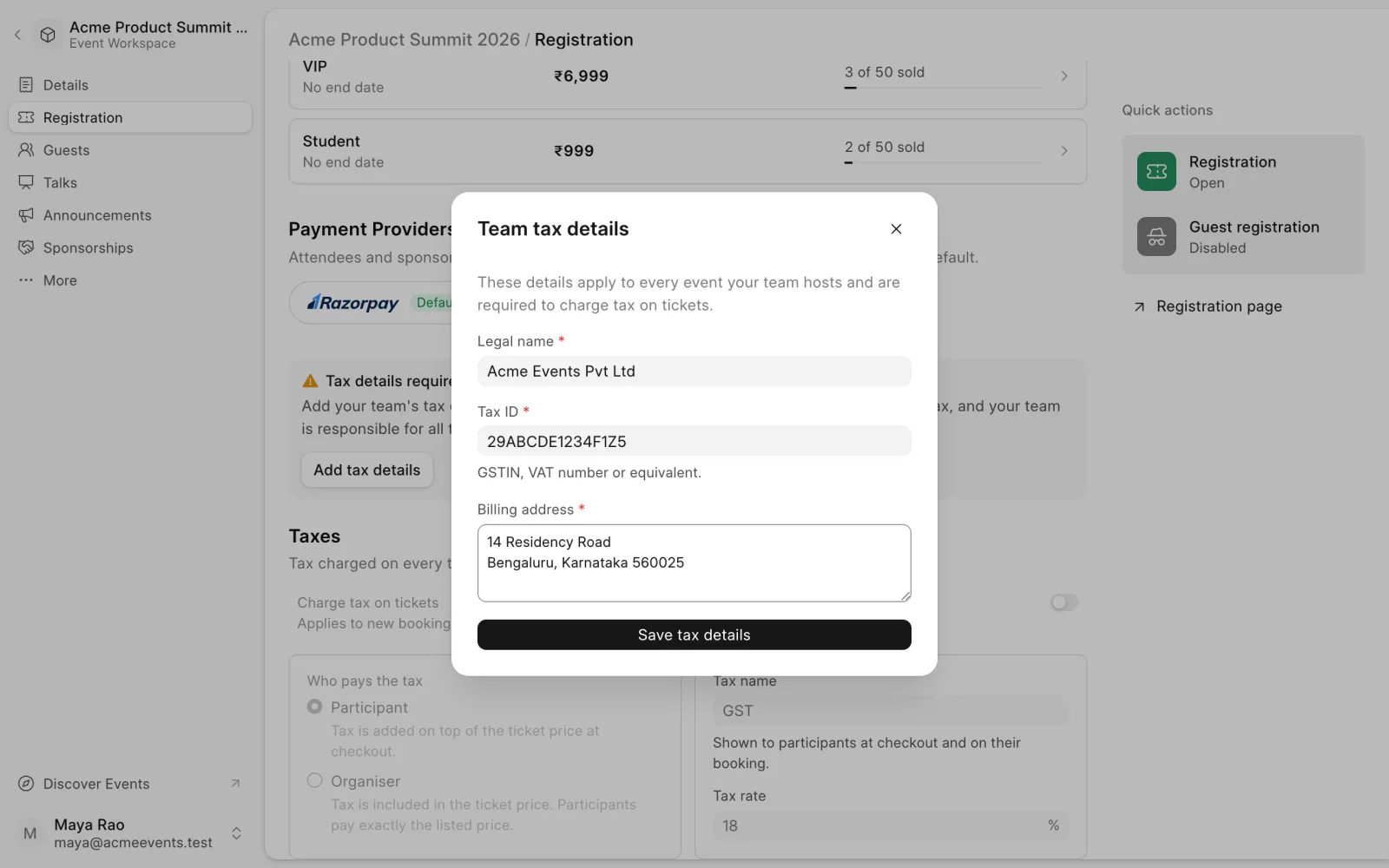
Tax details belong to the team, so they apply to every event it hosts. Only team Owners and Admins can add them. Other members see a note asking an Owner or Admin to do it.
Set the tax for an event
- Turn on Charge tax on tickets.
- Under Who pays the tax, choose one:
- Participant. Tax is added on top of the ticket price at checkout.
- Organiser. Tax is included in the ticket price. Participants pay exactly the listed price.
- Set the Tax name. Participants see it at checkout and on their booking. It defaults to GST.
- Set the Tax rate, from 0 to 100%. It defaults to 18%.
- Click Save at the top of the page, or press Ctrl+S (⌘S on a Mac). Click Discard to undo your changes.
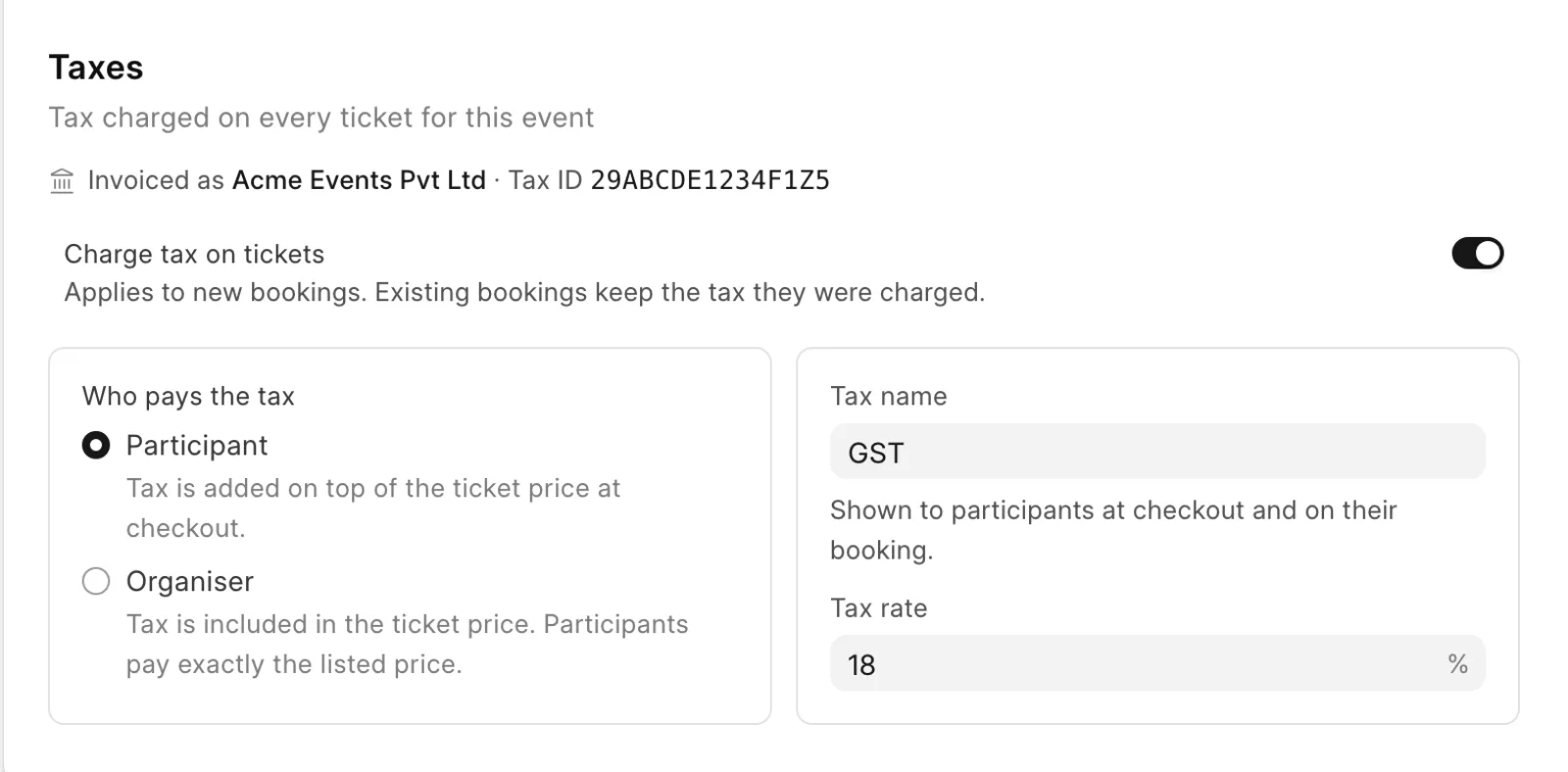
Tax settings apply to new bookings. Existing bookings keep the tax they were charged.
Last updated 1 week ago
Was this helpful?