.webp)



Step 6: Preview and ship
In this step, you preview your theme, make it live, and ship it to another site.
What you'll build
- A preview of Acme without a change for shoppers
- Acme as the live theme
- The
acme_themeapp, installed on a second site
1. Preview a theme
Add ?preview_theme=<Theme Name> to any storefront URL. Use the theme name, not the folder name. Letter case does not matter. Encode the spaces as %20:
/en?preview_theme=Acme
/en/products?preview_theme=Acme%20Catalog
Only your request gets the preview theme. Shoppers still get the live theme.
A preview lasts for one request. When a link drops the query string, the next page shows the live theme. See the size picker in Step 3: Add pages.
2. Make a theme live
Use one of these two ways. Both save the same setting.
In the /commera dashboard
- Open
/commera. - Under Storefront, click Theme.
- In Installed themes, click Activate next to your theme. Its row then shows Live.
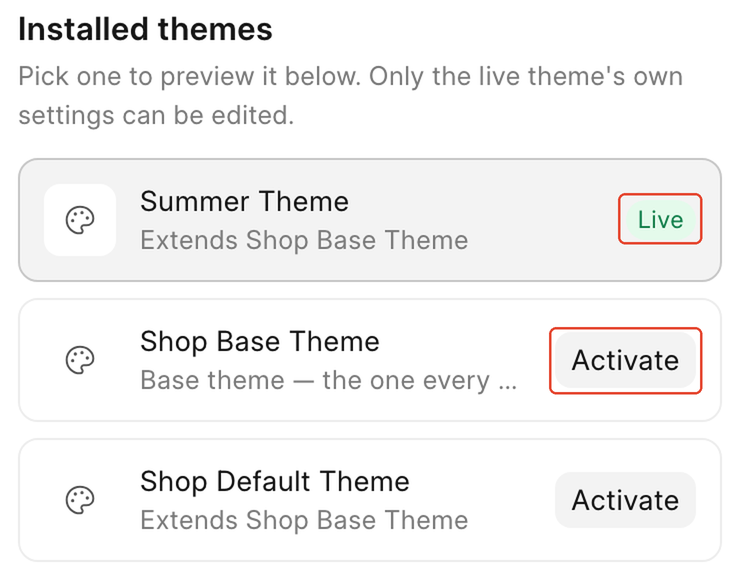
In Desk
- Open Shop Theme Settings at
/desk/shop-theme-settings. - In Active Theme, select
Acme. - Click Save.
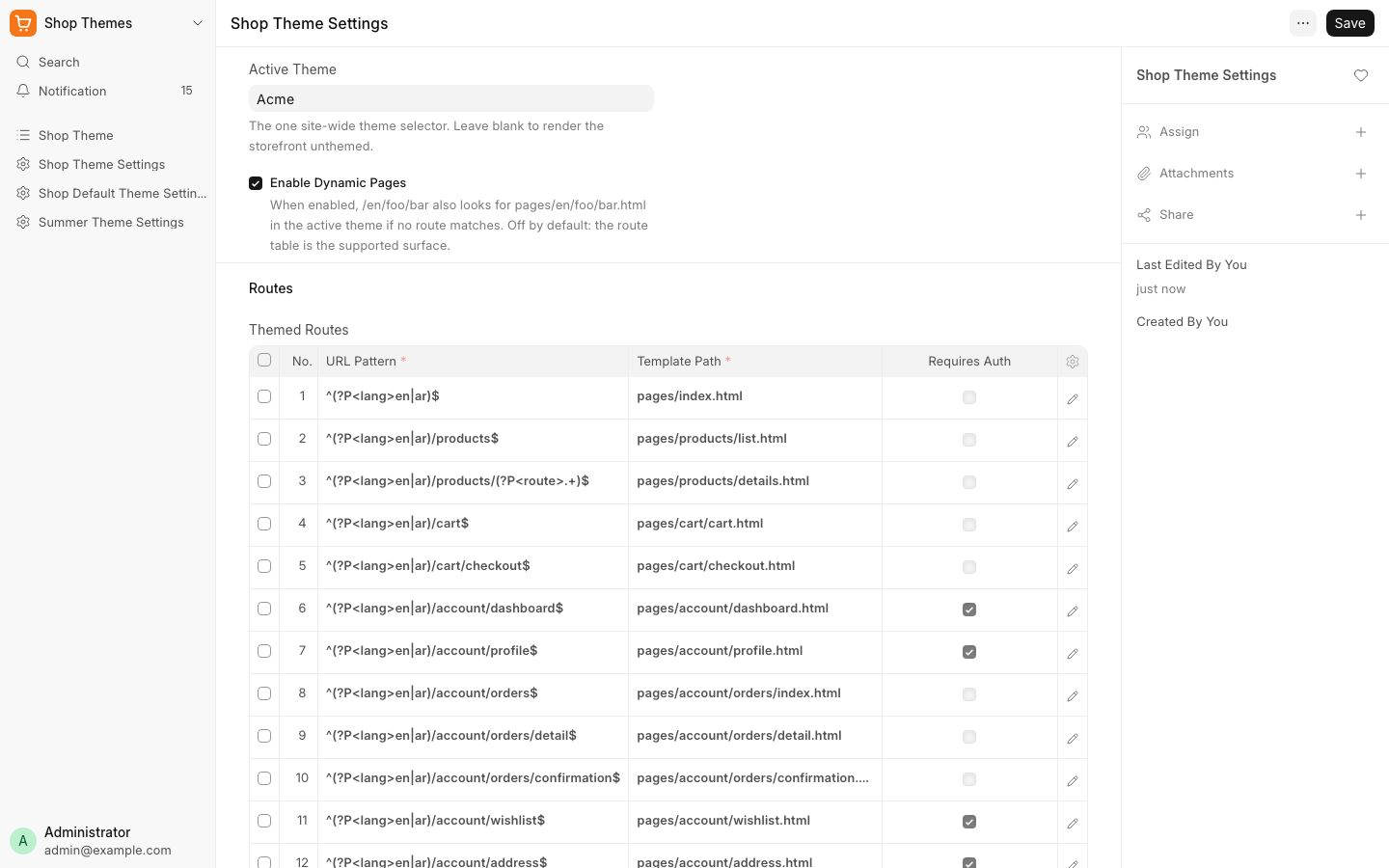
Shoppers get the new theme on their next page load. To go back, select the old theme, such as Summer Theme. If Active Theme is empty, the storefront has no theme, and Commera's core pages serve every URL.
3. Ship the theme
Your theme is a normal Frappe app. Its files and its theme records are in the app:
acme_theme/themes/acme/andacme_theme/themes/acme_catalog/: the templates and controllersacme_theme/public/themes/acme/: the CSS and other assetsacme_theme/acme_theme/shop_theme/acme/acme.jsonandacme_theme/acme_theme/shop_theme/acme_catalog/acme_catalog.json: the theme records, written because Is Standard is ticked
-
Commit the app and push it to your Git host.
-
On the target bench, get the app, install it, and migrate the site:
bench get-app https://github.com/<owner>/acme_theme bench --site your.site install-app acme_theme bench --site your.site migrate -
On the target site, make the theme live, as in section 2.
Commera registers Shop Theme as an importable DocType. So bench install-app and bench migrate import each shop_theme/<folder>/<folder>.json file in your app, and the bench serves the files from the app. Check that the theme shows in Installed themes.
If a theme uses its own Theme Settings DocType, made with the Scaffold Theme Settings button in developer mode, that DocType is in your app's module too, and ships the same way.
4. Test before release
Test every theme before you give it to a merchant:
- Shoppers: test as a guest, and as a signed-in customer.
- Languages: test in English (
/en) and Arabic (/ar). The Arabic pages are right-to-left. Check that the layout, icons and prices read correctly. - Screen widths: test at 1440 px and at 390 px. On a phone, every button and link must be easy to tap.
- Data: test with products that have many sizes, a sold-out size, a discount and no image. Test a category with more than one page of products.
- Every flow: browse, search, add to cart, check out, and open the order in the account pages.
- Console: the browser console must show no errors and no failed requests.
- Accessibility: the Lighthouse accessibility score must be 90 or more on each page.
Your theme's pages replace Commera's core pages for the same URLs. When you copy a page from another theme, copy its fixes too, and check every server call for a failure message that the shopper can see.
Next steps
- Architecture: the folder layout and the fallback order
- Gotchas: symptoms, causes and fixes