.webp)



Your plugin adds pages, cards, actions, palette commands and a Settings tab to the Commera dashboard at /commera. You write each one as a Vue file. The build kit, @commera/plugin-kit, checks it and builds it. Commera draws the frame: the page header, the card title, the dialog and its buttons.
Where your plugin shows up
Each folder under commera/ fills one place in the dashboard. The images show the Qikink plugin. An orange box marks what the plugin adds when the image shows more than that.
Sidebar
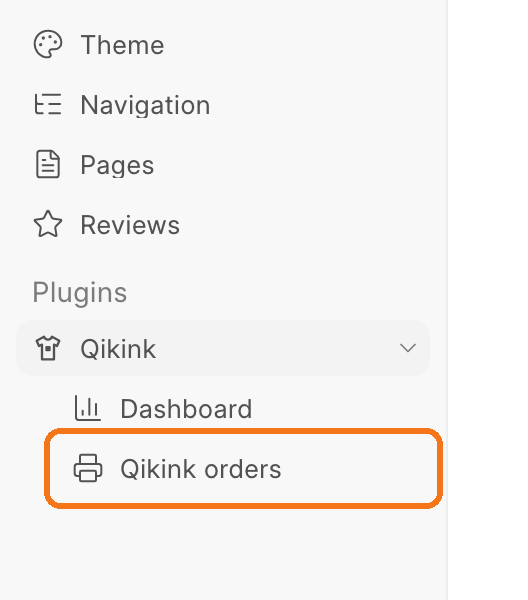
Each page adds a row under Plugins, with the logo from your plugin. Folders: commera/pages/<name>/index.vue and commera/plugin-icon.svg.
Plugin page
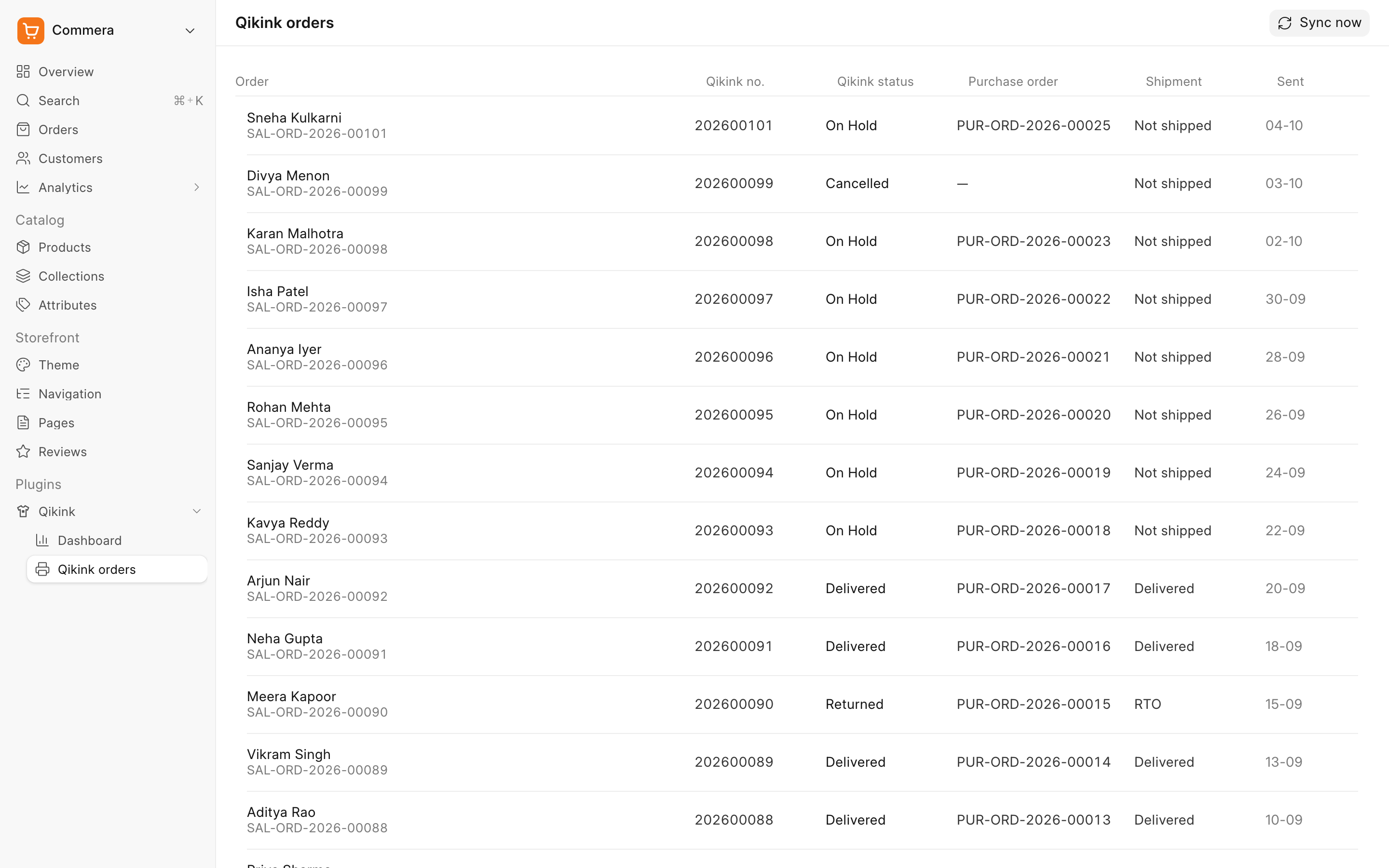
Commera draws the header. Your page sets the title, breadcrumbs and buttons with usePage(), and fills the rest. Folder: commera/pages/<name>/index.vue.
Order cards
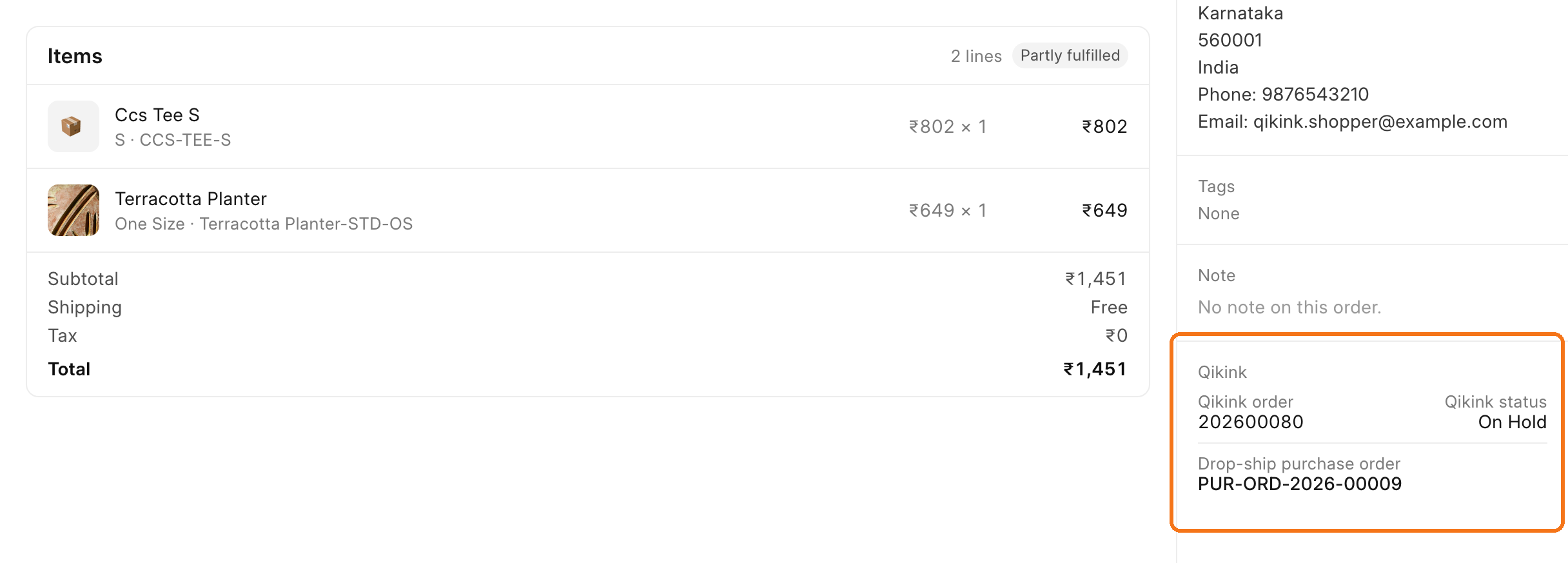
Your card goes in the right column of the order page, below Commera's cards. Folder: commera/order/cards/<name>/index.vue.
Order actions
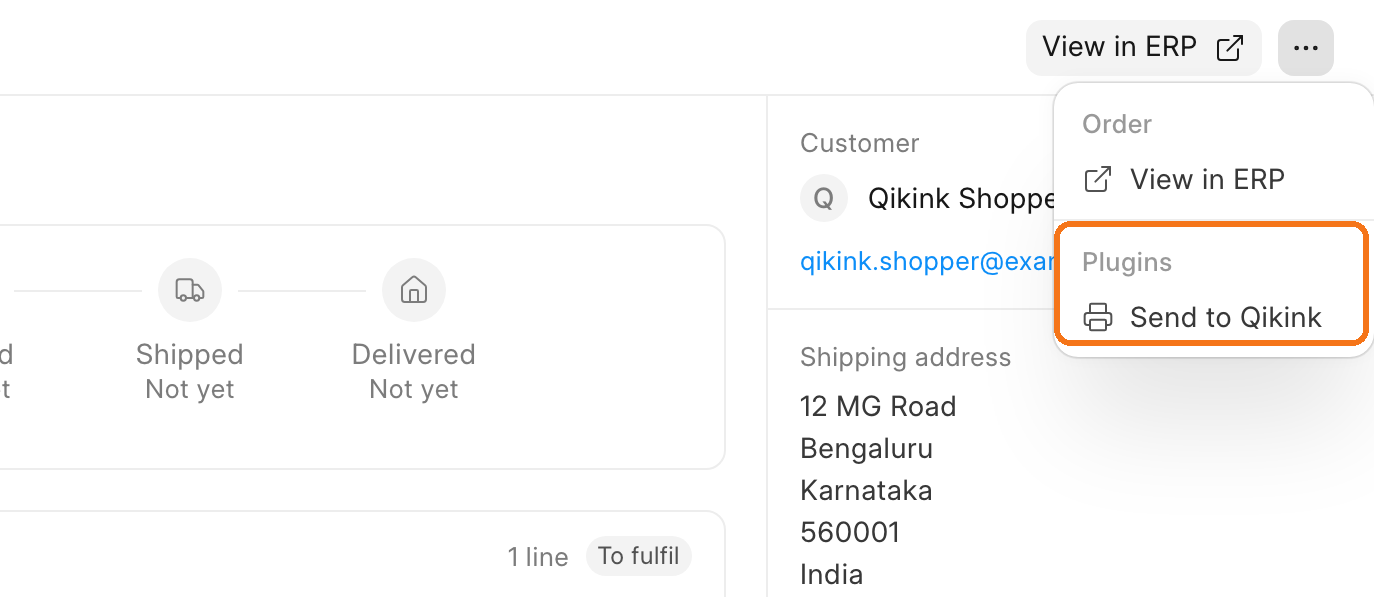
Your action is a row in the Plugins group of the More actions menu. Folder: commera/order/actions/<name>/index.vue.
Action dialog
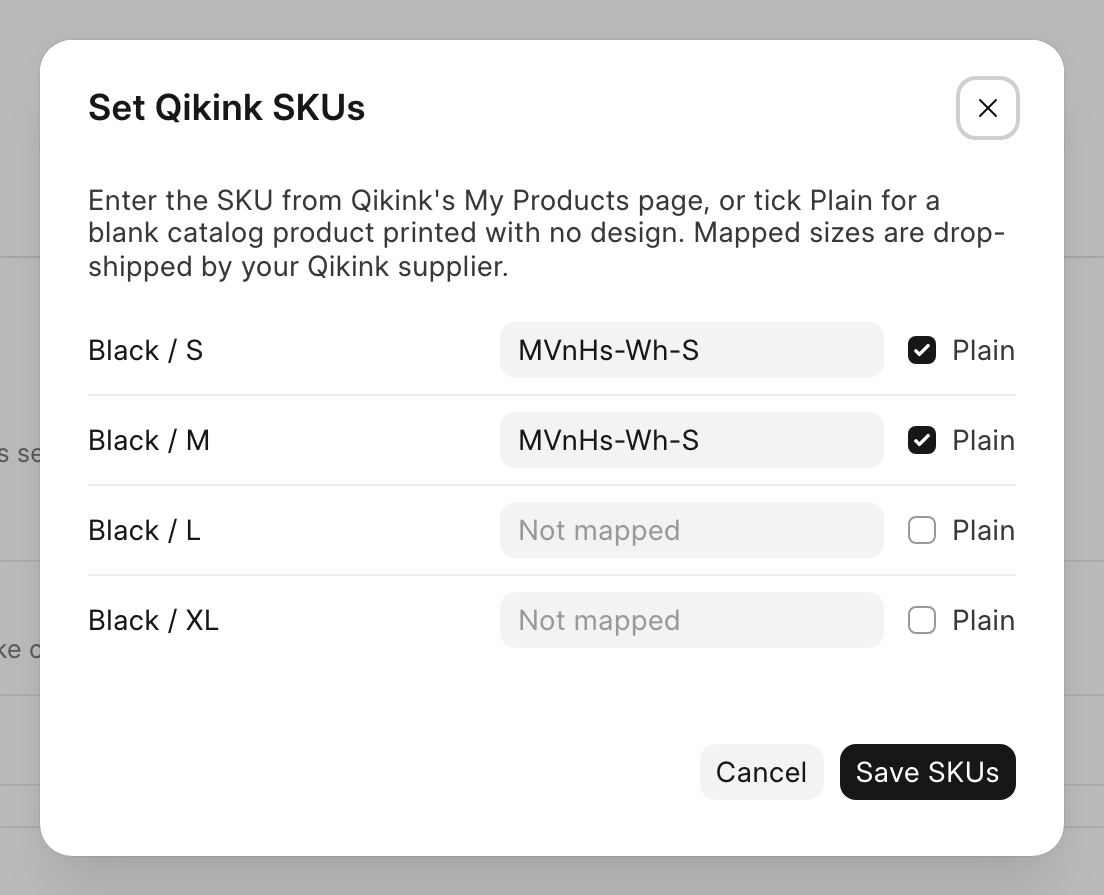
An action with a template opens in a dialog. Commera draws the title, Cancel and the primary button, and your index.vue is the body. The Qikink order actions all use method, so this image shows its product action. Folder: commera/product/actions/<name>/index.vue.
Failed delivery notice
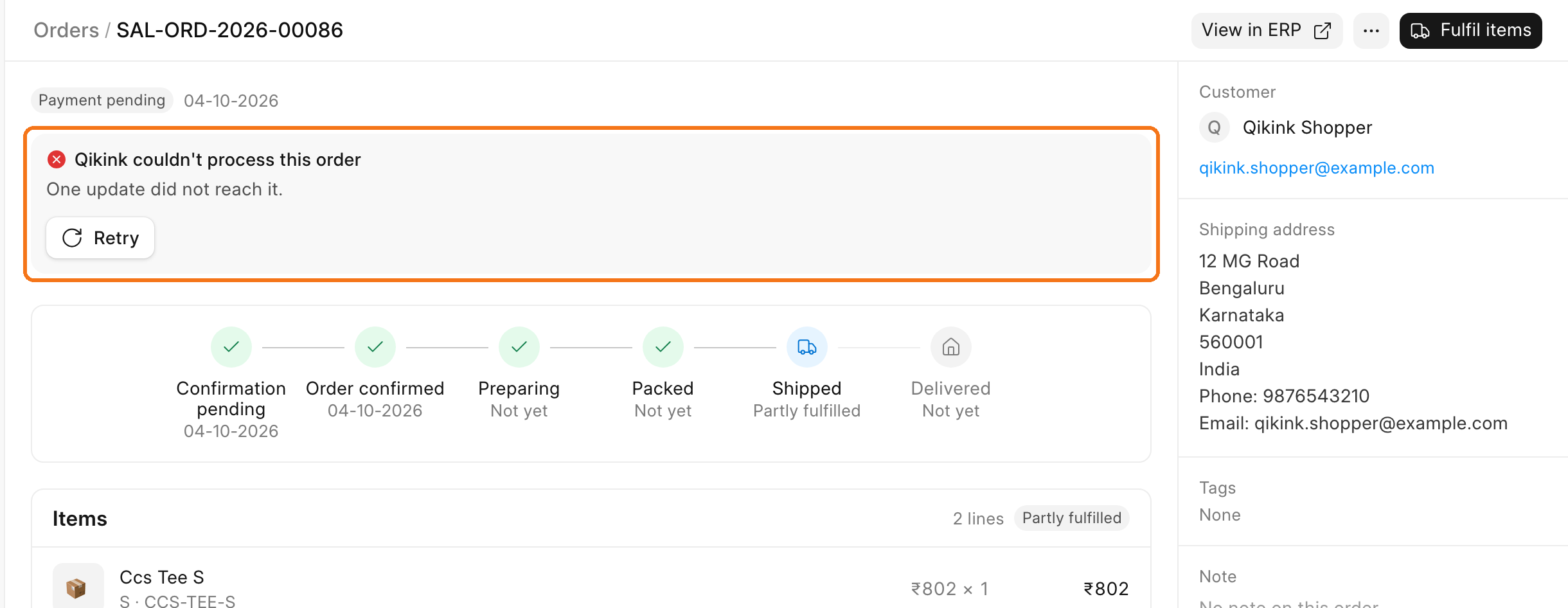
You do not write this one. When an event handler from hooks.py fails on every attempt, Commera shows this notice on the order with Retry.
Product cards
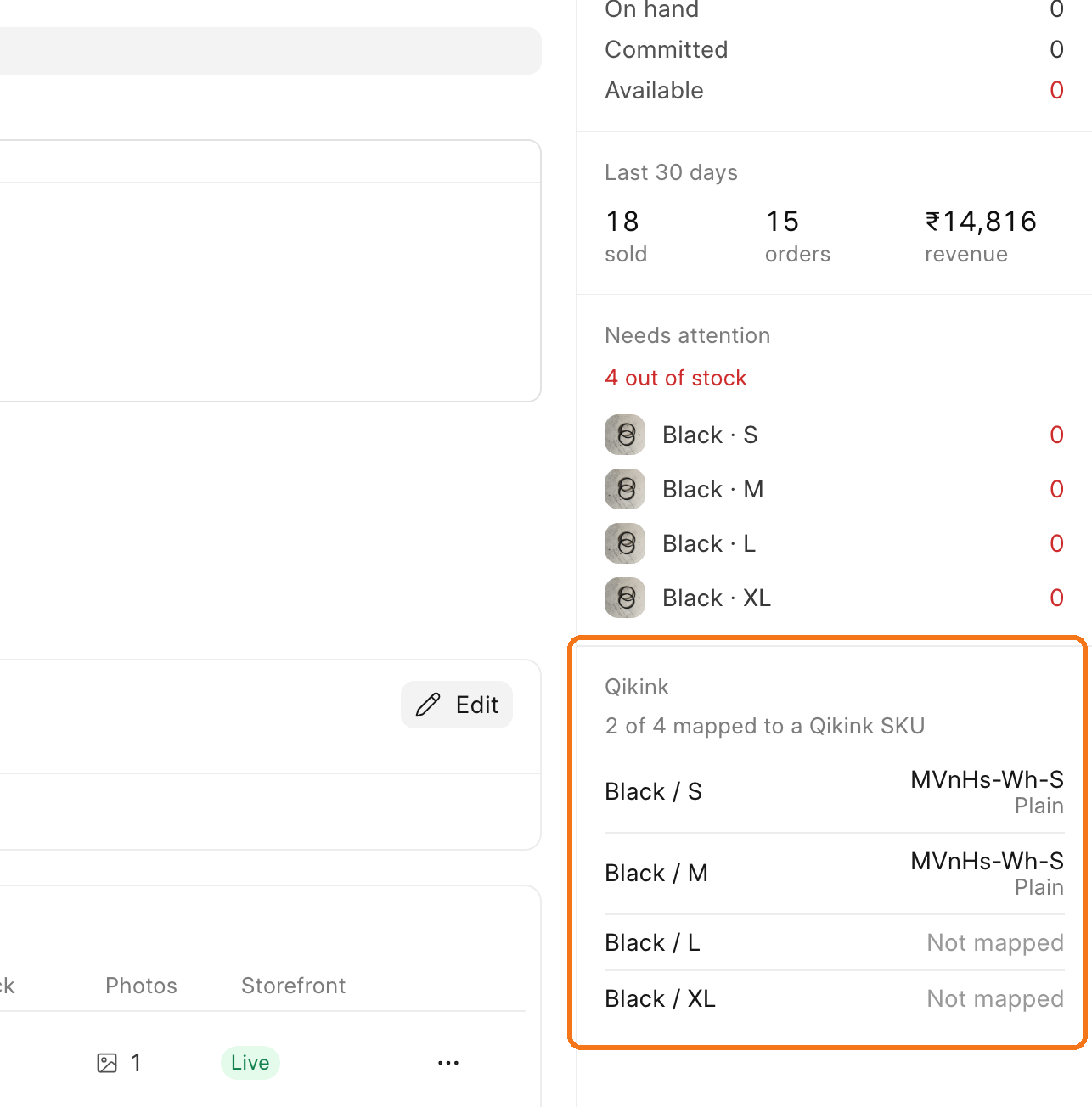
Your card goes in the right column of the product page. Folder: commera/product/cards/<name>/index.vue.
Product actions
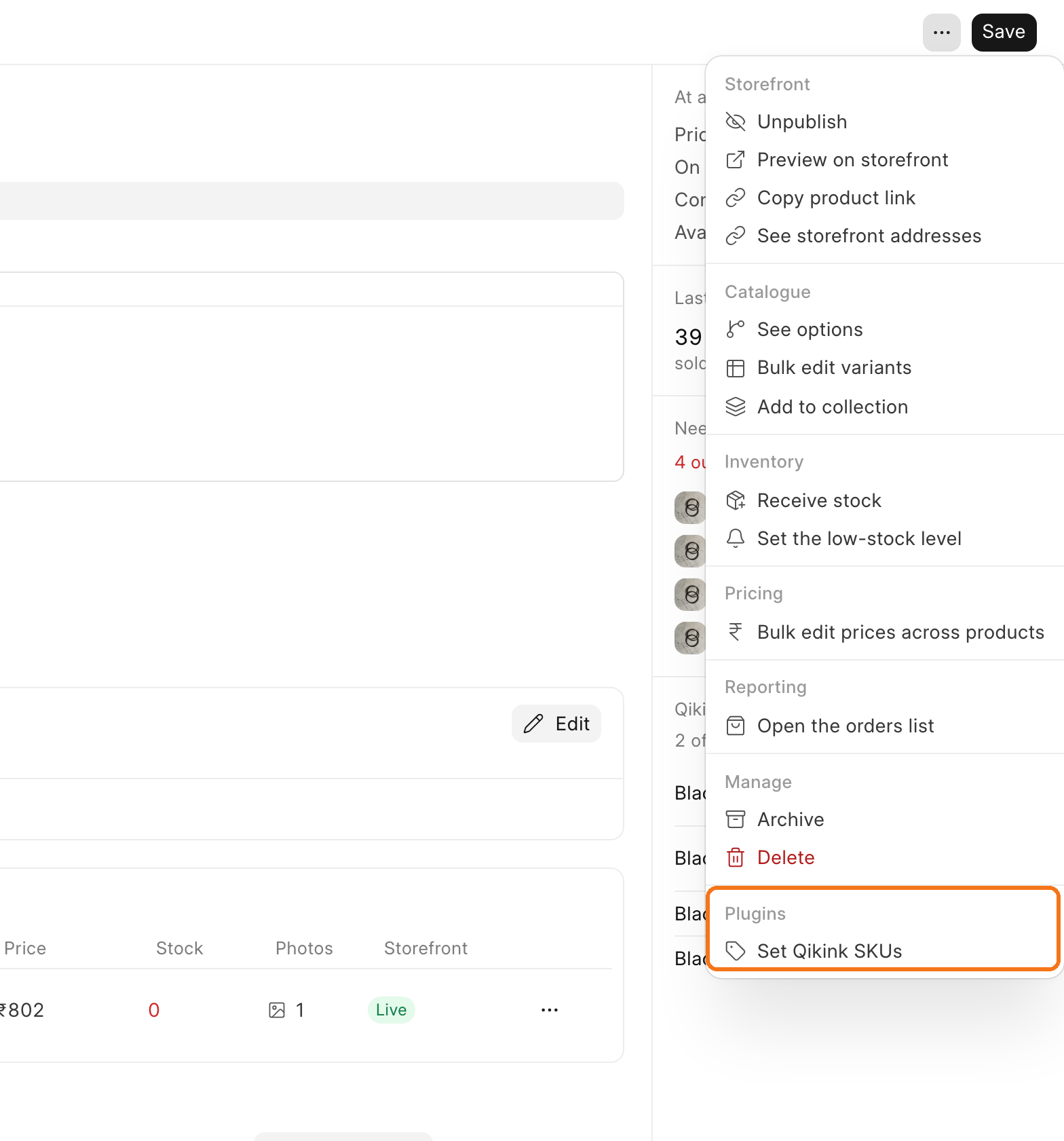
Your action is a row in the Plugins group at the bottom of the More actions menu. Folder: commera/product/actions/<name>/index.vue.
Customer cards
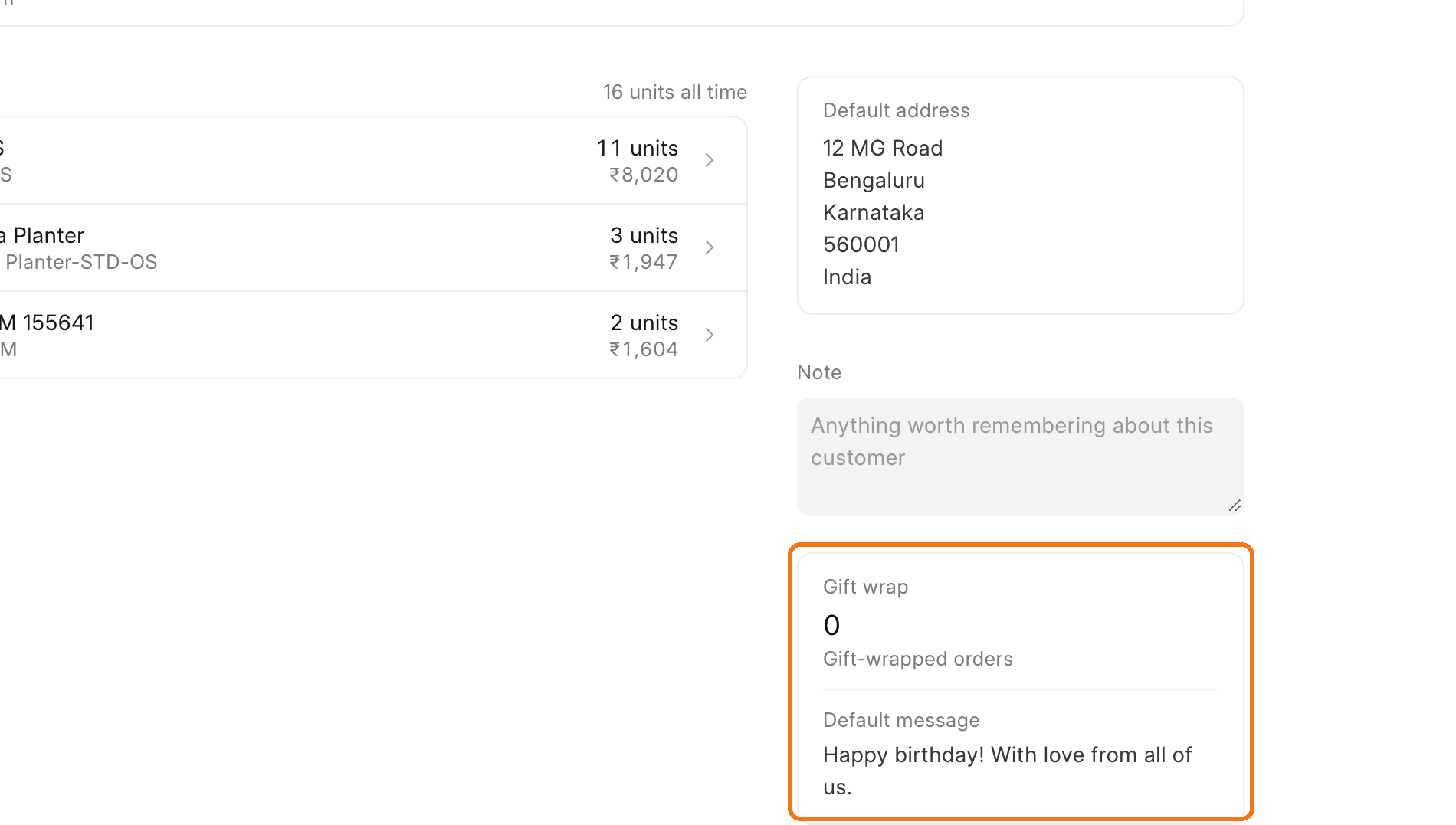
Your card goes in the right column of the customer page, below the address and note. Qikink has no customer card, so this image shows the Gift Wrap example plugin. Folder: commera/customer/cards/<name>/index.vue.
Customer actions
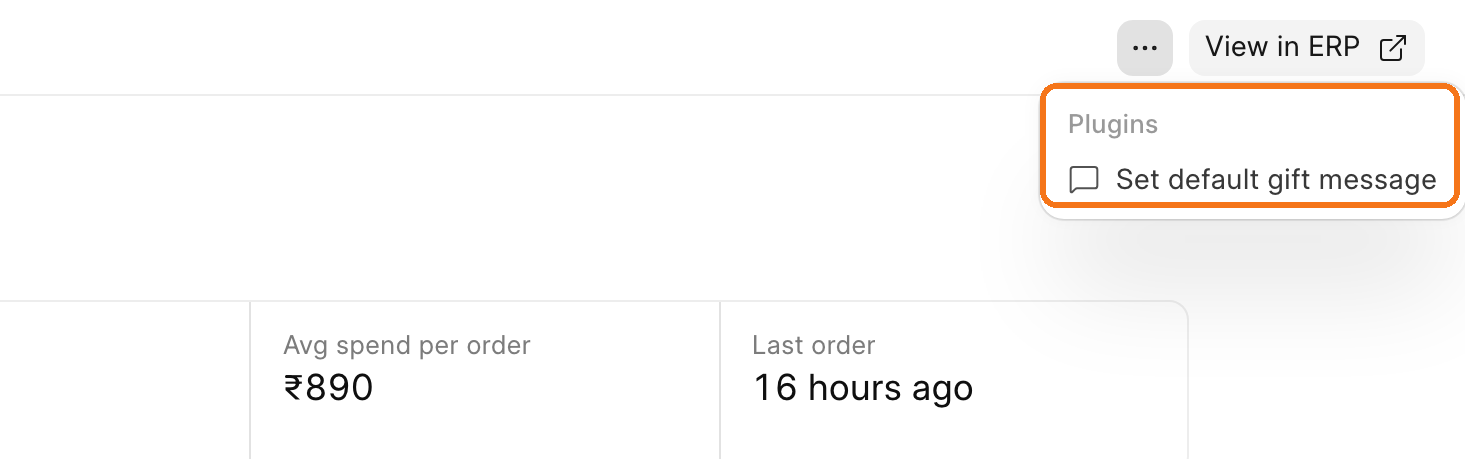
Your action is a row in the Plugins group of the More actions menu. This image also shows the Gift Wrap example plugin. Folder: commera/customer/actions/<name>/index.vue.
Settings tab
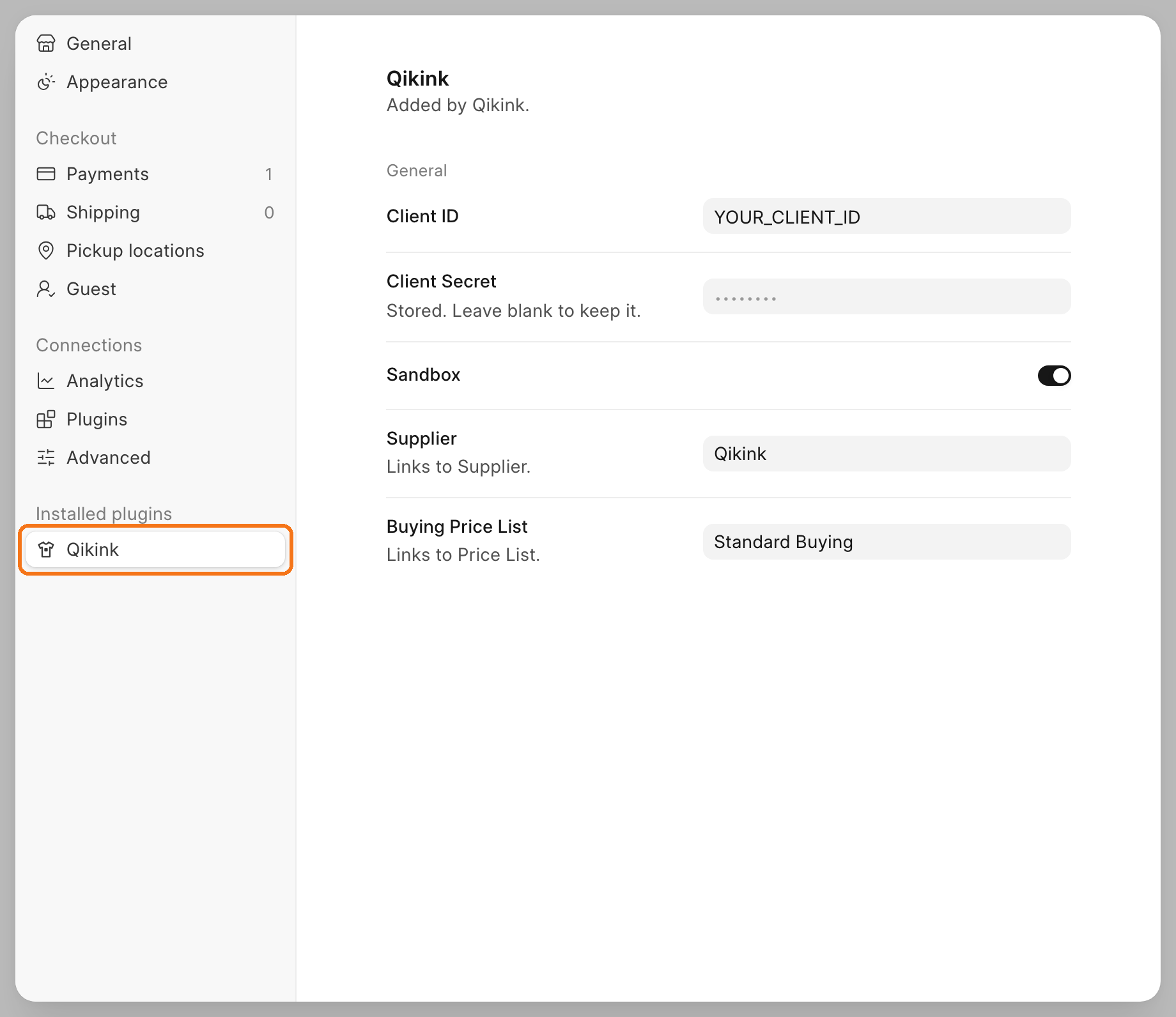
Your tab is listed under Installed plugins in Settings. Folder: commera/settings/index.vue.
Settings > Plugins
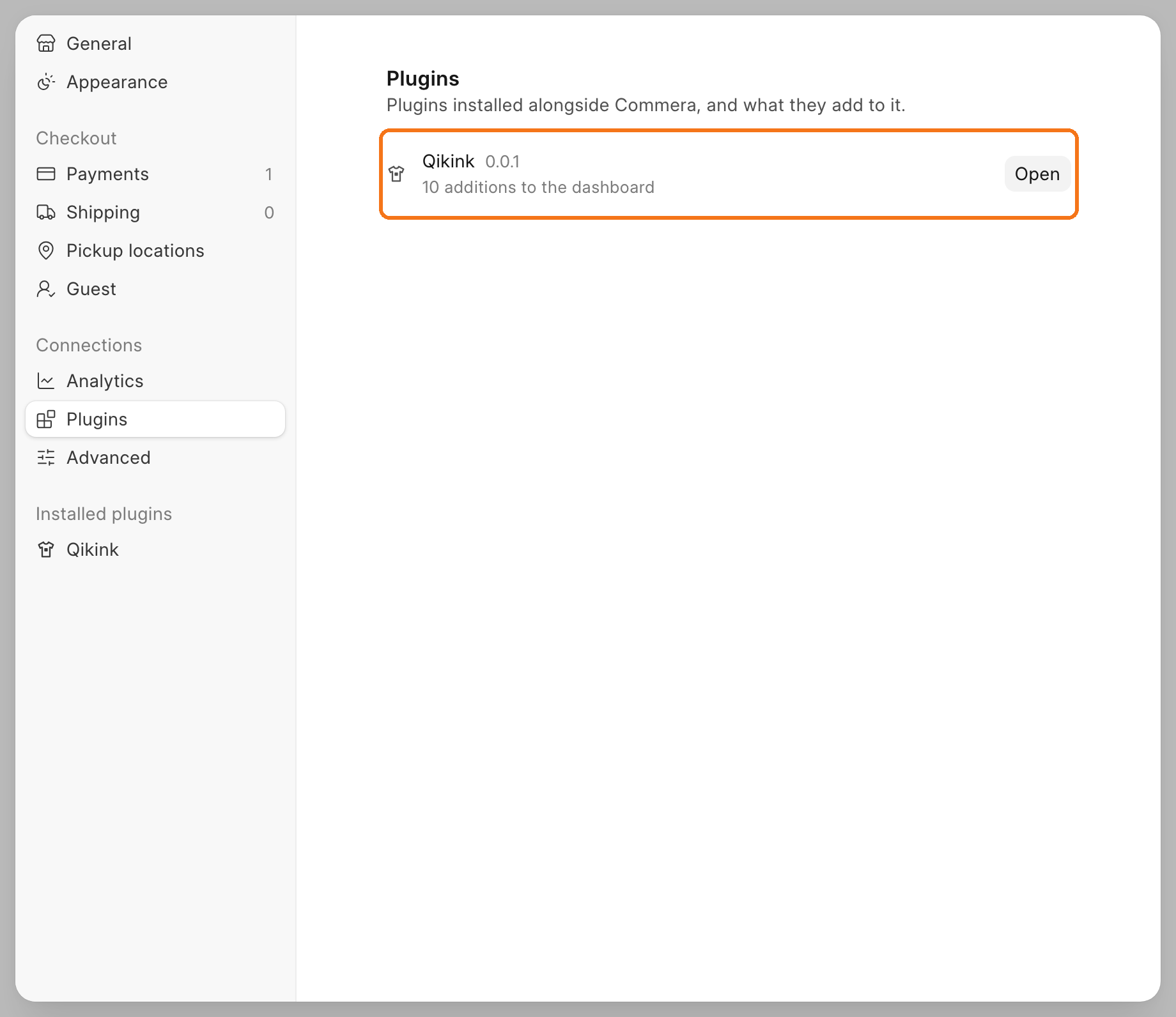
Settings > Plugins lists each installed plugin, the number of things it adds and the number of failed deliveries. You do not write this page.
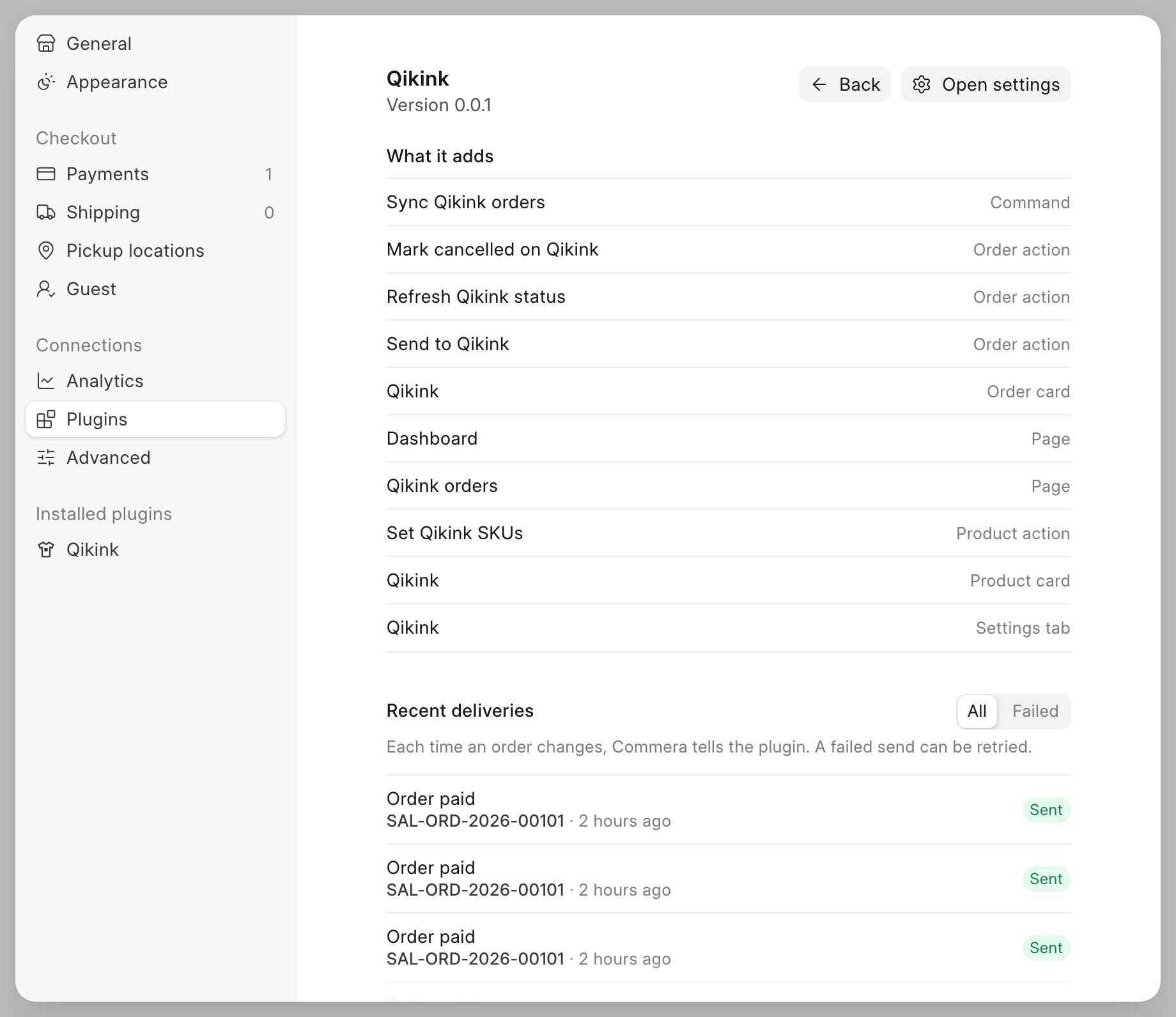
Click Open to see each thing the plugin adds and its recent deliveries. A failed delivery has Retry. Commera builds this from your folders.
Search palette
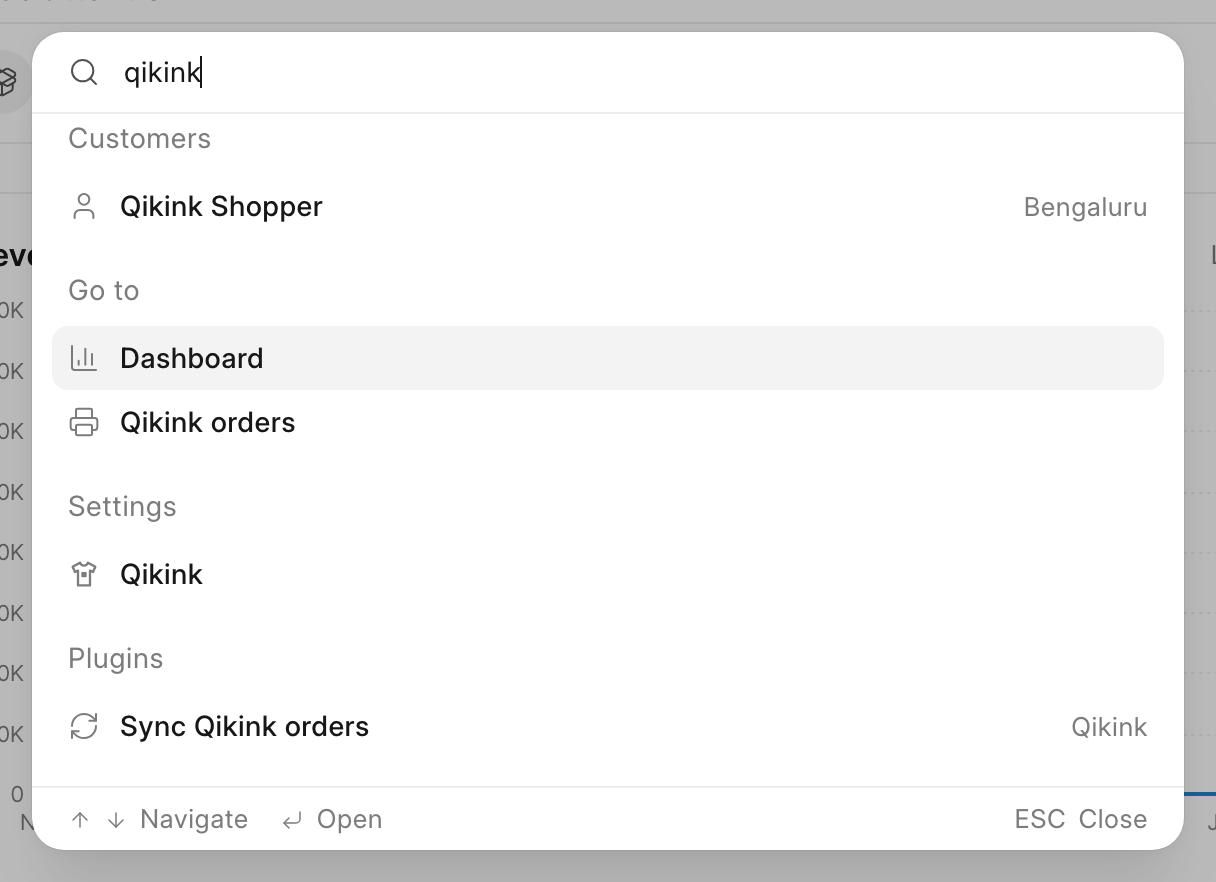
Your pages show under Go to, your settings tab under Settings, and your commands under Plugins. Folder for a command: commera/commands/<name>/index.vue.
Set up the plugin
Create a Frappe app, go into its folder and run bench commera init. It makes the app whose folder you are in a Commera plugin.
bench new-app my_app
cd apps/my_app
bench commera init
bench --site <site> install-app my_app
The command adds required_apps = ["commera"], commera_api_version = [1] and commera_plugin_title to hooks.py. commera_plugin_title is the name Commera shows for your plugin: the sidebar row of a plugin with several pages, Settings → Plugins and the search palette. A plugin with one page shows that page's label in the sidebar instead. It starts as your app_title. Without it, Commera uses app_title. It writes package.json, commera/vite.config.js, a starter page, my_app/api.py and commera/README.md, and then runs yarn install.
my_app/
├── package.json
├── yarn.lock                        # commit it
├── commera/
│   ├── vite.config.js
│   ├── pages/jobs/index.vue
│   ├── order/cards/status/index.vue
│   ├── order/actions/resend/index.vue
│   ├── settings/index.vue
│   ├── plugin-icon.svg
│   └── shared/                      # your own code
└── my_app/public/commera/           # build output, gitignored
The starter page calls my_app.api.get_summary. Delete both when you write your own page.
Add a placement
Run bench commera add <kind> <name> inside your plugin's folder to add one placement with a starter that builds. A running dev server builds it and reloads the page.
| Kind | Writes |
|---|---|
page |
commera/pages/<name>/index.vue; with --detail, also [...id].vue, one record's view, which the list opens with navigate('<name>/<id>') |
order-card, product-card, customer-card |
commera/<record>/cards/<name>/index.vue |
order-action, product-action, customer-action |
commera/<record>/actions/<name>/index.vue and a whitelisted <name>_<record>(name) in your api.py |
settings |
commera/settings/index.vue (no name: one per plugin) |
command |
commera/commands/<name>/index.vue and a whitelisted <name>() in your api.py |
The command never overwrites: it stops when the placement or the method already exists.
Placements
<name> is 1 to 40 lowercase letters, digits and hyphens, and starts with a letter or a digit. It is also the URL slug.
Folder under commera/ |
Where it shows | Required fields | Optional fields |
|---|---|---|---|
pages/<name>/index.vue |
/commera/plugins/<app>/<name>, plus a sidebar row |
label |
icon, requires, condition, sidebar, order |
{order,product,customer}/cards/<name>/index.vue |
A card on that record's page | label |
requires, condition, order |
{order,product,customer}/actions/<name>/index.vue |
A row in that page's More actions menu | label |
icon, requires, condition, method, confirm, order |
commands/<name>/index.vue |
A row in the search palette's Plugins group | label, method |
icon, keywords, requires, condition, confirm, order |
settings/index.vue |
Your plugin's tab in Settings | label |
icon, requires, condition, doctype |
Order cards and actions get a Sales Order, product ones an Item, and customer ones a Customer.
The plugin block
Each placement's index.vue starts with a plain <script> that holds one literal object:
<script>
export const plugin = {
	label: 'Print status',
	condition: 'my_app.conditions.order_has_jobs',
};
</script>

<script setup>
// the card's own code
</script>
| Field | Value |
|---|---|
label |
The text on the sidebar row, card title, menu row or tab |
icon |
Optional; without it the entry uses the plugin's icon (commera/plugin-icon.svg). A name from Commera's icon list, commera/sdk/plugin_icons.json in the Commera repo, for example gift or printer. Any other name fails the build |
requires |
A DocType name. Only users who can read it see the entry |
condition |
A dotted path to a function in your plugin that returns a bool. A page, command or settings condition takes no arguments. A card or action condition gets (doctype, name) |
sidebar |
Pages only. false hides the sidebar row |
order |
A number that sorts entries of the same kind |
method |
Actions and commands. A dotted path to a whitelisted method that Commera runs |
confirm |
Actions and commands. A question that Commera asks before it runs method |
keywords |
Commands only. Extra words that match the command in the palette |
doctype |
Settings only. A Single DocType that Commera draws as a form |
A condition that raises counts as false, and Commera writes an Error Log.
Actions
An action has a template, which Commera opens in a dialog, or a method. Never both.
<script>
export const plugin = {
	label: 'Send to printer',
	icon: 'printer',
	method: 'my_app.api.send_order',
	confirm: 'Send this order to the printer?',
};
</script>
import frappe
from frappe import _


@frappe.whitelist()
def send_order(name):
	frappe.has_permission("Sales Order", "write", doc=name, throw=True)
	...
	return _("Order {0} sent").format(name)
Commands
A command is a row in the search palette that runs one method. Staff open the palette with Cmd+K (Ctrl+K on Windows and Linux). The plain <script> is the whole file. The build refuses a command with a <template> or a <script setup>.
<script>
export const plugin = {
	label: "Sync Qikink orders",
	icon: "refresh-cw",
	keywords: ["qikink", "print"],
	method: "commera_qikink.api.sync_open_orders",
};
</script>
- Commera calls
method()with no arguments, after theconfirmdialog if you setconfirm. - A returned string shows in the success toast. Any other return value shows "
conditiontakes no arguments, like a page condition. When it returnsFalse, the command does not show.- The palette lists your plugin's pages under Go to without a command. Add a command only for work that a page link cannot do.
condition only hides the row. Any user can still call the whitelisted method, so check permissions in the method. The tutorial step Add a palette command builds this command.
Settings tab
A settings tab has a template, or a doctype. Never both.
<script>
export const plugin = { label: 'Printer', icon: 'settings', doctype: 'My App Settings' };
</script>
With doctype, Commera draws each field of the Single as a row that saves itself. A mandatory field shows a *, and a row cannot clear it. Each row saves alone, so other mandatory rows can still be blank. Your validate must allow blanks, and your code must check the values before it uses them. A blank Password row keeps the stored secret.
Composables
Import these from @commera/admin.
| In | Use | To |
|---|---|---|
| a page | usePage() |
setTitle(text), setBreadcrumbs([{ label, to }]), setActions([{ label, icon, variant, onClick, loading, disabled }]). Each takes a value, a ref or a getter. Past two actions, the rest fold into a menu |
| a card | useCard() |
hide(), show(), setHidden(bool). Hiding during setup never shows an empty card |
| an action | useAction() |
setPrimary({ label, disabled, loading }), onSubmit(async () => …), close(result). Return to close. Return { reload: true } to reload the record. Throw to keep the dialog open with the error under the form |
| all | usePlugin() |
plugin, path, query, record ({ doctype, name } on cards and actions), reload(), navigate(to), toast, __ |
navigate(to) and a breadcrumb's to resolve against /commera/plugins/<app>/. 'jobs/JOB-1', '../' and '/orders/SO-1' all work.
@commera/admin also exports EmptyState, ListPagination, ListSkeleton, ResponsiveButton, StatusBadge, money, shortDate and usePolling.
Call your methods
Use useMethodRead for reads and useMethodAction for writes. Point them at a whitelisted method by its full dotted path.
import { usePlugin, useMethodAction, useMethodRead } from '@commera/admin';

const { record, toast } = usePlugin();
const jobs = useMethodRead('my_app.api.get_jobs', {
	params: () => ({ sales_order: record.value.name }),
});
const send = useMethodAction('my_app.api.send_order');

async function sendOrder() {
	const message = await send.submit({ name: record.value.name });
	if (send.error) return;
	toast.success(message);
	jobs.reload();
}
useMethodReadsends a GET request and loads on mount. Frappe does not commit a GET request, so never write data in a read method.useMethodActionsends a POST request when you callsubmit(params).submitresolves to the method's return value, or tonullon an error. Checkrequest.errorafter it.- Both show a toast for an error. Inside an action dialog,
useMethodActiondoes not. Throwrequest.errorfromonSubmitand the dialog shows it once.
Plugin logo
Put an optional commera/plugin-icon.svg next to pages/. bench commera init writes a placeholder there: the Commera logo in violet, orange, blue or green. The colour is picked at random when the file is written, and running bench commera init again never changes it. Replace it with your own logo. It is the icon of everything your plugin adds: the sidebar, Settings, the search palette and More actions rows. An entry with its own icon shows that one instead, and a plugin with only one page shows that page's icon in the sidebar when it has one. Without plugin-icon.svg, the sidebar row uses the first page's icon.
Commera shows the logo as it is, in its own colours, in light and dark mode. Pick colours that read on both. A currentColor in the file draws black.
Styling
Use any frappe-ui or Tailwind class, including arbitrary values such as min-w-[60rem]. Your plugin ships no CSS of its own: Commera compiles your classes into the dashboard's one stylesheet, so they always sort the way Tailwind expects next to the dashboard's own classes.
- While you work, the dashboard's
yarn devadds a new class as soon as you save. - In production, a new class is styled after
bench build --app commeraorbench build. Your plugin's ownbench build --app my_appstill builds, and warns which classes are waiting for the Commera build.
Build checks
The build reports all folder and plugin problems together.
| Check | Example that fails |
|---|---|
An index.vue with plugin outside a placement |
ordr/cards/status/index.vue |
A placement index.vue without a plugin block |
pages/jobs/index.vue with only a template |
A <name> that is not a slug |
pages/Print_Jobs/ |
| A value that is not a literal | label: t('Jobs'), ...base |
Another statement in the plain <script> |
import x from './x' |
| An unknown, missing or wrong field | sidebr: false, no label, sidebar on a card |
An action or settings tab with both or neither of a template and method/doctype |
|
| An icon that is not in the list | icon: 'printr' |
| A dotted path outside your plugin | condition: 'frappe.client.get_list' |
| A frame that the dashboard draws | importing AppPageHeader, PageBody, PluginCard or frappe-ui's Dialog |
| A frappe-ui resource that calls Frappe's v1 API | createResource, createListResource, createDocumentResource, useCall, useList, useDoc, useDoctype, useNewDoc, frappeRequest, call |
An plugin-icon.svg that is not a plain SVG |
over 20 kB, a <script>, an on* attribute |
A <style> block or a stylesheet import |
<style>.x { color: red }</style> |
| A name that the shared modules do not export | import { Foo } from 'frappe-ui' |
| A subpath that is not shared | import { TextEditor } from 'frappe-ui/editor' |
The class, export and icon checks read the files that the Commera dashboard build writes. Build Commera before you build your plugin.
Develop
- Build Commera one time.
- Turn on developer mode on your site.
- Run
yarn devinapps/commera/dashboard. - Open
/commeraon port 8080 with your site's host name, for examplehttp://my.site:8080/commera, and log in there.
The dev server loads your plugin's .vue files from source. When you save a file, the page changes in place, without a reload. Your plugin has no yarn dev of its own.
Each save also runs yarn build in your plugin's folder, so the checks above run while you work. A failed check shows in the browser's error overlay. A new placement folder, or a changed plugin field, reloads the page. The build reads the folders on disk: a placement folder that you rename or move stays a live entry until you delete it.
For production, run bench build --app my_app. bench build --app commera also builds every installed plugin, after the dashboard. If one plugin fails, the others still build, and the command ends with an error that names it.