.webp)



Connect a payment gateway
Turn on at least one way to get paid: an online provider like Razorpay or Stripe, cash on delivery, or both.
Before you start
Finish Welcome to Commera so you know your way around the dashboard.
Steps
-
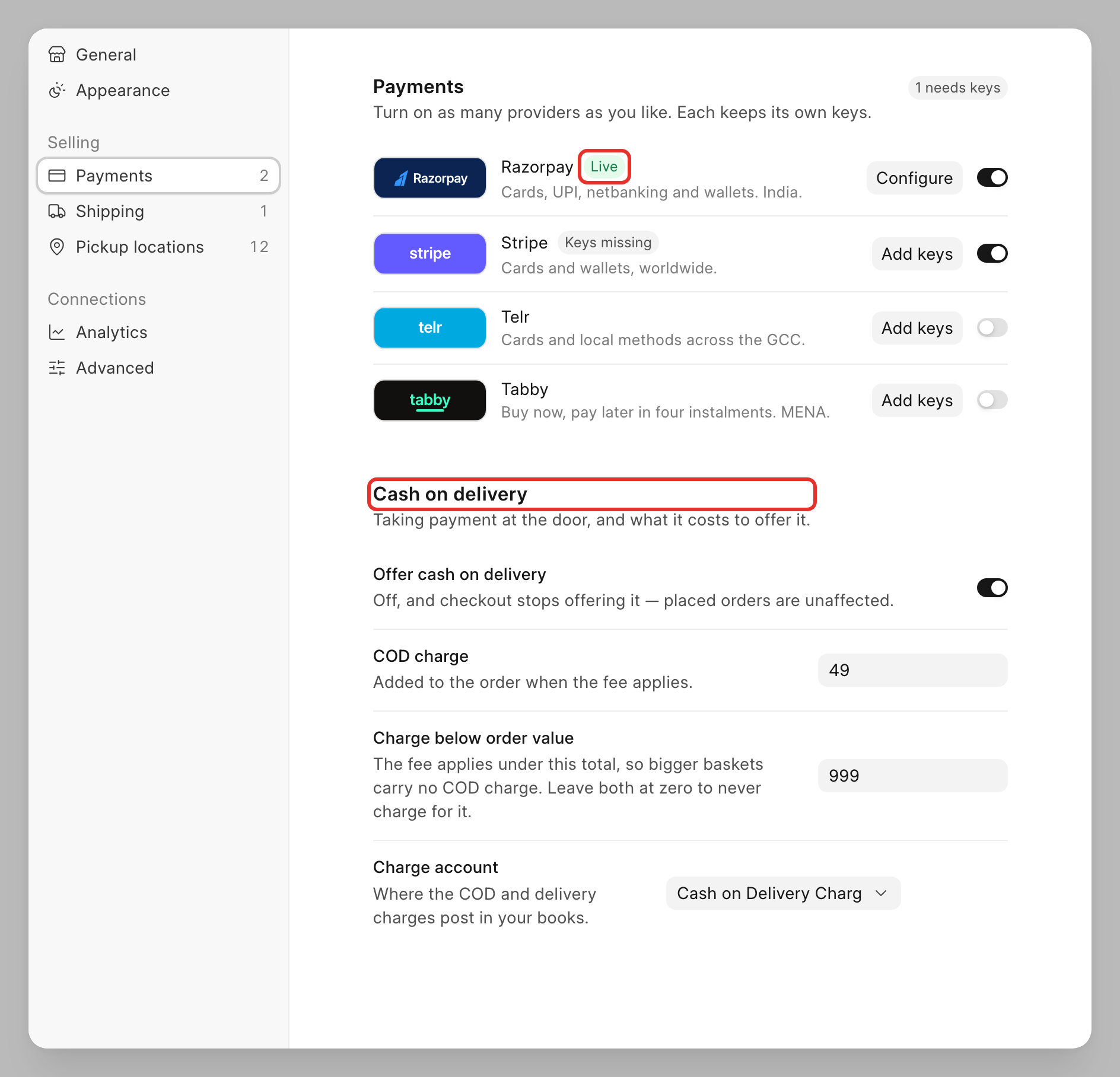
Open Settings, then go to Selling > Payments. You will land on the Payments panel: "Turn on as many providers as you like. Each keeps its own keys."
-
Each row (Razorpay, Stripe, Telr, Tabby) has a logo, a short blurb, an on/off switch, and a button that reads Configure or Add keys. Turn on the switch for the provider you want to offer, then click its Configure (or Add keys) button.
-
This opens the provider's own screen. Turn on Enabled so it is offered to customers at checkout. Under API Keys, fill in the fields the provider asks for, such as Key ID and Key Secret, then click Save.
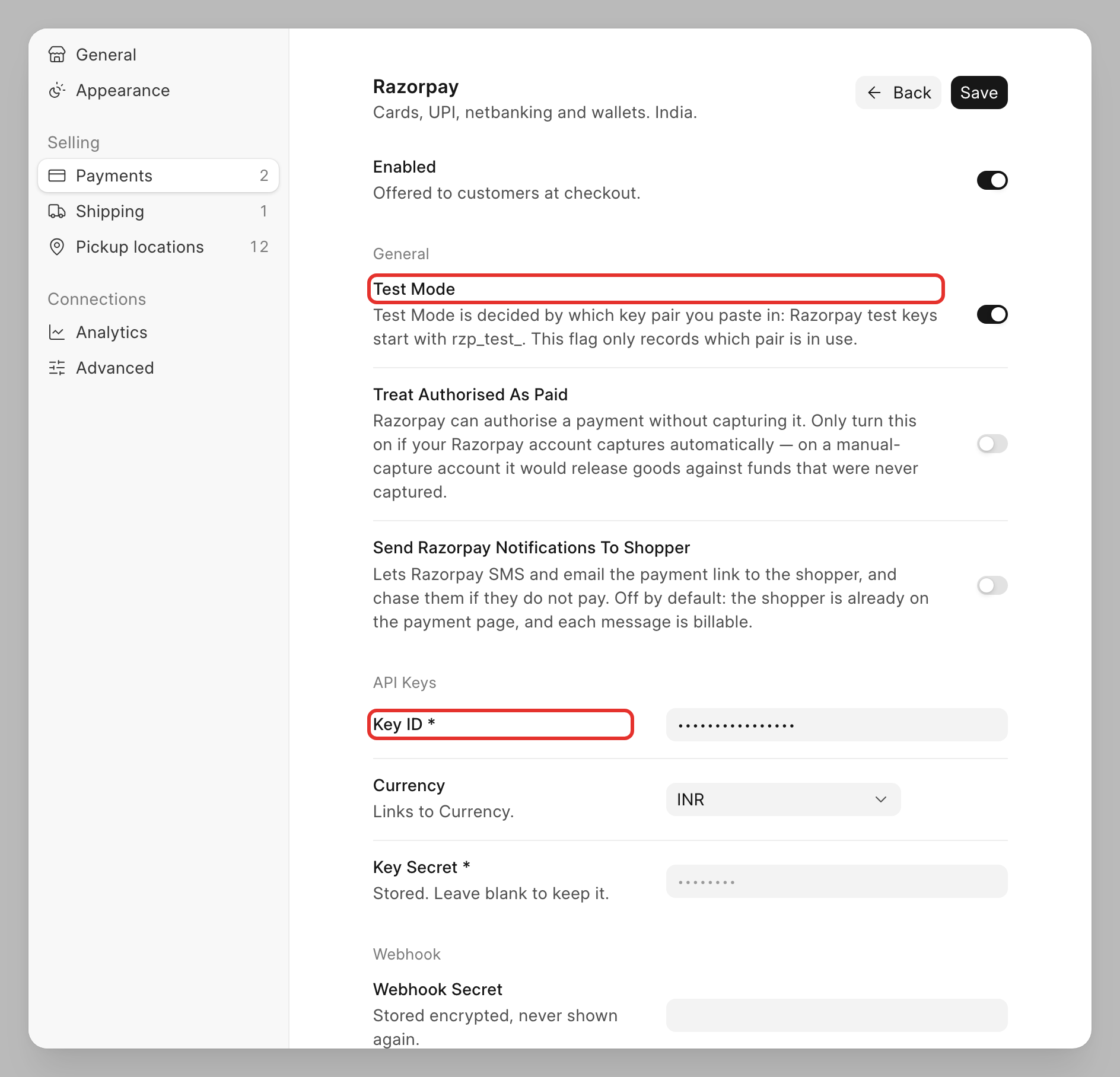
Under General, the Test Mode switch lets you try payments without moving real money before you go live.
-
Click Back to return to the Payments panel. Repeat steps 2 and 3 for any other provider you want to offer.
-
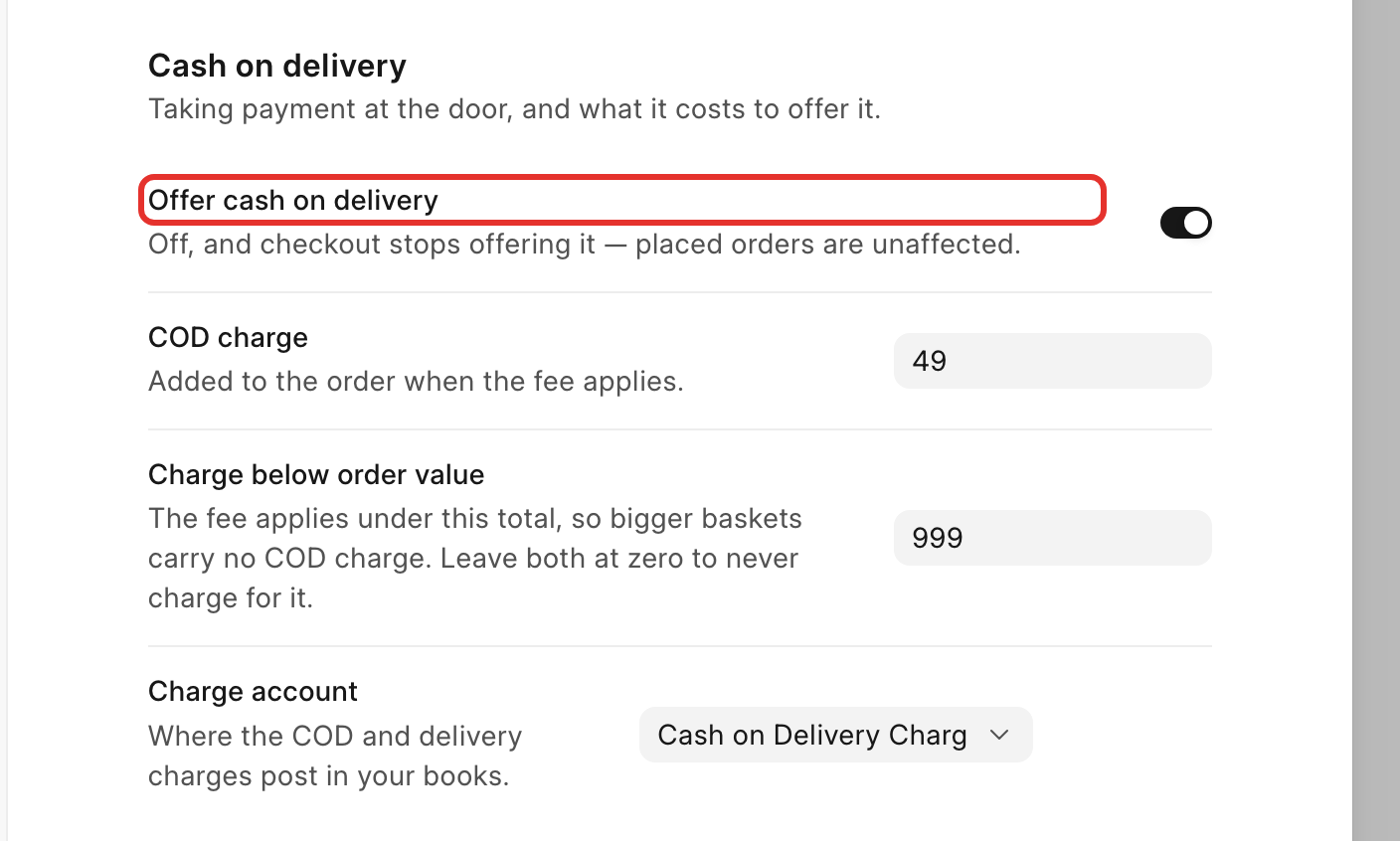
To offer cash on delivery, scroll to the Cash on delivery panel and turn on Offer cash on delivery.
-
Set COD charge: an amount added to the order when a customer pays cash on delivery, to cover the extra handling. Set Charge below order value: the order total under which that charge applies. For example, with a COD charge of 49 and a threshold of 999, an order of 799 gets a 49 cash-on-delivery charge, but an order of 1200 does not, since it is already above the threshold.
-
In Charge account, leave the account your administrator set up for tracking this charge.
Each cash on delivery field saves on its own as soon as you edit it; a "saved" message appears.
Check it worked
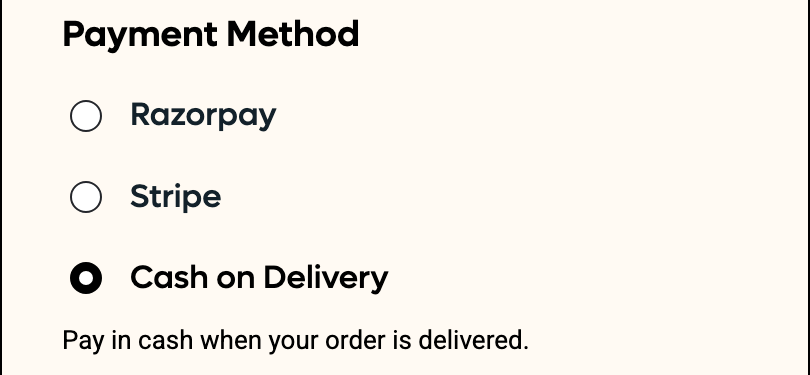
Back on the Payments panel, a connected provider shows a green Live badge and its Configure button. If it is turned on but still missing a required key, it shows an orange Keys missing badge instead. Every provider that is switched on appears at checkout under Payment Method, even one still showing Keys missing:
Try it yourself on Place a test order.