.webp)




Automatic discounts
Give money off without a code. The discount applies by itself when the cart meets its rules.
Meera wants bigger baskets during Diwali. Shoppers who spend more should save more, and anyone who buys two teas should get a pack of herbal tea bags free.
Before you start
Read Discounts overview.
Steps
Spend more, save more
-
Go to Discounts and click Create discount. Pick Amount off order.
-
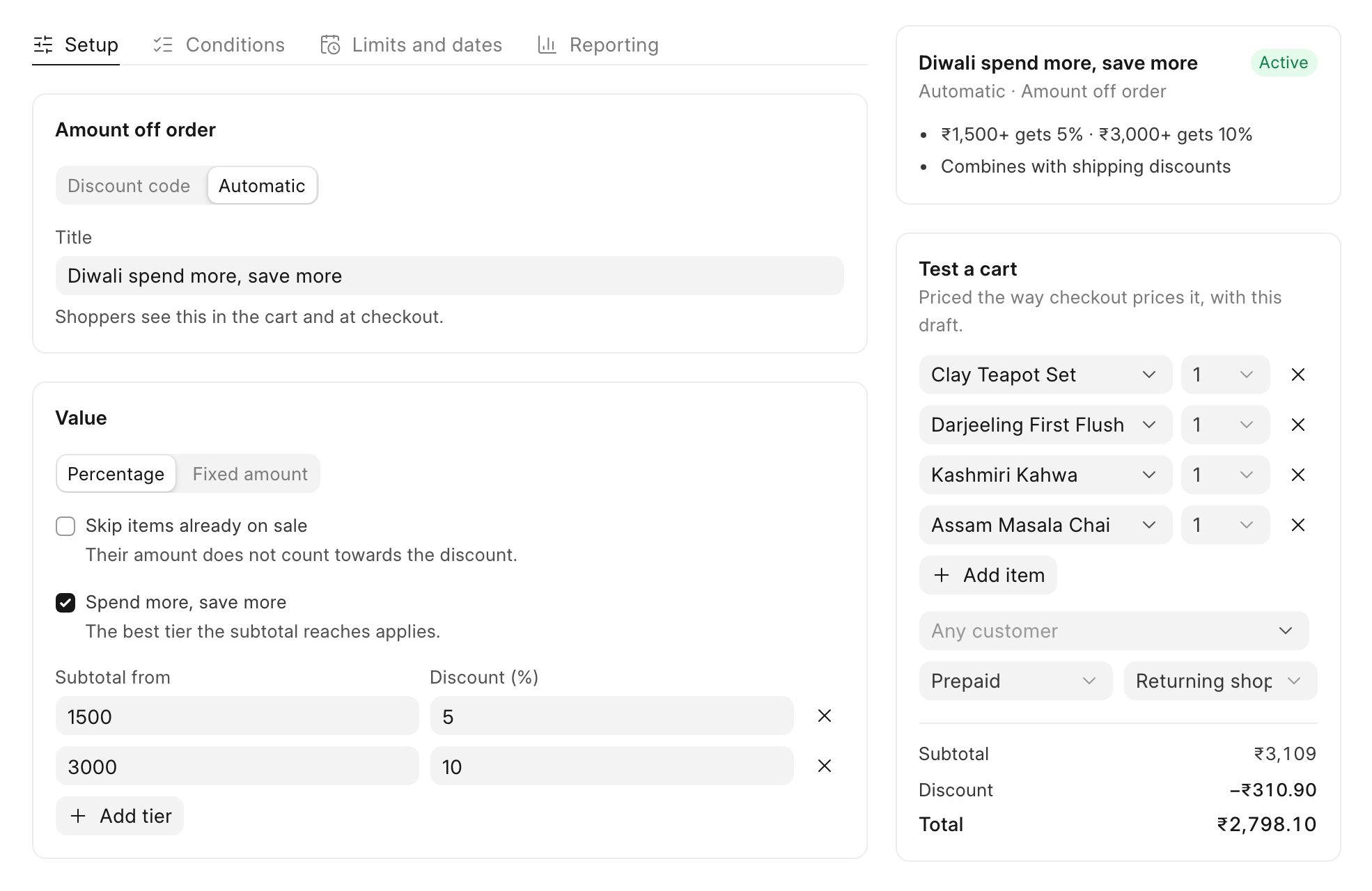
On the Setup tab, click Automatic. In Title, type the name shoppers will see, such as "Diwali spend more, save more".
-
Under Value, keep Percentage and tick Spend more, save more. Click Add tier to add a row.
-
Fill in each tier. In Subtotal from, type the spend. In Discount (%), type the percentage. Meera adds two tiers: 5% from ₹1,500 and 10% from ₹3,000.
"The best tier the subtotal reaches applies." A ₹3,109 cart gets 10%, not 5% plus 10%.
-
Click Save.
Buy X get Y
-
Click Create discount and pick Buy X get Y.
-
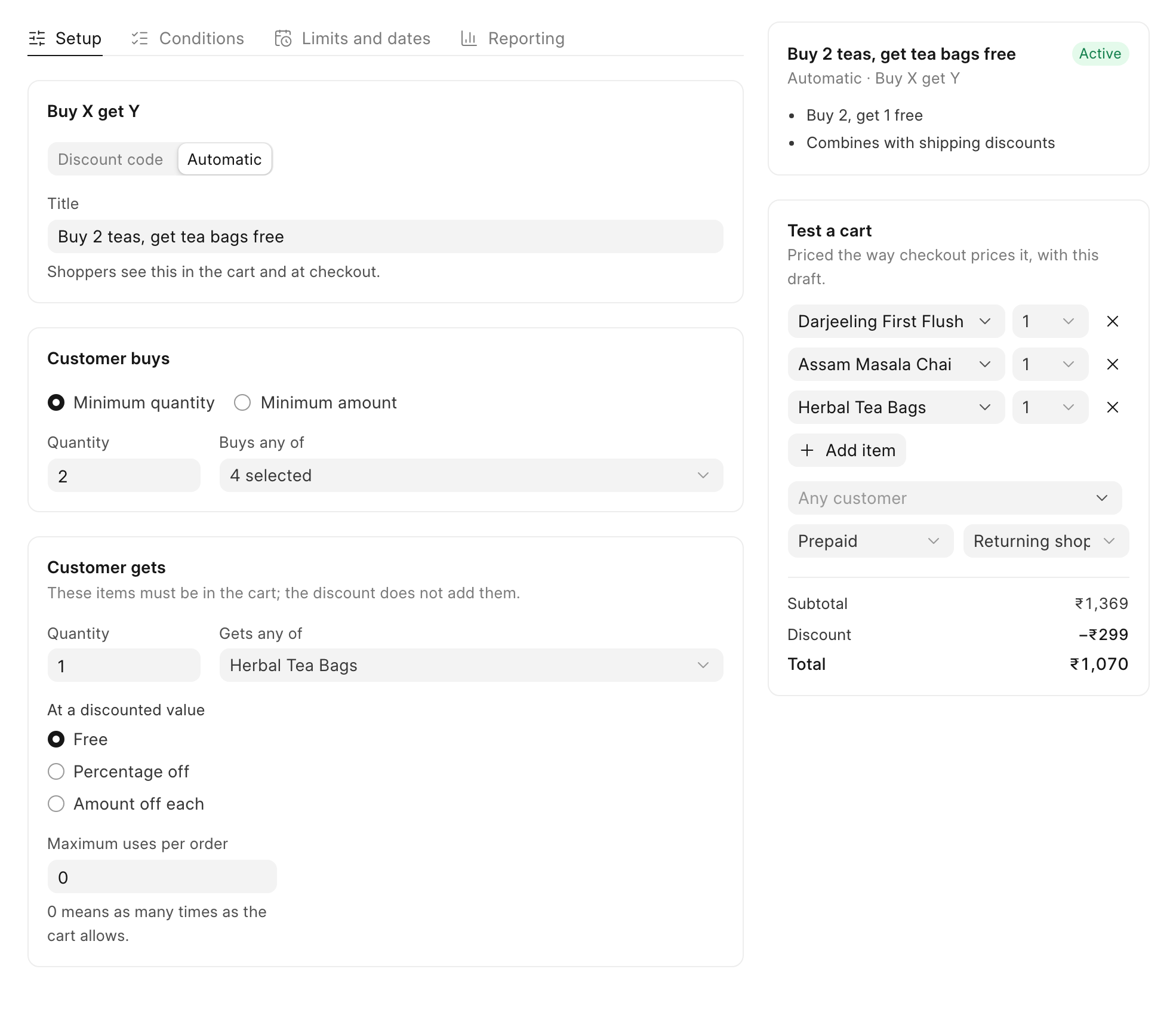
Click Automatic and type a Title, such as "Buy 2 teas, get tea bags free".
-
Under Customer buys, keep Minimum quantity and set Quantity to 2. In Buys any of, click "Search products" and tick each product that counts. Meera ticks her four loose teas.
-
Under Customer gets, set Quantity to 1. In Gets any of, tick the free product, "Herbal Tea Bags".
-
Under At a discounted value, keep Free. You can also choose Percentage off or Amount off each.
-
In Maximum uses per order, keep 0 to give the reward as many times as the cart allows. Type 1 to give it once per order.
-
Click Save.
Check it worked
Both discounts show Automatic in the Method column of the Discounts list.
As a shopper, add two teas and the herbal tea bags to the cart. The Order summary shows "Discount (Buy 2 teas, get tea bags free)" and the price of the tea bags comes off. No code is needed.