.webp)





Control who can use a discount, when, how often, and how much it can cost you.
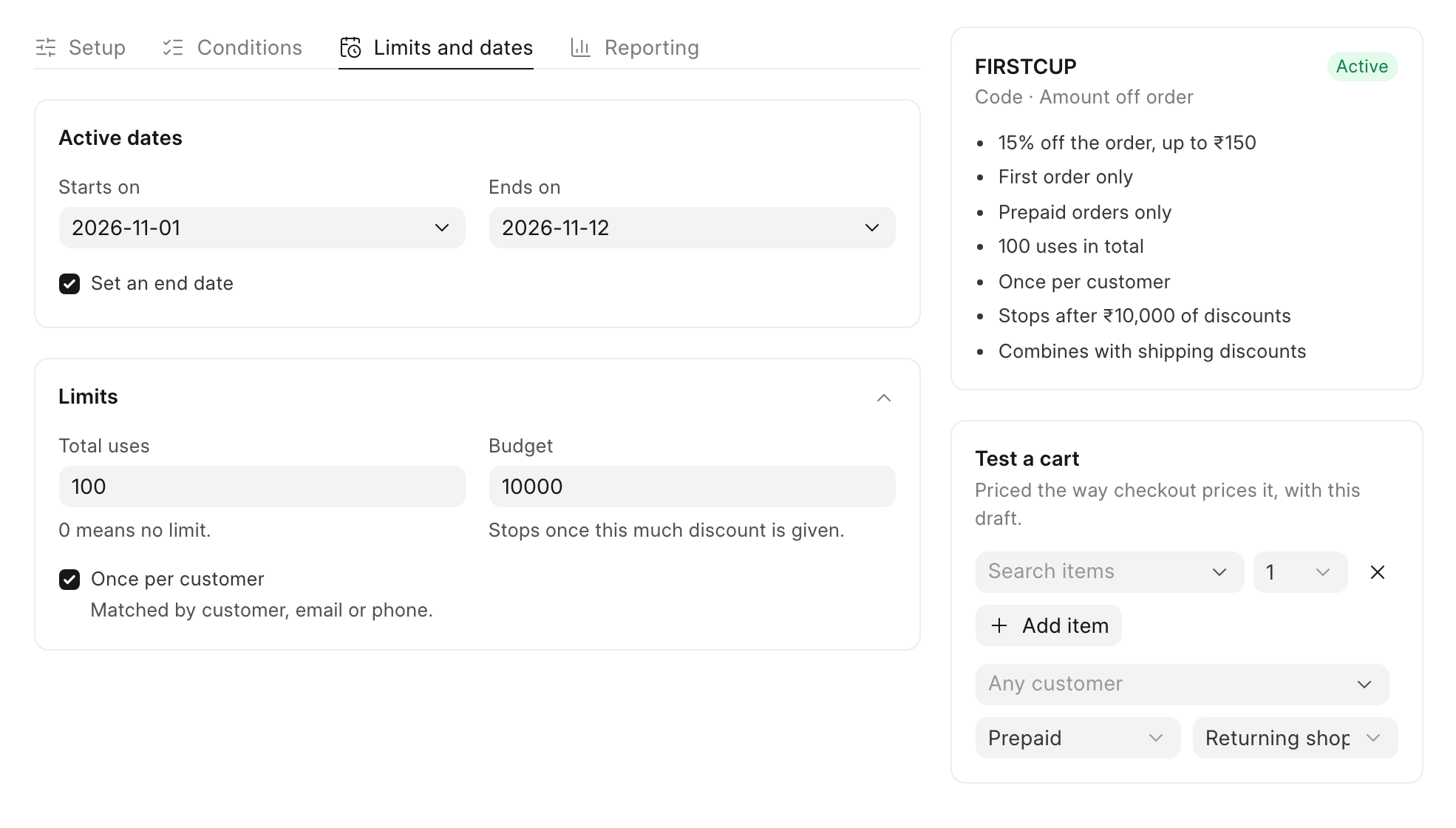
Meera wants to win new tea drinkers. She makes "FIRSTCUP", an Amount off order code: 15% off a first order, up to ₹150, paid online only. It runs from 1 to 12 November, for the first 100 orders, and stops once it has given ₹10,000 away.
Before you start
Create the discount first. See Create a discount code.
Steps
Who can use it
-
Open the discount and go to the Conditions tab. Click Who can use it.
-
Under Customers, pick one:
- Everyone, guests included
- First order only: "Checked by customer and email, so guests count too."
- Customer groups: pick the groups.
- Specific customers: "Signed-in customers only, up to 100."
-
In Payment, pick Any payment method, Prepaid only (not cash on delivery) or Cash on delivery only. Meera picks Prepaid only (not cash on delivery).
Which discounts stack
-
Still on Conditions, click Combinations. Tick the kinds this discount can stack with: Product discounts, Order discounts, Shipping discounts.
"Two discounts stack only when each allows the other." To stack DIWALI10 with the spend tiers, tick Order discounts on both.
Dates and limits
-
Open the Limits and dates tab. Under Active dates, set Starts on. Tick Set an end date and set Ends on.
-
Click Limits and fill in what you need:
- Total uses: the number of orders that can use it. "0 means no limit."
- Budget: "Stops once this much discount is given."
- Once per customer: "Matched by customer, email or phone."
-
Click Save. The panel on the right lists every rule in words, such as "First order only" and "Stops after ₹10,000 of discounts".
Unique single-use codes
Meera also wants to email each new newsletter subscriber their own code, so a code shared online cannot be reused.
-
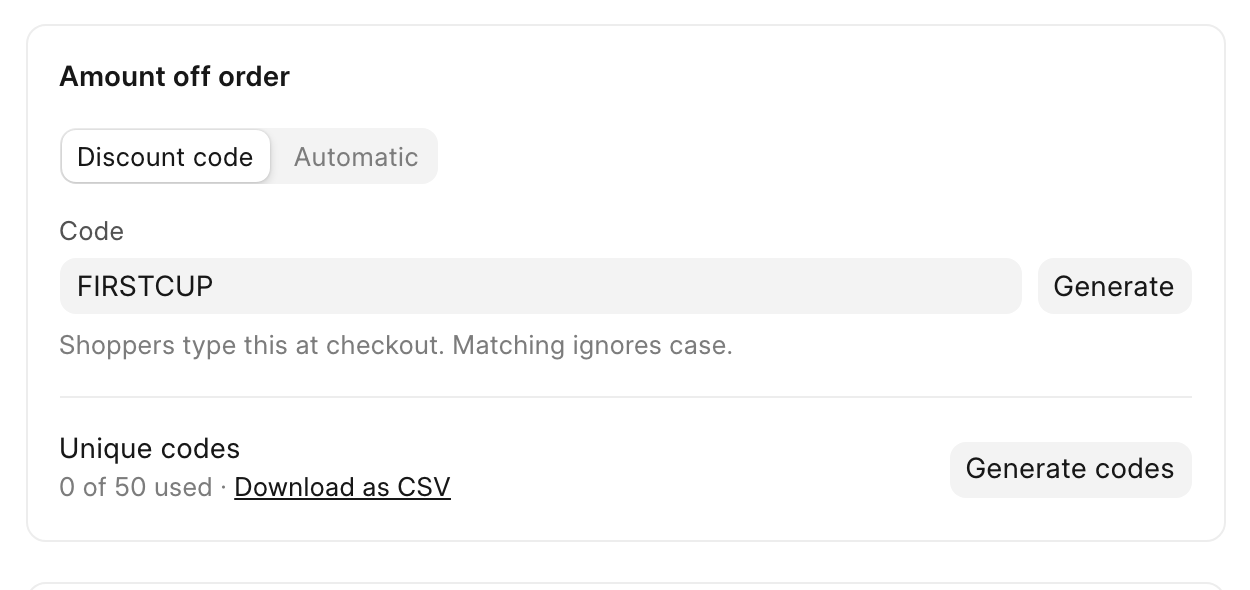
Save the discount first. Then, on the Setup tab, click Generate codes next to Unique codes.
-
In How many, type the number of codes. You can make "Up to 5,000 at a time." In Prefix, type a start for each code, such as "CHAI-". Each code is the prefix followed by 8 random letters and digits, such as "CHAI-NAU8BMHM". Click Generate.
-
Click Download as CSV to get the list of codes for your email tool. Each code works once and follows the same rules as the discount.
Check it worked
In the Discounts list, the Used column shows uses against the limit, such as "0 / 100". A discount moves to the Scheduled tab before its start date, to Used up when it reaches a limit, and to Expired after its end date.